UltraShip
Introduction
UltraCart offers more fulfillment integrations than any other shopping cart software. However there are situations when outsourcing your shipping department can be detrimental to your business. If you have thousands of sku’s that are easily confused by fulfillment center employees, if your international shipments mean complicated customs forms, or any other reason, you can use UltraShip to do fulfillment in-house.
UltraCart wrote a piece of software to make sure that you won’t lose precious time or money in getting your shipments to your customer quickly and efficiently. You can read more about it in this document.
Here are some of the bullet points:
- UltraCart proprietary software
- High Volume shipping software
- Windows-based
- Supports:
- USPS: Stamps.com, VIPParcel.com, EasyPost
- Fedex
- UPS
- DHL (Global)
- Integrated with a label printer, scale, and barcode scanner
- No need to exchange batch files via the browser
- Save money by shipping faster
UltraShip takes the effort out of your in-house shipping department. Instead of having to transfer information yourself, you need only launch your UltraShip software, click, print, package, and ship.
Hardware
The following equipment is recommended by UltraCart to make sure your system works smoothly, however you may try equipment that you currently own to cut down on costs.
Scanner (Zebra/Symbol)
Recommended Model:
URL: https://www.barcodesinc.com/symbol/part-ls2208-7azu0100zna.htm
Part # LS2208
Other Compatible Scanners
Any Zebra/Symbol scanner listed on the SDK compatibility chart should be OK to use:
https://www.zebra.com/us/en/support-downloads/software/developer-tools/scanner-sdk-for-windows.html
Scanner Configuration
After connecting the scanner, please see the owners manual to scan the OPOS/JPOS bar code. This will change the scanner mode into OPOS instead of keyboard wedge.
USB Scale
Onyx Products (Stamps.com) 70 lb USB scale
URL: https://onyxproducts.com/products/70lb-scale
Onyx Products (Stamps.com) 5 lb USB scale
URL: https://onyxproducts.com/products/5lb-scale
Serial Port Scale (Legacy)
Part #: 70-2453-4
Description: Fairbanks Scale Model 70-2453-4 (MUST BE THIS EXACT MODEL)
4x6 Label Printer
Any Zebra ZPL compatible printer listed below. Tested with Zebra GX420d. These can be obtained refurbished off Amazon for approximately $125.
- 2824Z Series
- 2844Z Series
- Pax4
- ZE500 Series
- 105SL
- 105SL Plus
- S4M (V53 Firmware)
- ZM Series (V53 Firmware)
- Xi3 Plus Series
- Xi4 Series, KR403
GC Series - GK Series
- GX Series
- GT800
- 2824 Plus Series
- ZD500 Series
- ZP Series
- ZT200 Series
- ZT400 Series
- ZT500 Series
- ZT600 Series
- HC100
- GK888 Series
- GT888
UltraShip is available with UltraCart plans medium or higher. The installation and any troubleshooting is done remotely by an UltraCart technician.
Requirements
UltraShip is installed by UC Professional Services due to the complexity of the interactions with scanners, printers, databases, and external software.
To setup an installation contact support@ultracart.com, make the Subject Line of message: "UltraShip Installation Request for Merchant XXXX" (Replace "XXXX" with your actual UltraCart Merchant ID.)
You will be required to provide a workstation with:
- Windows Vista or Windows 10
- 4GB of RAM or better
- Zebra Label printer
- Zebra/Symbol USB Bar-code Scanner (optional)
- Onyx Products (Stamps.com) USB Scale (optional)
Functionality
The UltraShip application is capable of the following functionality:
- Updating item bar-codes
- Verification only of order packing
- Cross dock shipping
- Single order packing
- Batch order packing
Pricing
UltraShip is included with UltraCart pricing plans medium and up.
Navigation
Login
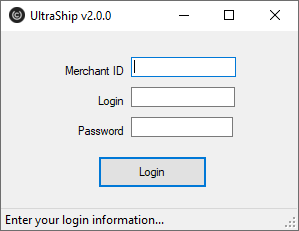
The login information used for UltraShip is the same as the UltraCart web interface. Below is an example of the login dialog that you will see after launching the application.
Main Menu
UltraShip has a simple main menu that presents each of the functions that exist within the application.
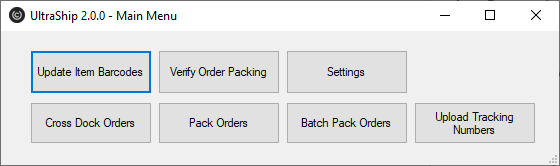
The names of each option on the main menu are fairly self explanatory.
Settings
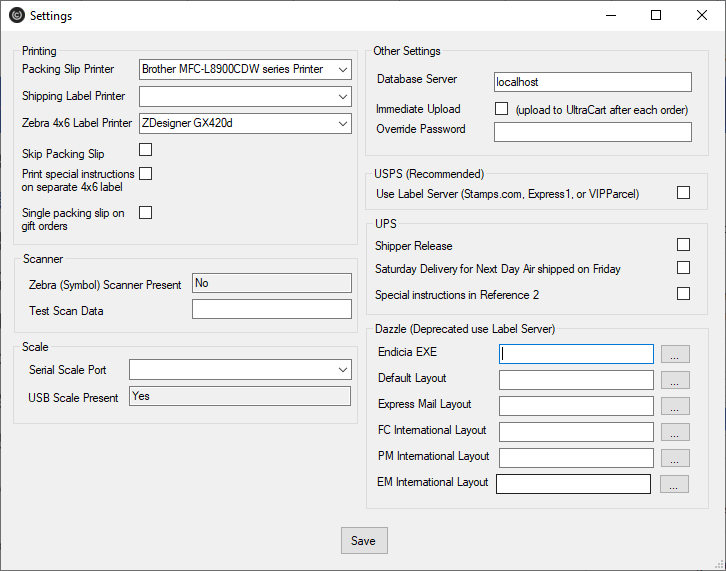
The settings menu controls all the different options that are available within the UltraShip application.
Dazzle
The Dazzle section allows for the configuration of where the Endicia Dazzle software is located on the machine and the different layout files used for each class of USPS postage. Layout files determine which printer Dazzle uses for the postage, the size, and layout of the label. Since most merchants use the Zebra printer, most of the layouts used with UltraShip start with the prefix of Zebra.
Printers
The printers section allows for the configuration of where each printer will route the document. No matter what carrier is used on an order, the packing slip will always go to the printer configured in this section. For Stamps.com, DHL, EasyPost and FedEx labels the Shipping Label and 4x6 Label printer will be used. Endicia Dazzle and UPS Worldship automatically use the printer that is configured within that piece of software.
Other Settings
Setting | Description |
|---|---|
Scale Com Port | If you are using the Fairbanks scale listed above, this is the COM port on the machine that the scale is connected to. |
Database Server | The name of the SQL Server database. Typically this is localhost or \\MACHINE_NAME\SQLExpress depending upon the type of install performed by UC Professional Services |
Skip Packing Slip | Some merchants print out the packing slips from the web interface and distribute them to different shipping stations. When that type of workflow is used a second copy of the packing slip is not necessary. Checking this box will suppress the printing of packing slips. |
Immediate Upload | Causes the tracking numbers to immediately upload to the central UltraCart system after the shipment is processed (recommended) |
Override Password | To print users from skipping the pack verification set with the bar-code scanner a password can be set. Once an override password is configured, the user of UltraShip has to scan each item or know the override password for a manual item selection. |
Print Special Instructions on a Separate 4x6 Label | For merchants that allow special instructions to be entered during the checkout this option will print them on a separate 4x6 label. This label is typically attached near the shipping label so that the person delivering the package will see the instructions. |
Single Packing Slip on Gift Orders | Typically UltraCart will print two packing slips for a gift order. One packing slip is traditionally mailed to the buyer in a regular envelope and the gift one (without price information) is placed in the box. Some merchants do not want the second copy to mail to the buyer and therefore suppress that printing. |
UPS
Each the of the flags in the UPS section control the type of data that is passed to UPS Worldship via the shared database.
USPS
When 'Use Label Server' is configured, UltraShip will automatically determine if the shipment uses an API based label server to generate the 4x6 label and print it to the configured Zebra label printer.
Update Item Bar-codes
After clicking the update item bar-codes option on the main menu a screen will appear with two tabs. The first tab will show you all the items within your store that do not have a bar-code on them.
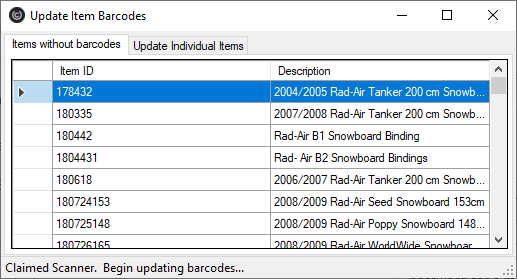
To update the bar code associated with an item click on the item and then scan the bar code. UltraShip will automatically send the bar-code information to UltraCart and remove the item from the list. To update the barcode for a specific item (even one with an existing barcode) click on the second tab of the window labeled "update individual items".
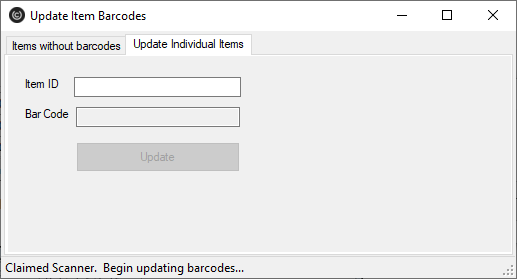
Simply enter the item ID, scan the barcode, and click update.
Verify Order Packing
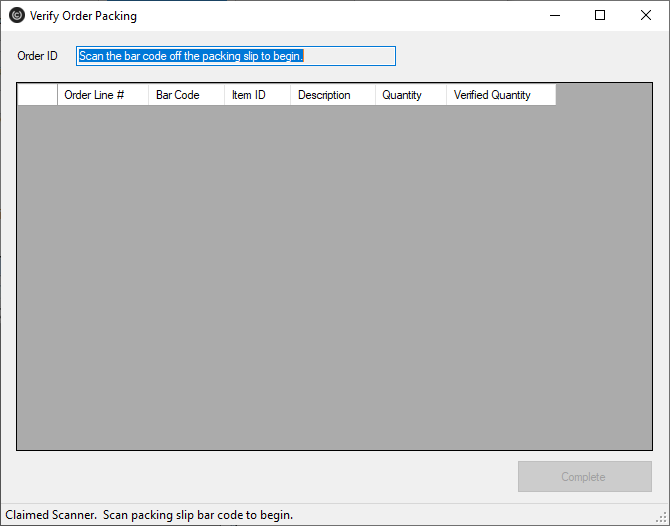
The Verify Order Packing option is simple to use. First scan the barcode on the packing slip print out. UltraShip will retrieve the order details and display the quantity for each item that should be scanned. As the user scans each item the quantities will update. Once everything is scanned the complete button will enable.
Cross Dock Orders
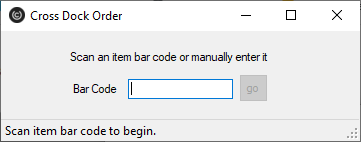
Cross docking is the process of bringing in items on one truck (typically from a distribution center) and packing them for shipment without first placing them on the shelf. To make cross docking easier, UltraShip will allow you to pickup the item, scan the bar code, and locate all the orders that have that item within it. Since most orders are for a single item, packing these orders first eliminates about 90% of the product from the cross dock area of the warehouse. The remaining orders with multiple products are easier to find. To start a cross dock order, click on "Cross Dock Orders" from the main menu. A screen will appear for you to enter or scan the bar code into as shown below.
After scanning a bar-code, UltraShip will show the matching orders as shown below.
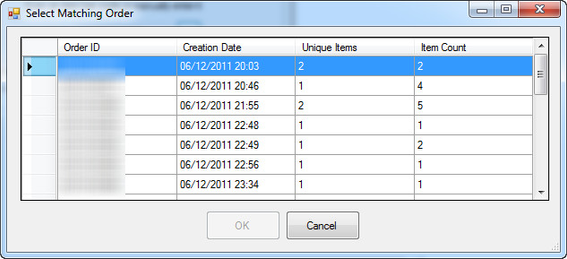
After selecting the order to pack, the next screen is the same as the Pack Orders screen discussed below.
Pack Orders
The pack orders section of UltraShip allows the user to pack individual orders one at a time. First a list of all the orders within the shipping department is displayed.
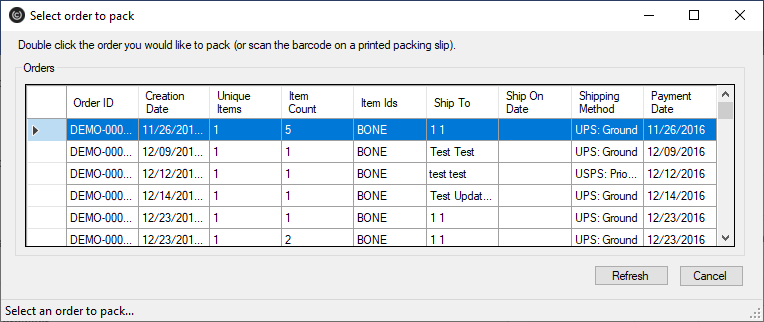
Click on the order ID to pack (or scan the barcode from a printed packing slip). The next screen is the actual pack order screen.
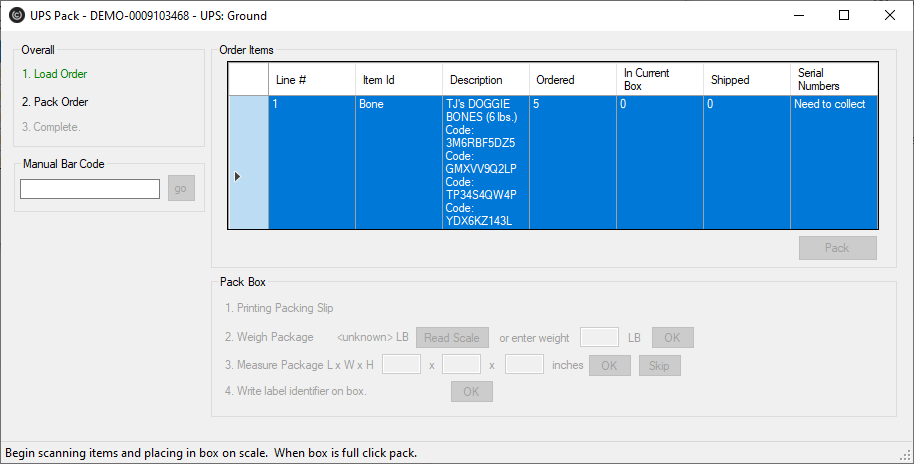
Packing an order involves a series of steps. The first operation is to select the items that are going into the box. You can either scan the barcode on the item which will increment the quantity or click on the row within the spreadsheet. Some merchant require a barcode to be scanned for every single item. In case the barcode will not scan, a manual barcode entry field is provided to allow the user to type in the barcode. Once all the items are counted off (or in the case of a multi-box shipment the pack button is clicked) then the pack box section enables. The pack box section first retrieves and prints the packing slip. Next you have to enter the weight of the package (or if you are using the Fairbanks Scale click the Read Scale button). Next you need to enter the dimensions of the shipment. Entering dimensions is typically only required if the shipment is large where it might qualify for dimensional weight. Finally the label will generate. In the case of UPS the label is generated asynchronously. UltraShip will provide the label identifier which is written on the box and then associated with the label. For all other labels they print synchronously and can be immediately affixed to the box.
After the order is packed the screen will close and return to the order selection list. If you have the 'upload tracking immediately' option the tracking number will upload after step four is completed.
Batch Pack Orders
The batch pack orders screen allows for rapid printing of packing slips and shipping labels for a range of orders. It is critical that the packing solution generated by UltraCart match the real world shipping scenario (including packaging material weight, etc.).
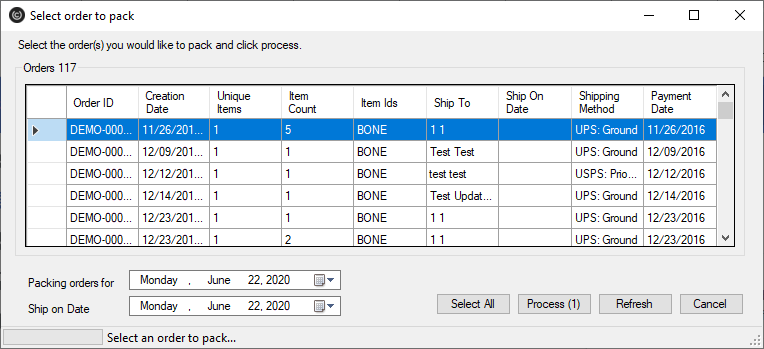
First select the orders to pack. The number on the "Process" button will reflect how many orders are selected. Once you click process, UltraShip will print packing slips, labels, and upload tracking information for each order until it is complete. It doesn't mind if the orders are for different carriers, but typically merchants will sort them by item id so they can quickly pack all the similar orders first. There are options to change the 'ship on date' or 'packing orders for date' to take care of orders that will ship in the future.
Special note regarding Batch Packing Orders
There is a 1,000 order record limit for the batch packing of order. So, if you are going over that limit you'll need to process some orders to get under the record limit or create a new shipping distribution center and move some of the order over into that DC in the meantime. (For example of you have a lot of back orders that are being held for a period of time before processing for shipment.)
Batch Processing Orders for Reprinting
If, for some reason, you need to reprocessing a batch of orders due to a problem with printing of the a batch of orders. You can do so by using the Batch Order Operations 'Move' operation.
If you process large batches, you may need to first generate the "Packed By' report in order to identify the orders that need to be moved back to Shipping department for reprocessing.
Troubleshooting
Problem: International shipments that are in the shipping department are not appearing in UltraShip when printing labels, why is that?
Answer: Make sure that the items are configured with customs information details which is located in the Customs sub-tab of the Shipping tab in the item editor.
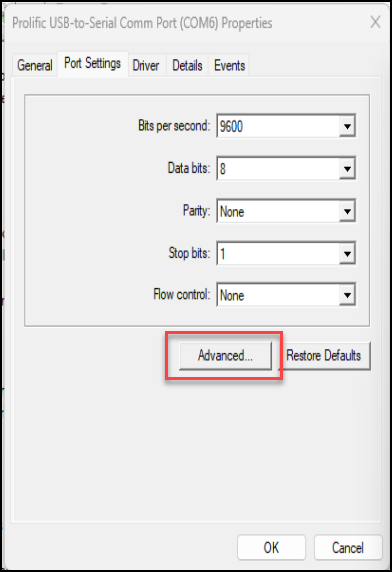
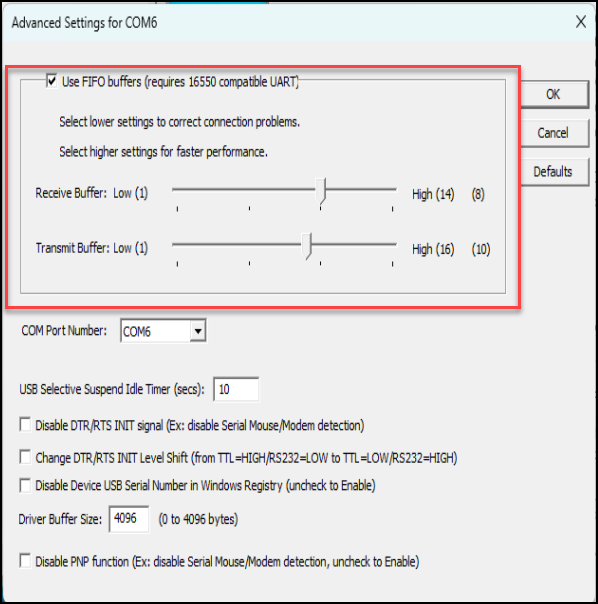
Problem: Fairbanks scale won't read and locks up.
Answer: Within the Windows Device Manager, adjust the advanced com port settings as shown below:
Change Log
| Version | Date | Changes |
|---|---|---|
| 2.0.0 | 06/22/2020 | Migration to USPS label server printing (Stamps.com, VIPParcel.com, Express1) as primary method of printing USPS postage. |