NetSuite
Oracle NetSuite is a cloud based Enterprise Resource Planning (ERP) suite that manages financials, inventory, order processing, and customer relationship management on a single platform.
UltraCart's NetSuite integration sends your orders into NetSuite as Sales Orders, creating or updating the customer record each order needs. It connects using NetSuite's SuiteTalk web services with Token Based Authentication (TBA), so no NetSuite user password is stored in UltraCart.
Orders flow in one direction, from UltraCart into NetSuite. Nothing is sent back from NetSuite into UltraCart, including order status, tracking numbers, and invoice information.
What the integration creates
For each order, the integration creates or updates the following records in NetSuite.
| Record | What happens |
|---|---|
| Customer | Located if one already exists, otherwise created |
| Customer address book | Missing billing and shipping addresses are added to the customer |
| Customer subsidiary | The order's subsidiary is added to the customer if not already assigned |
| Sales Order | Created with line items, addresses, shipping, and payment method |
The integration modifies existing NetSuite customer records when it needs to. If a customer is found but does not have the address used on the order, that address is added to their address book, and the same applies to subsidiary assignment. NetSuite requires both before it will accept the sales order.
The integration never deletes anything, and never modifies a sales order after it has been created.
Before you begin
Complete the following in NetSuite before configuring the integration.
- Enable the SOAP Web Services feature on your NetSuite account.
- Create a Token Based Authentication integration record and an access token, with permission to search and create Customers and Sales Orders.
- Confirm the subsidiary you want orders assigned to exists and is active.
- Confirm the location you want orders assigned to exists and is active.
- Confirm every product you sell exists in NetSuite as an active item.
- Confirm your payment method names match the payment types and credit card brands you accept, such as Visa, MasterCard, American Express, Discover, and PayPal.
Navigation
Main Menu → Configuration → (middle menu) Integrations → NetSuite
Configuration
Enter all seven fields on the NetSuite configuration screen, then click Save.
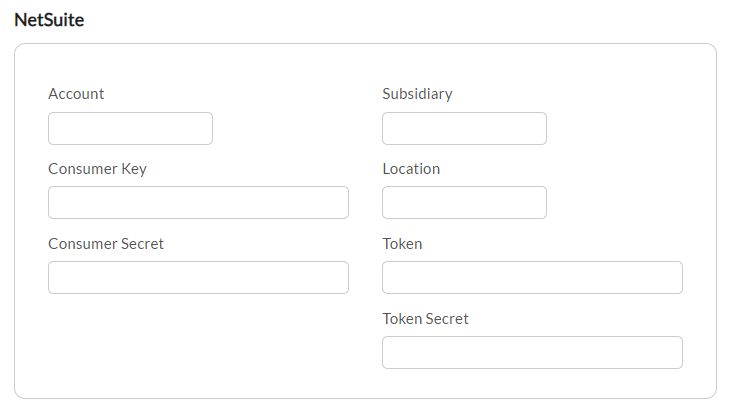
| Field | Where it comes from |
|---|---|
| Account | Your NetSuite account ID |
| Consumer Key | Your NetSuite TBA integration record |
| Consumer Secret | Your NetSuite TBA integration record |
| Token | Your NetSuite access token |
| Token Secret | Your NetSuite access token |
| Subsidiary | The name of the subsidiary orders should be assigned to |
| Location | The name of the location orders should be assigned to |
Enter Subsidiary and Location as names, exactly as they appear in NetSuite, not as internal IDs.
Item configuration
Set each UltraCart item's accounting code to the matching NetSuite Item ID, or keep your UltraCart item IDs identical to your NetSuite item IDs. The integration uses the accounting code when one is set, and falls back to the merchant item ID when it is not.
If any item on an order cannot be matched to an active NetSuite item, the entire order fails to import.
Shipping method configuration
Every other mapping in this integration is done by name. Shipping methods are the exception.
Set the accounting code on each UltraCart shipping method to the NetSuite shipping method's internal ID, meaning the numeric ID rather than the name. If it is not set, orders that require shipping will fail to import.
When orders are sent
Orders transmit to NetSuite after the payment phase, as soon as payment has been processed.
The sequence is:
- The order is placed and moves through your normal order flow.
- Payment is processed.
- A record is queued for transmission.
- A background service sends the order to NetSuite.
Orders rejected from Accounts Receivable before payment is processed are never sent. Once the integration is enabled, every other order is queued.
There is no backfill. Only orders reaching the payment phase after you save your credentials are sent to NetSuite. Orders placed before you enabled the integration are not imported, and there is currently no way to send them. Enter those into NetSuite manually if you need them there, and plan your go live date accordingly.
How your order data maps into NetSuite
Customers
The integration looks for an existing customer before creating a new one.
When the order has a company name on the billing address, it searches your NetSuite customers by company name and uses the first active match. When there is no company name, it searches by first and last name, then confirms the match if either the customer has an address with a matching postal code, or the customer's email address matches the order's billing email.
When no match is found, a new customer is created. Orders with a company name are created as a company customer, and orders without one are created as an individual person. First name, last name, email, daytime phone, and evening phone are carried over. Billing and shipping addresses are added to the customer's address book, and when both addresses are the same, a single address is created and marked as the default for billing and shipping.
Company name matching is a partial match. If you have customers with similar company names, such as "Acme" and "Acme Holdings", an order can attach to the wrong one. Distinct company names in NetSuite give the most reliable results.
Line items
Each item is matched against the Item ID in NetSuite, and the item must be active. Kit components are not sent individually, so only the parent kit item appears on the sales order.
Each line is sent with its quantity and its extended amount after any item level discount has been applied.
Supported NetSuite item types are inventory items, non inventory items (sale, resale, and purchase), service items, discount items, other charge items, subtotal items, payment items, and markup items.
Shipping and shipping cost
An order requires shipping unless its shipping weight is zero, or no shipping method was selected. When shipping is required, the shipping cost sent to NetSuite is the shipping and handling total minus any shipping discount, and the shipping method is set from that method's accounting code.
Payment methods
The payment method on the order is matched by name against your active NetSuite payment methods. For credit card orders the card brand is used, such as Visa, MasterCard, or American Express. If the card type is not available on the order, Visa is assumed.
When no matching payment method is found, the order still imports and is simply created without a payment method. This is the expected behavior for purchase orders, and results in the order being billed as an invoice rather than a cash sale.
Order status
The status of the sales order created in NetSuite depends on the order.
| Your order | NetSuite sales order status |
|---|---|
| Requires shipping | Pending Fulfillment |
| No shipping required, order total greater than zero | Pending Billing |
| No shipping required, order total of zero | Pending Fulfillment, with all lines closed |
The last row covers free and zero dollar orders. They are recorded in NetSuite for your records, but all lines are closed so they are not fulfilled or billed.
Dates, order numbers, and tax
The date on the NetSuite sales order is the date the order was imported into NetSuite, which can differ from the date the order was placed in UltraCart.
Your UltraCart order ID is stored in the Memo field of the NetSuite sales order. Use it to cross reference an order between the two systems.
Tax amounts are not sent to NetSuite. NetSuite calculates tax according to your own account configuration.
Duplicate protection
Before creating a sales order, the integration checks whether a transaction already exists in NetSuite with the UltraCart order ID in its Memo field. When one is found, the order is treated as already imported and nothing further is created, so an order can be safely resent without creating a duplicate.
Because a sales order is never updated after it is created, changes made to an order in UltraCart after it has been imported are not reflected in NetSuite, and resending the order does not update it.
Error Queue
Orders that fail to transmit are not lost. They stay queued and are retried automatically.
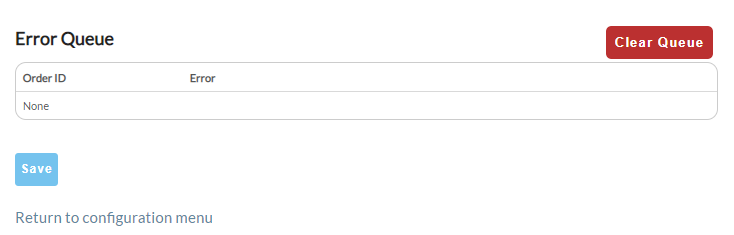
The Error Queue at the bottom of the NetSuite configuration screen lists each order that failed, showing the Order ID and the Error returned. It displays "None" when empty. Each row gives you the option to retry that order immediately rather than waiting for the next scheduled attempt, or to remove that individual record.
Automatic retries
Every queued order is retried every 24 hours, indefinitely, until it either succeeds or is removed from the queue.
Most problems are therefore self correcting. If an order failed because a product was missing in NetSuite, or a shipping method accounting code was not set, correct the underlying configuration and the order imports on its own within 24 hours with no further action. To avoid waiting, use the retry option on that row.
The Clear Queue button removes every record in the queue at once, and those orders are permanently abandoned. They are never sent to NetSuite and cannot be restored, so any order you clear has to be entered into NetSuite by hand. Use the per row controls when you only need to deal with a single order.
Common errors
| Message | What it means | How to fix it |
|---|---|---|
| Unable to locate subsidiary | The configured subsidiary name does not match an active NetSuite subsidiary | Check the spelling of the Subsidiary field and confirm the subsidiary is active in NetSuite |
| Location must be configured before import can occur | The Location field is blank | Enter the NetSuite location name on the NetSuite configuration screen |
| Unable to find location | The configured location name does not match an active NetSuite location | Check the spelling of the Location field and confirm the location is active in NetSuite |
| Unable to locate item [X] in NetSuite | An item on the order has no matching active NetSuite item | Create the item in NetSuite, activate it, or correct the item's accounting code in UltraCart so it matches the NetSuite Item ID |
| Shipping method must be configured with NetSuite internal id as the accounting code | The order's shipping method has no accounting code | Set the accounting code on that UltraCart shipping method to the NetSuite shipping method's internal ID |
| Unable to establish customer | The customer could not be found or created in NetSuite | Usually a NetSuite permission issue, or a required field enforced by your NetSuite configuration. Contact UltraCart Support |
| Customer record did not contain appropriate billing or shipping address record | The order's address could not be matched to or added to the customer's NetSuite address book | Often caused by NetSuite address validation rules or restricted permissions. Contact UltraCart Support |
| Unexpected internal error | An unhandled error occurred | Contact UltraCart Support. The details are captured automatically |
Errors returned directly by NetSuite, such as a required custom field, a closed accounting period, or an insufficient permission response, are passed through exactly as NetSuite worded them.
If orders suddenly stop importing
The most common causes, in order:
- An expired or revoked NetSuite access token. TBA tokens can be revoked in NetSuite, and permission changes to the integration role also break the connection.
- A new product not yet created in NetSuite, or created but left inactive.
- A new shipping method added in UltraCart without its accounting code set.
- A renamed subsidiary or location in NetSuite.
Because retries continue every 24 hours, correcting any of these clears the backlog automatically.
What is not included
The following are not currently part of this integration.
| Not supported | Detail |
|---|---|
| Backfill of historical orders | Only orders placed after the integration is enabled are sent |
| Order updates | Changes made in UltraCart after import are not pushed to NetSuite |
| Cancellations, refunds, and returns | Not sent to NetSuite |
| Coupons and order level discounts | Not sent as discount lines. Item level discounts are reflected in each line's amount |
| Tax | Not sent. NetSuite calculates its own |
| Inventory synchronization | Stock levels are not pulled from NetSuite into UltraCart |
| Fulfillment and shipment records | Item fulfillments are not created |
| Invoicing and payment application | Invoices and customer payments are not created |
| Status or tracking write back | Nothing flows from NetSuite back into UltraCart |
| Multiple currencies | Orders are imported in your primary currency |
| Custom fields | Custom NetSuite fields are not populated |
| Departments, classes, and sales reps | Not assigned. Only subsidiary and location are set |
Getting help
A detailed log is recorded for every import attempt, successful or not, and is retained for 90 days. It shows each step the integration took, including the subsidiary, location, customer, and items it resolved, along with the request sent to NetSuite and the response received.
When contacting UltraCart Support about a NetSuite import, include the UltraCart order ID, the date and time of the attempted import, and the error message shown in the Error Queue.
Related Documentation
- Oracle NetSuite SOAP Web Services - NetSuite's documentation for enabling and using SuiteTalk