Configuring Check Order Management
This guide explains how to configure UltraCart to automatically reject outstanding check orders after a specified period and how to enable reminder emails for customers with unfulfilled check orders.
Overview
UltraCart provides tools to manage check orders efficiently, helping prevent them from accumulating in your accounts receivable. You can set a timeframe after which unfulfilled check orders are automatically rejected. Additionally, you can configure the system to send reminder emails to customers, prompting them to complete their mail-in payments.
Steps
Step 1: Accessing Check Order Configuration
-
Log in to your UltraCart account.
-
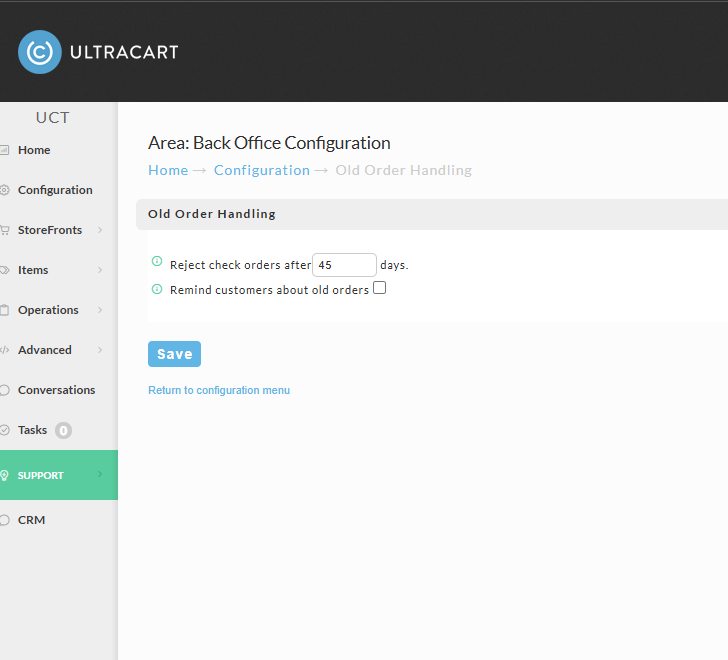
Navigate to Main Menu > Configuration > Order Management > Old Order Handling
note
Note: The exact path to this setting may vary slightly based on your UltraCart account configuration. Consult your UltraCart dashboard or contact support if you cannot locate it.
Note: The exact path to this setting may vary slightly based on your UltraCart account configuration. Consult your UltraCart dashboard or contact support if you cannot locate it.
Step 2: Setting the Check Order Rejection Period
-
Locate the setting labeled "Reject mail-in orders after X days".
-
In the provided input box, enter the desired number of days after which check orders should be automatically rejected if payment has not been received.
-
Typical Value: 45 days.
-
Maximum Suggested Value: 365 days.
-
Tip: Setting an appropriate rejection period helps keep your accounts receivable tidy. Even if a check arrives after rejection, the order can still be retrieved and processed manually.
Step 3: Enabling Check Order Reminders
-
Locate the checkbox option labeled "Remind customers about old orders."
-
Check this box to enable automatic reminder emails to customers for outstanding check orders.
note
Note: When enabled, UltraCart typically sends these reminders approximately two weeks after the order date, which often encourages customers to complete their payments.
Note: When enabled, UltraCart typically sends these reminders approximately two weeks after the order date, which often encourages customers to complete their payments.
Step 4: Saving Your Configuration
- After setting the rejection period and enabling reminders (if desired), click the Save button to apply your changes.
Expected Outcome
Once configured, UltraCart will automatically manage your check orders:
-
Any check order that remains unpaid beyond the specified rejection period will be automatically moved to a rejected status.
-
If enabled, customers with outstanding check orders will receive a reminder email after two weeks, encouraging them to send their payment.