Configuring Order Retention
This guide explains how to manage your order history retention settings in UltraCart, allowing you to control how long your customer data is stored for marketing and historical analysis.
Introduction
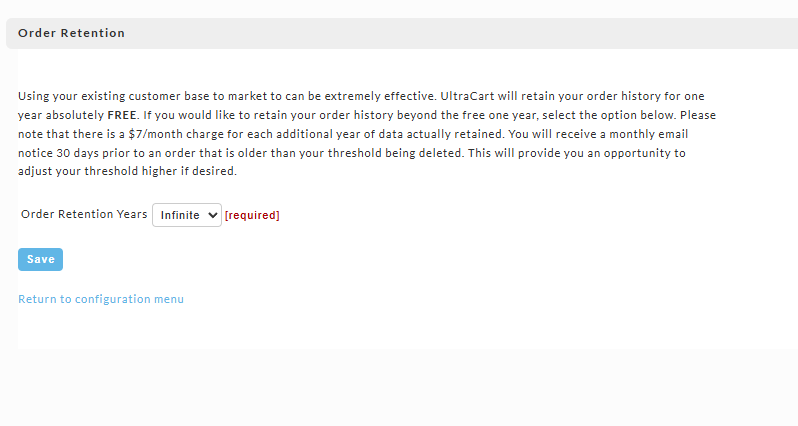
Retaining your customer's order history is a powerful tool for effective marketing, enabling you to engage with both new and long-standing customers through targeted email campaigns and re-engagement strategies. UltraCart automatically provides one year of order history retention absolutely free. This allows you to leverage historical purchasing data for marketing initiatives and to set up Auto-Order Sequences at any time.
By default, UltraCart retains your order history for an infinite number of years, as per our Terms and Conditions. Please note that retaining data beyond the initial free year incurs a charge of $7 per month for each additional year of data actually retained. You will receive a monthly email notification 30 days before any order older than your specified retention threshold is scheduled for deletion, giving you the opportunity to adjust your settings if needed.
Warning: If you choose to decrease your order retention period, be aware that once order information is deleted by the system, it cannot be recovered. To prevent data loss, it is highly recommended to perform regular Order downloads of any historical information that falls outside your new retention threshold. UltraCart processes deletions on a monthly calendar, meaning the oldest month's data is purged at the beginning of each new month. We advise performing downloads on a monthly or yearly basis to ensure you consistently save historical data before it is deleted.
Navigation
To access order retention settings, navigate to:
Configuration → Order Management → Order Retention
Steps to Configure Order Retention
-
Log in to your UltraCart account.
-
Navigate to
Configuration→Order Management→Order Retention. -
On the Order Retention page, locate the dropdown menu titled "Select the number of years you want your records retained at UltraCart."
-
From the dropdown menu, choose your desired number of years for order history retention.
-
Click the Save button to apply your changes.
About Auto Orders
Active (enabled) auto orders have a separate retention policy:
-
Active Auto Orders: These records are retained as long as the auto order remains active.
-
Disabled/Inactive Auto Orders: Once an auto order is disabled or becomes inactive, its record will be available for purging at the end of that month's billing period, subject to the general order retention settings.
About Rejected Orders
Rejected orders have a fixed retention period:
- Rejected orders are retained for 1 year only, regardless of your general order retention settings.
Performing Order Downloads
To download your order history for archiving, you can typically find this option within your UltraCart account under Order Management or Reports.
Tip: Regular downloads (e.g., monthly or annually) are crucial to prevent loss of valuable historical data if you decide to reduce your online retention period.
FAQ
Why am I billed for more years of order retention than I have used UltraCart?
Order retention is based on the order dates stored in your account, not on the date you opened the account. If historical orders were imported, for example from a previous platform during setup, they keep their original order dates. Those older dates count toward your retained years, so a new account with imported history can be billed for years before it opened.
Order Retention defaults to Infinite, so imported orders are kept, and billed, until you set a limit.
To find the imported orders:
- Go to
Home→Order Management→View All Orders. - Search by order ID. Imported orders may carry a distinguishing prefix or suffix in the order ID, such as
-YOUR_IMPORT_SUFFIX. The exact text depends on how the import was done. - Or search by a creation date range that ends the day before your account opened.
To stop paying for them:
- Export the orders you want to keep. You need the Bulk - Export and Bulk - Download user permissions, which you set under
Home→Configuration→Users. See the User Configuration screen. - Go to
Home→Configuration→Order Management→Order Retentionand lower Order Retention Years.
The setting is a rolling window. Choose a number of years that still covers the orders placed in your account since it opened, or those orders will also age out month by month.
Deleted orders cannot be recovered. You receive an email 30 days before orders are scheduled for deletion.
Conclusion
By configuring your order retention settings, you maintain control over your valuable customer data, balancing your marketing and reporting needs with data storage costs. Always remember to download historical data if you opt for shorter retention periods.
Next Steps
-
Explore UltraCart's Order Export options to set up automated data backups.
-
Review your current marketing strategies to leverage your retained customer history effectively.