About
Intuit's accounting solution QuickBooks Online (QBO) is an account solution that is aimed at small to medium sized merchants looking for a cloud based alternative to the desktop versions of the industry leading accounting software.
UltraCart offers an integration that will import the accounting data from UltraCart into your QuickBooks Online account.
Important Notes
Taxes
QuickBooks Online automatically calculates sales tax for the nexus that you configure in QBO. Unlike QuickBooks desktop where UltraBooks can manage all the tax related items, the integration with QBO relies completely on their tax tables to recalculate sales tax. We recommend that you match your QBO sales tax configuration nexus up with the UltraCart sales tax configuration and leverage UltraCart Managed Rates or the integration with Avalara or TaxJar.
Import Life-cycle
The import process into your QuickBooks Online takes place after an order has been completed (shipped) within UltraCart.
Navigation
Main Menu → Configuration → (middle menu) Back Office → QuickBooks Online (BETA)
Connecting UltraCart to QuickBooks Online
Step 1
The first step is to connect to your QuickBooks Online account:
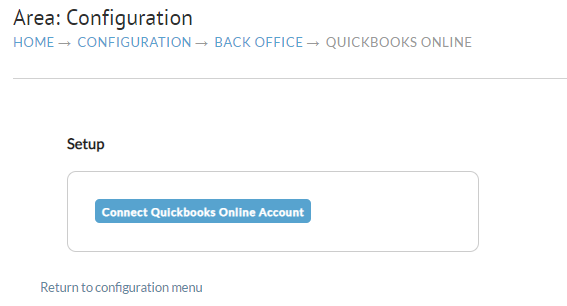
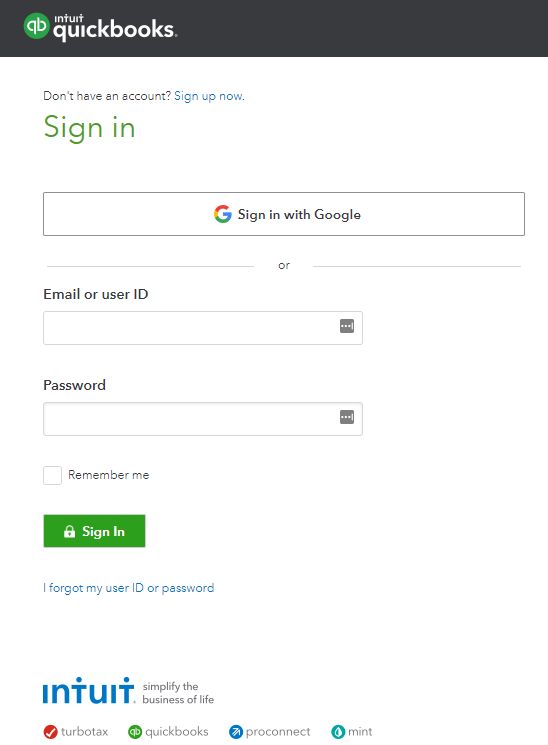
Click the "Connect Quickbooks Online Account" button then log into our QuickBooks Online account to complete the connection:
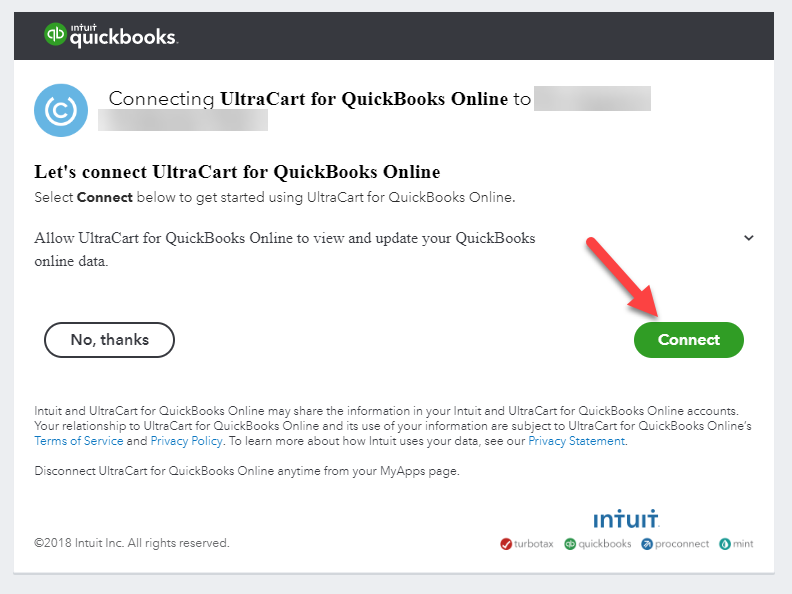
After completing your login, authorize the application as shown below.
Configuring QuickBooks Online Integration
After successfully connecting to your QBO account, you'll be presented with the full configuration for the integration. In the top section you can disconnect the integration or pause it as shown below.

You'll be presented with additional configuration sections:
-
Customers
-
Order Settings
-
Error Queue
Customers
In this section, you'll configure how customers are created and matched during the order import:
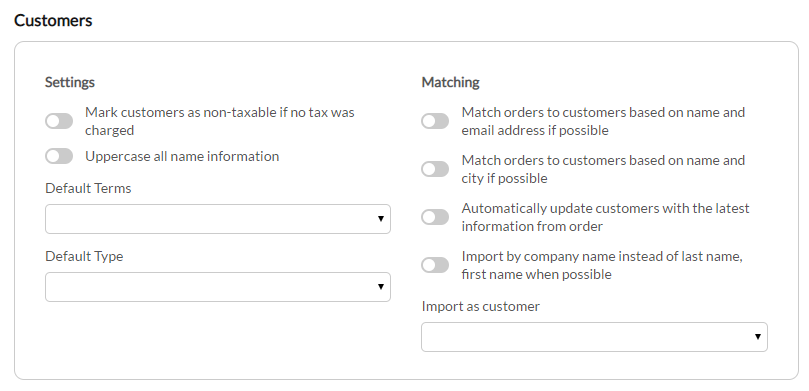
| **Field ** | Description |
|---|---|
| Mark customers as non-taxable if no tax was charged | Marks customers as non-taxable if no tax was charged on the order. |
| Uppercase all name information | Imports the customer name details in uppercase. |
| Match orders to customers based on name and email address if possible | Match orders to customers based on name and email address if possible |
| Match orders to customers based on name and city if possible | Match orders to customers based on name and city if possible. |
| Automatically update customers with the latest information from order | Automatically updates customers with the latest information from order |
| Import by company name instead of last name, first name when possible | Import by company name instead of last name, first name when possible |
| Default Terms | Set's the default terms that apply to purchase orders |
| Default Type | Set's the default purchase type. |
| Import as Customer | Select this only if you wish to have all the orders imported from UltraCart assigned to a single customer record. This is typically used to assigned the imported customers as "UltraCart Customers" or "Web Orders", or something similar. :::info PLEASE NOTE: Configuring the 'Import as Customer' will override the other "matching" settings. If you wish to have the customers imported to their own customer record, please leave this drop-down menu unconfigured (the blank option in the drop-down list is selected. ::: |
Orders
This section controls how Invoices and Sales Receipts are created in your QBO account. There is a setting for each type of account document and then a shared section that applies to both document types. By default orders that use the purchase order payment method will import as invoices and all other orders will import as sales receipts.
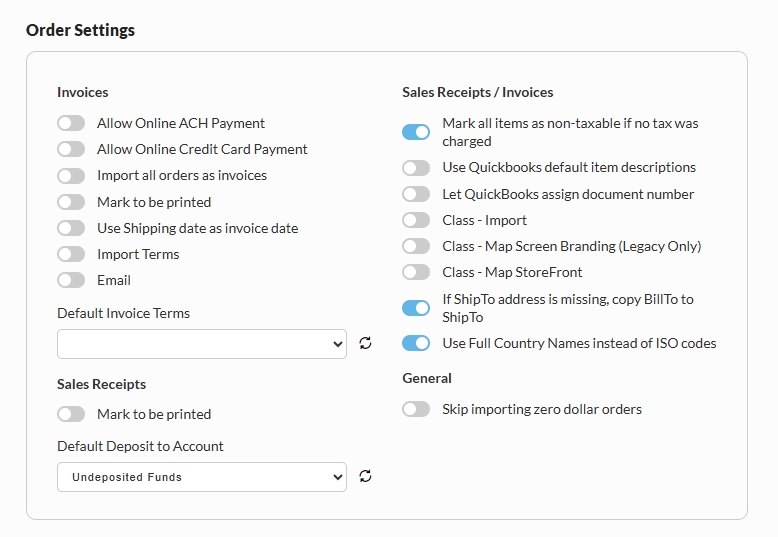
Order Settings Fields
| Field Name | Description |
|---|---|
| Allow Online ACH Payment | Enables importing ACH (bank transfer) payments from UltraCart orders into QuickBooks invoices. |
| Allow Online Credit Card Payment | Enables importing credit card payment details for invoices created in QuickBooks. |
| Import all orders as invoices | Forces all orders to be imported as invoices instead of sales receipts, regardless of payment status. |
| Mark to be printed (Invoices) | Flags imported invoices in QuickBooks as “To Be Printed.” |
| Use Shipping date as invoice date | Sets the invoice date in QuickBooks to match the shipment date instead of the order date. |
| Import Terms | Imports payment terms from UltraCart orders into QuickBooks invoices. |
| Email (Invoices) | Automatically emails the invoice to the customer from QuickBooks after import. |
| Default Invoice Terms | Specifies the default payment terms (e.g., Net 30) applied to invoices if not defined on the order. |
| Mark to be printed (Sales Receipts) | Flags sales receipts in QuickBooks as “To Be Printed.” |
| Default Deposit to Account | Defines which QuickBooks account (e.g., Undeposited Funds) receives deposited payments from sales receipts. |
| Mark all items as non-taxable if no tax was charged | Ensures items are marked non-taxable in QuickBooks if the UltraCart order did not include tax. |
| Use QuickBooks default item descriptions | Uses item descriptions configured in QuickBooks instead of those from UltraCart. |
| Let QuickBooks assign document number | Allows QuickBooks to auto-generate invoice or receipt numbers instead of using UltraCart order IDs. |
| Class - Import | Imports class values from UltraCart into QuickBooks for transaction classification. |
| Class - Map Screen Branding (Legacy Only) | Maps UltraCart screen branding to QuickBooks classes (legacy functionality). |
| Class - Map StoreFront | Maps UltraCart StoreFronts to QuickBooks classes for reporting segmentation. |
| If ShipTo address is missing, copy BillTo to ShipTo | Automatically copies billing address to shipping address if no shipping address exists. |
| Use Full Country Names instead of ISO codes | Sends full country names (e.g., “United States”) instead of ISO codes (e.g., “US”) to QuickBooks. |
| Skip importing zero dollar orders | Prevents orders with a total value of $0 from being imported into QuickBooks. |
| Purchase order number in Memo | Writes the order's purchase order number into the QuickBooks Memo field. Internal only, so it does not appear on the copy the customer receives. |
| Purchase order number in message on invoice | Writes the purchase order number into Message displayed on invoice, which prints on the copy the customer receives. |
Notes & Best Practices
Tip: Use “Let QuickBooks assign document number” if you want to maintain consistent numbering within QuickBooks accounting workflows.
Tip: Enable “Skip importing zero dollar orders” if you use promotions, samples, or test orders to keep your accounting records clean.
Warning: Changing tax-related settings (like non-taxable mapping) can impact financial reporting. Verify with your accounting team before enabling.
Purchase order number custom field requirements
The two settings above cover most merchants and need nothing configured in QuickBooks. A sales form custom field gives you a labelled field on the invoice instead, but every requirement below fails quietly, producing a successful import with no purchase order on the invoice and no error to explain it.
-
Subscription level. Sales form custom fields need Essentials, Plus, or Advanced. Simple Start cannot create them.
-
Three slots, each with its own switch. QuickBooks Online allows three custom fields on sales forms. A slot can carry a name and still be switched off, in which case nothing displays. Check the switch, not just the name.
-
All Sales forms. Set the field to apply to all sales forms rather than to a single invoice template. A field limited to one template is invisible to the integration.
-
Print on form. Turn this on for the field to appear on the copy the customer receives.
-
The name has to match. UltraCart looks for
Purchase Order,PO Number,PO #,P.O. Number, orCustomer PO. Spacing, punctuation, and capitalization do not matter.
To check the field: Gear icon → Custom fields, then switch on Include inactive to see every field that exists.
Enhanced custom fields, the newer style available on Advanced, are not supported. Intuit exposes those through a separate API that the integration does not call, so use one of the memo settings instead.
The integration log records which of these applied on every order import, including the custom fields defined in your QuickBooks company and whether one of them matched.
Additional Configuration
Configuring Payment Methods
If you print QuickBooks deposit slips for recording bank deposits, correctly identifying the payment method is imperative.
To add payment methods to your Quickbooks Online configuration, log into your Quickbooks Online account, then:
-
Click the **Gear Icon **
-
Click All Lists
-
Select Payment Methods
-
Add, Edit or Delete by clicking the payment method name
-
Make sure to check mark the credit card box if you are adding a credit card (this is how you will add customer’s credit card details)
*You may want to add each separate credit card type (Visa, MasterCard, Discover, American Express, JCB, Diners Club), otherwise create a 'catch all' payment type for "Credit Card"
Next, log into UltraCart and navigate to the Credit And Debit Card settings:
Main Menu > Configuration > (middle menu) Checkout > Payments > ("Credit and Debit Cards" section) Settings
-
Enter the payment methods as they appear in QuickBooks Online, into the "Payment method Quickbooks code" field:
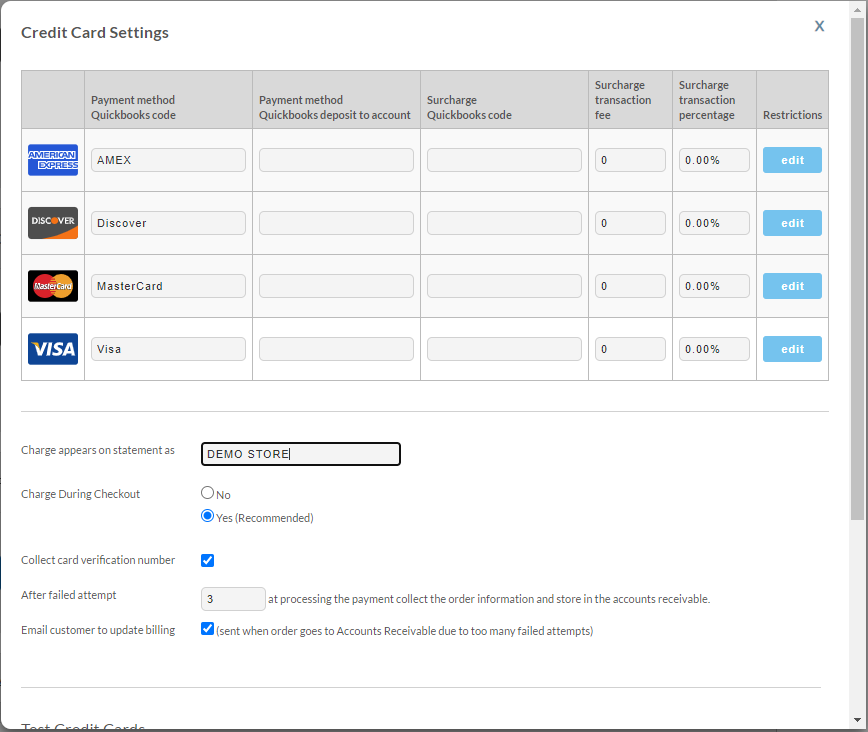
-
Click the 'x' button to exit out of the pop up window.
-
Click the save button on the payments configuration field.
Item Configuration
When configuring items within QBO, make sure that the UltraCart ItemID is the same as either the QuickBooks Item Name or Item SKU, otherwise the item will not be recognized and the import will fail.
Quickbooks Codes do not apply to QBO integration
If you are migrating to QBO from the QB desktop and have previously been using UltraBooks with QB desktop application, please note that the "QuickBooks Codes" you previously configured are not valid with the QBO integration. If you were using the QuickBooks codes for item mapping, you'll need to configure the Ultracart ItemID in either the QBO Item Name or QBO Item SKU. (NOT the UltraCart SKU field, but the QuickBooks Online SKU field.)
Error Queue
The last section is the Error Queue.

Example Errors
Error Code: 6000
Failed to re-process order. Add Failed Error: Failed to Add Customer [Accounts Payable]. Error: ERROR CODE:6000, ERROR MESSAGE:A business validation error has occurred while processing your request, ERROR DETAIL:Business Validation Error: Tax Exemption Reason should be specified incase customer is marked as not taxable, MORE ERROR DETAIL:BusinessValidationError
Solution:
To resolve this issue, the Tax exempt customer needs to have tax exempt reason configured in the tax tab of the customer profile editor:
Operations → Customer Profiles → Manage → Add/Edit profile → Taxes
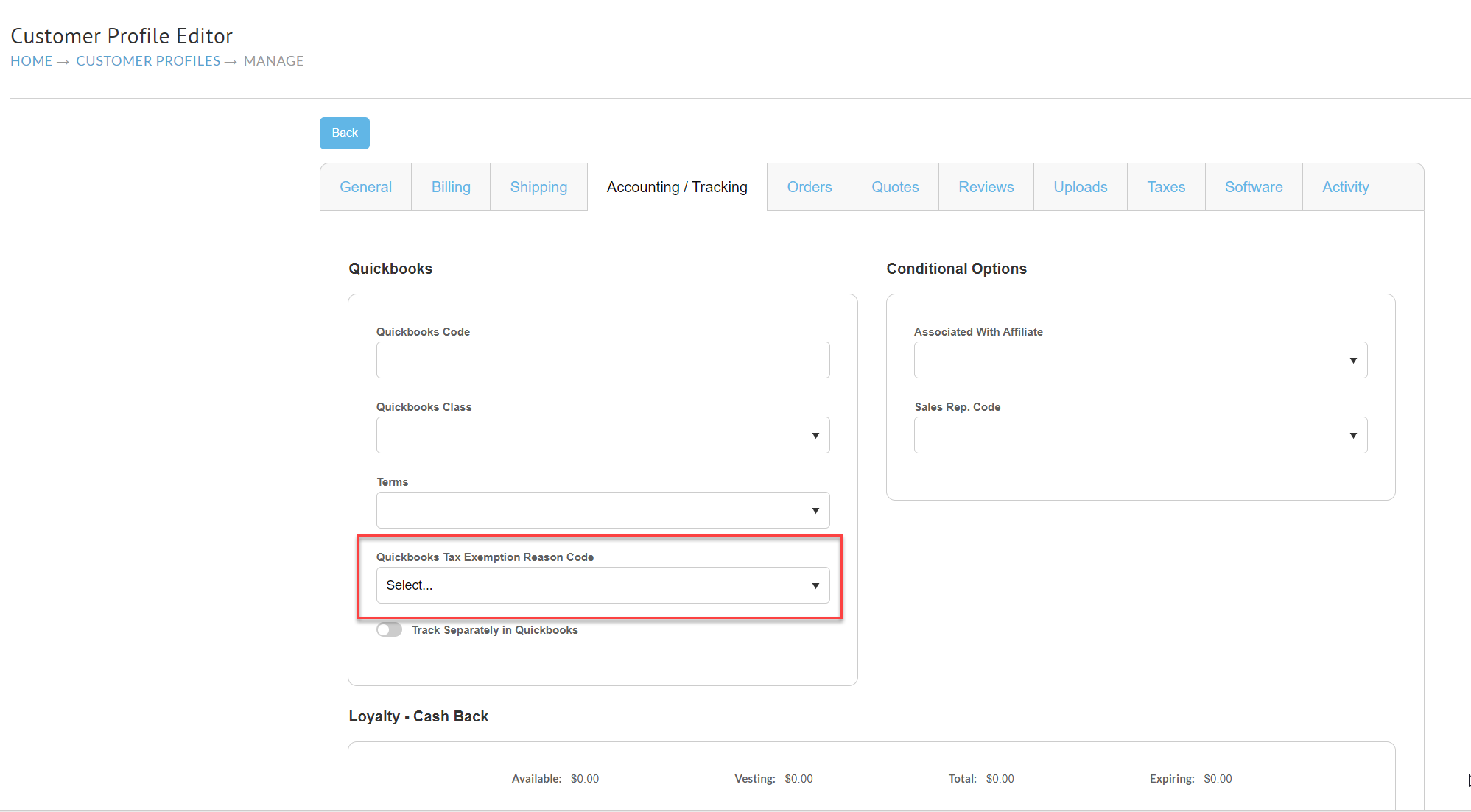
Requeue Orders for Import into Quickbooks Online
If you have orders that need to be manually queue for import, navigate to the 'Batch Order Operations' :
Main Menu > Operations > Order Management > ('Tools' section) Batch Order Operations
Enter the OrderID's into the top section, then click the button titled 'Queue' orders for QuickBooks Online
Frequently Asked Questions
Q: Why am I seeing the error: “Administrator permissions are required to connect this application”?
A: This error occurs because QuickBooks Online only allows users with Company Admin or Primary Admin roles to authorize third-party integrations such as UltraCart.
If your user account does not have sufficient permissions, the connection attempt will fail during the OAuth authorization step.
How do I verify my user role in QuickBooks Online?
-
Log in to QuickBooks Online.
-
Click the Gear icon (top right).
-
Navigate to:
-
Account and Settings, or
-
Manage Users
-
-
Locate your user profile and check your assigned role.
What should I do if I am not an admin?
If you do not have admin privileges:
-
Contact your company’s Primary Admin or Company Admin.
-
Ask them to either:
-
Complete the integration themselves, or
-
Temporarily grant you admin access to authorize the connection.
-
How do I complete the connection after getting admin access?
Once logged in with admin permissions:
-
In UltraCart, navigate to:
Configuration → Integrations → Accounting (section) → QuickBooks Online -
Select the QuickBooks Online integration.
-
Click Connect or Re-authorize.
-
Follow the QuickBooks OAuth prompts.
-
Approve the application access request.
After successful authorization, UltraCart will connect and begin syncing sales data.
What if I am already an admin but still see this error?
If you already have admin permissions and still encounter the error:
-
Confirm that:
-
You are logged into the correct QuickBooks company.
-
Your session has not expired.
-
-
Log out and log back into QuickBooks Online, then retry.
-
Clear browser cache or try an incognito window.
If the issue persists, contact UltraCart support with:
-
A screenshot of your QuickBooks user role page
-
Confirmation of the company file you are attempting to connect
Can I have the purchase order number import with the QuickBooks Online integration?
Yes, but one more setting has to be turned on before it appears anywhere you can see it.
UltraCart always sends the purchase order number on an invoice, in the QuickBooks PONumber field. The integration log shows it in the transmitted payload:
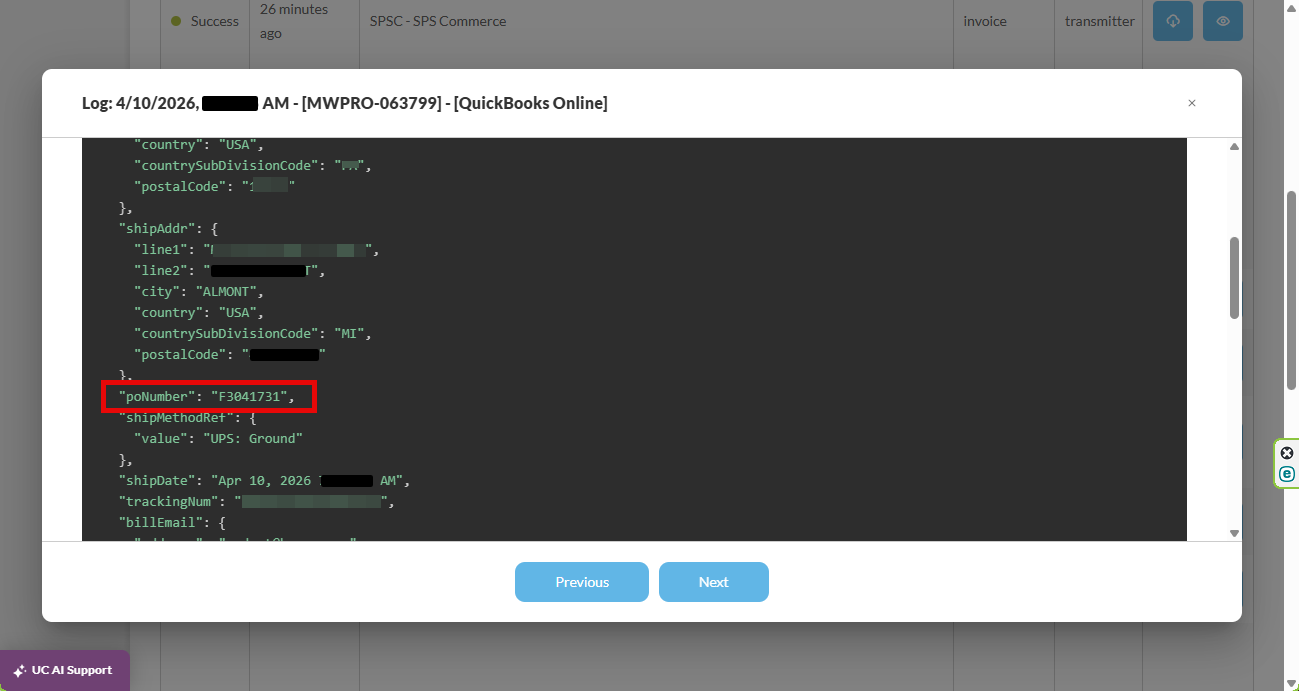
Seeing it there does not mean it reaches the invoice. QuickBooks Online has no purchase order field on an invoice the way QuickBooks Desktop does. It accepts and stores PONumber, then displays it nowhere. Invoices carried over from QuickBooks Desktop keep the field, which is why the value is real even though an invoice created in QuickBooks Online never shows it.
Sales receipts have no purchase order field at all, so an order that imports as a sales receipt has no PONumber to begin with.
There are two ways to put the number somewhere visible.
Use a sales form custom field. Create a custom field in QuickBooks Online named Purchase Order, PO Number, PO #, P.O. Number, or Customer PO. UltraCart finds it by name and attaches the order's purchase order number to it. Check the custom field requirements listed under Order Settings Fields first, because most of them fail quietly rather than reporting an error.
Write it to a memo field. Turn on Purchase order number in Memo or Purchase order number in message on invoice under Order Settings. Neither one needs anything set up in QuickBooks, both work on every QuickBooks Online subscription level, and the memo route is the only option for orders that import as sales receipts.
Important Note: QuickBooks enforces strict OAuth authorization rules. This requirement is controlled by Intuit and cannot be bypassed within UltraCart.
Tip: Always perform integrations using an admin account initially to avoid authorization issues.
Related Documentation
Import Products into QuickBooks Online via Spreadsheet:
https://quickbooks.intuit.com/learn-support/en-us/manage-lists/import-products-and-services-from-excel/00/185613
Make a copy of your QuickBooks Online Company file:
https://quickbooks.intuit.com/learn-support/en-us/back-up-data/make-a-copy-of-your-quickbooks-online-advanced-company-formally/00/461773
Backup and Restore QuickBooks Online Company data:
https://quickbooks.intuit.com/learn-support/en-us/back-up-data/back-up-and-restore-your-quickbooks-online-advanced-company/00/482774
Intuit QuickBooks Online Support Portal:
https://quickbooks.intuit.com/learn-support/en-us/
QuickBooks Support: Sales Tax Configuration:
https://quickbooks.intuit.com/learn-support/en-us/help-article/sales-taxes/set-use-automated-sales-tax-quickbooks-online/L4Lx8eL7V_US_en_US
Quickbooks Online Search:
https://quickbooks.intuit.com/learn-support/en-us