Faire Channel Partner Integration
Overview
Faire is a wholesale marketplace where independent retailers buy from brands. The UltraCart Faire integration imports the orders retailers place with you on Faire, so you fulfill them alongside the rest of your orders. It can also keep Faire up to date in the other direction:
- Orders: new Faire orders import into UltraCart and are accepted on Faire for you once the UltraCart order exists.
- Shipments: when you ship an imported order, UltraCart sends the carrier and tracking number back to Faire.
- Inventory: stock levels for the items you map are pushed up to Faire, so retailers see real availability.
This integration does not create or edit product listings. You manage your catalog on Faire, then map each Faire variant to the UltraCart item that fulfills it.
Prerequisites
- A Faire brand account with permission to manage its integrations.
- Your UltraCart items created, with item ids you can match to your Faire SKUs. Matching SKUs to item ids makes mapping much faster.
- At least one UltraCart shipping method whose name contains UPS, FedEx, or USPS, if you want tracking sent back to Faire.
Navigation
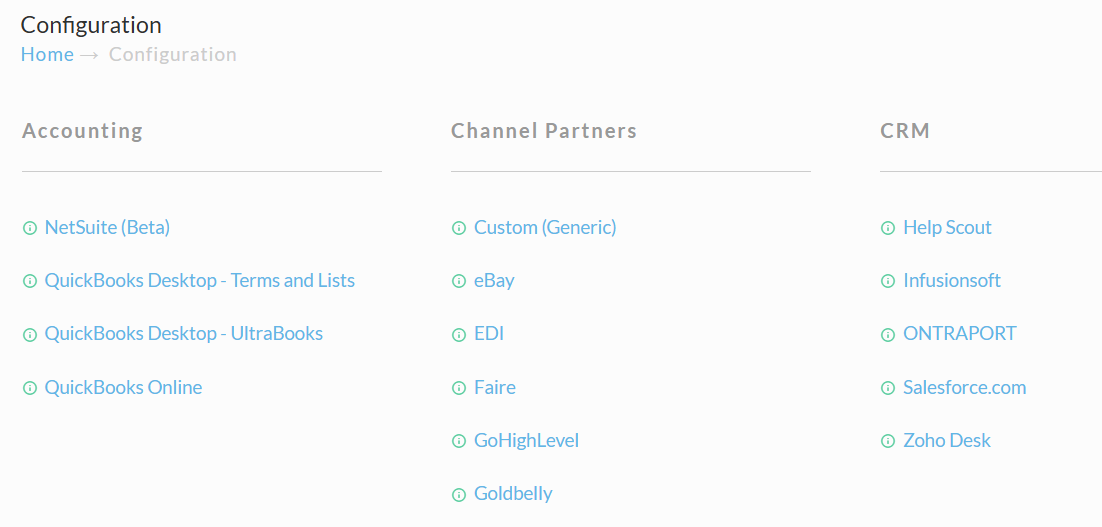
Main Menu → Configuration → (Middle Menu) Integrations → Channel Partners (Section) → Faire
The Faire configuration has three screens: Settings, Item Mapping, and Test. Item Mapping and Test are reached from the Tools section at the bottom of Settings.
Step 1: Connect your Faire account
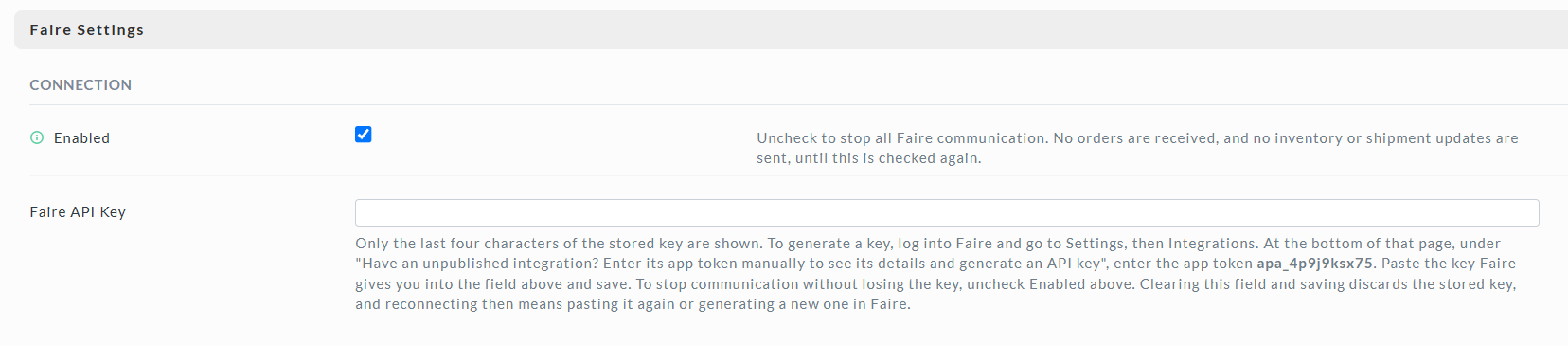
UltraCart connects to Faire with an API key that you generate in Faire.
-
Open the Faire Settings screen in UltraCart. The help text under Faire API Key shows the app token you need in step 3.
-
Log into Faire and go to Settings → Integrations.
-
At the bottom of that page, under Have an unpublished integration? Enter its app token manually to see its details and generate an API key, enter the app token from step 1.
-
Generate the API key and copy it.
-
Back in UltraCart, paste the key into Faire API Key, check Enabled, and click Save.
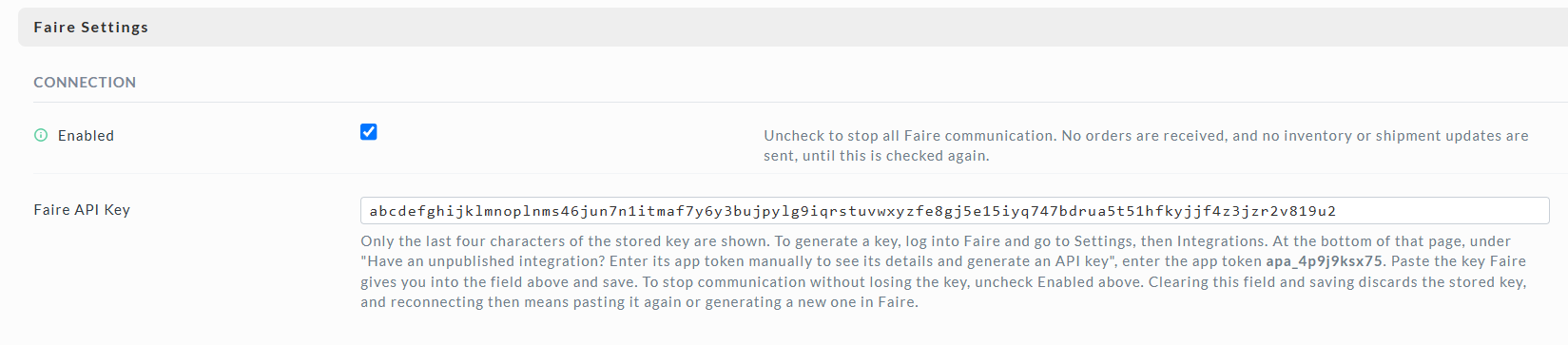
After you save, the field shows only the last four characters of the key. Saving again with the masked value in place leaves the stored key unchanged. Clearing the field and saving discards the key, so reconnecting means pasting it again or generating a new one in Faire.
Leave Enabled unchecked until you have finished item mapping and tested an order. The Test screen works while the integration is disabled, and no orders import on the schedule until you check it.
Step 2: Configure the settings
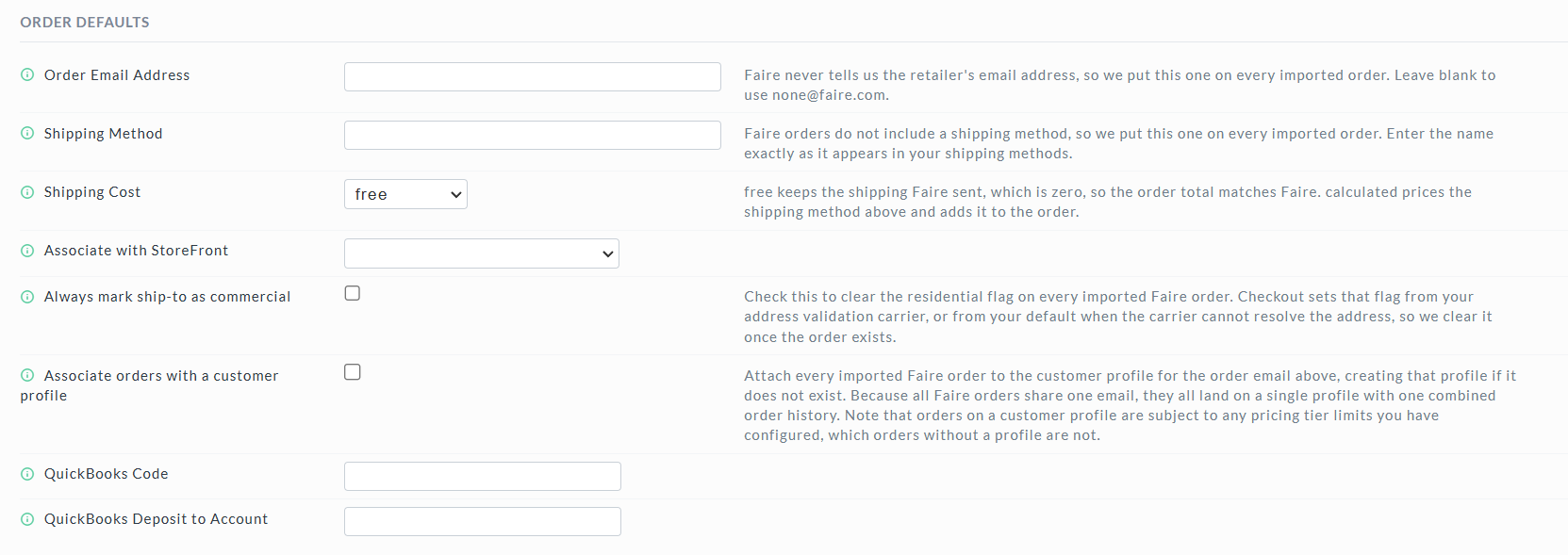
Faire sends much less information than a retail checkout: no retailer email address, no bill-to address, and no shipping method. The settings below fill those gaps and control how orders arrive. Every field also has on-screen help and a tooltip.
Order Defaults
| Field | Description |
|---|---|
| Order Email Address | Faire does not share the retailer's email, so this address goes on every imported order. Leave blank to use none@faire.com. |
| Shipping Method | The shipping method put on every imported order. It must match one of your existing shipping methods; capitalization is corrected when you save. Required when Shipping Cost is calculated. |
| Shipping Cost | free keeps the zero shipping Faire sends, so the UltraCart total matches Faire. calculated prices the shipping method above and adds it, which makes the UltraCart total higher than the Faire total. Most merchants want free. |
| Associate with StoreFront | The storefront whose email templates and branding imported orders use. Leave blank for none. |
| Always mark ship-to as commercial | Clears the residential flag on every imported order. Faire retailers are businesses, so this usually avoids residential delivery surcharges. |
| Associate orders with a customer profile | Attaches every Faire order to the customer profile for the Order Email Address, creating it if needed. All Faire orders then share one profile and one order history, and they become subject to any pricing tier limits you have configured. |
| QuickBooks Code | The QuickBooks accounting code applied to the payment. Shown only when QuickBooks is enabled. |
| QuickBooks Deposit to Account | The QuickBooks account payments are deposited to. Shown only when QuickBooks is enabled. |
Order Import
| Field | Description |
|---|---|
| Don't process orders placed before (MM/DD/YYYY) | Orders last updated on Faire before this date are skipped permanently. Set it when you first connect so years of history are not imported. |
| Import unfulfilled orders only | Unchecked (the default), UltraCart imports new orders and accepts them on Faire for you. Checked, UltraCart imports only orders you already accepted in Faire but have not shipped, and accepts nothing on Faire. The Faire portal calls these orders Unfulfilled. |
| Within X days | Used only with Import unfulfilled orders only. Imports only unfulfilled orders whose ship date falls within this many days. Later orders are picked up automatically once they come due. Leave blank to import them all. |
| Strip Ship On Date | Faire sends a ship-after date, which normally becomes the order's ship on date. An order with a future ship on date does not transmit until that date. Check this to discard the date so orders transmit as soon as they import. |
| Omit Tax Information | Drops the tax amounts Faire sends. Use it when Faire handles tax and you do not want the amounts duplicated in your reporting. The UltraCart total then differs from the Faire total. |
Item and Order Id Lists
Each list takes one value per line. Blank lines and extra spaces are ignored.
| Field | Description |
|---|---|
| Add Item Ids to Order | UltraCart item ids added to every imported order, such as inserts, samples, or catalogs. These items are not sent to Faire and need no mapping. |
| Ignore Specific Faire Item Ids | Order lines for these Faire item ids are skipped. The rest of the order still imports. Use it for items you fulfill outside UltraCart. |
| Ignore Specific Faire Order Ids | These Faire orders are never imported. Use it to skip a single problem order. |
Comments and Tags
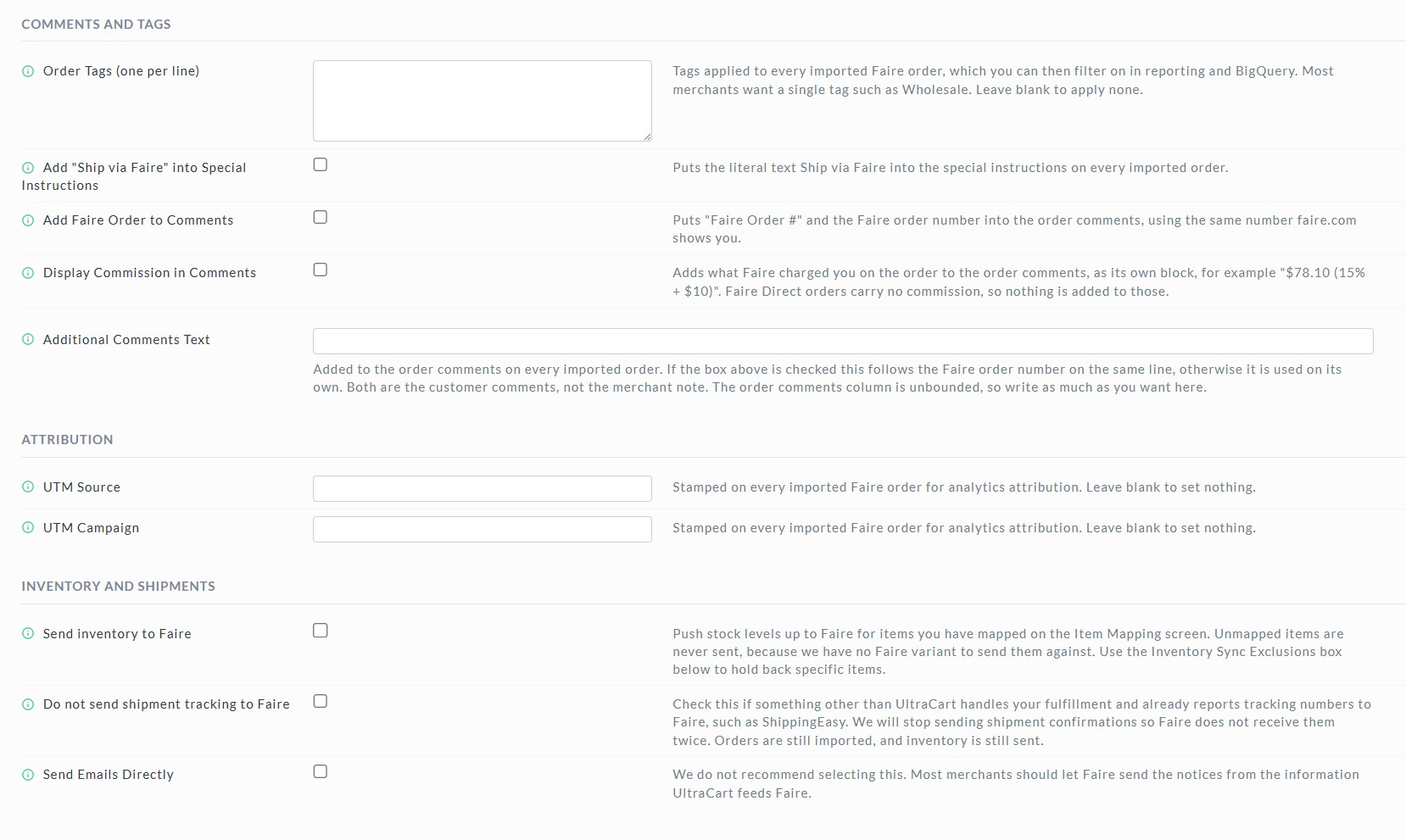
| Field | Description |
|---|---|
| Order Tags (one per line) | Tags applied to every imported order, which you can filter on in reporting. Most merchants use a single tag such as Wholesale. Each tag is limited to 250 characters. |
| Add "Ship via Faire" into Special Instructions | Puts the text Ship via Faire in the special instructions, as a flag for whoever picks and packs the order. |
| Add Faire Order to Comments | Writes Faire Order # and the Faire order number into the order comments, so you can search an UltraCart order by the number Faire shows you. |
| Display Commission in Comments | Adds what Faire charged you to the order comments, for example $78.10 (15% + $10). Faire Direct orders carry no commission, so nothing is added to those. |
| Additional Comments Text | Text added to the comments on every imported order. If Add Faire Order to Comments is also checked, it follows the order number on the same line. |
These comments are the customer comments on the order, not the merchant notes.
Attribution
| Field | Description |
|---|---|
| UTM Source | Stamped as utm_source on every imported order, so wholesale revenue can be separated in analytics. Most merchants use faire. |
| UTM Campaign | Stamped as utm_campaign on every imported order. Use it to separate a specific wholesale push. |
Both values expire 186 days after the order, the same as UTM properties elsewhere in UltraCart.
Inventory and Shipments
| Field | Description |
|---|---|
| Send inventory to Faire | Pushes stock levels to Faire for items you have mapped on the Item Mapping screen. Unmapped items are never sent, so this does nothing until you have mappings. |
| Do not send shipment tracking to Faire | Check this only when another system, such as ShippingEasy, already reports tracking to Faire. Otherwise Faire receives each shipment twice. Orders still import and inventory still syncs. |
| Send Emails Directly | Not recommended. Faire sends retailer notices from the information UltraCart provides, so turning this on can send the retailer two notices for the same event. |
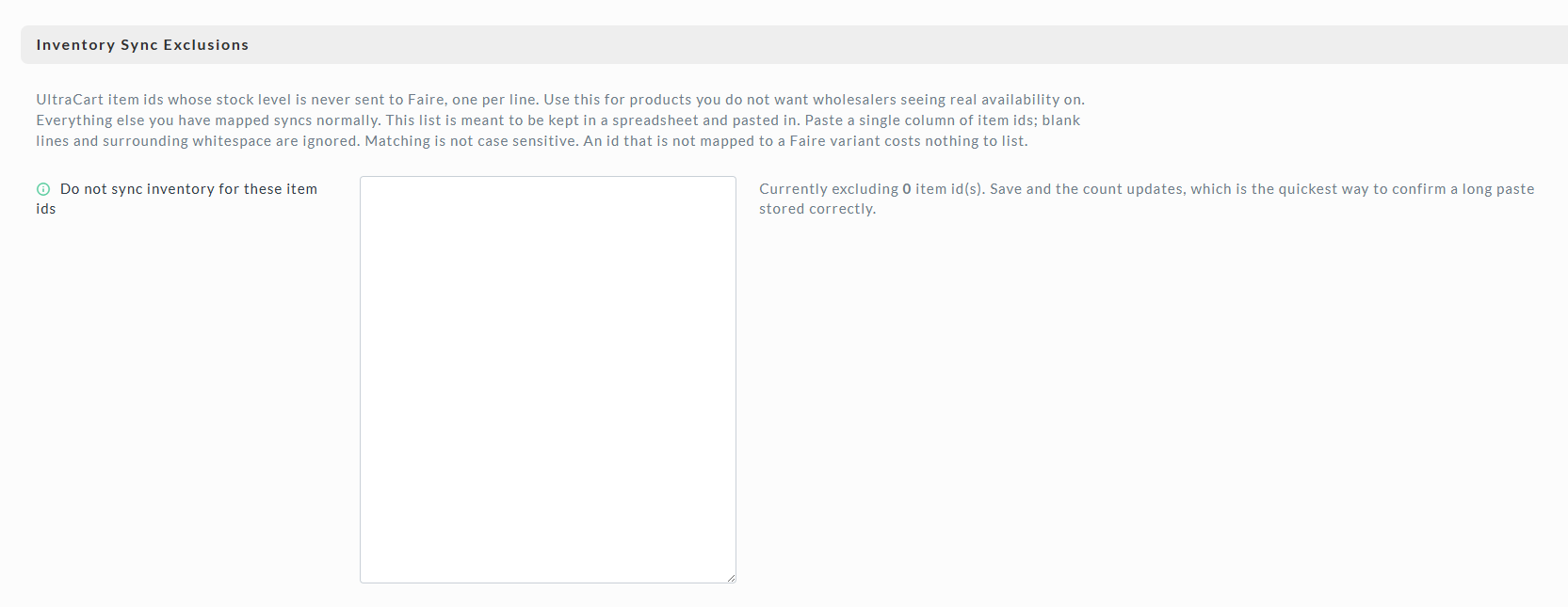
| Do not sync inventory for these item ids | UltraCart item ids whose stock level is never sent to Faire, one per line, not case sensitive. Paste a single column from a spreadsheet. After you save, the count beside the box confirms how many ids were stored. |
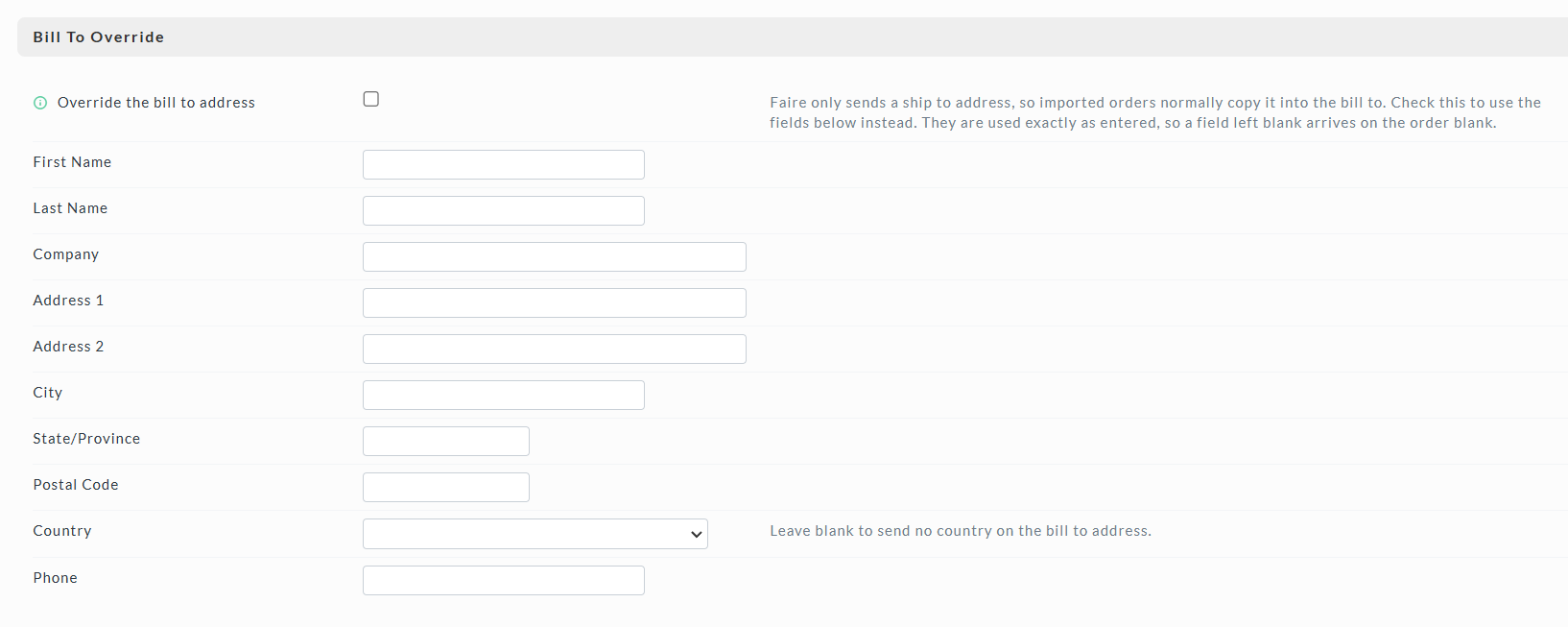
Bill To Override
Faire sends only a ship-to address, so imported orders normally copy it into the bill-to address. Check Override the bill to address to use the fields below it instead, for example when you bill every Faire order to one fixed party. The fields are used exactly as entered: a field left blank arrives on the order blank.
Step 3: Map Faire variants to UltraCart items
Every line on a Faire order is matched to an UltraCart item by its Faire variant. An order that contains an unmapped variant does not import. Map your catalog before you enable the integration.
From the Settings screen, go to Tools → Item Mapping.
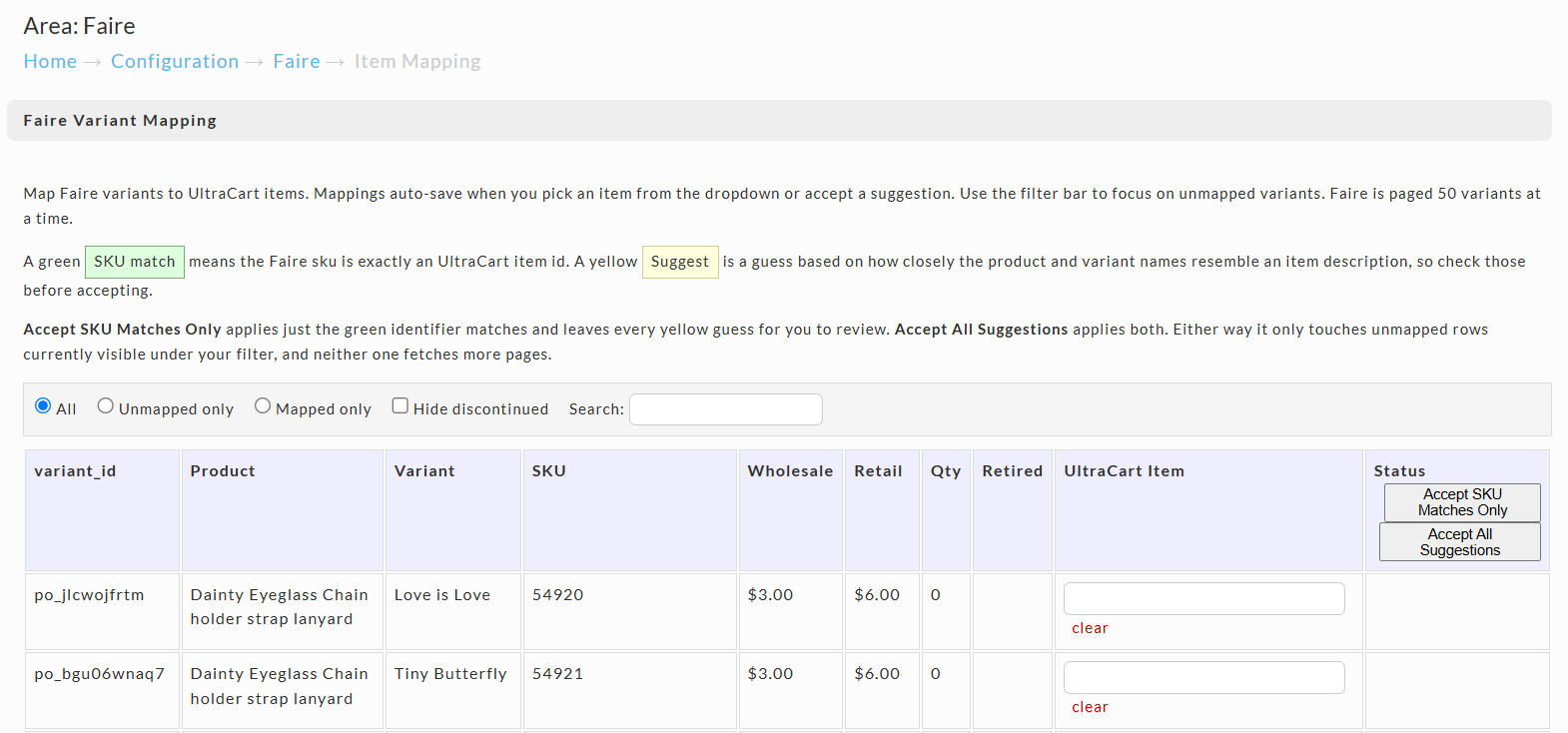
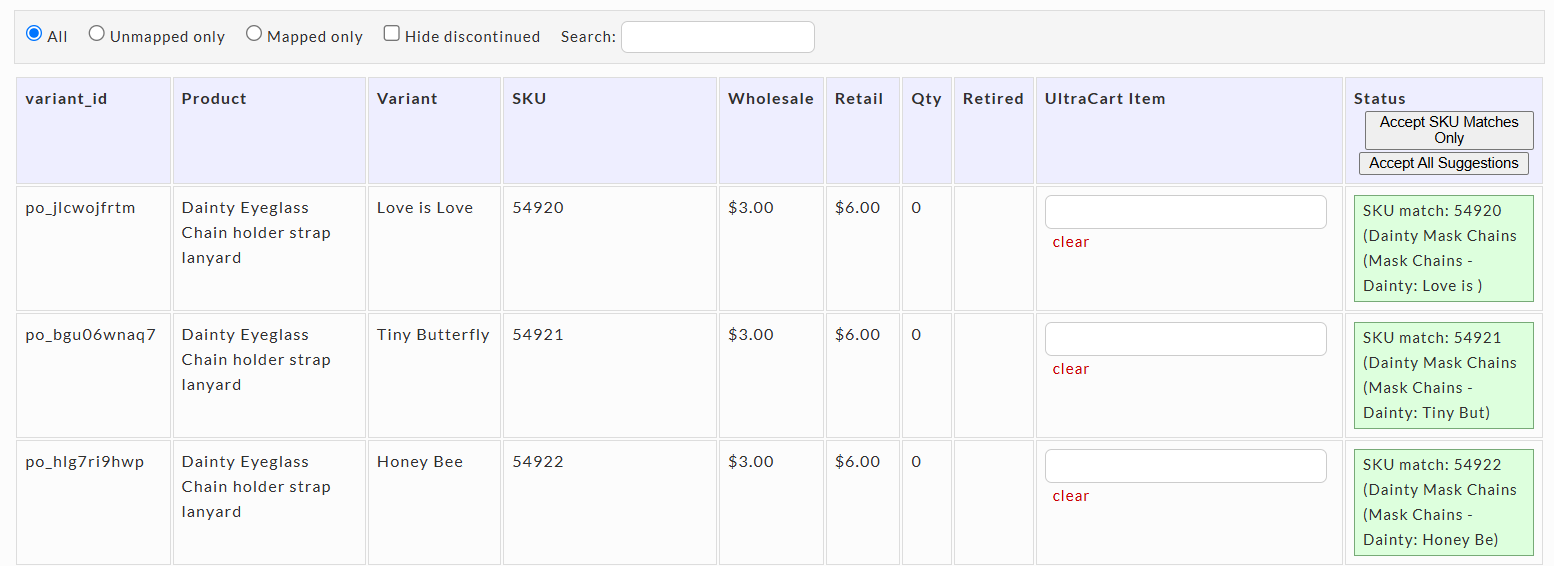
The table lists your Faire variants, 50 at a time, with the product, variant, SKU, wholesale and retail prices, quantity, and retired status. Click Load more to fetch the next 50. Mapped rows are shaded green, and discontinued variants appear in grey italics.
To map a variant, do one of the following:
- Type an item id in the UltraCart Item column and pick the item from the list.
- Click a suggestion shown in the row:
- A green SKU match means the Faire SKU is exactly an UltraCart item id. These are safe to accept.
- A yellow suggestion is a guess based on how closely the product and variant names resemble an item description. Check it before you accept it.
Mappings save automatically as you make them. The Status column confirms each save. To remove a mapping, click the clear link next to the item.
Mapping in bulk
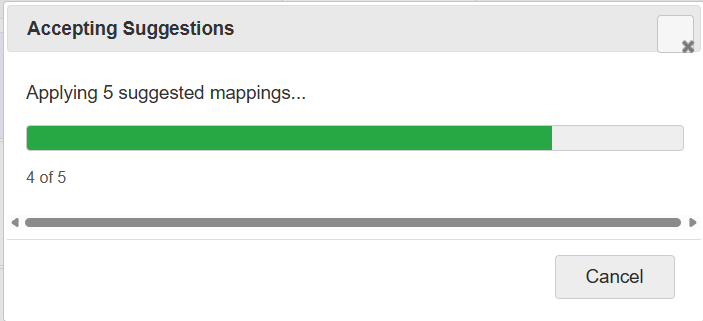
- Accept SKU Matches Only applies every green SKU match and leaves the yellow guesses for you to review.
- Accept All Suggestions applies both green and yellow suggestions.
Both buttons act only on unmapped rows currently visible under your filter, and neither fetches more pages. Load the pages you want first. A progress dialog shows how many mappings were applied and lets you cancel partway.
The filter bar narrows the table to All, Unmapped only, or Mapped only variants, can Hide discontinued variants, and has a Search box. Filters apply only to the pages already loaded, and the status line tells you when more of the catalog has not been loaded yet.
Step 4: Test an order
The Test screen lets you run a single Faire order through the integration by hand before you turn on the schedule. It works while Enabled is unchecked. From the Settings screen, go to Tools → Test Faire.
The Test screen makes live calls to Faire with your saved API key. Creating, accepting, and shipping an order change real data on Faire and in UltraCart.
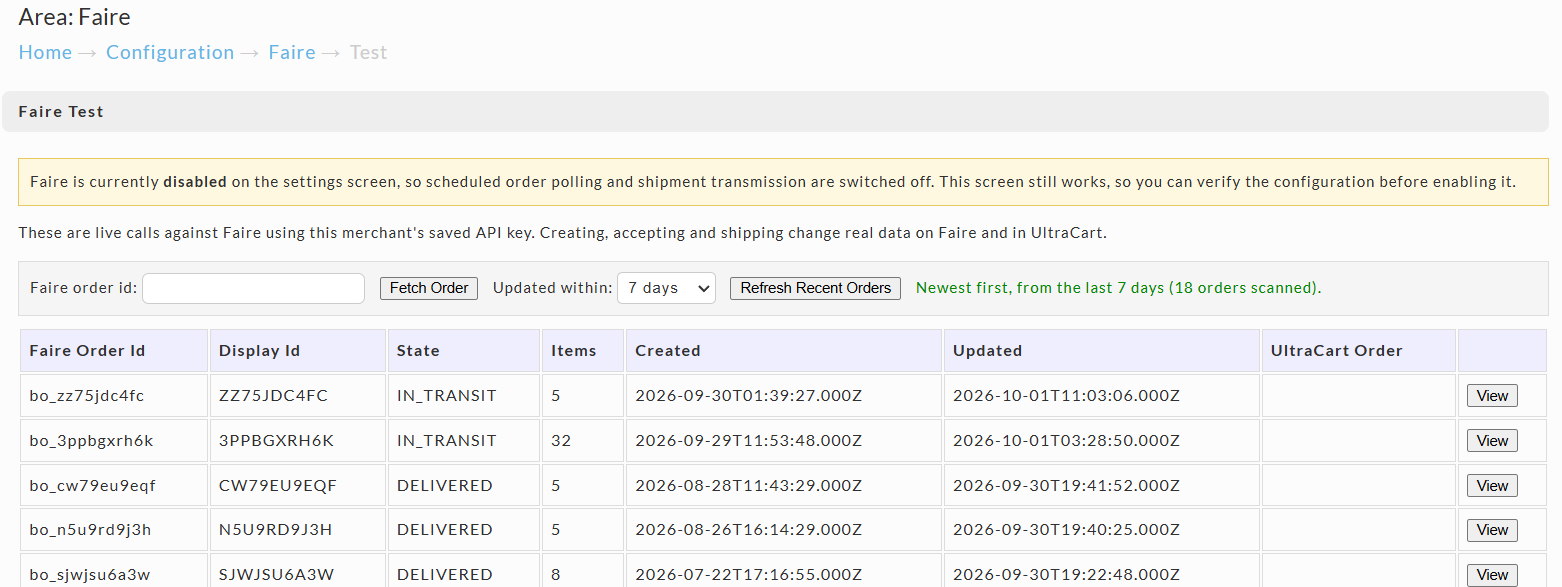
- Choose a window under Updated within and click Refresh Recent Orders, or enter a Faire order id and click Fetch Order.
- Click View on an order to see its details and the raw data Faire sent.
- Click Create UltraCart Order to import it. If it fails, an unmapped variant is the usual cause; map it and try again. On success, a link to the new UltraCart order appears.
- Click Accept Order to accept it on Faire. This is available only after the UltraCart order exists.
- To test shipment tracking, enter a Tracking number, choose a Shipping method, and click Transmit Shipment.

When the test order looks right, return to Settings, check Enabled, and save.
How orders flow
With Import unfulfilled orders only checked, the accept step is skipped, because you have already accepted those orders on Faire.
Troubleshooting
Faire orders stopped importing
Cause: An order contains a Faire variant with no UltraCart mapping. UltraCart emails your users a message with the subject UltraCart Support Notification - Faire Order Import Failing, followed by your merchant id. It lists the Faire order id and every unmapped variant, SKU, and description on it.
Solution: Map the listed variants on the Item Mapping screen. The order imports on the next poll. If you never want to fulfill that item through UltraCart, add its Faire item id to Ignore Specific Faire Item Ids instead.
Tracking is not reaching Faire
Cause: Faire identifies the carrier by code, and UltraCart derives the code from the shipping method name. Only names containing UPS, FedEx, or USPS resolve to a carrier. The Test screen marks other methods as [no Faire carrier].
Solution: Ship Faire orders with a method whose name contains one of those carriers. Also confirm that Do not send shipment tracking to Faire is unchecked and that the order has a tracking number.
The UltraCart order total does not match Faire
Cause: Shipping Cost is set to calculated, or Omit Tax Information is checked. Either one changes the UltraCart total on purpose.
Solution: Set Shipping Cost to free and uncheck Omit Tax Information if you want the totals to match.
An order imported but was not accepted on Faire
Cause: The UltraCart order was created, but the accept call to Faire failed. UltraCart does not retry the accept, so the order is not imported twice.
Solution: Accept the order directly on Faire.
Related Documentation
- Channel Partners: the other marketplaces and sales channels UltraCart integrates with
- Walmart Channel Partner Integration: a similar order-import integration