Overview
UltraCart allows you to have receipts sent through your own email server so they come from your address instead of from the standard @ultracart.com email addresses. This feature is optional for most fields and should only be configured by merchants that have an email server capable of sending authenticated SMTP traffic.
Abandon Return Email
The Abandon Return Email fields must be configured in order for the return email tool to function. More about Return Email.
Affiliate Broadcast
The Affiliate Broadcast fields must be configured in order for the return email tool to function.
Navigation
Home → Configuration (Email Notifications) → Email Addresses
Configuration page
Email Service Configuration
Email server
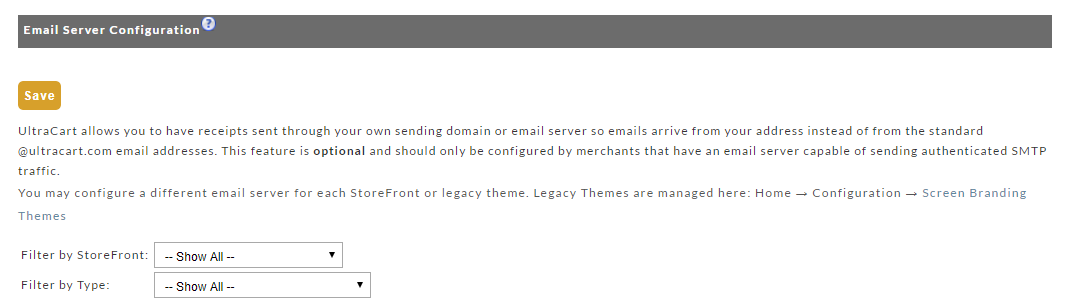
UltraCart allows you to have receipts sent through your own sending domain or email server so emails arrive from your address instead of from the standard @ultracart.com email addresses. This feature is optional and should only be configured by merchants that have an email server capable of sending authenticated SMTP traffic.
You may configure a different email server for each StoreFront or legacy theme. Legacy Themes are managed here: Home → Configuration → Screen Branding Themes
Email Type Configuration Sections
SMTP Sending Type
Each email notification will be display like the following:
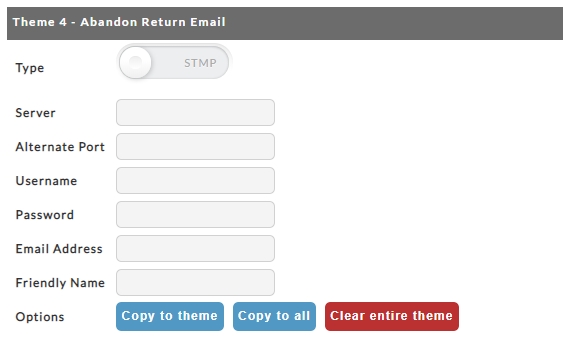
IF you have multiple SBT and or Storefront hosts configured in your account, then you'll see a separate configuration section for each email notification, for each SBT/SF, followed by the next email notification type, etc.
Within each configuration section there are a number of fields required which are described below.
| Field | Description | Required |
|---|---|---|
| Type | Toggle switch between the SMTP and Sending Domains configurations. | Yes |
| Server | The hostname of the SMTP server. For example smtp.gmail.com | Yes |
| Alternate Port | If left blank, the default port (25) is used, but some servers (i.e. gmail) require port 465 for secure SMTP | No |
| Username | The username of the email account. Often this is also the email address | Yes |
| Password | The password of the email account. | Yes |
| The email address | Yes | |
| Friendly Name | The name that appears in the email header. Typically this would be something like XYZ Company Customer Service | Yes |
| Options | Three options are: Copy to Theme → Applies the configured details to all email notifications for the theme. Copy to All → Applies the configured details to all email notifications for ALL of the themes. Clear Entire Theme → Clears the credentials from all of the email notifications for the theme. |
Sending Domains Type
Sending Domains is recommended, since Sending Domains configuration provides full MTA transparency and logging of the email transmissions. If you have the email addresses configuration set to SMTP instead of Sending Domains, it will override the Sending Domains configuration within the settings tab of the Storefront Communications. So, make sure the slider for Sending Type is set to ‘Sending Domains’.
StoreFront Communications utilizes email sending domains to transmit email messages instead of SMTP through your own email server. The reason for email being sent this way are:
-
Easier to configure than SMTP
-
Company email infrastructure is typically not designed or permitted to handle the volume of email associated with marketing.
-
Email sending domains allow UltraCart to receive detailed events regarding: delivery, bounce, open, click and spam complaints.
-
Provides merchants visibility into the delivery of their transactional emails (receipts, etc.) within the UltraCart interface (not possible with direct SMTP)
Once you configure your sending domain within StoreFront Communications, any existing email addresses associated with this domain will start using the sending domain instead of SMTP.
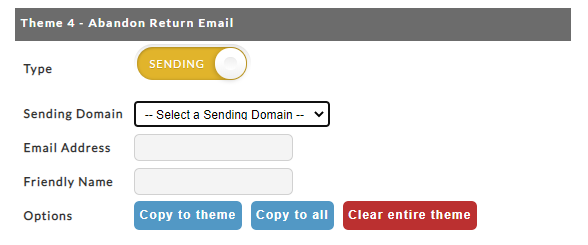
| Field | Description | Required |
|---|---|---|
| Type | Toggle switch between the SMTP and Sending Domains configurations. | Yes |
| Sending Domain | Select the Sending Domain (will appear after the required DNS entries are configured.) | Yes |
| Email Address | The email address from your domain that should appear as the "From" address in the outgoing emails | Yes |
| Friendly Name | The name that appears in the email header. Typically this would be something like XYZ Company Customer Service | Yes |
| Options | Three options are: Copy to Theme → Applies the configured details to all email notifications for the theme. Copy to All → Applies the configured details to all email notifications for ALL of the themes. Clear Entire Theme → Clears the credentials from all of the email notifications for the theme. |
Explanation of each of the email notification types
Each different type of notification allows you to configure the email server that it will be sent to. The different types of notifications that are configurable are:
| Notification | Description | Required to Use |
|---|---|---|
| Abandon Return Email | Used to send the email to a customer that abandons to encourage them to come back for a discount | Yes |
| Affiliate Broadcast | Used to send a mass email to your affiliates | Yes |
| Affiliate Signup | Used to send a confirmation email to affiliates after they signup | No |
| Auto Order Cancel | Used to send an email to the customer when they cancel their auto order | No |
| Auto Order Confirmation | Used to send an email to the customer when they signup for an auto order | No |
| Auto Order Update Billing | Used to send an email to the customer when their card expires and needs updating | No |
| Auto Order Update Billing Decline | Used to send an email to the customer when their card declines and needs updating | No |
| Notification | From Email Address |
|---|---|
| IP Block Notification (after 6 accumulated failed login attempts) | support@ultracart.com |
| Password Reset Notification | support@ultracart.com |
| Accounts Receivable | uc.order@ultracart.com |
| Auto Order | uc.order@ultracart.com |
| Billing Reminder | uc.notify@ultracart.com |
| Customer Receipt | uc.order@ultracart.com |
| Customer Reminder | uc.usernotify@ultracart.com |
| Digital Delivery Notification | uc.order@ultracart.com |
| Donation Receipts | uc.order@ultracart.com |
| Expired Card Reminder | support@ultracart.com |
| Fulfillment Transmission | uc.ship@ultracart.com |
| Placed Order Notification | uc.order@ultracart.com |
| Shipment Notification | uc.usership@ultracart.com |
| Shipping Department | uc.ship@ultracart.com |
| Statistics | uc.stat@ultracart.com |
| Wholesale Signup | uc.order@ultracart.com |
All notification e-mails are signed using DomainKeys, so if your server supports DomainKey verification, you should enable that feature. You can read more about DomainKeys at Wikipedia .
Additionally, UltraCart publishes "SPF" records for e-mail verification. If your e-mail client has the ability to verify SPF records, you should enable this option for ultracart.com e-mail addresses.
Troubleshooting Email Notification issues
Question: "We are noticing that the password reset email notification for the Affiliate Dashboard login is being sent from an Ultracart email address ("uc.usernotify@ultracart.com"), even though we have configured our own email address in the Email Addresses configuration page... Why is that?"
Answer:
For security reasons emails with passwords will always come from an Ultracart email. This is to prevent domain spoofing and other security issues.
Question: "My email notifications regarding order activity in my account have stopped arriving, and I have not made any changes, and I'm getting emails from other sources... Why is that?"
Answer:
UltraCart does not control from end to end the delivery of the email notifications we send out. If your email notifications suddenly stop coming through, the most likely cause is that the email is being captured at some point after we send it and it gets to your inbox. The instructions in the previous section regarding DomainKeys and SPF records will help, as will the configuration of the email addresses in your email clients contact list and the use of "whitelisting" email filter rules to make sure that the emails are not being flagged as spam and either your email server level or email client level.
A good simple test is to temporarily configure another email address that is on another server (so if you have your own domain email addresses, try configuring a gmail.com (or yahoo.com, hotmail.com, etc). email address on another user on your account that has the same email notifications configured. If the notifications arrive to that account's inbox, then you know that the problem resides at your own email server or email client, and you'll want to make sure that you implement DomainKeys/SPF records, and email whitelisting to ensure the emails make it through to your inbox okay.
Email account forwarding
If you configure your email account to forward to another of your email accounts (so you only have to check one account for all your messages) this can create a problem where email notifications (emails that are notification only that you do not reply to) will begin, at some point, begin being treated as spam at the email account that is receiving the messages and then forwarding them to your other email address. the net result is that these emails "fall through the cracks" and do appear even though other emails are making it through to the email account from which you read your emails.
Question: "Today we received a email notification from google titled "Critical Security Alert" and the message stated that "Someone just used your password to try to sign in to your account. Google blocked them, but you should check what happened. Check activity..." and it appears that our emails from ultracart are no longer being sent (the default Ultracart address is the one being sent instead)?
EXAMPLE MESSAGE FROM GOOGLE:
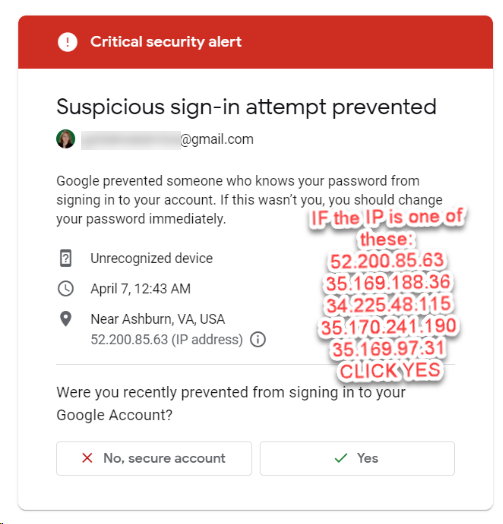
Answer: You'll first want to verify that the IP address identified in the message is an Ultracart IP address. If so, then you'll click 'Yes' in the message. You will also need to update your google account to whitelist all of the (External IP Addresses Used By UltraCart).