Email Notifications
Introduction
The UltraCart platform is configured to send emails on your behalf in response to customer events. You may customize your email using html and # to meet your needs. All notifications are optional and may be turned off. You will not use all notifications.
Types of Emails
| Notification Type | Description | Used By |
|---|---|---|
| aMember | Sent when an order is placed in a store configured with aMember integration. | Merchants with aMember integration |
| Auto Order Cancel | Sent in response to a customer canceling an Auto Order | Merchants who offer trials, recurring, or continuity programs |
| Auto Order Update Billing | Sent in response to an Auto Order customer card being declined for the final time | Merchants who offer trials, recurring, or continuity programs |
| Auto Order Update Billing Decline | Sent in response to an Auto Order customer card being declined the first time | Merchants who offer trials, recurring, or continuity programs |
| Digital Delivery | For digital orders, contains the secure links for downloading digital content | Merchants offering digital content for sale |
| Notification | Option | Description |
|---|---|---|
| Auto Order Update Billing | Decline on First Only | Normally, an email is sent every time a recurring order has a declined payment. The default is 3 tries, but this is configurable by the Merchant. When this option is set, an email is sent to the customer only on the first decline. There will be additional tries, but those tries won't result an additional emails to the customer. |
| Digital Delivery | Skip Email to Buyer when Gift | Only sends email to gift recipient and skips the buyer |
| Receipt | Hold Receipt Until Payment Processes | Delays the receipt until payment has been processed by the Merchant |
| Hide Coupon Details | Hides coupons from displaying in order details. | |
| Remove Excessive Blank Lines | Trims excessive blank lines in text format emails. Does nothing to html emails. | |
| Attach Invoice | Attaches a PDF invoice to the email | |
| Receipt Gift | Hold Receipt Until Payment Processes | Delays the receipt until payment has been processed by the Merchant |
| Hide Coupon Details | Hides coupons from displaying in order details. | |
| Remove Excessive Blank Lines | Trims excessive blank lines in text format emails. Does nothing to html emails. | |
| Attach Invoice | Attaches a PDF invoice to the email | |
| Shipment | Hide Prices | Zeroes out prices on within the email. |
| Attach Invoice | Attaches a PDF invoice to the email | |
| Share this Cart | Allow Cart Sharing | This must be checked for the external REST call to work. |
| Share this Item | Allow Item Sharing | This must be checked for the external REST call to work. |
Screen Branding
Screen Branding is a way to present multiple store fronts to customers within the same account. It can also be used to display different Look & Feel whenever desired, such as sales or events. There is a set of email notifications for each screen branding theme. If you have a single screen branding theme, then you'll see in your Available Notifications list each notification once. Some UltraCart merchants have nearly a hundred themes (true story), and those merchants will see 700-800 notifications in their list. It's important to pay attention to which theme you're editing as you edit emails.
Some email tags pull files from your Graphics Library to use in your emails. You have a different Graphics Library for each theme as well. So if you're seeing an email with missing graphics or styles, verify the email's theme against your Graphics Library.
To view your Screen Branding themes, navigate to:
Using the UltraCart Notifications Screen
Navigate to:
Selecting an Email
There are two lists containing email notifications. The first list Your Email Notifications contains those notifications you've previously configured. The second list contains new notifications. The two lists help keep separate those notifications you use and those you don't.
Selecting an email from the list will display it on the page.
When you select an email, 4 different panels will display. They are shown below.
- Notification Options
- Test Order IDs
- Tags applicable to this Notification.
- Subject, HTML, and Text fields for editing the email.
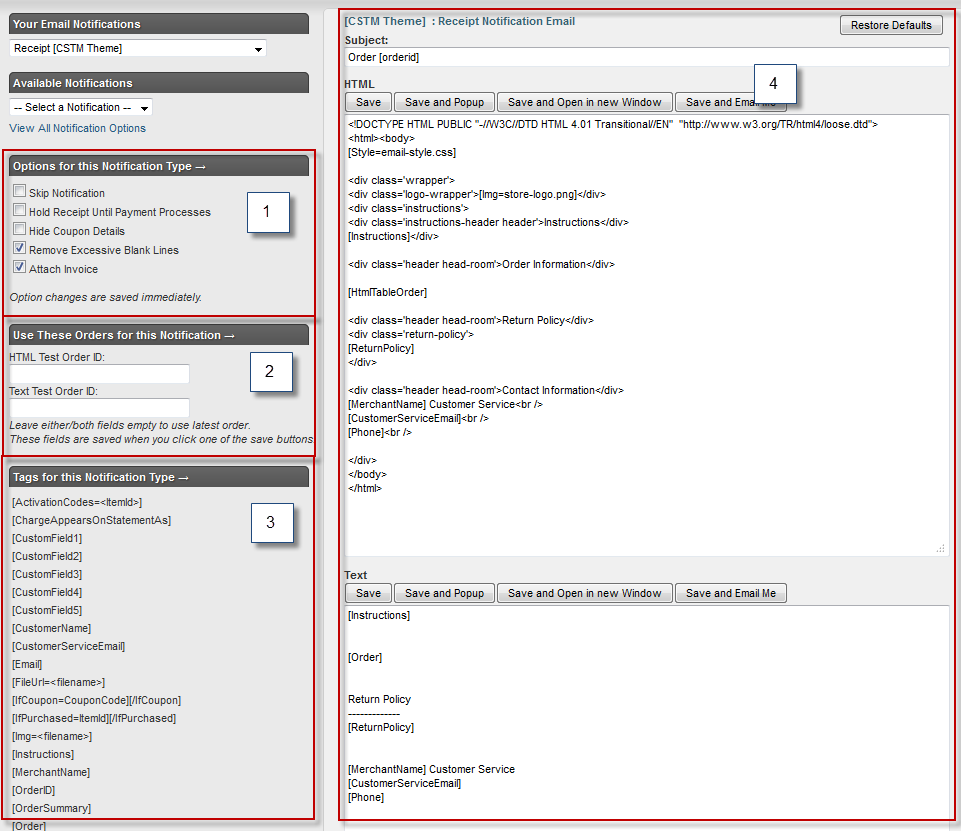
Notification Options
See the # section for specifics about options. Changing an option takes place immediately.
Test Orders
For each email notification (for each screen branding theme too), you may provide an Order ID for previewing the email. This order ID is saved with the configuration for quick retrieval. This can be useful for troubleshooting why a particular email looks strange. If you leave this blank, the the last order placed on your system will be used to preview. The order IDs are saved when you click one of the save buttons in the main editing panel.
For the "Share this Cart" notification, the test order id fields may contain a comma separated list of item ids to simulate a shopping cart. If left blank, the last order is retrieved and the items from it are used to mock up a shopping cart.
For the "Share this Item" notification, the test order id fields may contain an item id. If left blank, the first item from the most recent order is retrieved and used during testing.
Subject, HTML, and Text Fields
All fields in this section may contain tags, which are expanded into merchant/order specific information.
Editing an Email
To edit an email, just type into the fields.
Saving Changes
There are four buttons above each text field. All four will save the entire email including subject, html message, text message, and test orders.

They differ in terms of previewing. The buttons above the HTML field will preview the html message. The buttons above the text field will preview the text message.
Previewing
There are three choices when previewing an email.
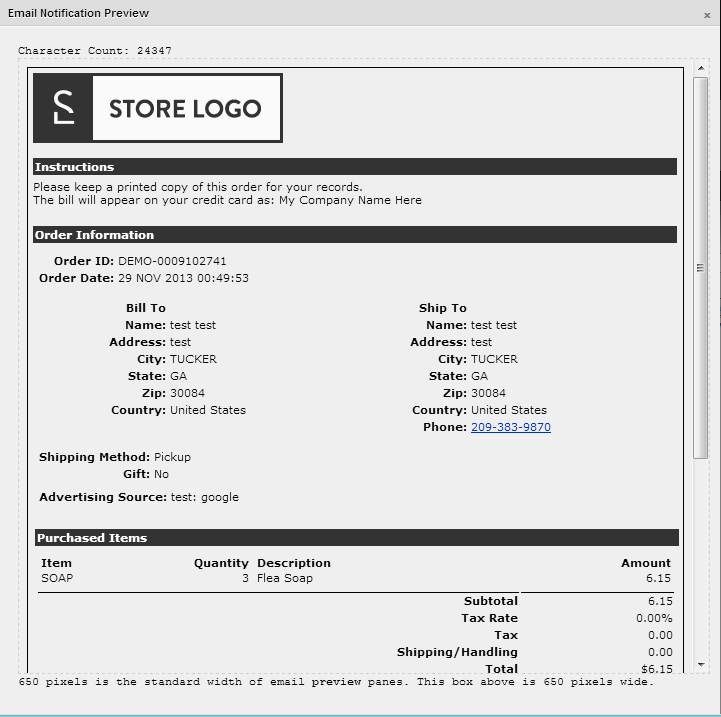
- Popup - This will save your edits and display a light box with your email. The light box is deliberately small to mimic the preview panel of many email clients. It's good to keep this size in mind.
- Open in new Window - This will save your edits and display the email in a new window.
- Email Me - This will save your edits and save you a copy of the test email
Many email services such a Google will not allow
The "Email Me" feature will send you a copy of the email, but will not send any attachments that may normally accompany the email you're working with. The purpose of the preview features is solely template design and is not meant to be a complete system test. If you wish to see attachments, generate some test orders through your web site.
The Preview feature attempts to simulate real conditions as best possible. So when it renders a preview, it will look at the test order and use any theme associated with that order, regardless of the theme associated with the email template. This could cause strange behavior with the [Style], [FileUrl], and [Img] tags since they rely on the theme to find resources. If you're previewing emails and not seeing content, make sure the order you're previewing is associated with this theme. If you're working with a new theme and don't have any orders for it, place a test order for that theme.
Email Tags
Auto Order Cancel | |
|---|---|
[AutoOrderCode] | Auto order code |
[CreationDate] | Date the order was placed |
[CustomerFirstName] | First name from shipping address |
[CustomerName] | Full name from shipping address |
[CustomerServiceEmail] | Your customer service email |
[CustomerShipToName] | Full name from shipping address |
[FileUrl= | Generate URL of file from graphics library (Note: test order's theme must be the same as email template's theme to preview properly.) |
[HtmlDivOrder] | Order formatted with html |
[HtmlOrderSummary] | A summary of the order formatted with html tables |
[HtmlTableOrder] | Order formatted with html tables |
[Img= | Generate |
[MerchantName] | Your company name |
[OrderID] | Order ID |
[Phone] | Your customer service phone number |
[PurchaseOrderNumber] | The customer's purchase order number if specified |
[ReturnPolicy] | Your return policy |
[Style= | Generate inline warning Please see the warning in the Preview section above about making sure your test order has the same theme as the email template you're working with. For this example, you'll need two files in your Graphics Library. They are attached to this page and can be found. Download the above files and place them in your Graphics Library. We will assume your screen branding theme is the default (DFLT). If not, just adjust accordingly.
Navigate back to the Email Notifications App: Home → Configuration → Email Notifications For the html field, add the following code: Example view when using the "Save and Pop-up" option:
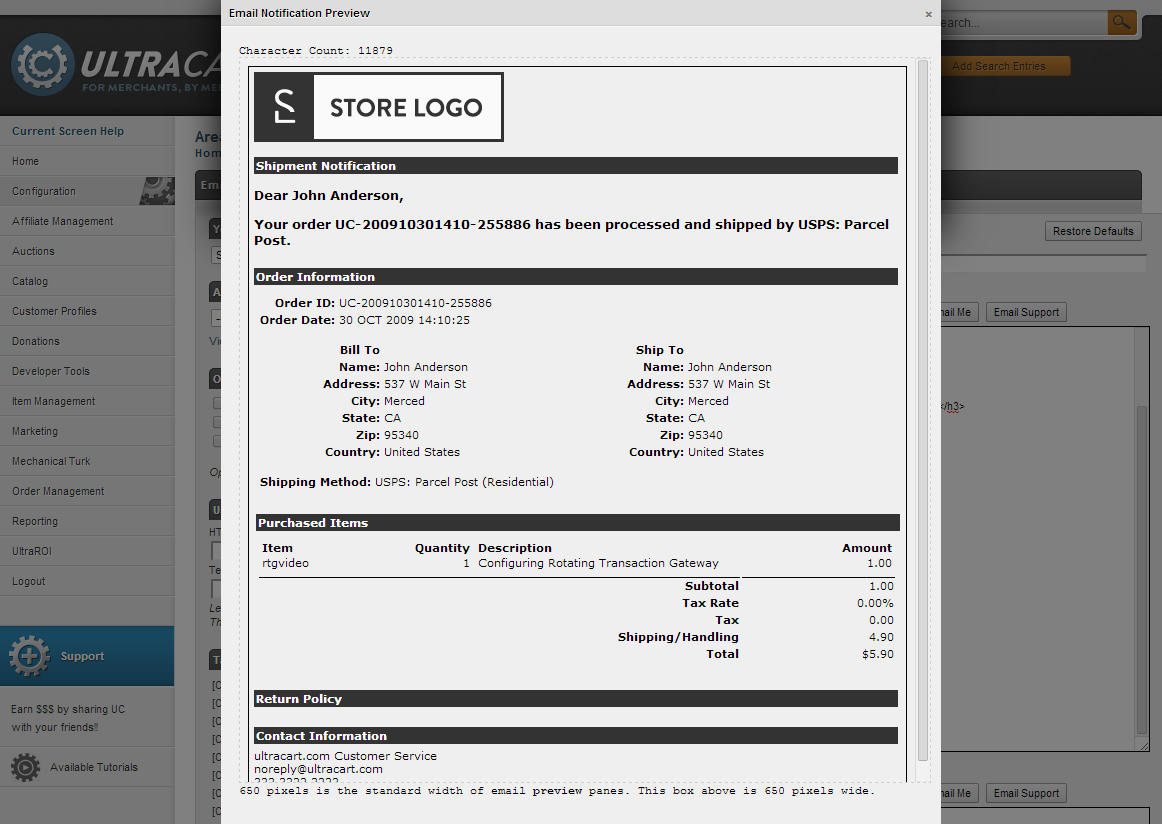
For the text field, add the following code: note [Instructions] [Order] Return Policy [MerchantName] Customer Service That's it. Save and Preview. Then edit as you see fit. Example Shipment Notification HTML TemplateSample HTML Shipment Notification Preview:
tip Before taking your store live, please make sure to either remove or replace the sample store-logo.png image with your own store logo! You can either upload your logo as store-logo.png to make the existing templates work without additional editing, or make sure to go back to the templates and update the logo HTML code to reflect the file-name of your own logo image file. Common QuestionsQuestion: Can I change the working on the Checkout Receipt to provide more transparency regarding the payment processing status of placed orders? Answer: Yes, see the following solution article: Tutorial - Transparent payment processing status of placed orders Related Documents |