Importing and Exporting eBay Configurations
Using the Item Import
Here are the instructions for the Batch Item Import.
The Item Import will auto match fields if they contain a standard column header. So, here's the easy route:
- Edit a single item and fill in all the eBay information.
- Perform an export of your items (filter it smaller if need be).
- Delete all the columns except the item id and the ebay columns.
- Save the updated file as a .csv file and upload it using the Item Import tool.
The eBay columns (with standard headers) are:
| Column | Description |
|---|---|
| Item ID | Required for all item imports |
| eBay - Active | Yes/No flag to determine if the item should be listed |
| eBay - Category Id | A number that is an eBay category id. See the section below for help finding this. |
| eBay - Custom Category1 | (Optional) eBay allows up to two custom store categories. If desired, put the name of your first choice here. |
| eBay - Custom Category2 | (Optional) eBay allows up to two custom store categories. If desired, put the name of your second choice here. |
| eBay - Free Shipping | Yes/No flag to determine if the item should be marked for free shipping |
| eBay - Free Shipping Method | Item specific override of the store-wide option. Enter an eBay shipping method. See the Home→Configuration→eBay Configuration page for a listing of eBay named shipping methods. |
| eBay - Delete | Yes/No flag. If populated with yes, the eBay information is deleted. |
| eBay - Template | The name of your item description template |
| eBay - No Promotional Shipping | Yes/No flag. Determine if the item should be excluded from any promotional shipping |
| eBay - Packaging Handling Costs | Decimal Value (Money) Additional mark up to shipping. In USD. Do not add $ sign. |
eBay Category IDs
Finding the eBay category to use for your item can be burdensome. An ID is needed, but mostly what you'll see is the text. But, there are some tools to help.
Using UltraCart's item eBay page
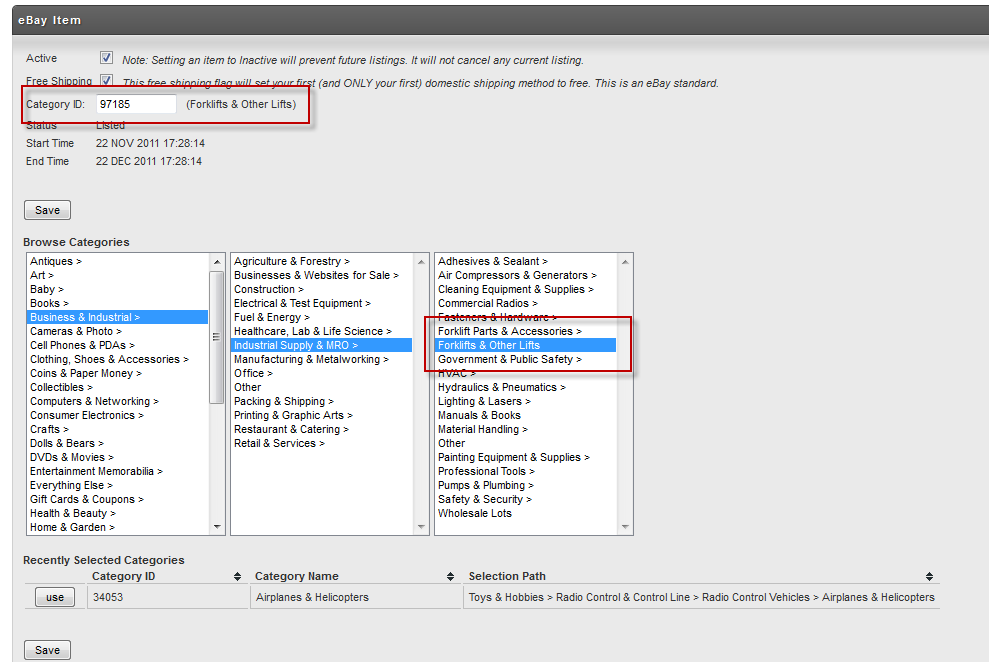
The easiest method is to navigate to an item's eBay page (Item Management → Items → [Choose an Item] → [eBay tab]).
From there, you can use the select boxes to navigate the categories. The final category you select (final categories do not have a > in their name) will display the category id in the text field above the select boxes.
Using eBay Pulse to find a Category ID.
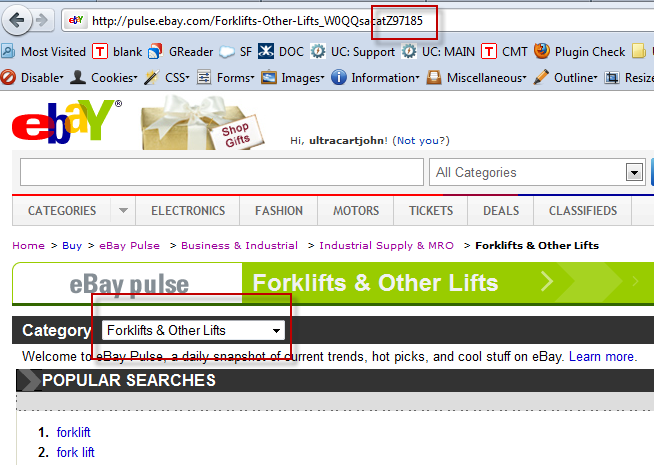
Visit http://pulse.ebay.com/ and select your category using the select box (multiple times - continuing using the box, which will change contents with each selection).
When you find your category, the category ID will be the number at the end of the url, after the Z.
Yeah, I know...