Gorgias
Connect UltraCart to Gorgias so your support agents can see a customer's UltraCart orders without leaving the ticket. UltraCart sends each customer's recent orders to Gorgias whenever one of those orders changes, and Gorgias shows them in an UltraCart orders card on the ticket and customer sidebars.
This matters most for orders that never touch your web store's own Gorgias integration, such as phone orders your call center enters in UltraCart. Those orders appear in Gorgias even when the customer has never written in, and even when the order has a phone number but no email.
What you need before you start
You need two things before connecting the accounts:
- A Gorgias user who can create a REST API key, usually a Gorgias admin.
- An UltraCart user with permission to edit settings.
Create an API key in Gorgias
UltraCart signs in to Gorgias with a Gorgias user's email address and that user's API key.
- In Gorgias, open Settings → REST API.
- Copy the Username (the Gorgias user's email address) and the Password (the API key).
- Note your Gorgias account name. It is the first part of your Gorgias address: for
https://acme.gorgias.com, the account name isacme.
Connect UltraCart to Gorgias
Enter your Gorgias details on the UltraCart Gorgias screen, and UltraCart checks them with Gorgias before saving.
-
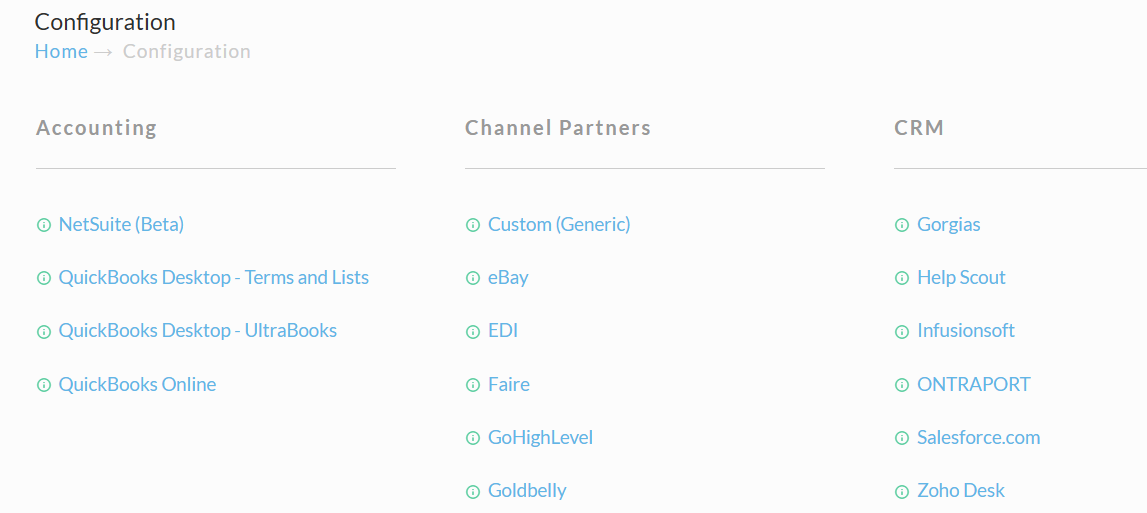
Go to Main Menu → Configuration, and in the CRM section, select Gorgias.
-
Check Enabled.
-
In Gorgias Domain, enter only your account name, for example
acme. The screen already showshttps://and.gorgias.comaround the box. -
In API User Email, enter the Gorgias user's email address.
-
In API Key, paste the API key.
-
In Placeholder Emails (one per line), list any shared email addresses your staff type when a customer will not give an email. See Placeholder emails and phone-only orders.
-
Select Save.
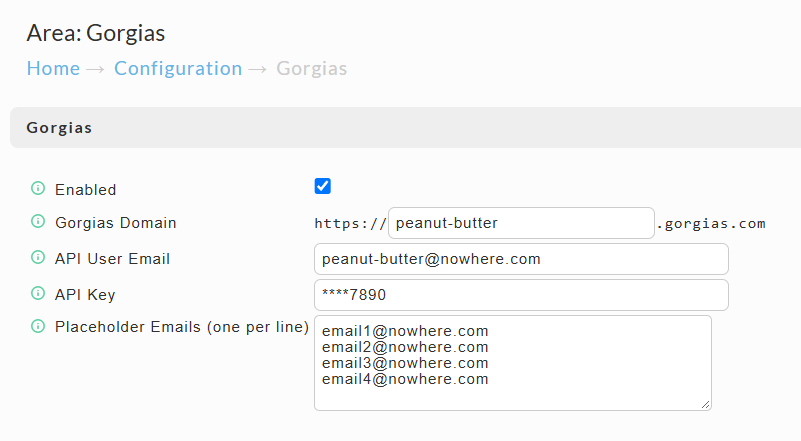
When you save, UltraCart signs in to your Gorgias account to confirm the details work. If Gorgias rejects them, the screen stays open and shows the reason. After saving, the API key is shown masked. Leave the masked value as it is to keep your stored key, or paste a new key to replace it.
To pause the integration, clear Enabled and save. Your connection details stay stored.
Placeholder emails and phone-only orders
UltraCart matches each order to a Gorgias customer by email first, then by phone, so phone orders without a real email still reach the right customer.
For each order, UltraCart uses:
- The order's email address, unless it is on your Placeholder Emails list.
- Otherwise, the bill-to phone number.
- Otherwise, the ship-to phone number.
An order with no usable email and no phone number is not sent to Gorgias.
Add every shared address your call center uses, such as noemail@example.com, to Placeholder Emails. If you leave one off, every caller entered under that address is grouped onto a single Gorgias customer.
What the UltraCart orders card shows
The card shows a customer's most recent UltraCart orders, so an agent can answer "where is my order" and similar questions from the ticket.
For each order, the card shows:
- Order ID, order date, and whether it came in by phone or on the web
- Stage, payment status, and any chargeback
- Fraud flags and merchant notes (long notes are shortened)
- Items, quantities, and totals, including any refunded amount
- Shipping method, ship-to name and city, and tracking links
- An Open in UltraCart link to the order in UltraCart, for refunds and anything else you handle there
The card also shows the customer's lifetime order count and revenue, and any UltraCart auto orders with their status, items, and next shipment date. It shows auto orders as they stand in UltraCart; if you move subscriptions to another platform, the card does not reflect that.
UltraCart does not send payment card details, and it does not change the customer's name or contact details that another integration, such as your Shopify store, already keeps in Gorgias. UltraCart data stays in its own card.
When Gorgias updates
UltraCart sends a customer's card again whenever one of their orders changes: when an order is placed, changes stage, ships, is edited, or is refunded, when a merchant note is added, and when an auto order is paused, resumed, canceled, or rebilled.
Several changes close together are combined into one update, so the card usually refreshes a minute or two after the change.
UltraCart sends a customer's card the first time one of their orders changes after you enable the integration. Customers with no new activity since then do not have a card yet.
Troubleshooting the connection
The Gorgias screen shows one of these messages when it cannot save your settings.
"Domain, API user email and API key are required to enable Gorgias." You checked Enabled with one of the three fields empty. Fill in all three.
"Enter only the account name, for example acme for acme.gorgias.com."
Remove https://, .gorgias.com, and any slashes from Gorgias Domain.
"Gorgias rejected the API user email or API key." The email and key do not match a Gorgias user. Copy both again from the Gorgias REST API page, and check that the email belongs to the user who owns the key.
"No Gorgias account was found at acme.gorgias.com." The account name is wrong. Check the first part of the address you use to sign in to Gorgias.
"Unable to reach Gorgias. Please try again." or "Gorgias returned an error" Gorgias did not answer normally. Wait a few minutes and save again.
Related pages
- External Integrations: the full list of UltraCart integrations
- Help Scout and Zoho Desk: other helpdesk integrations