Zoho Desk
This tutorial guides you through connecting your UltraCart account with Zoho Desk to enhance your customer support capabilities. By integrating, your support agents will have immediate access to contextual customer information directly within Zoho Desk, enabling them to provide more efficient and informed support.
Overview
The UltraCart Zoho Desk integration allows merchants to display comprehensive customer insights, such as Lifetime Value (LTV), order history, and auto orders, directly within any support ticket in Zoho Desk. This provides support agents with a holistic view of the customer, facilitating quicker access to relevant order and auto order information and a better understanding of the customer's value and loyalty.
Pre-requisites:
A Zoho Desk account with a pricing plan of Professional or higher.
note934105e0-5ddc-4327-92da-979a976747e3
Prerequisite: At this time, the UltraCart Zoho Desk extension is a private extension and requires a Professional or higher pricing plan to install.
Prerequisite: At this time, the UltraCart Zoho Desk extension is a private extension and requires a Professional or higher pricing plan to install.
Follow these steps
-
Log in to your Zoho Desk account.
-
Open a new browser tab and log in to your UltraCart account.
-
In UltraCart, navigate to
Configuration>Integrations. -
Locate the
CRMsection and click theConnectbutton next toZoho Desk. -
On the Zoho connection screen that appears, review the access permissions and click the
Acceptbutton. This grants UltraCart permission to access information such as settings, configurations, tickets, associated data, contacts, accounts, and sub-resources within your Zoho account.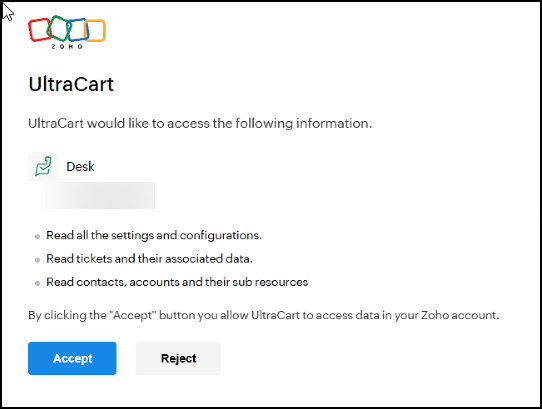
-
After accepting the connection, you will see a screen indicating that your Zoho Desk API connection has been established. If you have not previously installed the extension, click the "here" link to begin the installation process.
-
Configure the departments and profiles for which the UltraCart extension should load.
Tip: These settings can be modified later under the Zoho Marketplace Installed Extensions screen.
Expected Outcome
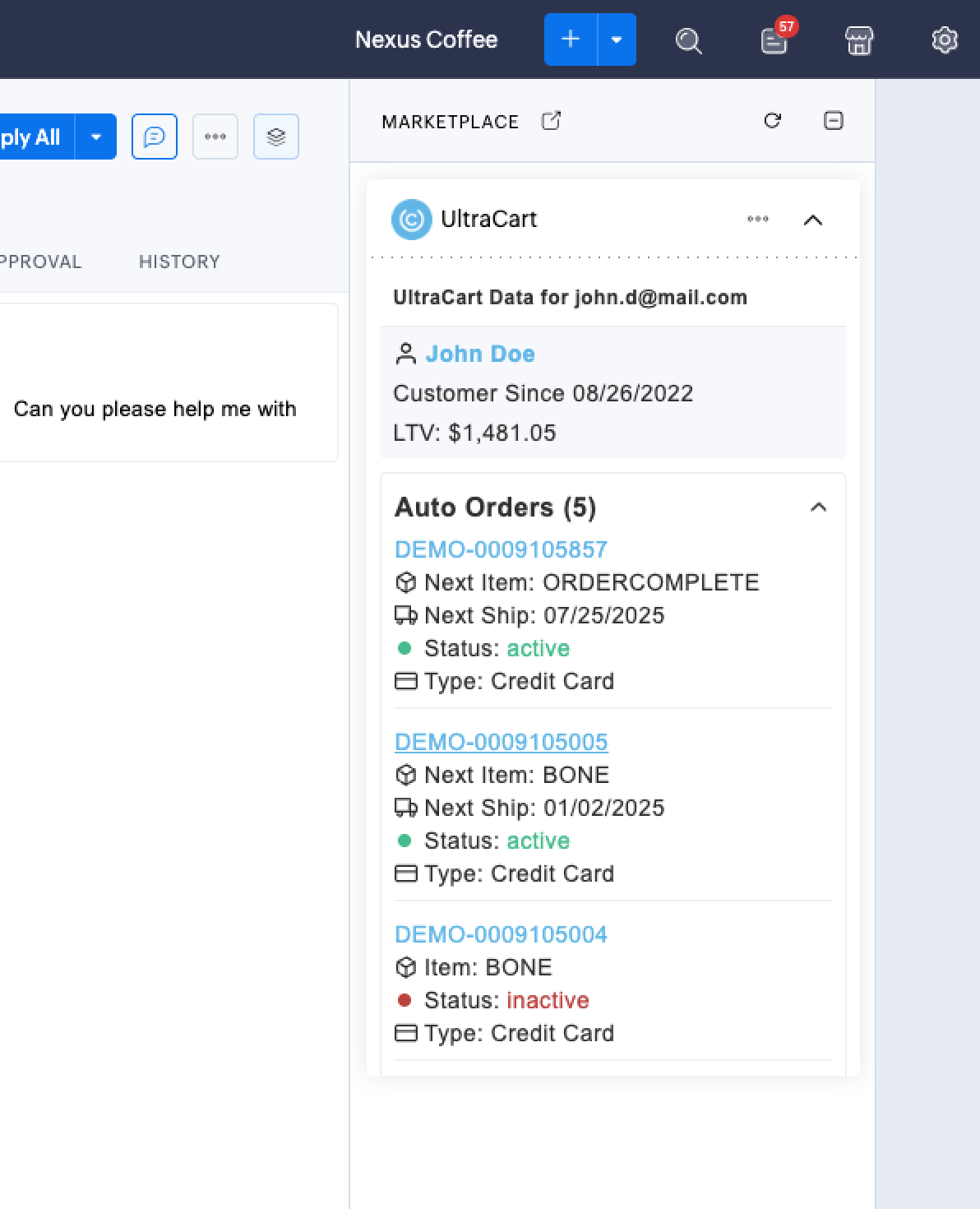
Once the connection is made and the extension is configured, when viewing a ticket in Zoho Desk, click on the marketplace icon in the upper right corner to show the right panel where the extension loads. This will display the UltraCart integration, providing contextual customer information such as:
-
Customer Name: Identifies the customer associated with the ticket.
-
Customer Since: Shows the date the customer first engaged with your business.
-
Lifetime Value (LTV): Understand the customer's overall value to your business.
-
Auto Orders: View any recurring orders or subscriptions the customer has, including their next ship date, status, and payment type.
This integration empowers your support agents to quickly access relevant customer data, improving their ability to resolve issues and provide personalized support.
UltraCart will also establish the contact in Zoho Desk when an order is placed so ensure that the contact’s email, first name and last name are already populated when a ticket comes in.
Reporting on your ticket data
Once the integration is connected, UltraCart also copies your Zoho Desk tickets into your Data Warehouse (BigQuery), where they sit alongside your orders, customers, and auto orders. That makes it possible to answer questions Zoho Desk cannot answer on its own, such as how many tickets you receive per order, or whether your highest-value customers contact support more often than everyone else.
-
Zoho Desk Ticket Data Reference describes the ticket columns, the data sets, and the value conventions to watch for.
-
Zoho Desk Ticket Reporting Queries provides ready-to-run SQL for ticket volume, resolution time, agent workload, and comparisons against order data.
-
Reporting on Zoho Desk Custom Fields covers the custom fields your agents fill in on each ticket.
Troubleshooting
If you encounter issues with the integration:
-
Verify that your Zoho Desk pricing plan is Professional or higher.
-
Ensure you have clicked both the
Acceptbutton on the Zoho connection screen and the "here" link to install the extension. -
Check the "Zoho Marketplace Installed Extensions" screen in Zoho Desk to confirm the UltraCart extension is installed and configured for the correct departments and profiles.