How to update Credit Card on File
Introduction
This guide walks you through updating the credit card information associated with your UltraCart account. Keeping your payment method current ensures uninterrupted service and accurate billing.
Prerequisites
Prerequisite: Your user account must have the Edit Service Plan permission to update billing information.
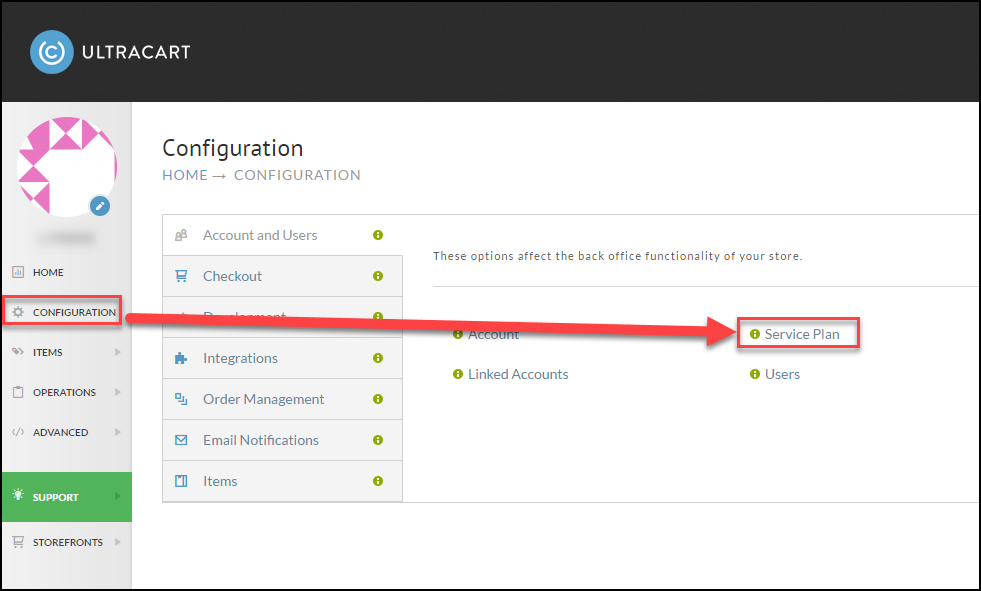
NAVIGATION: Home → Configuration → Service Plan
- All users that have the "Edit Service Plan" permission will receive periodic billing and payment notification emails. Only add this user permission to users that need ability to access/update the billing credit card details on file and recieve notifications related to billing processing.
Step-by-step Instructions
Navigate to the Service Plan Page
- From the UltraCart Home screen, go to Configuration > Service Plan.
Locate the Billing Credit Card Section
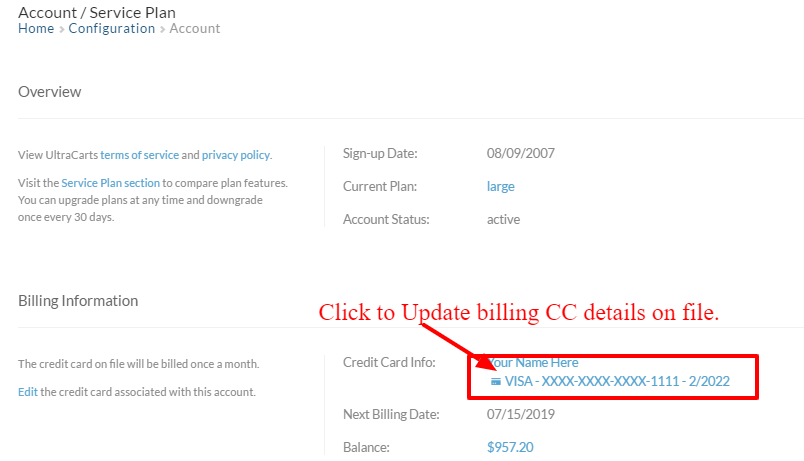
- On the Service Plan page, scroll to the Billing Information section.
-
Update Cardholder Information
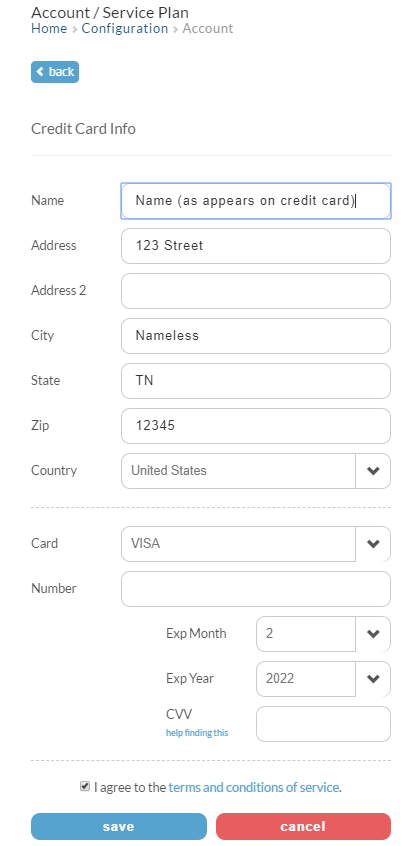
- Ensure the Name, Billing Address, and other cardholder details are accurate.
-
Enter New Card Details
-
Provide the updated:
-
Credit Card Number
-
Expiration Date
-
**Security Code (CVV)
**
-
-
-
Save Changes
- Click the Save button to apply the changes.
Conclusion
Once saved, your new credit card details will be used for future billing. Ensure all entered information is accurate to prevent payment issues.
Next Steps
-
Review your Service Plan settings for additional billing and subscription options.
-
Confirm that your updated payment method is reflected in your next invoice cycle.
For additional (related) information see: Service Plan