Overview
FTP is a very convenient way to access a lot of files on a remote server. UltraCart provides FTP server access to allow users access to:
- Storefronts
- Catalog
- Digital delivery
- Item multimedia
- Screen branding graphics
Using the FTP server with the catalog allows a merchant to upload static content like HTML, CSS, graphics, and JavaScript.
Configuring User FTP Password
Navigation
Home → Configuration → Users
The first step in accessing the FTP server is to configure an FTP password on the user.
First click Configuration in the left-hand navigation, then click Account and Users in the flyout menu, and click Users on the Configuration page, as shown below.

Alternatively you can set your own FTP password from the Your Preferences screen by clicking your merchant name at the top of the left-hand navigation and selecting Your Preferences, as shown below.

From the Users configuration, Click "Edit" on the user to set the FTP password on. If a user does not have administrator permissions they will have to request an FTP password be set by the administrator.

On the user editor screen there is a section labeled "New FTP Password" with fields to enter and confirm the new password.

FTP Host/User Credentials
After an FTP password is configured, connect to the FTP server with these settings:
| Setting | Value |
|---|---|
| Server | merchantftp.ultracart.com |
| Port | 21 |
| Encryption | Explicit TLS, also called FTPES or AUTH TLS. Required. |
| Username | <MerchantID>/<LOGIN>, for example DEMO/johna |
| Password | The FTP password set on your user |
Replace the values in angle brackets with your own merchant ID and login, and check the username format carefully before you connect.
The FTP server requires TLS encryption. Connections over plain, unencrypted FTP are refused. TLS encrypts the connection, including your username and password. If your FTP client connected before and now fails, change its connection type to explicit TLS.
The server also blocks your IP address after three failed login attempts, so a misconfigured client can lock you out quickly.
FTP Client Configuration
Any FTP client that supports explicit TLS works. Clients label it in different ways: FTPES, FTP over explicit TLS/SSL, FTPS (AUTH TLS - Explicit), or FTP with TLS/SSL. Choose that option, not plain FTP and not the implicit option, which uses port 990.
Connecting with CuteFTP (Windows)
CuteFTP is a Windows FTP client from Globalscape, downloadable from https://installer.globalscape.com/pub/cuteftp/cuteftp.exe.
- Open the new site menu in the toolbar and choose FTPS with TLS/SSL (AUTH TLS - Explicit) Site.
- Enter the server, username, and password from the table above, with port
21. - Connect. The log at the bottom of the window shows SSL encrypted session established when TLS is working.

Connecting with FileZilla
UltraCart no longer recommends FileZilla, because some download sites bundle malware with its installer. If you already use it, open the Site Manager and set Server Type to FTPES - FTP over explicit TLS/SSL.

Once you are connected, most FTP clients split the window into two sides, Local site for your computer and Remote site for the UltraCart FTP server.

Connecting with Transmit (macOS)
The UltraCart FTP server requires TLS encryption. A Transmit server set to plain FTP can no longer connect. Set up the connection with FTP with TLS/SSL instead.
-
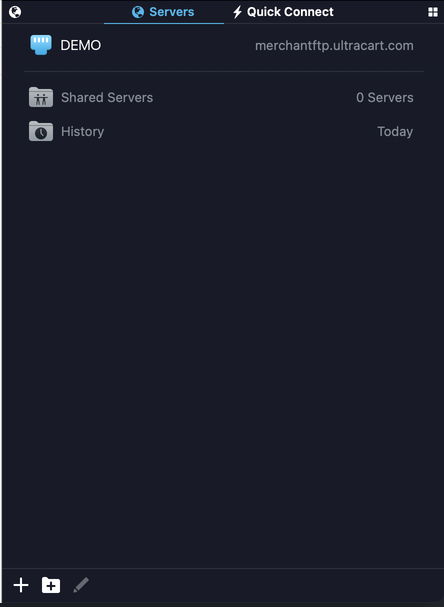
In Transmit, click Servers, then click + in the bottom toolbar.
-
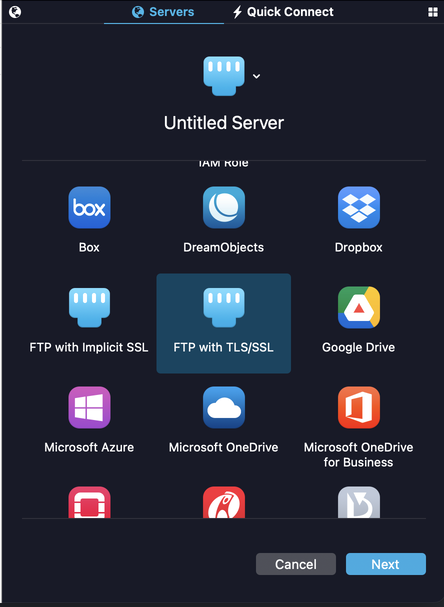
Select FTP with TLS/SSL and click Next. Do not choose FTP with Implicit SSL, which is a different connection method.
-
Fill in the server settings:
Field Value Protocol FTP with TLS/SSL Passive mode Checked Address merchantftp.ultracart.comPort 21User Name <MerchantID>/<LOGIN>, for exampleDEMO/johnaPassword The FTP password set on your user 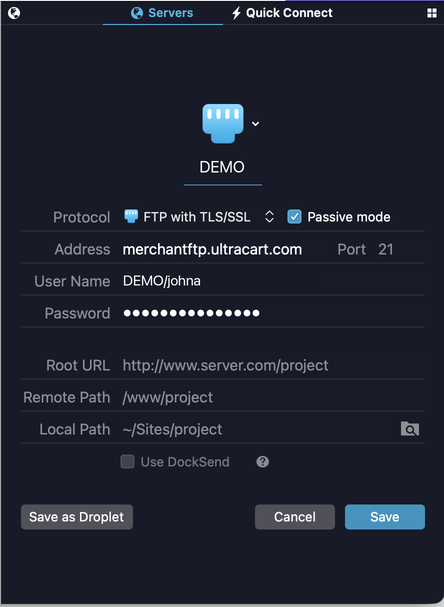
-
Leave Root URL, Remote Path, and Local Path empty.
-
Click Save, then double-click the server in the Servers list to connect.
If you already have an UltraCart server saved with plain FTP, either change its Protocol to FTP with TLS/SSL or add a new server using the steps above.
Check the user name format before you connect. The server blocks your IP address after three failed login attempts, so a typo repeated a few times locks you out.
FTP Folder Hierarchy
The root folder contains five folders:
- catalogs
- digital-delivery
- item-multimedia
- screen-branding
- storefronts