Integrating Google Tag Manager into Your UltraCart Storefront
Introduction
Google Tag Manager (GTM) is a tag management system that allows you to quickly and easily update tracking codes and related code fragments (collectively known as tags) on your website or mobile app. Without GTM, these code fragments often need to be manually updated directly in your website's code. GTM simplifies this process, enabling marketers to deploy and manage tags without requiring developers for every change.
Google Tag Manager vs. Google Analytics
While often used together, Google Tag Manager and Google Analytics serve different purposes:
-
Google Analytics is an analytics tool used to track and report website traffic. It collects data about user behavior, such as page views, session duration, bounce rates, and conversion goals, providing insights into how users interact with your site.
-
Google Tag Manager is a deployment tool. It does not collect data itself but acts as a container for various tags, including the Google Analytics tracking code. GTM allows you to manage when and how your Google Analytics tag (and other tags like Google Ads conversion tracking, Facebook Pixel, etc.) fires on your website.
In essence, GTM helps you implement Google Analytics and other tracking tools more efficiently, while Google Analytics collects and reports on your website data.
Integrating Google Tag Manager into your Storefront
To integrate Google Tag Manager into your UltraCart Storefront, you will configure specific settings within the UltraCart interface.
Prerequisites
-
A Google Tag Manager account and a configured container.
-
Your Google Tag Manager Container ID (e.g.,
GTM-XXXXXX). This ID can be found in the first code block after initial setup or at the top of the Google Tag Manager user interface.
Navigate:
Storefronts → Choose Storefront → (Storefronts menu) Privacy & Tracking → Google (tab) → Scroll down to ‘Tag Manager’
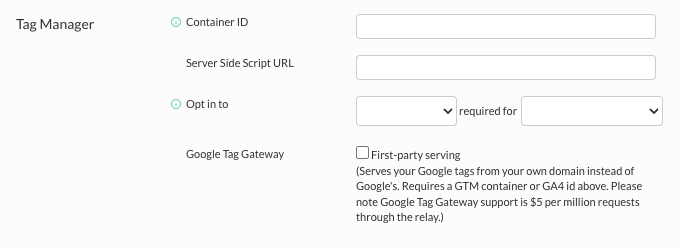
Configure Tag Manager Credentials: In the 'Tag Manager' section, you will find the following fields:
-
Container ID (Required)
-
In the Container ID field, paste your Google Tag Manager Container ID. This ID is typically formatted as "GTM-XXXXXX". You can locate this ID in the first code block provided by Google Tag Manager during setup, or at the top of the Google Tag Manager user interface.
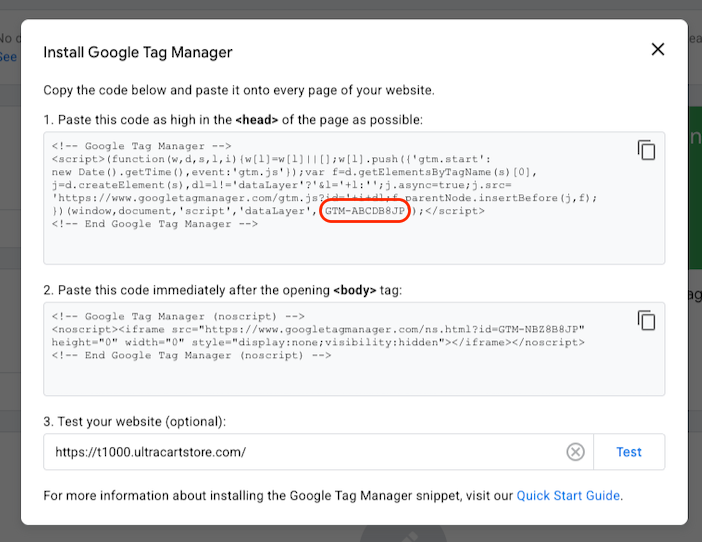
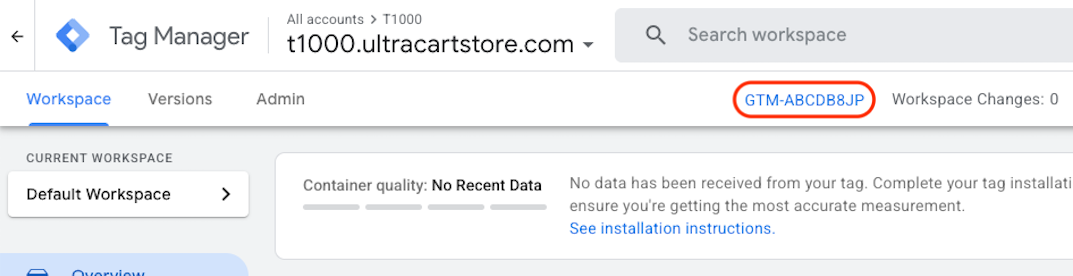
Setup and installation - Tag Manager Help - Google Help
https://support.google.com/tagmanager/answer/6103696?hl=en
Try using this chrome plugin for testing the google tag manager:
-
Note: UltraCart automatically places the necessary Google Tag Manager scripts into the <head> and <body> sections of your Storefront pages. You may receive a warning that the script is not rendering in the head section of the page; the script is still functional. Please allow up to 24 hours after configuring your Container ID for Google to begin registering traffic.
-
Server Side Script URL (Optional - Advanced)
-
The Server Side Script URL field is for advanced users who are hosting their own tag manager container.
If you are unsure whether you need this, you most likely do not. If applicable, enter the URL for your self-hosted tag manager container here
-
-
Opt in to (recommended)
-
The Opt in to and required for settings allow your UltraCart Storefront to comply with General Data Protection Regulation (GDPR) requirements.
-
Select the appropriate options based on your privacy policy and legal advice.
-
-
Google Tag Gateway — First-party serving (Optional)
-
Serves your Google tags from your own store domain instead of Google’s, recovering conversion and analytics data that Safari’s tracking prevention and ad/content blockers would otherwise discard.
-
Requires a GTM Container ID or GA4 ID (configured above).
-
Billed at $5 per million relayed measurement requests. See Google Tag Gateway (First-Party Serving) below for details.
-
-
UTM parameters (Optional)
-
Pushes the UTM values UltraCart Analytics recorded for the shopper to the data layer, so the GA4 tag in your container can send them with your events.
-
Off by default, and separate from the GA4 UTM parameters setting in the Analytics section. See Sending UltraCart's UTM Values to Your GA4 Tag below.
-
Disclaimer: This is not legal advice. The General Data Protection Regulation is complex and each merchant should obtain legal advice to discover how the regulation applies to their specific business.
Sending UltraCart's UTM Values to Your GA4 Tag
The UTM parameters setting in the Tag Manager section hands the UTM values UltraCart Analytics recorded for each shopper to your container, so your GA4 tag can send them with every event. Use it when your traffic starts somewhere GA4 can't see, such as landing sites running UltraCart Analytics, and you run GA4 through your own container rather than UltraCart's GA4 tag.
UltraCart doesn't control the GA4 tag inside your container, so it can't add the values to your events directly. Instead, it pushes them to the data layer just before your container loads, on your StoreFront pages and on the receipt page:
window.dataLayer.push({"utm_source":"facebook","utm_medium":"cpc","utm_campaign":"spring_sale"});
The push has no event name, so it doesn't fire any of your triggers or send anything to GA4 by itself. The values reach GA4 only after you map them on your GA4 tag. The same rules apply as for UltraCart's own GA4 tag: empty values are left out and UltraCart's "Unspecified" campaign placeholder is never sent. See GA4 UTM Parameters for the full rules.
Turn on UTM parameters
- Navigate to Storefronts > Choose Storefront > Privacy & Tracking > Google tab, and scroll to Tag Manager.
- Make sure the Container ID is set.
- Select the UTM parameters checkbox ("Push UltraCart's UTM values to the data layer").
- Click Save.
Map the values in your container
- In Google Tag Manager, create a Data Layer Variable for each value you want, with the data layer variable name
utm_source,utm_medium,utm_campaign,utm_term,utm_contentorutm_id. - Add the variables as event parameters on your GA4 tags, or once in your Google tag's shared event settings so every GA4 event gets them. Use the same names, such as
utm_source, as the parameter names. - Publish the container.
- Register the parameters as custom dimensions in GA4. See Register the parameters in GA4.
To check your setup, open your store in Tag Manager's Preview mode. The data layer shows a message with the utm_* values before the container loads, and your Data Layer Variables show the same values on every event after it.
If you also use UltraCart's GA4 tag
The Tag Manager setting and the GA4 UTM parameters setting in the Analytics section are independent. Turn on the one that matches how GA4 runs on your store, or both if you use both. Neither setting adds a hit to GA4, so having both on doesn't count anything twice. However, if your container's GA4 tag sends to the same measurement ID as UltraCart's GA4 tag, every event is already counted twice, with or without these settings.
Purchases UltraCart sends through the Google Measurement API carry the UTM values only when GA4 UTM parameters is on, because that feature is configured in the Analytics section.
Sending the Funnel Hostname to Your GA4 Tag
The funnel_hostname setting in the Tag Manager section hands your container the hostname of the site where UltraCart Analytics first saw the shopper since their last order. Use it when several sites feed one shared checkout domain and you want GA4 to credit each sale to the site where the shopper started, and you run GA4 through your own container rather than UltraCart's GA4 tag.
UltraCart pushes the value to the data layer just before your container loads, on your StoreFront pages and on the receipt page:
window.dataLayer.push({"funnel_hostname":"www.example-blog.com"});
Like the UTM push, it has no event name, so it doesn't fire any of your triggers by itself. For how UltraCart works out the value, and when it is left out, see GA4 funnel_hostname.
Turn on funnel_hostname
- Navigate to Storefronts > Choose Storefront > Privacy & Tracking > Google tab, and scroll to Tag Manager.
- Make sure the Container ID is set.
- Select the funnel_hostname checkbox ("Push the host where UltraCart Analytics first saw the shopper to the data layer").
- Click Save.
Map the value in your container
- In Google Tag Manager, create a Data Layer Variable with the data layer variable name
funnel_hostname. - Add it as an event parameter named
funnel_hostnameon your GA4 tags, or once in your Google tag's shared event settings so every GA4 event gets it. - Publish the container.
- Register
funnel_hostnameas a custom dimension in GA4. See Register funnel_hostname in GA4.
Purchases and refunds UltraCart sends through the Google Measurement API, including subscription rebills, carry funnel_hostname only when GA4 funnel_hostname is on in the Analytics section. Rebills never pass through your container, so turn that setting on too if you want them credited.
Google Tag Gateway (First-Party Serving)
Google Tag Gateway serves your Google tags from your own store domain instead of Google’s. This recovers conversion and analytics data that Safari’s Intelligent Tracking Prevention and ad/content blockers would otherwise discard — with no re-tagging, no new dashboards, and no change to your existing Google setup.
Multi-Domain and Headless Setups
Google Tag Gateway relays traffic only for tags loading on the StoreFront domain where it is enabled. It does not extend first-party serving to pages hosted on a different domain.
This matters for merchants running a split setup, for example a WordPress site as the front end with UltraCart handling checkout on a StoreFront domain. Enabling Google Tag Gateway in UltraCart affects only tags that load on UltraCart-hosted pages, such as checkout and receipt pages. Tags loading on the WordPress domain continue to load directly from Google and are not relayed.
Note: The largest share of blocked or shortened conversion data typically comes from the landing page a shopper first visits, since that is where most ad-attribution tags fire. If your landing pages live on a separate domain from your StoreFront, enabling Google Tag Gateway on the StoreFront alone recovers only the tracking that runs on UltraCart-hosted pages.
To get full-funnel benefit from Google Tag Gateway in a split-domain setup, the landing page and checkout need to share the same domain. Contact UltraCart Support to discuss migrating a WordPress front end into StoreFront.
Why enable it
When a shopper’s browser loads Google tags from googletagmanager.com and sends measurement hits to google-analytics.com, two things quietly erode your data:
-
Ad and content blockers block requests to Google’s tracking domains outright, so the tag never loads and the hit never sends.
-
Safari’s Intelligent Tracking Prevention caps analytics cookies to roughly seven days and blocks many cross-site requests, shortening attribution and remarketing windows.
With Google Tag Gateway enabled, those same tags load from — and post their measurement hits to — your own storefront domain. Because the request is first-party (the domain the shopper is already on), blockers let it through and the cookie lives its full intended lifetime. The result is more complete conversion and event data feeding the same GA4 and Google Ads reports you already use.
Note: Nothing about your existing Google Privacy and Tracking setup changes. Same GA4 property, same Google Ads account, same GTM container, same dashboards. Google Tag Gateway is transport plumbing underneath — not a re-tagging project. This implements Google’s own published “Google tag gateway for advertisers” (first-party serving) model.
Privacy
Google Tag Gateway is not a blind reverse proxy. For every request it builds a fresh, minimal request to Google from a strict allowlist: only Google’s own measurement cookies (such as _ga and _gcl_*) are forwarded. Your customers’ cart, checkout, login, and CSRF cookies are dropped before the request is built, the raw shopper IP is never sent to Google (only a coarse country/region is derived from it), and identity and authorization headers are stripped. Only the measurement data the Google tags already collect flows through — nothing more.
Custom and Third-Party Tags in Your GTM Container
Google Tag Gateway loads your entire GTM container through the relay path, including any custom tags you have configured, such as a custom conversion tag fired on the receipt page rather than one of UltraCart's native Adwords Conversion ID or GA4 fields.
The allowlist behavior described above still applies at the request level. Google Tag Gateway forwards only recognized Google measurement traffic, such as _ga and _gcl_* cookies and standard GA4 or Google Ads hit formats. A custom tag that sends data using the standard Google measurement libraries benefits from first-party serving the same way a native tag does. A custom tag that sends data to a non-Google endpoint, such as a different analytics vendor or a private webhook, is not relayed and continues to fire against its original destination unchanged.
Important: If you use a custom tag to fire a Google conversion event, verify with Google Tag Assistant that the tag is present, firing, and connecting through your StoreFront domain after Google Tag Gateway is enabled. This confirms your specific configuration is being relayed as expected.
What still goes directly to Google (and why that's expected)
After enabling Google Tag Gateway, you (or your developer) will still see some requests to google.com and doubleclick.net in the browser's Network tab. This is expected and by design. Only part of Google's tag surface is eligible for first-party serving; the rest is Google's own serving-scope boundary, not the relay dropping or mishandling anything.
Served first-party from your store domain:
| Purpose | Request |
|---|---|
| Google tag loader scripts | gtm.js, gtag/js |
| GA4 event measurement | the /g/collect beacon (Google serves it under an obfuscated path on your domain, such as /a/g/c) |
Still sent directly to google.com / doubleclick.net — on every Tag Gateway deployment:
| Purpose | Endpoint |
|---|---|
| Google Ads conversion measurement | /ccm/collect |
| Remarketing and audience calls | /rmkt/collect, /pagead/viewthroughconversion, /pagead/1p-user-list |
| DoubleClick cookie-sync | ad.doubleclick.net |
| GA4 Google Signals | stats.g.doubleclick.net |
| GA4 service/session calls | analytics.google.com/g/s/collect |
Some GA4 traffic may also route directly to a regional endpoint (such as region1.analytics.google.com) to satisfy Google’s EU and regional data obligations. This too is Google’s own routing, not the relay.
These direct requests still return a success status, and your Google Ads conversion attribution keeps its resilience against Safari’s Intelligent Tracking Prevention (ITP). What matters is how the identifier cookies are written, not where the beacon is sent: because the relay runs on your own domain and sets Google’s first-party cookies (_gcl_*, FPID) through the response’s Set-Cookie header — server-set, not written by JavaScript — ITP’s roughly seven-day cap on JavaScript-set cookies does not shorten them. Attribution stays intact even though the conversion beacon itself still travels to Google.
Seeing google.com or doubleclick.net requests in the Network tab is therefore normal and does not require troubleshooting.
Note: The relay is path-agnostic — it forwards requests to Google without filtering by endpoint. If Google adds new endpoints to its first-party serving surface in the future, those requests begin flowing through your own domain automatically, with no configuration change on your side.
Requirements
-
A GTM Container ID or GA4 ID configured in the Tag Manager section above.
-
On the Google side, enable “Google tag gateway for advertisers” for your tag (in GA4 / Google Ads). Google Tag Gateway is the transport; Google still has to accept first-party serving for that tag.
Pricing
Google Tag Gateway is billed on usage at $5 per million measurement requests. Only successfully relayed requests are billed — rejected, blocked, or invalid requests are not charged. There is no setup fee, no minimum commitment, and no separate charge for the infrastructure or re-tagging. Usage is metered per storefront and rolled into your normal UltraCart billing cycle.
The figures below are illustrative only — actual volume depends on your traffic and how many measurement hits each page view fires.
| Monthly measurement requests | Monthly Google Tag Gateway cost |
|---|---|
| 500,000 | $2.50 |
| 1,000,000 | $5.00 |
| 5,000,000 | $25.00 |
| 25,000,000 | $125.00 |
How to enable it
-
In the Tag Manager section, check Google Tag Gateway → First-party serving.
-
UltraCart provisions the first-party measurement path and load-balancer routing automatically and rewrites your storefront’s tag snippet to serve from your own domain.
-
Enable “Google tag gateway for advertisers” for your tag on the Google side (GA4 / Google Ads).
-
Validate end-to-end with Google Tag Assistant and GA4 realtime to confirm hits route through your own domain.
Google Tag Gateway is default off and fully reversible — uncheck the box at any time to turn it off.
Test Your Website (Optional)
After configuring your Container ID, you can test your website to ensure Google Tag Manager is properly integrated.
-
Access the Test Feature:
-
On the "Install Google Tag Manager" pop-up, locate the "3. Test your website (optional)" section.
-
An example URL will be provided, such as
https://t1000.ultracartstore.com/. -
Click the Test button next to the URL.
-
-
Use Google Tag Assistant:
-
Google provides a Chrome browser plugin called Google Tag Assistant which can help with testing your Google Tag Manager implementation. You can download it from
https://get.google.com/tagassistant/. -
The Google Tag Assistant tool can help troubleshoot issues.
-
-
Allow Time for Data Registration:
- Please allow up to 24 hours after configuring your container ID for Google to begin registering traffic.
Google Troubleshooting tool
https://tagassistant.google.com/ . https://support.google.com/tagassistant/answer/10039345#zippy=%2Cin-this-article