Your Preferences
Introduction
The Your Preferences area in UltraCart allows individual users to customize their account settings, personal information, login credentials, notifications, and navigation experience.
This section is designed to give each user control over how they interact with the UltraCart system—without affecting other users on the account. From updating your profile image to configuring email notifications and reorganizing menu navigation, these settings help tailor the platform to your workflow.
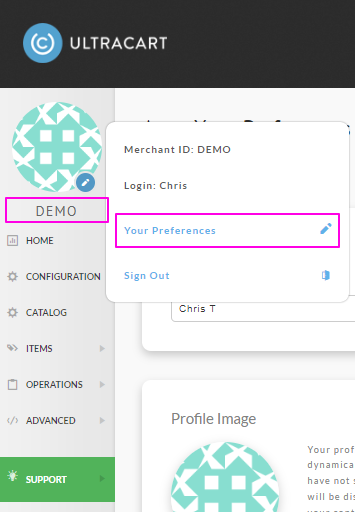
You can access Your Preferences by hovering over your Merchant ID in the top-left corner of the UltraCart interface and selecting Your Preferences from the dropdown menu.
Prerequisites
Before accessing or modifying settings in Your Preferences, ensure the following:
-
You have a valid UltraCart user account and are logged in.
-
Your user permissions allow access to the specific sections you want to modify.
-
To access or modify Email Notifications and certain permission-related settings:
- You must have the Edit Users permission enabled.
Note: If you do not have the required permissions, you may see limited options or receive a permission-related message. Contact your account administrator to request access.
Accessing Your Preferences
-
Log in to your UltraCart account.
-
Locate your Merchant ID in the top-left corner.
-
Hover over the Merchant ID to open the dropdown menu.
-
Click Your Preferences.
[Image Placeholder – Merchant ID dropdown menu]
Your Information
This section stores your personal account details used internally within UltraCart.
-
Name
-
Email address
-
Phone number
This information is not shared with customers but may be used by UltraCart Support if needed.

Profile Image
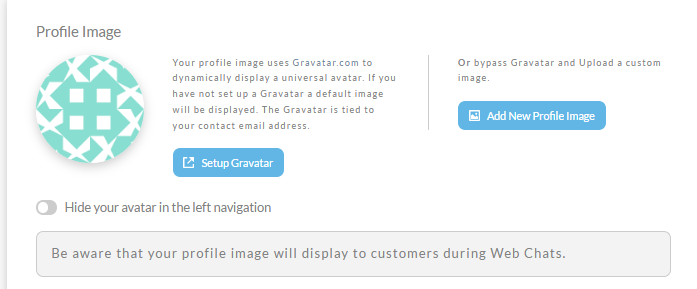
You can configure a profile image that represents you within the system.
-
Uses Gravatar (linked to your email address), or
-
Upload a custom image
Note: Your profile image may be visible to customers during Web Chats.
UltraCart Login
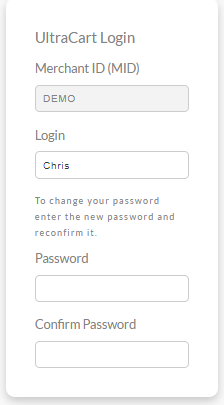
Use this section to update your login credentials:
-
Username (Login)
-
Password
Password Requirements
-
Minimum 8 characters
-
At least one uppercase letter
-
At least one number
Two-Factor Authentication (2FA)
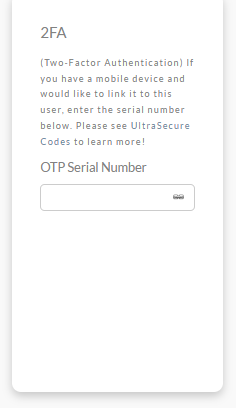
Enhance account security by enabling 2FA.
-
Link a mobile device using an OTP serial number
-
Works with UltraSecure Codes
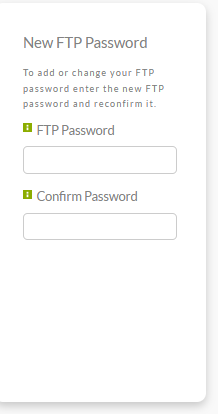
New FTP Password
Update your FTP password for development or file access purposes.
Warning:
Your FTP password must be different from your UltraCart login password
Most users will not need this feature (primarily for developers)
Email Notifications
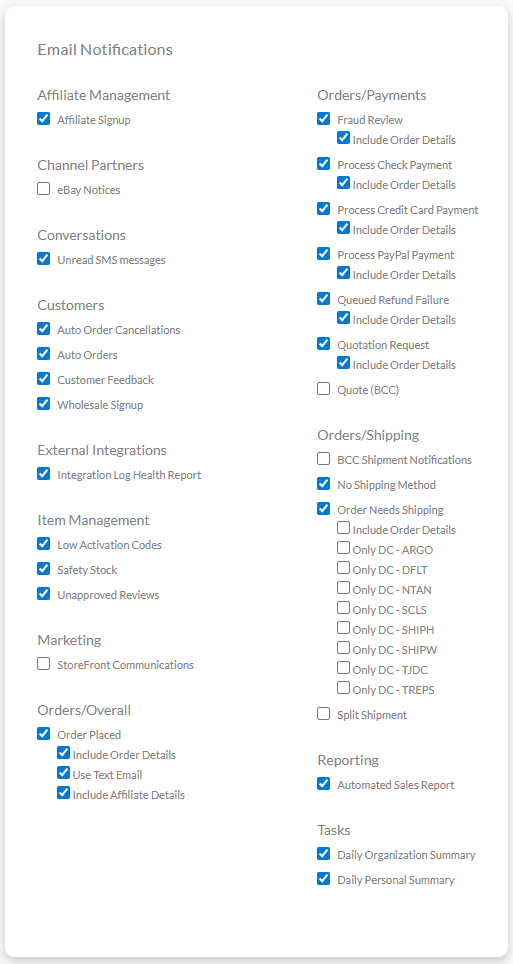
Configure which system events trigger email notifications.
Each notification includes two options:
-
Notification Enabled – Receive an email alert
-
Include Order Details – Include detailed order data in the email
Examples include:
-
Order placed
-
Payment processing events
-
Shipping notifications
-
Reporting alerts
Prerequisite:
You must have the Edit Users permission to access this section.
Menu Navigation
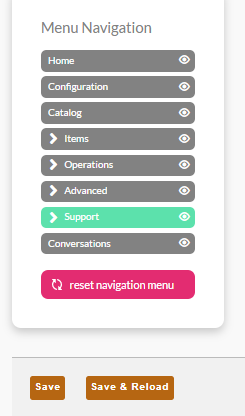
Customize your UltraCart menu to match your workflow.
Available Actions
-
Reorder menu items using drag-and-drop
-
Hide/show items using the eye icon
-
Expand submenus by clicking menu items with arrows
-
Reset menu to default settings
This allows you to prioritize frequently used areas like:
-
Order Management
-
Reporting
-
Catalog
Accessibility
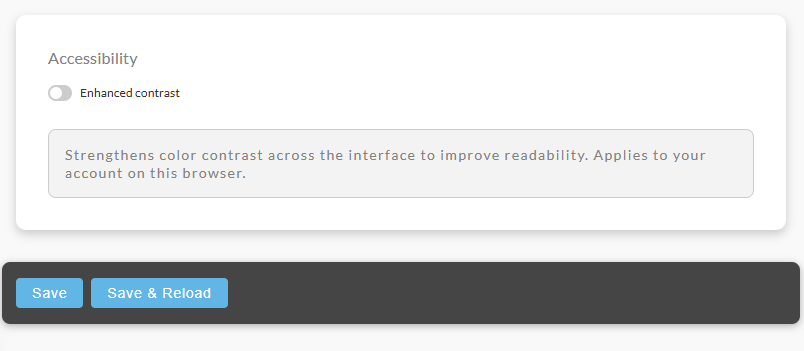
This section lets a merchant user adjust how the backend UI renders for their own login, independent of storefront or checkout appearance.
The first setting in this section is Enhanced Contrast, a toggle that strengthens color contrast across the backend interface to improve readability.
Sign Out
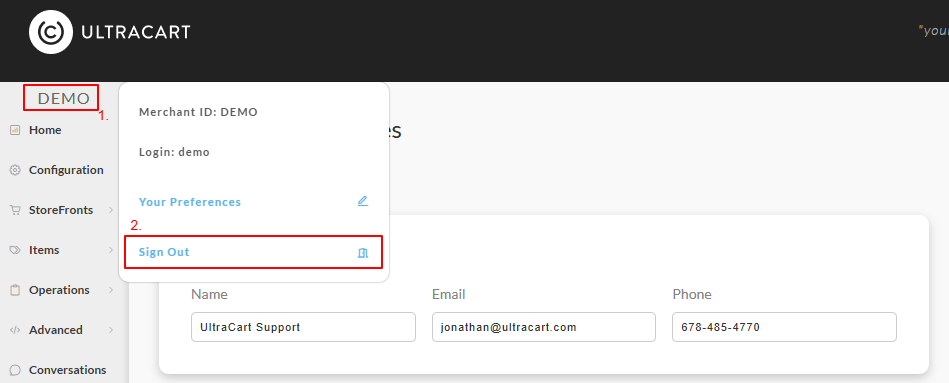
Mouse over the merchantID that appears above the main menu, then choose Sign Out to securely log out of your UltraCart account.
FAQ
Q: Why can’t I see the Email Notifications section?
A:
You likely do not have the Edit Users permission. This permission is required to view and modify notification settings. Contact your account administrator to request access.
Q: Why are some settings missing or disabled?
A:
UltraCart uses role-based permissions. If a setting is not visible or editable, your user account may not have the required permissions. Reach out to your administrator to review your access.
Q: Will my profile image be visible to customers?
A:
Yes. If you use UltraCart Web Chat, your profile image (Gravatar or uploaded image) may be displayed to customers during interactions.
Q: Do I need to configure an FTP password?
A:
Most users do not. This feature is intended for developers who need FTP access for advanced storefront customization.
Q: Can I reset my navigation menu?
A:
Yes. Use the Reset Navigation Menu option in the Menu Navigation section to restore the default layout.
Q: What happens if I don’t meet the password requirements?
A:
UltraCart will reject the password update until it meets the minimum security requirements (length, uppercase letter, and number).
Conclusion
The Your Preferences section provides essential tools for customizing your UltraCart experience at the user level. By configuring your profile, notifications, and navigation, you can streamline your workflow and improve efficiency.
Next Steps
-
Review your User Permissions to ensure full access to needed features
-
Configure Email Notifications for operational awareness
-
Enable 2FA to improve account security
-
Customize your Navigation Menu for faster access to key tools