Fraud Prevention
As a merchant, you are liable for every card transaction you process, even a fraudulent one. Fraud costs you lost revenue, wasted time, chargebacks, and higher card fees.
UltraCart's fraud prevention lets you screen orders with rules before they ship. Each rule is checked against the order and against earlier transactions, and it runs before the card is processed. When an order breaks a rule, you choose what happens: decline it, hold it for review, or let it through and mark it.
Navigate: Main Menu → Configuration → Checkout tab → Fraud Prevention
How it works
The rules compare the order in front of them with its history: the card, the IP address, the address, the affiliate, the items, and the customer's earlier orders. If a rule is broken, the action you chose for that rule runs.
The Fraud Prevention screen groups rules like this:
| Group | What it checks |
|---|---|
| Exemption Rules | Checked first. An order that matches an exemption skips every other rule. Use them to exempt your office or call center, APO/FPO shipments, and customers who are logged in with a pricing tier. |
| Payment Rules | The size and number of transactions per day or week, a specific card or card BIN, how many times a shopper changes cards, PayPal and Amazon special instructions, a reward coupon email mismatch, and a payment gateway response value. |
| Credit Card Rules (Premium) | Whether the card is prepaid or a gift card. This costs $0.05 for each card validated. |
| IP/Subnet Rules | How much and how often an IP address or its subnet orders, a specific IP address or subnet, and an IP country that does not match the billing or shipping country. |
| Address Rules | AVS (Address Verification System) results, billing that does not match shipping, international customers, addresses outside the countries you pick, email addresses, and wholesale customers who are not logged in. |
| Address Rules (Premium) | A fraud score for the order. It costs $0.01 for each card validated, and there is a version that exempts APO/FPO addresses. |
| Affiliate Rules | A specific affiliate, affiliate volume and decline rates, and several sales from one IP address in a day or a week. |
| Item Rules | A specific item ID, or an item quantity over a limit. |
| Order Rules | A customer with an earlier return, a repeat purchase within a number of hours, and a coupon meant to be shared. |
| Browser Rules | One rule: the shopper's browser operating system is Linux. |
Rules that use the premium services say so on the screen, with their price.
Create a rule
Each rule reads like a sentence. To decline any single transaction over $500, enter 500 in the If single transaction exceeds rule, choose Decline Transaction in the list, and click Apply.
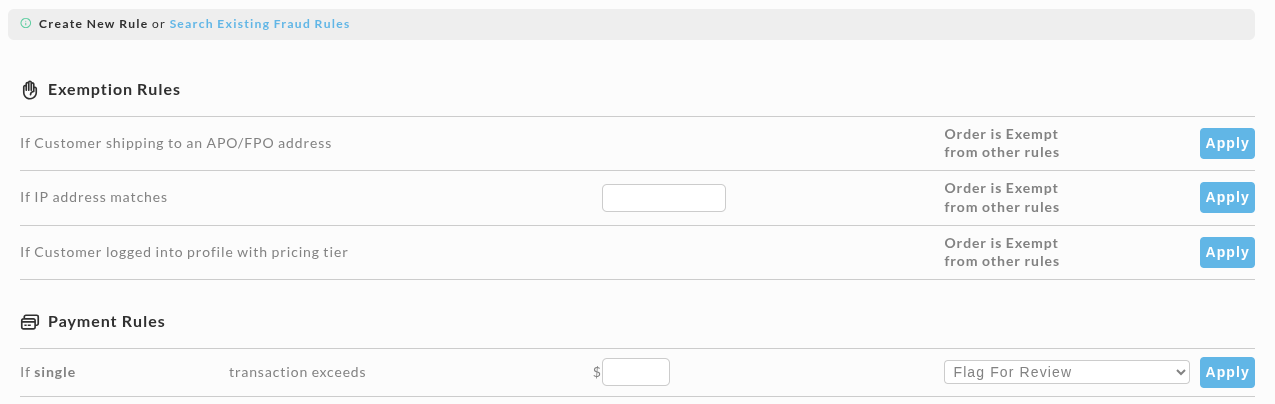
What happens to a flagged order
Most rules offer these four actions. A few offer fewer. For example, the rule for a customer with an earlier return only offers Process Payment and Review.
| Action | What it does |
|---|---|
| Flag For Review | Sends the order to Accounts Receivable and puts a note in the merchant comments. |
| Process Payment and Modify | Processes the payment, then changes the order, for example by setting a custom field. |
| Process Payment and Review | Processes the payment, then puts the order on the Fraud Review page. |
| Decline Transaction | Shows the customer a decline message when they finish the order. |
Add a note and filters
Clicking Apply opens Apply New Fraud Rule. It repeats the rule as its Description and offers a few optional settings.
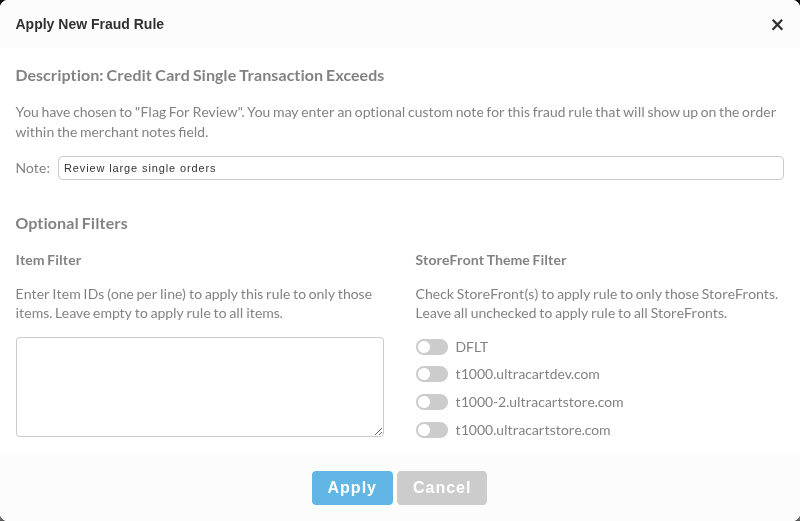
- Note is an optional custom note for a rule set to Flag For Review. It appears in the order's merchant notes.
- Item Filter: the rule only runs when the order has one of these items. Enter one item ID on each line. For example, limit a prepaid or gift card rule to the items that represent your free trial.
- StoreFront Theme Filter: the rule only runs on the StoreFronts you switch on.
Leave a filter empty and the rule applies to every item or every StoreFront. Click Apply in the dialog to save the rule. The dialog closes with no message, so search for the rule to confirm it.
Exemption rules
An exemption rule uses the same dialog. Save the dialog and the exemption exists. For an IP exemption, enter the IP address first. If you do not know it, search for "what is my IP" from your office.
Find, review, and remove rules
Click Search Existing Fraud Rules at the top of the Fraud Prevention screen. You can search
by rule group, rule type, action, StoreFront, gateway, item, creator, or created date. Search with
nothing filled in to list every rule. Wildcards are not implied: use * yourself, such as
*example*.
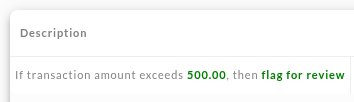
Each result shows the rule in plain words, such as If transaction amount exceeds 500.00, then flag for review.
To remove a rule, click Delete at the end of its row. The rule is removed right away with no confirmation prompt, so check the row first. Search again to confirm it is gone.
Create a rule from an order you think is fraudulent
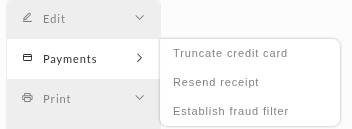
When you find an order that you believe is fraudulent, you can create fraud filters from it. Open the order, then choose Payments → Establish fraud filter in the menu on the left.
The Establish Fraud Filter form is filled in from the order. Each filter has its own switch, so you keep only the ones you want:
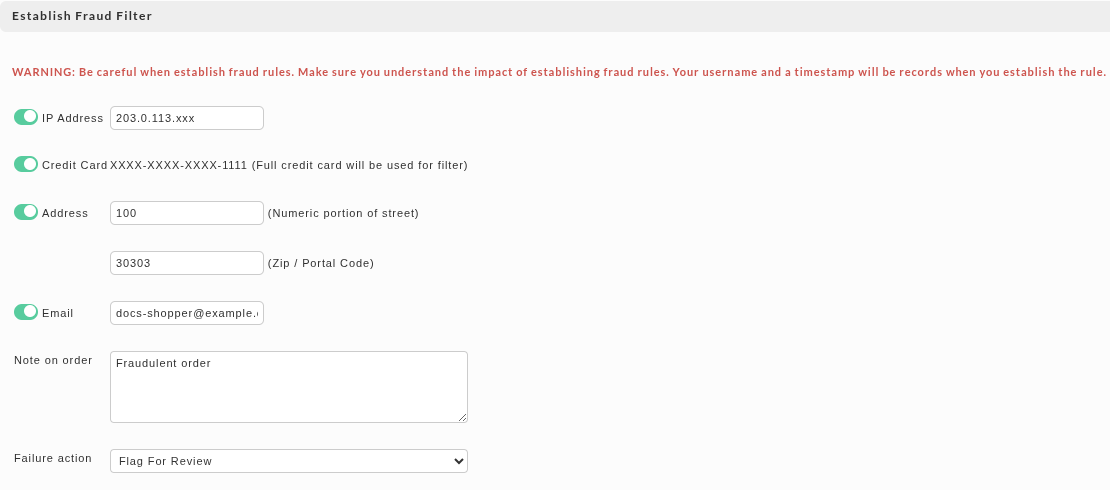
- IP Address: the shopper's IP address with the last part replaced by
xxx, so the filter covers the whole range. - Credit Card: the card on the order, shown masked. The full card number is used for the filter.
- Address: the numeric part of the street and the ZIP or postal code.
- Email: the shopper's email address.
- Note on order: the text that is added to matching orders. It starts as "Fraudulent order".
- Failure action: what happens to a matching order: Flag For Review, Process Payment and Modify, Process Payment and Review, or Decline Transaction.
Click save to create the filters. The form warns that your username and a timestamp are recorded when you establish a rule, so check each switch before you save.
Block an email domain
Add an email rule where the email is *@thedomain.com. You can then decline matching orders or
send them to Accounts Receivable.
Prepaid and gift cards
The If prepaid or gift card rule uses a third-party service that can tell whether a card number is prepaid or a gift card. It is useful on auto order trials that cost almost nothing up front ("pay only shipping today" offers). Scammers use cards with just enough money to pass the first charge but not the later ones.
The service charges $0.05 for each card validated. The charge applies to every card, but UltraCart caches orders. If a customer's first attempt is declined for a wrong billing address and they resubmit with a corrected one, you pay once, not twice.
Orders held for review
A test credit card skips fraud filters by default. To test a rule with a test card, open Main Menu → Configuration → Checkout → Payments → Credit and Debit Cards → Settings, edit the test card in the Test Credit Cards list, and clear Skip fraud filter. Set it back when you finish. See Test payments in UltraCart.
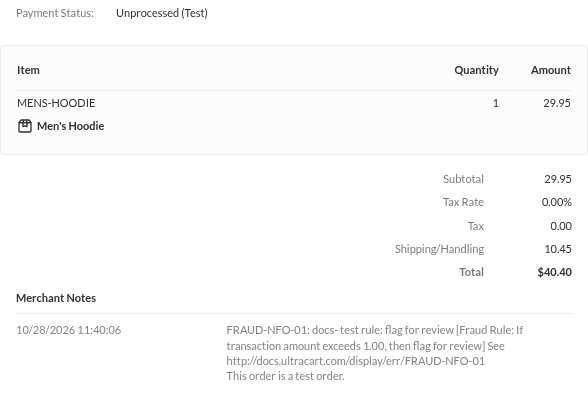
Flag For Review
A rule set to Flag For Review sends the order to Main Menu → Operations → Order Management →
Accounts Receivable. The order's Merchant Notes carry an automatic note with the code
FRAUD-NFO-01, the note you typed on the rule, and the rule in plain words, for example "If
transaction amount exceeds 1.00, then flag for review".
Make sure at least one user gets the Process Credit Card Payment and Fraud Review notifications. Set them on the user's profile under Main Menu → Configuration → Users.
By default the customer still gets a receipt email when an order goes to Accounts Receivable. To hold it until you process the payment, open Main Menu → Configuration → Email Notifications → Email Templates, choose the receipt template, and select Hold Receipt Until Payment Processes. See Email templates.
Fraud Review
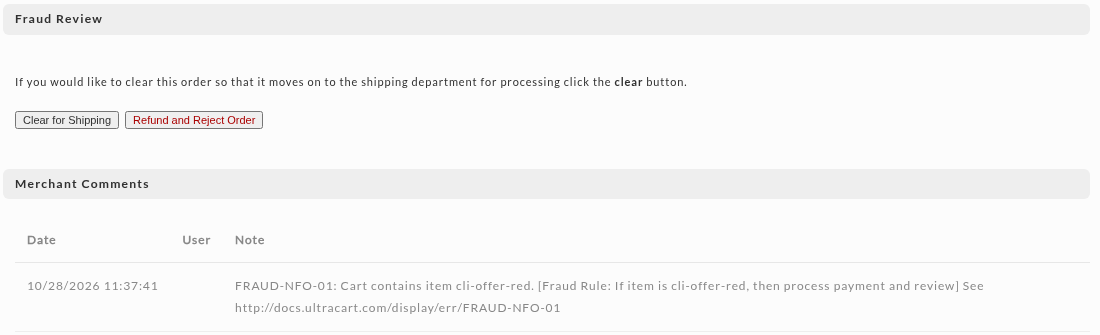
A rule set to Process Payment and Review puts the order on Main Menu → Operations → Order
Management → Fraud Review once its payment is processed. The page is titled Fraud Review
Orders. An order whose payment is still waiting, such as an unauthorized purchase order, stays in
Accounts Receivable until you process it. Its Merchant Notes carry the same FRAUD-NFO-01 note.
Click the order ID to open it. Click Clear for Shipping to send it on to the shipping department, or Refund and Reject Order if it is fraud.
Recommended starting rules
If you are new to fraud prevention, start with these.
| Category | Rule | Suggested value | Why |
|---|---|---|---|
| Exemption | If IP address matches | Your office or call center IP address | Keeps your own staff out of the rules while they take orders. |
| Exemption | If Customer logged into profile with pricing tier | You rarely want to block business customers who have profiles. | |
| Payment | If single transaction exceeds | Twice your average sale to flag for review, four times to decline | Stops fraudsters from using your store to test card limits. |
| Payment | If user changes credit card number this many times for attempted transactions | 4 | Stops fraudsters from testing many cards to find a valid one. |
| Credit Card (Premium) | If prepaid or gift card | Use it on free trial items. It costs $0.05 for each card validated. | |
| IP/Subnet | If weekly attempted transaction count for IP Subnet exceeds | 10 | Stops repeated attempts from the same network. |
| Address (Premium) | If fraud score exceeds | 5, to flag for review | A broad check of the order from a third-party score. It costs $0.01 for each card validated. |
| Address | If billing address does not match shipping | Flag for review | For high value products when you check AVS strictly on your credit card settings. |
| Affiliate | If affiliate generates multiple sales with the same IP address within one week | One IP address rarely makes several sales. You must use the UltraCart affiliate system for this rule. |
Reporting
UltraCart records how each rule performs every day. The earlier version of this page described a Fraud Rule Statistics Report that opens as a spreadsheet with a column for each day, the number of times a rule was checked, how many declined or exempted and how many passed, and a summary column for the date range.
Frequently asked questions
What does the customer see when they trip a rule?
If the rule is set to decline and you did not enter a message for the customer, they see: "Your payment has been declined. Make sure the billing address matches the location that the credit card statement is mailed. Please verify the information and try again."
Does the customer get a receipt if the order is held for review?
By default, yes. See Flag For Review for the option that holds it.
I linked several UltraCart accounts. Will my fraud rules apply to a new one?
Yes. Existing fraud rules fill in on newly linked accounts.
How is the fraud score calculated?
The score is a MaxMind value built from machine learning models and heuristics. MaxMind does not publish how much each factor contributes, such as distance or proxy score. The detailed checks show the raw indicators behind a score. Pay particular attention to the proxy detection checks, Ship Forwarder = True, and Email Carder = True, because they usually trigger a fraud review.
Next steps
- Preventing a carding attack if someone is testing cards on your store.
- Credit card fraud prevention best practices.
- Disable fraud scoring.