Free Promotional Item
Overview
The free promotional item feature allows you to give a customer a free item when they purchase a certain size order.
This feature makes it easy to run promotions without giving a customer a coupon. Simply specify the minimum subtotal and the item ID that they receive free at that price point. Please note that customer only receives one level of items. A level can have more than one item given away free by separating multiple item ids with commas. Removable allows the customer to remove the free item. Once removed, it will not be automatically added again.
Every promotion can also carry an optional start and end date, so you can schedule one ahead of time or retire it on a set day. See Start and End Dates.
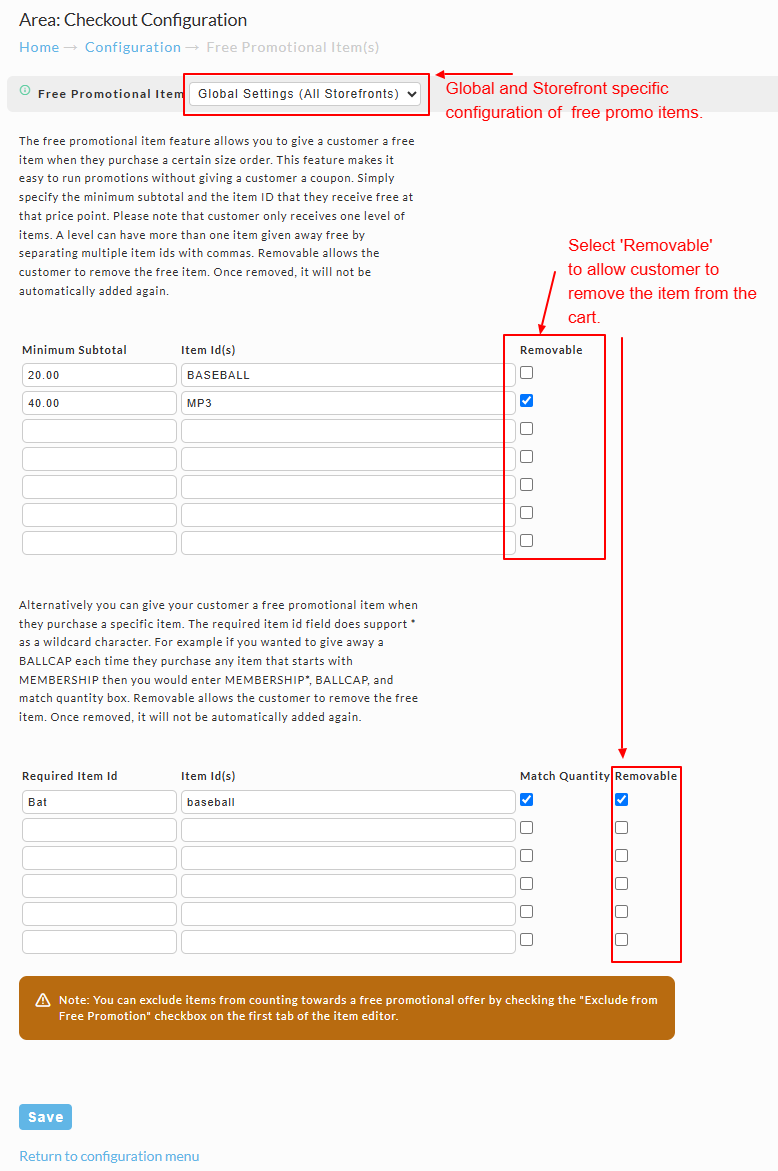
Global and Storefront Specific Configuration
Use the Drop-down List to switch between global and storefront specific configuration of Free Promotional Items.
Be Aware of Duplicate Item Configuration
**Please Note: **If you configure a free promotional item in the global and also at the storefront level, both will appear for the storefront. So, make sure to verify that you do not accidentally have duplicates configured, as they will appear in the checkout for the storefront(s).
By Subtotal
Simply specify the minimum subtotal and the item ID that they receive free at that price point. Please note that customer only receives one level of items. A level can have more than one item given away free by separating multiple item ids with commas.
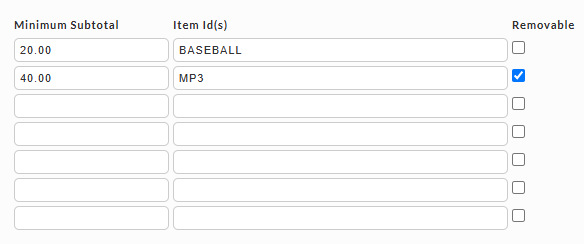
Simply specify the minimum subtotal and the item ID that they receive free at that price point. Please note that the customer receives only one free item. Click the "Save" button when finished.
A level can have more than one item given away free by separating multiple item ids with commas.
Removable
Removable allows the customer to remove the free item.
*Once removed, it will not be automatically added again.
By Required Item
Alternatively you can give your customer a free promotional item when they purchase a specific item. The required item id field does support * as a wildcard character. For example if you wanted to give away a BALLCAP each time they purchase any item that starts with MEMBERSHIP then you would enter MEMBERSHIP*, BALLCAP, and match quantity box.
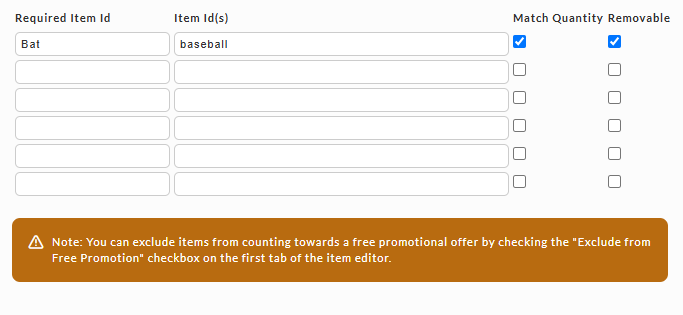
Specify the "Required Item" that triggers the inclusion of the free promo "Item ID(s)".
Match Quantity
Checking the box under Match Quantity allows you to specify that for each of the required item that is in the customer's cart they will receive a Free Promotional Item. So if your customer has 3 T-Shirts in their cart and the Free Promotional Item was a hat, they would receive 3 hats with their order. If you do not specify match quantity it will default to 1 free promotional item regardless of the number of Required Item Ids they have in their cart.
Removable
Removable allows the customer to remove the free item.
*Once removed, it will not be automatically added again.
Start and End Dates
Both the subtotal table and the required item table have optional Start Date and End Date columns. Use them to schedule a promotion ahead of time, or to retire one on a set day instead of remembering to come back and delete it.
Leave both blank and the promotion runs indefinitely. Promotions you configured before these columns existed have no dates set, so they keep running exactly as they did.
The two dates are independent. Set only a start date to launch a promotion on a future day and leave it running, or set only an end date to retire a promotion that is already live.
| Field | Format | Blank means |
|---|---|---|
| Start Date | MM/DD/YYYY | The promotion has already started |
| End Date | MM/DD/YYYY | The promotion never ends |
Dates apply per row, so one storefront can run several promotions on different schedules.
How the dates are interpreted
Both dates are inclusive, and both run on Eastern time to match the rest of your UltraCart account. A promotion with an end date of 09/30/2025 still applies for all of September 30 and stops at the end of that day.
What happens outside the window
A promotion that has not started yet, or whose end date has passed, is skipped. Its free item is not added to carts. If a customer already has the free item in their cart when the promotion ends, UltraCart removes it the next time the cart is evaluated, so a customer who is partway through checkout on the final day can see the free item come off their order.
An expired promotion stays configured rather than deleting itself. To run it again, clear the end date or enter a new one.
Note: You can exclude items from counting towards a free promotional offer by checking the "Exclude from Free Promotion" checkbox on the first tab of the item editor.
Remember to click the "Save" button when finished making changes.
Order Placement via the B.E.O.E.
BEOE -
If you are running into a issue were an item is being removed from the BEOE when the cost is set to zero, the cause of this is that the item is configured as a Free Promotional item. When free promotional items are added to the BEOE and set to a unit cost of zero. The BEOE views this as a free promotional item and is removed from the cart because the other conditions are not met. The solution for this setup a kit of that item and use that kit item for actual orders if you need to set the price to zero sometimes with the BEOE.
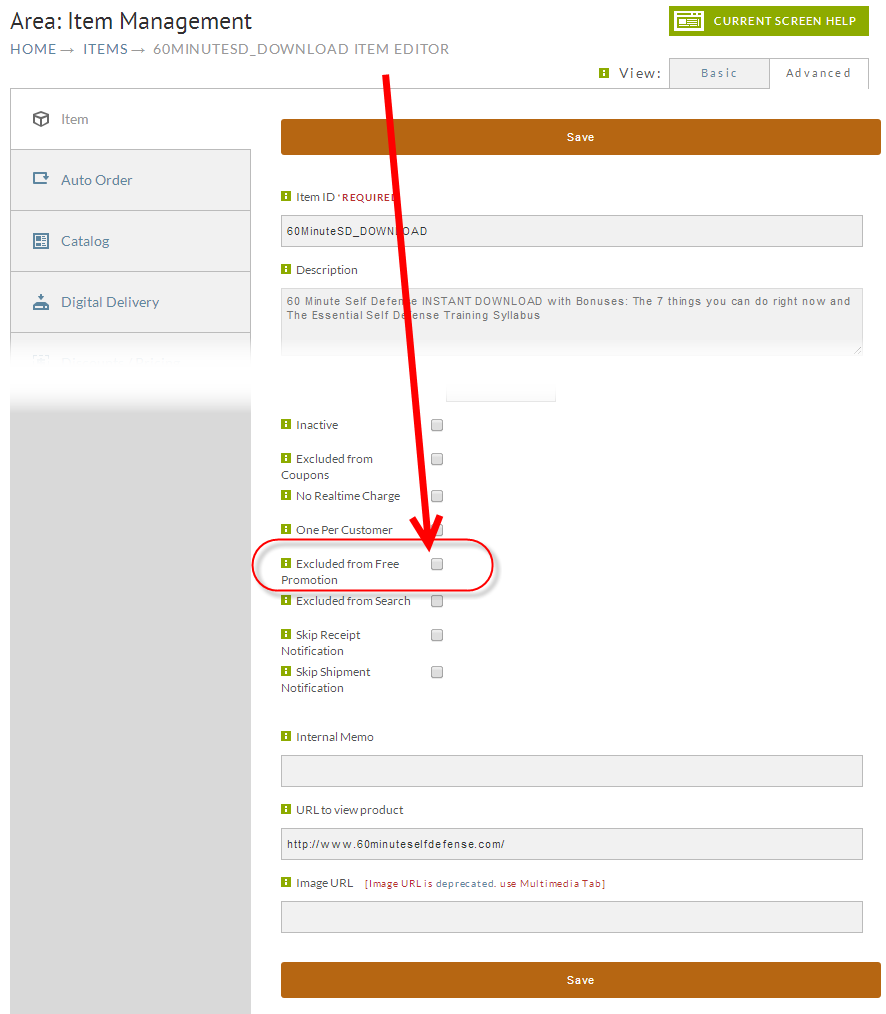
Exclude Items From Free Promotional Item (Item Editor setting)
You can exclude items from counting towards the Free Promotional Item configuration by editing the item and selecting the "Exclude from Free Promo" checkbox field on the first tab of the item editor:
Exclude From Pricing Tier Customers
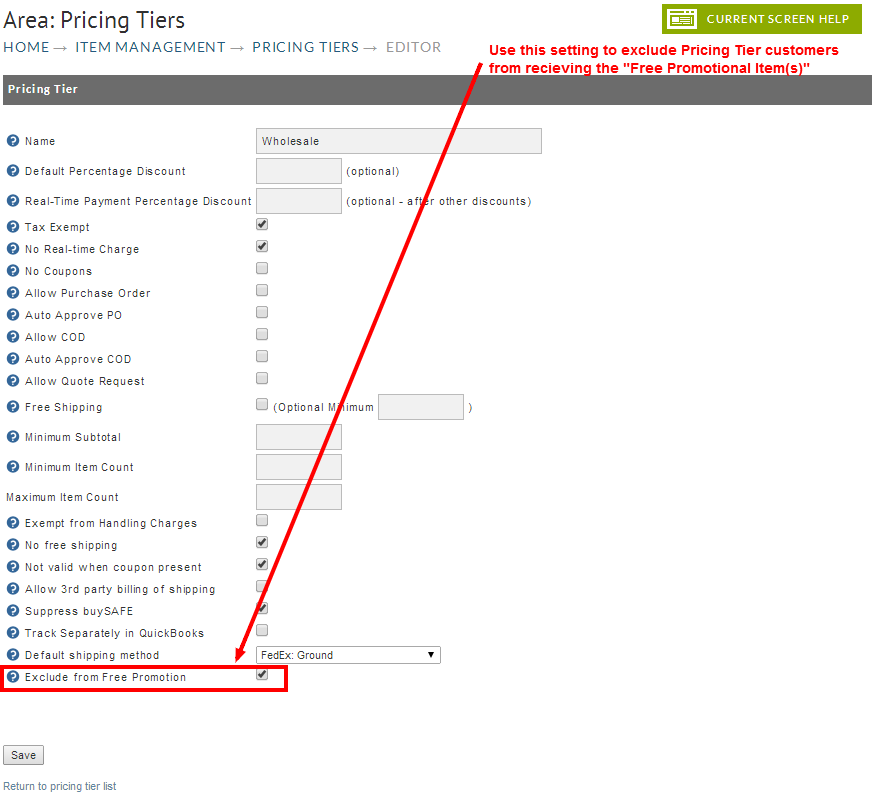
Most likely you'll only want to offer the free promotional items to your retail customers. So, if you have configured Pricing Tiers for setting up wholesale customers, you can select the "Exclude from Free Promotion" checkbox within the Pricing Tiers editor, to exclude the from promotional offerings from purchases where the customer is placing their order using a customer profile that has been assigned a pricing tier.
Navigate
Frequently Asked Questions
Question: What is the limitation with automatic promotional item removal?
Answer: UltraCart evaluates Free Promotional Item threshold conditions when items are added to the cart. It does not re-evaluate when items are removed or quantities are reduced. If the cart subtotal drops below the qualifying threshold after the promotional item has already been added, the promotional item remains in the cart.
There is no native setting to change this behavior. The Removable option controls only whether the customer can manually remove the item. It has no effect on automatic threshold re-evaluation.
Question: What workaround can merchants use?
Answer: For merchants using SinglePage Checkout or a custom StoreFront, implement a JavaScript cart-change listener to handle removal:
-
Listen for quantity-change and item-remove events on the cart.
-
After each change, recalculate the cart subtotal excluding the promotional item.
-
If the subtotal is below the threshold, call the cart update API to remove the promotional item by item ID.
-
If the subtotal recovers to or above the threshold, the native auto-add logic will re-insert the item on the next qualifying cart operation, with no additional handling required.
Note: The specific API calls and event hooks depend on your checkout type. Contact UltraCart support for implementation guidance.