Multi Currency
Multi-Currency lets shoppers see prices in their own currency and switch their cart to it. You choose one base currency, which is the currency UltraCart charges in by default. Prices shown in any other currency are converted from your base currency at a daily rate from a third-party service.
Navigate: Main Menu → Configuration → Checkout tab → Multi-Currency
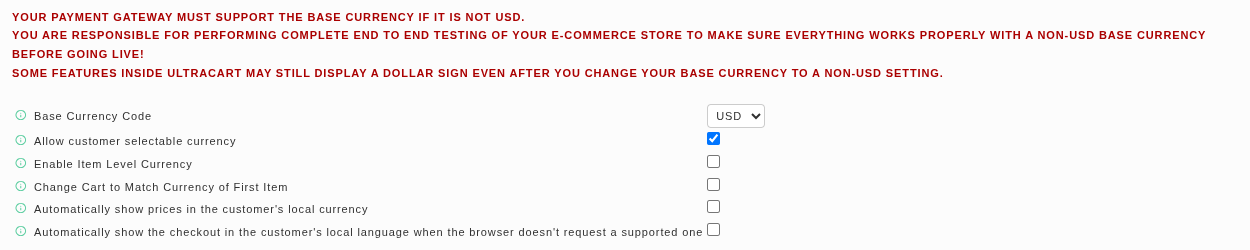
If you change your base currency away from USD, test it end to end before you go live.
- Your payment gateway must support the base currency.
- Some features in UltraCart may still show a dollar sign after you change the base currency.
The Multi-Currency screen carries the same warning in red.
What each setting does
| Setting | What it does |
|---|---|
| Base Currency Code | The default currency of your store. By default, payment authorization happens in this currency. Prices in other currencies are converted using that day's conversion tables. |
| Allow customer selectable currency | Adds a currency list to the checkout so shoppers can switch their cart to another currency. By default the charge still happens in your base currency. To charge in the shopper's currency, see Additional Native Currencies. |
| Enable Item Level Currency | Adds a currency list to the item editor, to the right of Cost, so you can price an item in a specific currency. |
| Change Cart to Match Currency of First Item | The cart takes the currency of the first item a shopper adds. |
| Automatically show prices in the customer's local currency | Uses the shopper's IP location to show prices in their local currency. |
| Automatically show the checkout in the customer's local language when the browser doesn't request a supported one | When the shopper's browser does not ask for a language you support, shows the checkout in the primary language for the shopper's country. It only switches to a language you have enabled on the StoreFront, and a supported language the browser asks for always wins. |
Hover over the information icon beside a setting to read the same description in the admin.
Base currency code
Pick the currency your merchant account and bank transact in. Your reports use it too: whatever currency a shopper sees at checkout, UltraCart converts the order to the base currency for reporting.
The base currency list has 21 currencies: ARS, AUD, BRL, CAD, CHF, COP, EUR, GBP, INR, JPY, MXN, MYR, NOK, NZD, PLN, RUB, SEK, SGD, TRY, USD, and ZAR.
Let shoppers switch currency
Check Allow customer selectable currency and save. On the checkout page of the Elements theme, a currency list appears under the subtotal. When the shopper picks a currency, every price in the cart converts at once.
For example, with a USD base currency, a $29.95 item shows as 26,76 € after the shopper chooses € Euro. Rates change daily, so your numbers will differ.
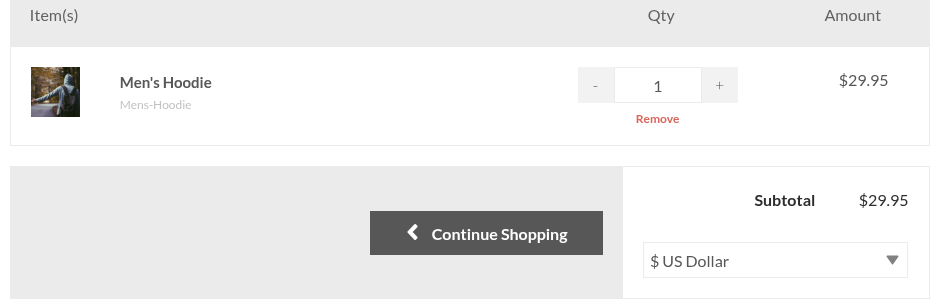
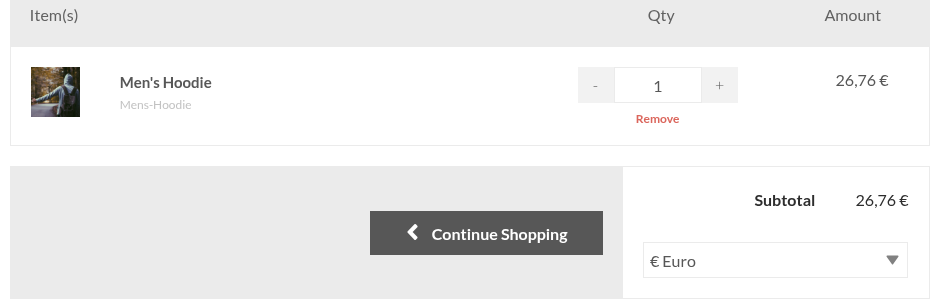
The shopper's list has 18 currencies: ARS, AUD, BRL, CAD, CHF, COP, EUR, GBP, INR, JPY, MXN, MYR, NOK, NZD, SEK, SGD, TRY, and USD. PLN, RUB, and ZAR can be a base currency, but they do not appear in the shopper's list.
Price an item in a specific currency
Check Enable Item Level Currency and save. In the item editor, a currency list now sits to the right of Cost. Choose the currency the Cost is entered in, then save the item.

An item with no currency chosen is priced in your base currency.
For example, with a USD base currency, an item with a cost of 29.95 set to EUR shows as 29,95 € on its product page. A shopper whose cart is in USD sees $33.52 for the same item, because UltraCart converts it to the cart's currency.
Shipping rates have no currency of their own. They follow the cart's currency. See Multicurrency Configuration and Shipping Methods.
Match the cart to the first item
Check Change Cart to Match Currency of First Item. When a shopper adds an item, the cart takes that item's currency. Items added later are converted into it.
This works with item-level currency. For example, a cart started with a EUR item opens in EUR. A second item with no currency set is converted into EUR too, so a $39.00 item shows as 34,85 €.
Set a currency from a buy link or buy form
Add a CurrencyCode parameter to a buy link to open the cart in a currency of your choice. This
link adds the item BONE from the account DEMO and opens the cart in Australian dollars:
https://secure.ultracart.com/cgi-bin/UCEditor?merchantId=DEMO&ADD=BONE&CurrencyCode=AUD
Replace DEMO with your merchant ID and BONE with your item ID. In a buy form, use a hidden
field:
<input type="hidden" name="CurrencyCode" value="AUD" />
For example, a $29.95 item added with CurrencyCode=AUD opens the cart at $42.91 AUD, with AUD
selected in the currency list.
Check it before you go live
- Set the options you want and save. The screen returns to the Configuration menu without a message, so open Multi-Currency again to confirm.
- Open your StoreFront in a private window and add an item to the cart.
- Switch currencies and confirm the prices, the shipping, and the totals.
- Place a test order to confirm your gateway accepts the base currency.