Multicurrency and Shipping Methods
Last Updated: June 26, 2026
Overview
Shipping method rates in UltraCart do not have an individual currency setting. The currency displayed and charged for shipping and handling is derived from the currency assigned to the cart at checkout. To present shipping costs in a currency other than USD, multicurrency must be enabled at the store level and configured appropriately.
How Shipping Currency Is Determined
When a customer reaches checkout, UltraCart determines the active cart currency based on the store's multicurrency configuration. Shipping and handling charges are then presented in that same currency. There is no field within the shipping method editor to set a per-method currency — the shipping rate display currency always follows the cart currency.
Enabling Multicurrency
Multicurrency is configured at the store level. To enable it:
-
In the UltraCart merchant backend, navigate to Configuration > ('Checkout') > Multi-Currency.
-
Enable the multicurrency feature by selecting either or both of these checkbox settings:
* ‘Allow customer selectable currency’
* 'Enable Item Level Currency' -
Select ‘Base Currency Code’ (drop-down list)
IMPORTANT:
-
YOUR PAYMENT GATEWAY MUST SUPPORT THE BASE CURRENCY IF IT IS NOT USD.
-
YOU ARE RESPONSIBLE FOR PERFORMING COMPLETE END TO END TESTING OF YOUR E-COMMERCE STORE TO MAKE SURE EVERYTHING WORKS PROPERLY WITH A NON-USD BASE CURRENCY BEFORE GOING LIVE!
-
SOME FEATURES INSIDE ULTRACART MAY STILL DISPLAY A DOLLAR SIGN EVEN AFTER YOU CHANGE YOUR BASE CURRENCY TO A NON-USD SETTING.
-
Select ‘Change Cart to Match Currency of First Item'
When this checkbox is selected, a customers shopping cart will be automatically assigned the currency of the first item they add to their cart. -
Save the configuration.
Once enabled, the cart will use the customer's resolved currency, and all charges including shipping will display in that currency.
Assigning Currency to Items
With multicurrency enabled, individual items can be assigned a specific currency and price rather than relying on exchange rate conversion. This is useful when you want to set exact EUR prices rather than converting from USD.
To assign a currency to an item:
-
Open the item in the Item Editor.
-
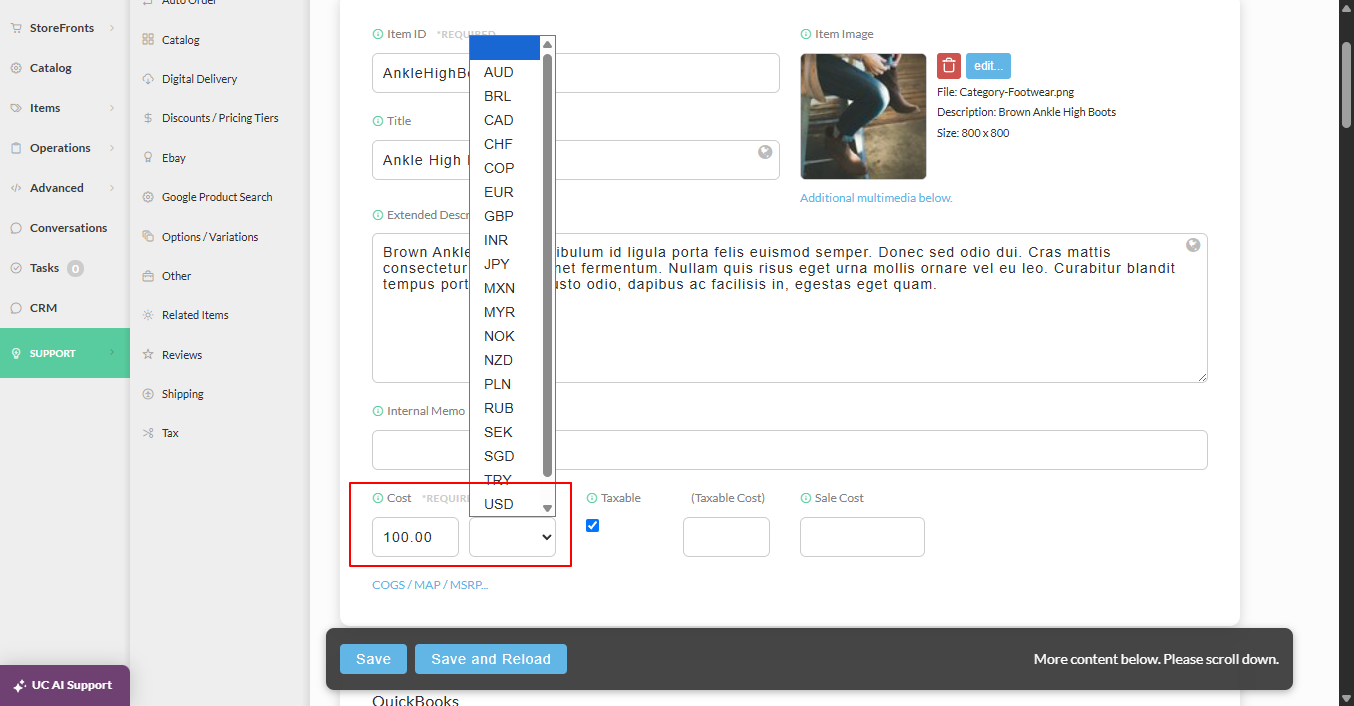
Navigate to the Cost section, below the Item ID, Title and Extended Description fields.
-
If multi-currency is enabled, the Currency selection drop-down list appears directly to the right of the Cost field. Select desired currency for the item:
-
Save the item.
Items without an explicit currency override will have their USD price converted at the configured exchange rate.
Note: Shipping method rates are not subject to per-item currency overrides. Shipping currency is always determined by the cart-level currency setting.
Troubleshooting
Shipping still displays in USD even with multicurrency enabled
Symptoms: Checkout shows shipping costs in USD despite multicurrency being active.
Root Cause: The cart's active currency may not be resolving to the expected currency. This can happen if the customer's locale or browser settings are not triggering the correct currency selection, or if the multicurrency configuration does not include the target currency.
Diagnosis: Confirm the target currency (for example, EUR) is listed and active in Configuration > Multicurrency. Test checkout from a session that should resolve to that currency and inspect the cart currency field.
Solution: Ensure the target currency is enabled in the multicurrency configuration and that the currency selection logic (geo-IP, manual selection, or URL parameter) is set up to route the customer to the correct currency.
Related Documentation
-
Multicurrency Configuration - Full multicurrency setup reference
-
Shipping Method Configuration - Creating and managing shipping methods