Configuring PayPal at UltraCart
To configure PayPal as a payment method, navigate to:
Configuration → Checkout → Payments
note
If you already have an older version of PayPal configured within UltraCart , visit the upgrade guide to take advantage of the latest features and payment methods available:
Upgrading the latest PayPal payment processing integration
If you already have an older version of PayPal configured within UltraCart , visit the upgrade guide to take advantage of the latest features and payment methods available:
Upgrading the latest PayPal payment processing integration
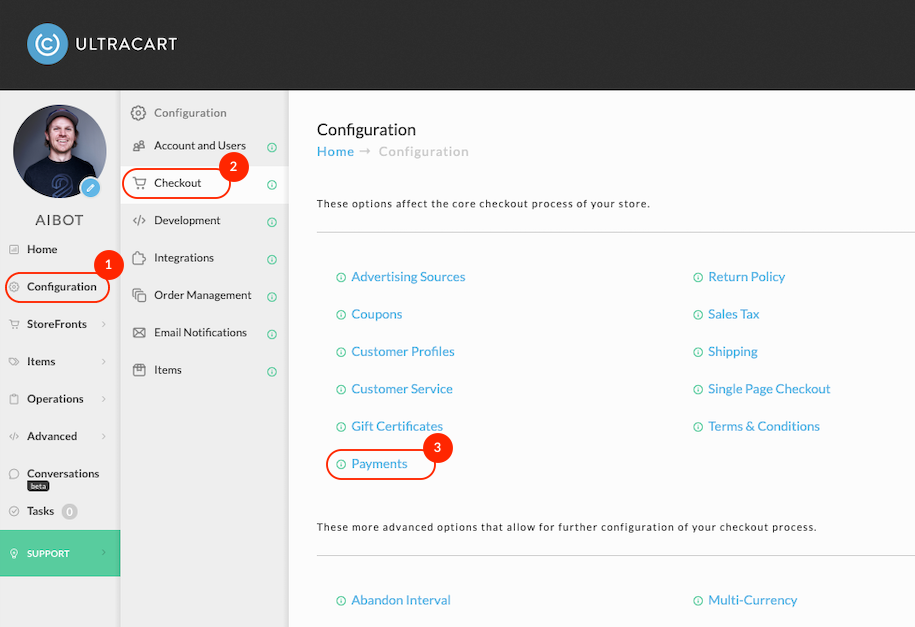
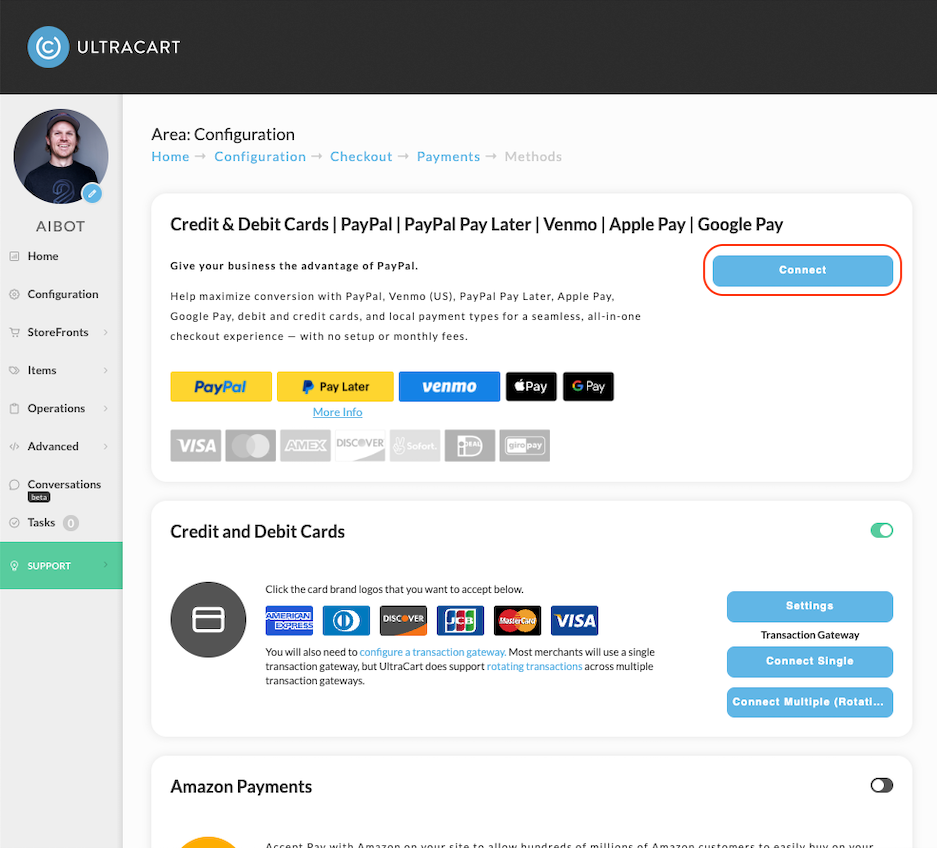
After clicking the Payments button (3 in the screenshot above), you'll see the following screen:
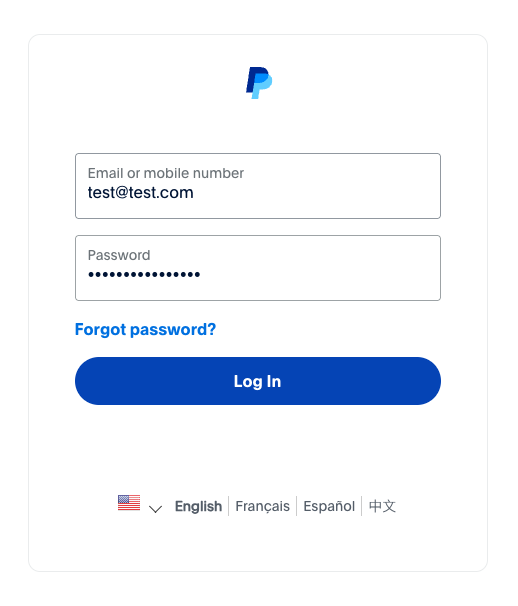
You’ll be redirected to the following PayPal Screen to connect your PayPal Account (you’ll be redirected back to UltraCart once the process is completed):
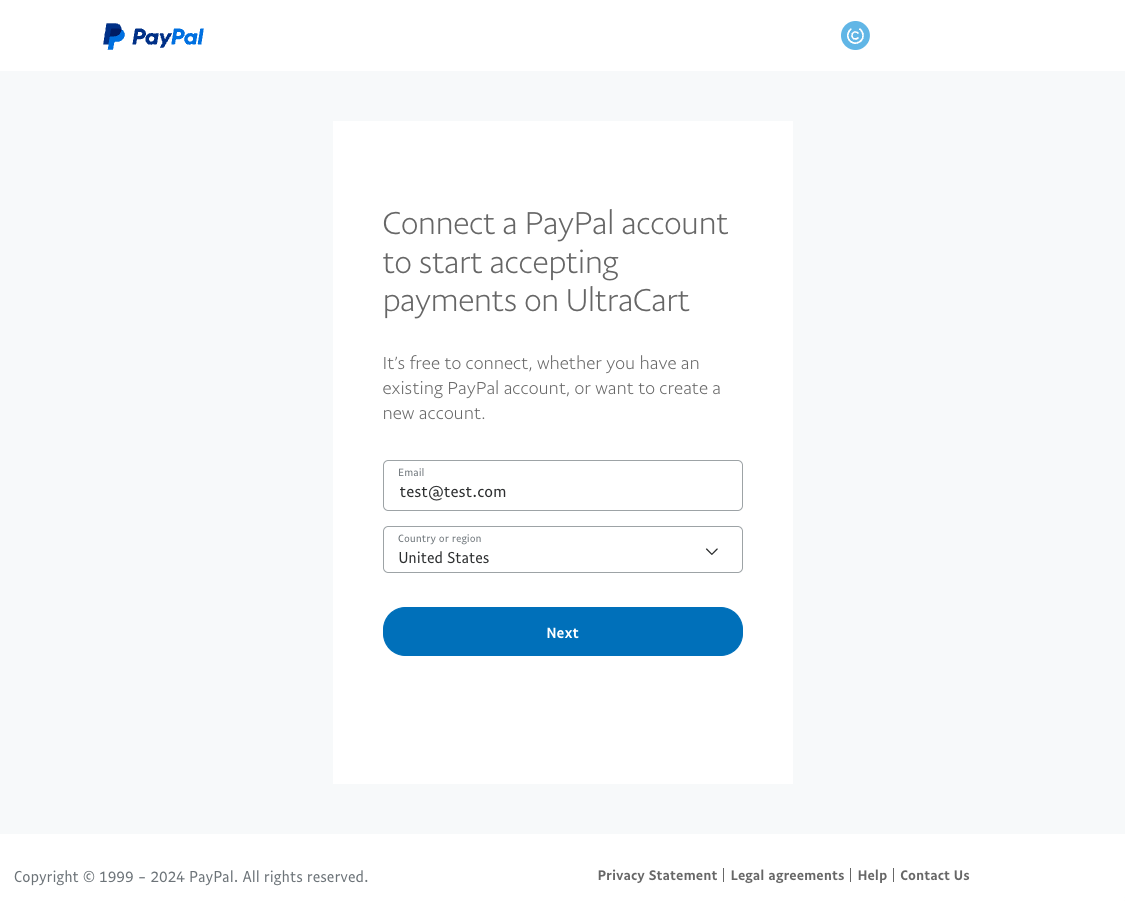
Connecting your existing account
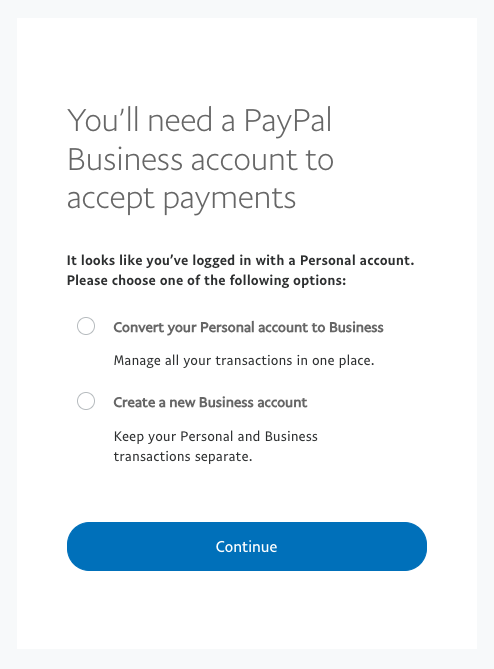
If you’re attempting to connect a personal account you’ll see this dialog. If you choose to create a new business account (as opposed to converting your Personal account to a Business account) you’ll be redirected back to the start of the process and use a new email address (not already associated with a PayPal account) to create a new business account.
Creating a new PayPal account
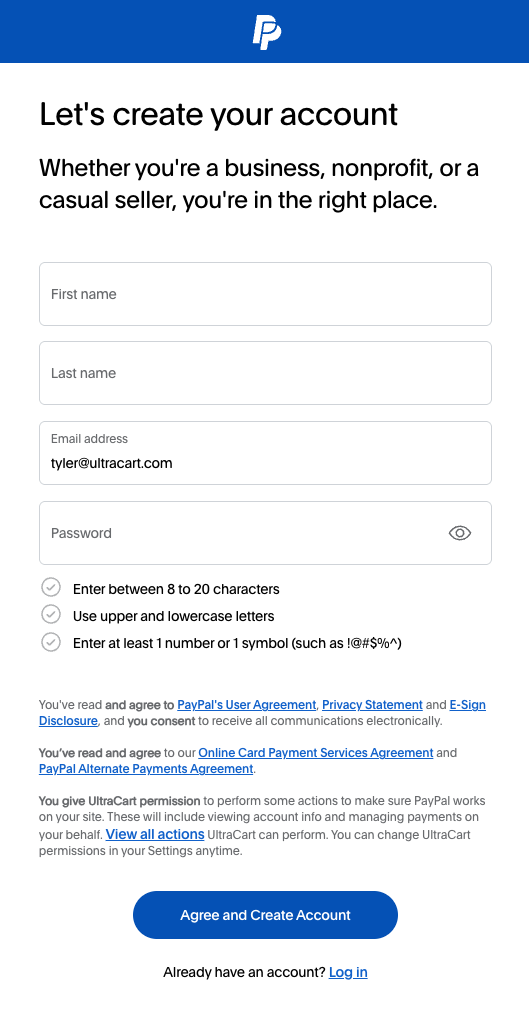
If you don’t already have a PayPal account, you’ll be directed to a form to create a new PayPal account