Rotating Transaction Gateway
Rotating transaction gateways (RTGs) let you spread credit card transactions across several payment gateways, using rules you set. You decide what share of traffic each gateway gets, which transactions it may take, how much it may process in a day or a month, and what happens when one declines. It is available to every UltraCart merchant, but it is built for merchants with enough volume to need more than one merchant account. Test your configuration thoroughly before you go live with it.
For the order in which UltraCart applies these rules when it picks a gateway, see Rotating Transaction Gateway Logic.
Navigate: Main Menu → Configuration → Checkout → Payments → Credit and Debit Cards → Connect Multiple (Rotating)
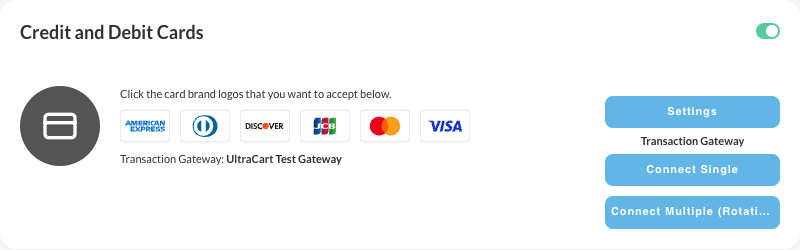
Move from a single gateway
If your account already processes cards through a single gateway, the Rotating Transaction Gateways screen warns you that the existing gateway will stop rotating gateways from working properly, and offers a migration wizard below the list.
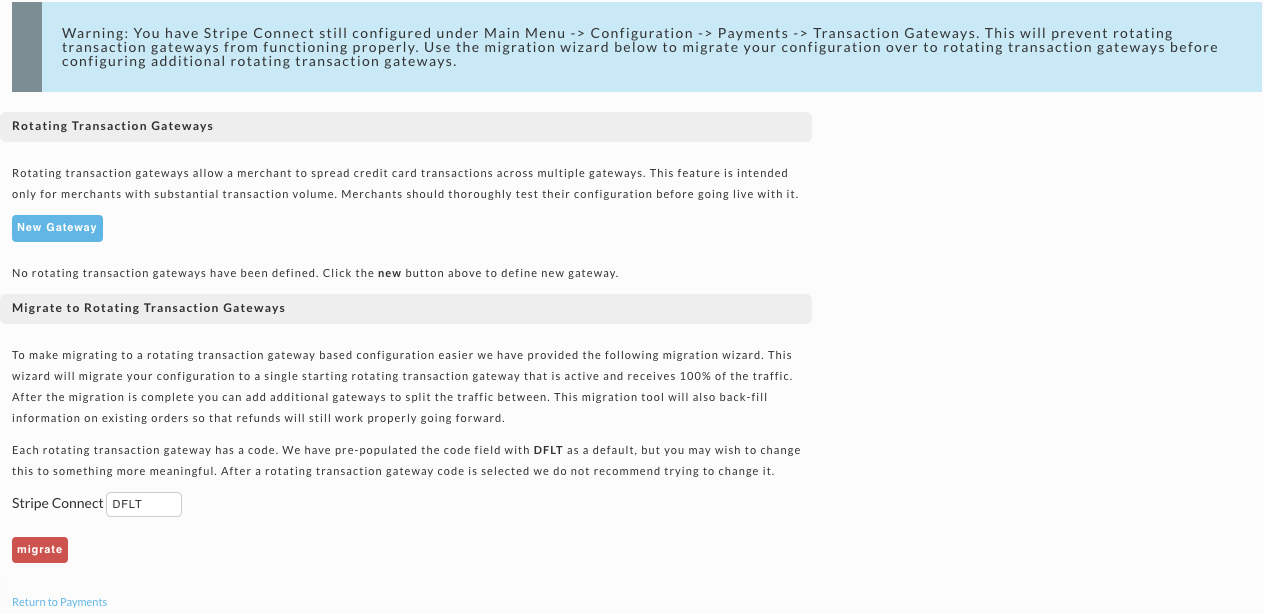
Use the wizard rather than setting the gateway up again by hand:
- In Migrate to Rotating Transaction Gateways, change the code from
DFLTif you want something more meaningful. Choose carefully, because changing a code later is not recommended. - Click migrate.
The wizard turns your existing gateway into a single rotating gateway that is active and takes
100% of the traffic. It also back-fills existing orders so their refunds keep working, and sets
the merchant property defaultRefundRtgCode, which UltraCart uses to refund any order that has
no RTG code of its own. After that, add more gateways with New Gateway and split the traffic
between them.
If you cannot use the wizard, copy the existing gateway's credentials somewhere safe, turn off the single gateway, save, and then create it again as a new rotating gateway with those credentials.
The gateway list
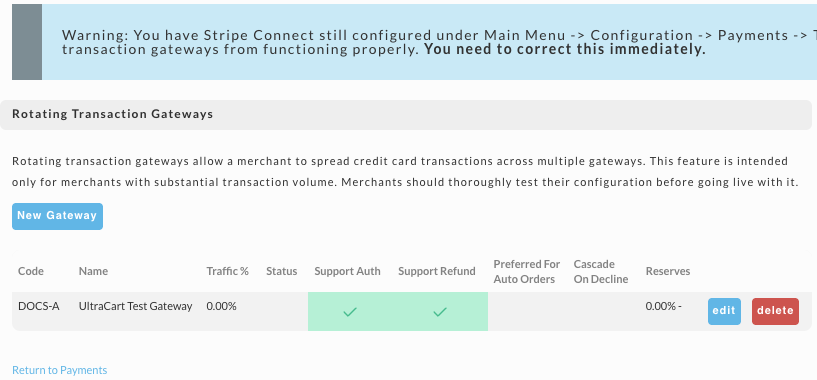
Once at least one rotating gateway exists, the screen lists them with a summary of each.
| Column | Shows |
|---|---|
| Code, Name | The RTG code and the gateway it uses. |
| Traffic %, Status | The share of traffic and the current status. |
| Support Auth, Support Refund | Whether the gateway can authorize and refund. |
| Preferred For Auto Orders | Whether the gateway is preferred for auto order transactions. |
| Cascade On Decline | The gateway tried next when this one declines, if any. |
| Reserves | The reserve tracking settings. |
Click New Gateway to add one, edit to change one, and delete to remove it.
Gateway editor reference
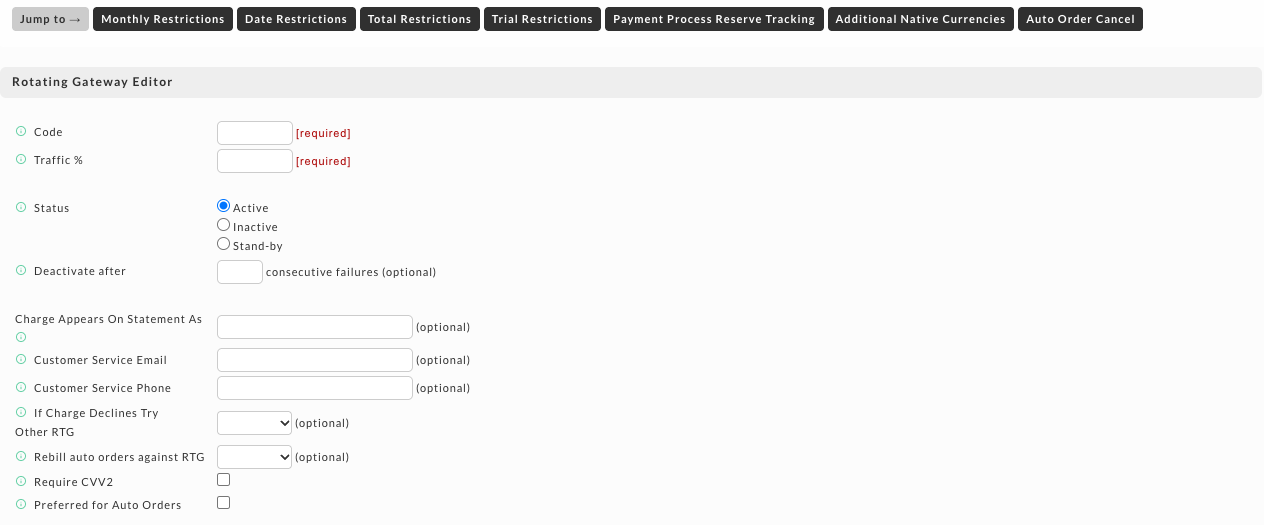
The editor is one long page. The Jump to bar across the top takes you straight to the restriction sections. Every restriction is optional: leave a section empty and it does not limit the gateway. When several restrictions are set, a transaction has to satisfy all of them before the gateway can take it.
Rotating Gateway Editor
| Field | What it does |
|---|---|
| Code | Required. A unique code for this gateway. Pick one that tells you at a glance which gateway or merchant account it is, because codes appear on orders, reports, and buy links. |
| Traffic % | Required. The share of traffic this gateway should receive. See How traffic percentages work. |
| Status | Active takes transactions. Inactive takes no new transactions. Stand-by takes transactions only when no active gateway is available. |
| Deactivate after | Optional. Marks the gateway Inactive after this many consecutive failures. |
| Charge Appears On Statement As | Optional. Overrides your store's default statement descriptor for transactions on this gateway. |
| Customer Service Email, Customer Service Phone | Optional. Override your store's defaults for transactions on this gateway. |
| If Charge Declines Try Other RTG | Optional. The gateway to try next if this one declines during checkout. |
| Rebill auto orders against RTG | Optional. The gateway to use when rebilling auto orders that were first processed here. |
| Require CVV2 | Only consider this gateway when the transaction includes a CVV2. Auto order rebills carry no CVV2, so this gateway will not process them. |
| Preferred for Auto Orders | Prefer this gateway over the others for transactions related to an auto order. Useful for shifting rebills toward gateways with card updating services. |
The two dropdowns, and Limit Reached Cascade further down, list your other rotating gateways, so they appear only once you have more than one.
If every active gateway has been marked inactive, UltraCart routes transactions to stand-by gateways. If everything is inactive, UltraCart tries any configured gateway regardless of status rather than failing the transaction.
Gateway
Choose the payment gateway this RTG uses. Selecting one shows the fields that gateway needs, such as your account credentials, followed by a Methods list of the card types and other methods this gateway accepts. These fields work the same way as for a single gateway. See Configure a transaction gateway.
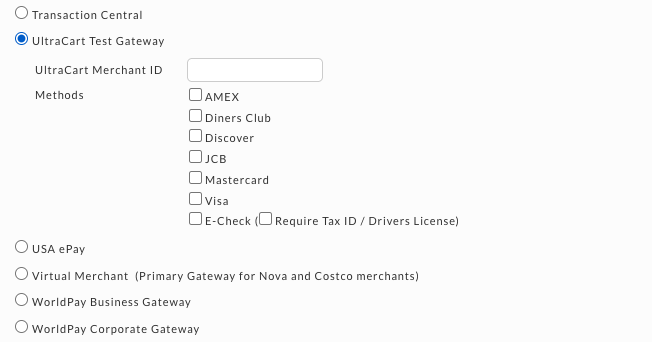
UltraCart only routes a transaction to a gateway that accepts its method. Leave AMEX off one gateway and AMEX transactions go to the others.
Batch Cutoff Time
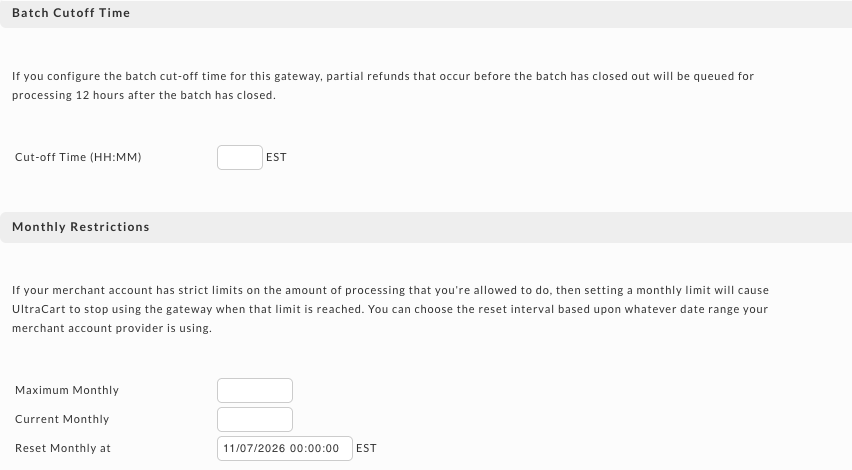
Enter the time, in 24-hour format and Eastern time, at which the gateway closes its batch. Partial refunds issued before the batch closes are then queued and processed 12 hours after it closes. See Queued refunds.
Set this on every rotating gateway. Without it, UltraCart can still recover on Braintree and Authorize.Net by recognizing the gateway's "transaction not settled" rejection and queuing the refund afterwards. That costs a failed transaction attempt, and your staff are not told when the refund will settle at the moment they issue it.
Monthly, Daily, and Daily Auto Order Rebill Restrictions
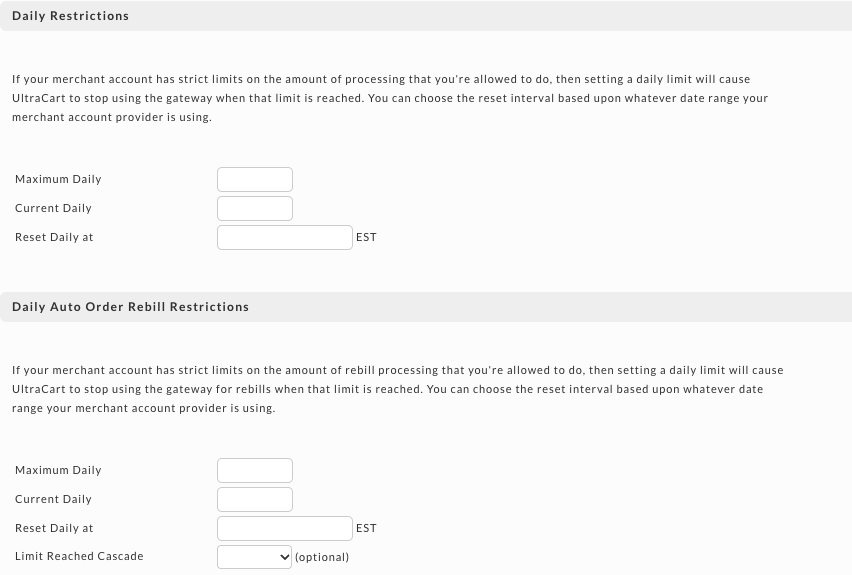
Some merchant accounts cap how much they may process. These three sections stop UltraCart using the gateway once a cap is reached, and each has the same fields:
| Field | What it does |
|---|---|
| Maximum | The most this gateway may process in the period, in dollars. |
| Current | What it has processed so far in the period. UltraCart keeps this up to date. |
| Reset ... at | The date and time, Eastern, when the period resets. UltraCart moves it forward each period, so set it to match your merchant account provider's cycle. |
Daily Auto Order Rebill Restrictions applies the cap to auto order rebills only, and adds Limit Reached Cascade: the gateway that rebills move to once this one's daily rebill cap is reached.
If every gateway reaches its limit, UltraCart does not stop taking orders. It picks one of the gateways at random and attempts the authorization anyway, and whether it is approved is up to the gateway. If it is declined, the order is captured after the number of failed attempts set in your credit card settings, which is three by default.
Date Restrictions
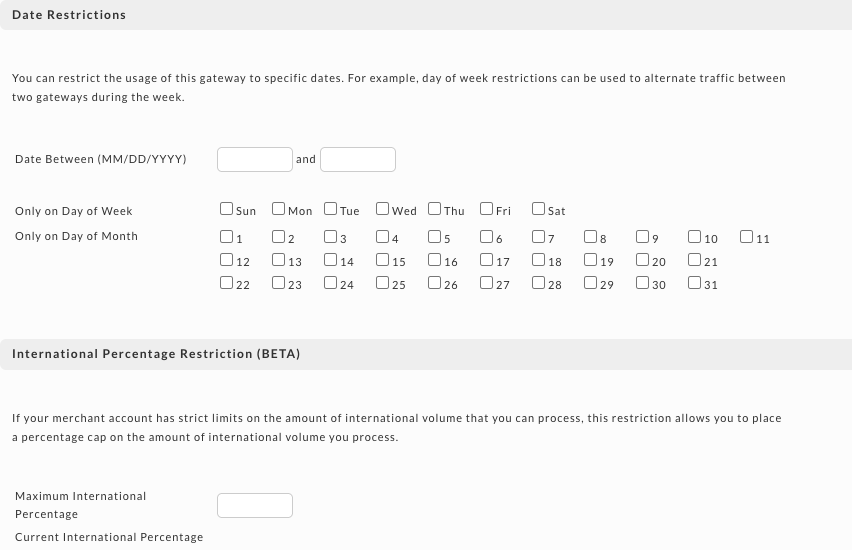
Limit the gateway to certain dates. A common use is alternating traffic between two gateways through the week.
| Field | What it does |
|---|---|
| Date Between | Only use the gateway between these two dates, in MM/DD/YYYY format. Often used to trial a new gateway or merchant account. |
| Only on Day of Week | Only use the gateway on the days you tick. |
| Only on Day of Month | Only use the gateway on the days of the month you tick. |
International Percentage Restriction (BETA)
If your merchant account limits how much international volume you can process, set Maximum International Percentage to cap the share of this gateway's transactions that are international. Current International Percentage shows where it stands.
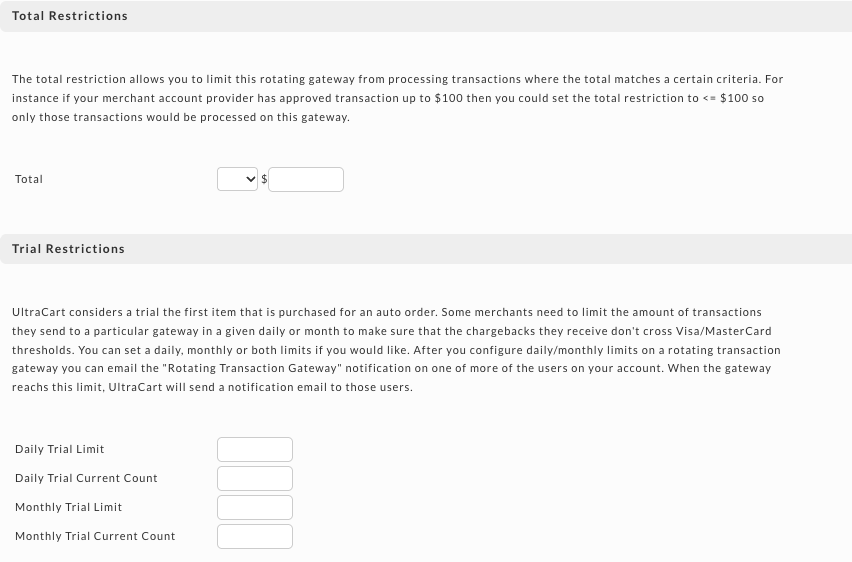
Total Restrictions
Limit the gateway to transactions whose total meets a condition. Choose the comparison and enter
an amount. For example, if your merchant account provider has approved you for transactions up to
$100, set Total to <= 100.
| Comparison | The order total must be |
|---|---|
< | Below the amount |
<= | At or below the amount |
= | Exactly the amount |
>= | At or above the amount |
> | Above the amount |
Trial Restrictions
UltraCart counts a trial as the first item purchased in an auto order. Some merchants limit how many trials go to one gateway, so that chargebacks stay under Visa and Mastercard thresholds.
| Field | What it does |
|---|---|
| Daily Trial Limit | The most trial transactions this gateway may take in a day. |
| Daily Trial Current Count | The number taken so far today. |
| Monthly Trial Limit | The most trial transactions this gateway may take in a month. |
| Monthly Trial Current Count | The number taken so far this month. |
To be told when a gateway reaches a trial limit, turn on the Rotating Transaction Gateway email notification for the users who should receive it.
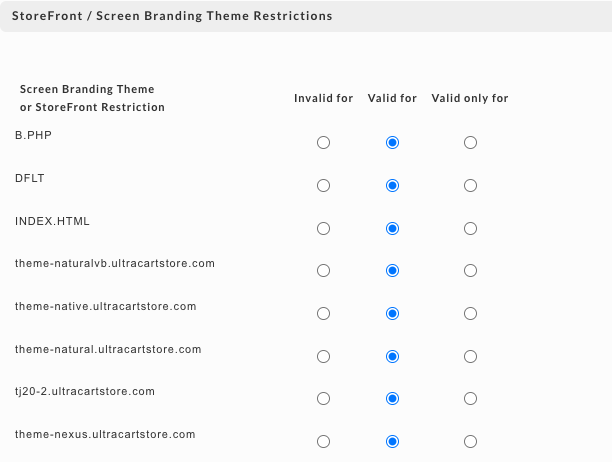
StoreFront / Screen Branding Theme Restrictions
Every StoreFront and screen branding theme on your account is listed with three choices:
- Invalid for: never use this gateway for that StoreFront or theme.
- Valid for: the gateway may be used for it. This is the default.
- Valid only for: use this gateway only for that StoreFront or theme.
If a gateway should serve one StoreFront and nothing else, choose Valid only for on that row.
Currency Code Restrictions
The same three choices, one row per currency code. Use it to keep a gateway to the currencies its merchant account supports.
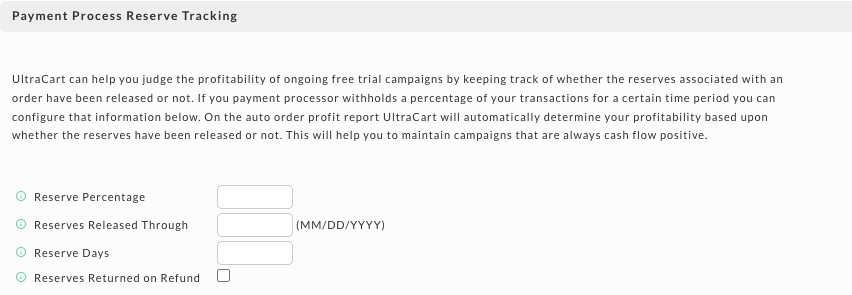
Payment Process Reserve Tracking
If your processor holds back a percentage of your transactions for a period, record it here. UltraCart then works out on the auto order profit report whether each order's reserve has been released, which helps you judge whether a free trial campaign is cash-flow positive.
| Field | What it does |
|---|---|
| Reserve Percentage | The percentage your provider withholds. |
| Reserves Released Through | The date, in MM/DD/YYYY format, up to which reserves have been released. |
| Reserve Days | How many days reserves are held. |
| Reserves Returned on Refund | Tick if your provider returns the reserve when an order is refunded. |
Additional Native Currencies (BETA)
By default every transaction on your account is in your base currency. If this gateway has merchant accounts in other currencies, tick them here and the transaction takes place in the customer's currency when it is supported.
All the accounting for those orders in UltraCart still appears in your base currency. UltraCart cannot tell which currencies your gateway supports, so ticking one it does not support produces failed or incorrect transactions. Test the whole flow end to end before relying on it.
Auto Order Cancel (BETA)
Cancel an auto order automatically when a rebill on this gateway fails, unless the gateway's response is one you list. For example, keep retrying when the response is Insufficient Funds or Do Not Honor, and stop rebilling a card that comes back reported as stolen.
- Enter the gateway's Response Field Name.
- Enter the Allowed Response Field Values, one per line.
Any unsuccessful auto order transaction on this gateway whose response does not match is canceled. Check your gateway's responses carefully, because a mistake here cancels auto orders you meant to keep.
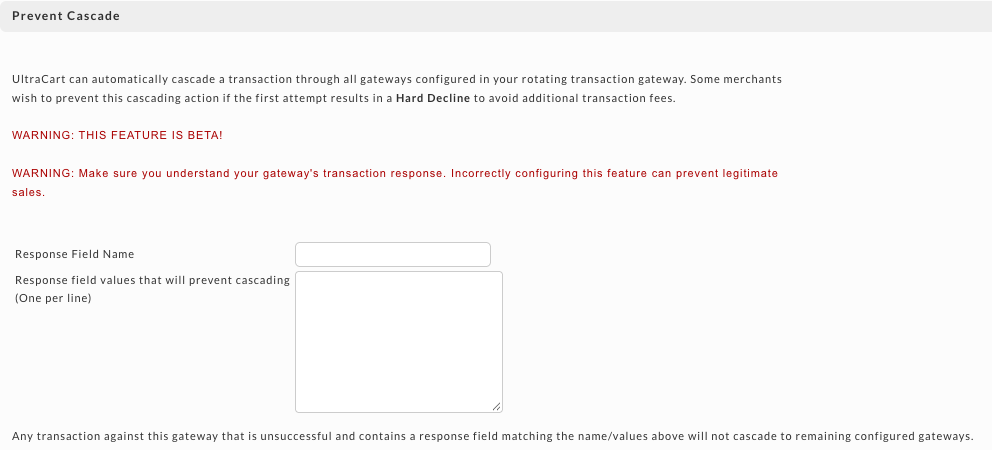
Prevent Cascade (BETA)
By default, a declined transaction can cascade through your other gateways. Each attempt can cost a transaction fee, which is wasted on a hard decline that no gateway will approve. Prevent Cascade stops the cascade for the responses you choose.
- Enter the Response Field Name, the response field your gateway uses for the decline reason.
- Enter the Response field values that will prevent cascading, one per line.
Any unsuccessful transaction on this gateway with a matching response does not cascade to the
remaining gateways. UltraCart does not define what a hard decline is. That depends on your gateway,
so look at the transaction details on past declined orders to find the right field and values.
For example, with Authorize.Net you might use the field responseCode with the values 165 and
202.
Click Save at the bottom of the editor when you are done.
How traffic percentages work
The traffic percentages across your gateways should normally add up to 100%. They do not have to: for each transaction, UltraCart first rules out the gateways that cannot take it because of a restriction, then shares the transaction among the rest in proportion to their percentages. Two active gateways at 100% each, with no other restrictions, split traffic 50/50.
Send an item's orders to a particular gateway
There are two ways to override the normal rotation for a specific item.
On the item
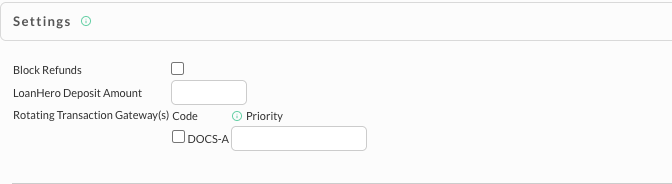
Once you have rotating gateways, the item editor lists them.
- Go to Main Menu → Items → Item Management, and open the item.
- Open the Other tab, then Payment Method Settings.
- Under Settings, in Rotating Transaction Gateway(s), tick the gateways this item may use.
- Optionally, give each a Priority. When you use trial limits, priority sets the order in which the gateways fill up: priority 1 is used until its trial limit is reached, then priority 2.
- Click Save.
In a buy link
Add the rtgCode parameter to a buy link or buy form, with the code of the gateway to use:
https://secure.ultracart.com/cgi-bin/UCEditor?merchantId=YOUR_MERCHANT_ID&ADD=YOUR_ITEM_ID&rtgCode=YOUR_RTG_CODE
<input type="hidden" name="rtgCode" value="YOUR_RTG_CODE" />
Replace YOUR_MERCHANT_ID, YOUR_ITEM_ID, and YOUR_RTG_CODE with your own values. See
Parameters that can be passed to UCEditor.
Every item in the cart should point at the same gateway. If a customer adds items assigned to different gateways, UltraCart picks one of them at random for the whole order.
Frequently asked questions
My checkout captures an order after three failed attempts, but an order went into accounts receivable with six transactions. Why the three extra declines?
The three-attempt counter counts attempts going into the rotating gateways. When cascade on decline is set, each of those attempts can make a second attempt inside the rotating gateway, and the counter does not include those. So three failed attempts on the first gateway plus three failed cascades to the second makes six.
The order's transaction history records one result per attempt: the original failure if the cascade also fails, the original attempt if it succeeds, or the cascaded attempt if that one succeeds. Every attempt, including each cascade, is recorded in full in:
- Operations → Reporting → Rotating Transaction Gateway History. Contact UltraCart if you do not see this report.
- The BigQuery table
uc_rotating_transaction_gateway_history. See Data Warehouse (BigQuery).
One gateway charges less for AMEX than the other. If I turn AMEX off on the more expensive one, will AMEX go to the cheaper one?
Yes. UltraCart only considers gateways that accept the transaction's method, so you can leave a single gateway handling AMEX. See Gateway.
How do I fill one gateway's trial limit before using another?
Assign the gateways to the item with a priority on each, as described in On the item. The gateway with priority 1 fills up completely before priority 2 is used.
One of my gateways never gets any transactions. I am only using traffic percentages with cascade on decline. Why is it skipped?
If a gateway fails its credential handshake, UltraCart chooses one of the other gateways for subsequent transactions. Check that the gateway's credentials are correct and active. Some gateways expire credentials on their own: Authorize.Net, for example, expires the old Transaction Key 24 hours after a new one is generated.
Are there special precautions for PayPal Payments Pro (Direct Payments) in a rotating setup?
Yes. The migration wizard does not work if you set PayPal up with "3rd Party" API credentials. Use your first party API credentials (API Username, API Password, and Signature) instead:
- Click New Gateway, enter a code, set it Active, and set Traffic % to 100.
- Configure the PayPal Payments Pro gateway with your first party credentials and save.
- Back on the Payments screen, open the PayPal settings and change the integration type from "Payments Pro (Express Checkout and Direct Payments)" to "Express Checkout", then save. This hands card processing to the rotating gateways.
- Add your other gateways.
With auto orders on the account, what is the safest way to move all processing to a new gateway?
Plan for about 60 days of overlap between turning on the new gateway and closing the old accounts. That leaves time to refund orders authorized on the old gateways: once you remove the gateway that processed an order, you can no longer refund it from UltraCart. You can still refund it in the gateway's own site and update the order to match.
Also make sure the new gateway can rebill auto orders without a CVV. In the gateway's own CVV rules, decline on a mismatch, but do not decline when the CVV is missing or unavailable.
Two active gateways are both set to 100% traffic. What happens?
With no other restrictions, UltraCart splits traffic 50/50 between them. See How traffic percentages work.
How do I keep my current gateway for card payments but offer Apple Pay, Google Pay, Amazon Pay, and Link through Stripe?
Set both up as rotating gateways and split the traffic 100/0:
| Gateway | Status | Traffic % |
|---|---|---|
| Your current gateway (for example Braintree) | Active | 100 |
| Stripe Connect | Active | 0 |
Regular card checkouts all go to your current gateway. UltraCart routes Apple Pay and Google Pay payments to the Stripe gateway automatically, and Stripe's express checkout methods (Amazon Pay, Link, and Klarna) are available through it as well. The Stripe gateway must stay Active: a gateway set to Inactive receives no new transactions, including wallet payments. See Supporting Apple Pay, Google Pay, Samsung Pay, and Microsoft Pay for the full setup, and Stripe Gateway Integration for the express checkout element.