This guide explains how to configure and use test payment information for credit cards and electronic checks within the UltraCart platform. Utilizing test payments allows merchants to test checkout functionality without processing live transactions.
Overview
While performing real transactions is the best way for new merchants to test their payment gateway, there are scenarios, especially for live stores, where testing other configurations without incurring actual charges is necessary. UltraCart provides a mechanism to configure specific payment information that will automatically approve as a test payment, eliminating the need to void or reverse transactions.
Prerequisites
-
Access to the UltraCart administrative interface.
-
Understanding of your store's payment gateway configuration (if testing related functionality).
-
User permissions required: Operations → Edit Settings
Test Credit Cards
Home → Configuration → Checkout → Payments → Credit and Debit Cards → Click 'Settings' then scroll down to the Test Credit Card section and click new or edit.
Setup test cards within the Credit and Debit Cards settings section. Make sure the toggle in the top left of Credit and Debit Cards is turned on and click Settings to open the Credit and Debit cards dialog. Then scroll down to the Test Credit Cards section, and click new to create a new test credit card.
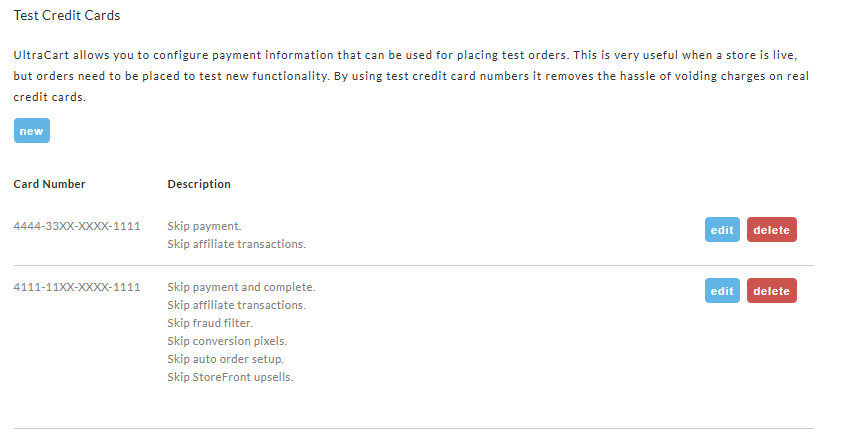
Create Test Credit Card
When creating or editing a test credit card entry in UltraCart, you configure the test card number and define how orders placed using this test card will be processed.
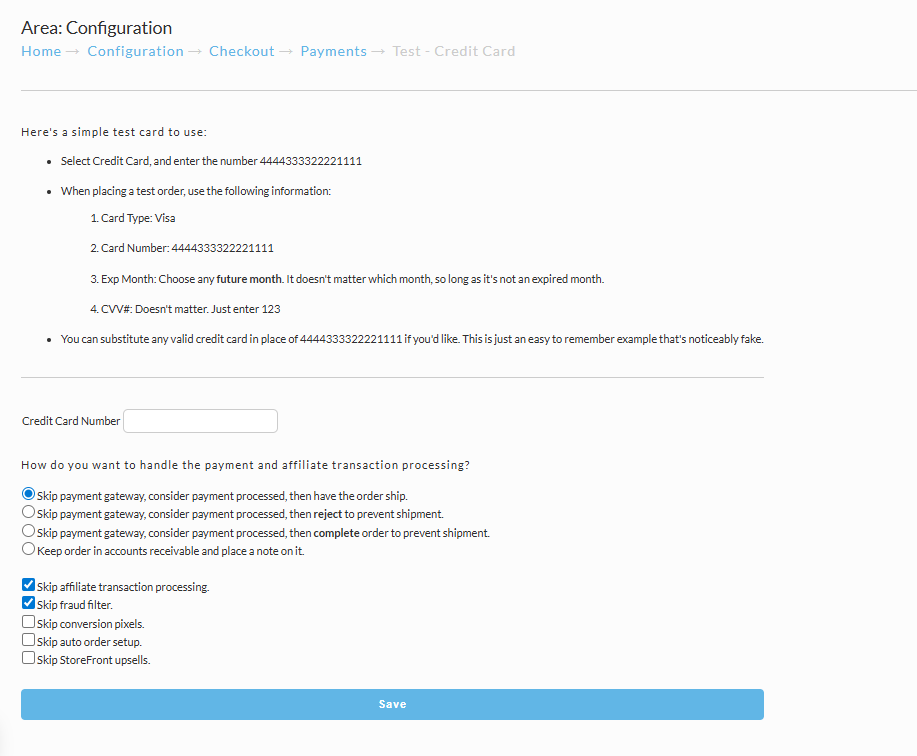
Credit Card Number
-
This field allows you to enter the credit card number that will be recognized by the system as a test card.
-
You can enter a standard test number (such as those listed in the Common Test Card Numbers section) or any other valid-looking number you wish to designate as a test number.
Order Handling Options
This section determines how orders placed using this specific test credit card will be processed by the UltraCart system. You must select one of the following radio button options:
-
Skip payment gateway, consider payment processed, then have the order ship: This option bypasses the actual payment gateway and marks the order as paid. The order will then proceed through your standard order flow, including queuing for shipment if applicable. This is useful for testing the entire order lifecycle, including fulfillment integration.
-
Skip payment gateway, consider payment processed, then reject to prevent shipment: This option also bypasses the payment gateway and marks the order as paid but immediately flags the order to be rejected. This prevents the order from proceeding to the shipping department. This is suitable for testing order creation and processing without involving fulfillment. Note that immediate rejection might affect some post-order processing steps like affiliate tracking or third-party marketing service subscriptions.
-
Skip payment gateway, consider payment processed, then complete order to prevent shipment: Similar to the previous option, this bypasses the payment gateway and marks the order as paid while preventing shipment. However, this option allows most post-order placement processes (like affiliate tracking and subscriptions to third-party services) to occur, unlike the "reject" option.
-
Keep order in accounts receivable and place a note on it: This is often the safest default setting for general testing. The order is created and marked as a test order, then placed in the Accounts Receivable queue. From Accounts Receivable, you can manually review, process, or delete the test order.
Additional Processing Options
Below the order handling radio buttons, there are checkboxes to control other aspects of test order processing:
-
Skip affiliate transaction processing: When checked (default), this prevents the test order from interacting with UltraCart's internal affiliate system.
-
Skip fraud filter: When checked (default), this causes UltraCart to bypass all configured fraud filters for orders placed with this test card.
-
Skip conversion pixels: When checked, this allows UltraCart to skip processing any configured conversion pixels (like Google Analytics) for the test order.
-
Skip auto order setup: When checked, the auto order setup is skipped for auto order configured items. This setting prevents the creation of auto order records when testing auto order items in a test order.
Tip: You can configure multiple test credit cards, each with different order handling and processing options. This allows you to easily test various scenarios and order flows simply by using a different test card number during checkout.
Common Test Card Numbers
The following table of numbers are common test credit card sequences that will pass the LUHN-10 algorithm check for a valid credit card sequence.
| Brand | Card Number |
|---|---|
| American Express | 3411-111111-11111 |
| American Express | 3782-822463-10005 |
| American Express | 3714-496353-98431 |
| American Express | 3787-344936-71000 |
| Diners Club | 30569309025904 |
| Diners Club | 38520000023237 |
| Discover | 6011-6011-6011-6611 |
| Discover | 6011-1111-1111-1117 |
| Discover | 6011-0009-9013-9424 |
| JCB | 3530-1113-3330-0000 |
| JCB | 3566-0020-2036-0505 |
| MasterCard | 5431-1111-1111-1111 |
| MasterCard | 5555-5555-5555-4444 |
| MasterCard | 5105-1051-0510-5100 |
| Option | Notes |
|---|---|
| "Skip payment gateway, consider payment processed, then have the order ship." | This is the best used when testing both the placement of the order and the shipping department configuration. If you are integrating a fulfillment service, this option will queue the order for transmission over to the fulfillment service. |
| "Skip payment gateway, consider payment processed, then reject to prevent shipment." | This option is useful in placing test order after you've gone live and only need to create a new order but do not want the generated test order going into the shipping department for processing. Please note that the immediate reject can affect post order processing, such as, the processing of affiliates, and subscriptions into 3rd party marketing services. |
| "Skip payment gateway, consider payment processed, then complete order to prevent shipment." | This option is useful in placing test order after you've gone live and only need to create a new order but do not want the generated test order going into the shipping department for processing. Please note that this option will prevent shipment but will allow other post order placement processes skipped by the previous setting, such as, processing of affiliates and subscriptions into 3rd party marketing services. |
| "Keep order in accounts receivable and place a note on it." | This option is a good default setting for all purpose testing. The order is created and the placed into the Accounts Receivable department, there you have the option of deleting the order or processing it for payment to send it to the next processing stage (shipping department of shippable items and the completed stage for none shippable items (service charge only and digital download items.) |
Remaining Checkbox settings
| Option | Notes |
|---|---|
| Skip affiliate transaction processing. (Default Setting is checked) | Skip affiliate processing will prevent any interaction with the internal UltraCart affiliate system for test orders. |
| Skip fraud filter. (Default Setting is checked) | Skip fraud filter will cause UltraCart to skip processing all of the fraud filters you have configured on the account for test orders. |
| Skip conversion pixels (Default is unchecked) | Skip Conversion pixels will cause UltraCart to skip processing any of the conversion pixels like Google Analytic, configured on the "conversion and Tracking tab of the Screen Branding Theme editor. |
Seeing Test Orders In Accounts Receivable
If you place a test order and the handling setting is configured to "Keep order in accounts receivable and place a note on it.",
then it will appear in your Accounts Receivable color coded purple as shown below:
Within the test order table the test orders checkbox is highlighted with the light blue color.
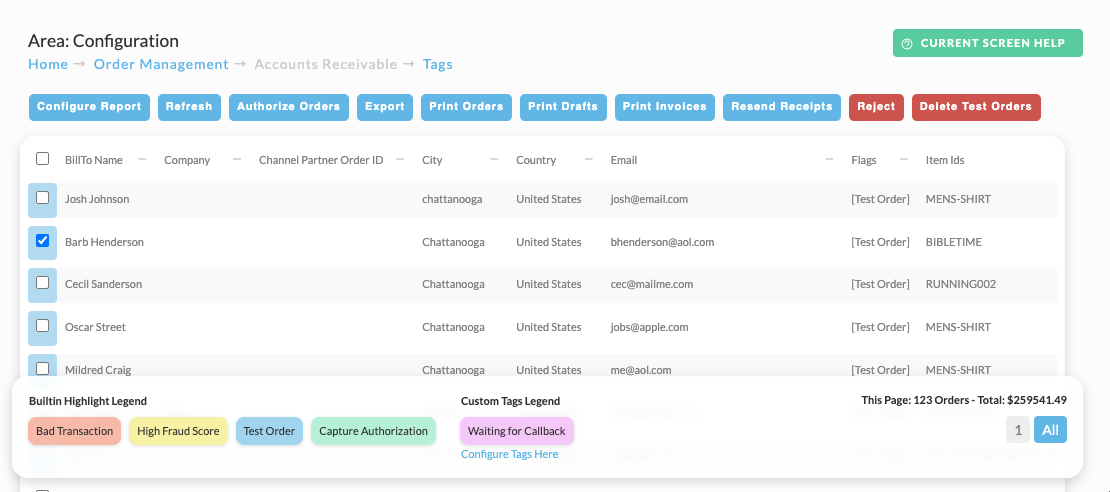
There is a delete test orders button that you can click that will delete all the test orders in one single action from the Accounts Receivable area.
Frequently Asked Questions
Q: Why should I use test payment information instead of live transactions for testing? A: While performing real transactions is the best way for new merchants to test their payment gateway, for live stores, testing other configurations without incurring actual charges is necessary. Using test credit card or electronic check numbers removes the hassle of voiding or reversing charges on real credit cards or checking accounts.
Q: How do the "One per Customer" settings on my items interact with test orders? A: The "One per Customer" setting does not apply to test orders. If you use a test credit card on an order, this setting is bypassed. This is intended to prevent roadblocks that would stop a test order from being placed.
Q: What are the different order handling options for test payments, and when should I use each one? A: When configuring a test credit card or electronic check, you can define how orders placed with it will be processed. There are four primary options:
-
Skip payment gateway, consider payment processed, then have the order ship: This bypasses the payment gateway, marks the order as paid, and allows it to proceed through your standard order flow, including queuing for shipment. Use this for testing the entire order lifecycle, including fulfillment integration.
-
Skip payment gateway, consider payment processed, then reject to prevent shipment: This bypasses the payment gateway, marks the order as paid, but immediately flags it for rejection to prevent it from going to shipping. This is suitable for testing order creation and processing without involving fulfillment. Note that immediate rejection might affect some post-order processing steps like affiliate tracking or third-party marketing service subscriptions.
-
Skip payment gateway, consider payment processed, then complete order to prevent shipment: Similar to the "reject" option, this bypasses the payment gateway and marks the order as paid while preventing shipment. However, this option allows most post-order placement processes (like affiliate tracking and subscriptions to third-party services) to occur.
-
Keep order in accounts receivable and place a note on it: This is often the safest default setting for general testing. The order is created, marked as a test order, and placed in the Accounts Receivable queue. From Accounts Receivable, you can manually review, process, or delete the test order.
Q: Where can I find a list of common test credit card numbers to use? A: The document provides a table of common test credit card sequences that pass the LUHN-10 algorithm check for a valid credit card sequence. These include numbers for American Express, Diners Club, Discover, JCB, MasterCard, and Visa.
Q: Is configuring a test electronic check different from configuring a test credit card? A: The Test Electronic Check editor page provides a similar set of options as the Test Credit Card editor page, tailored for electronic check details. You will enter a test bank routing number and bank account number. The order handling and additional processing options are the exact same as those for test credit cards.
Q: How can I see test orders that are set to "Keep order in accounts receivable" and delete them? A: If you place a test order with the handling setting configured to "Keep order in accounts receivable and place a note on it," it will appear in your Accounts Receivable queue, color-coded purple. You can find this in the UltraCart interface under Home -> Operations (Order Management) -> Accounts Receivable. There is a "Delete Test Orders" button in the Accounts Receivable area that allows you to delete all test orders in one action.
Q: What do the "Skip" checkboxes for affiliate transaction processing, fraud filter, and conversion pixels do for test orders? A: These checkboxes control additional processing aspects for test orders.
-
Skip affiliate transaction processing: When checked (default), this prevents the test order from interacting with UltraCart's internal affiliate system.
-
Skip fraud filter: When checked (default), this causes UltraCart to bypass all configured fraud filters for orders placed with this test card.
-
Skip conversion pixels: When unchecked (default), this allows UltraCart to skip processing any configured conversion pixels (like Google Analytics) for the test order.