Overview
Single Page Checkout provides a condensed checkout process that may be suitable to some merchants. It uses a single, scrollable screen to display the checkout fields required to complete an order to a receipt.
Feature support
On a StoreFront theme that is Visual Builder enabled and updated to the latest version, Single Page Checkout can support the same features as the multi-page checkout. Your theme may not include every feature on its single page checkout by default, but you can add the ones you need in Visual Builder. Older versions of this page listed features that Single Page Checkout did not support. Those limitations do not apply to current Visual Builder themes.
One exception may remain: payment gateways that send the customer's browser to a different website to complete payment (for example MultiCards, Payflow Link, WorldPay, or YourPay Connect). Few of these gateways are still in use. If your store uses one, contact UltraCart Support before enabling Single Page Checkout.
If your StoreFront uses an older theme that is not Visual Builder enabled, some checkout features may not be available on Single Page Checkout. Update to a current Visual Builder enabled theme, or contact UltraCart Support.
Navigate
To turn on the Single Page Checkout feature, navigate to:
Main Menu → Configuration → ('Checkout' Tab) Single Page Checkout
At the bottom of the screen, click on the checkbox to the right of Enable single page checkout. You can also have a comments text box presented to the customer. Click the checkbox to the right of show comments box. Click the Save button at the bottom of the screen when finished.
Configuration
The configuration screen may still display an older list of features that Single Page Checkout does not support. Use the Feature support section on this page as the current reference.
Checkout Screen example
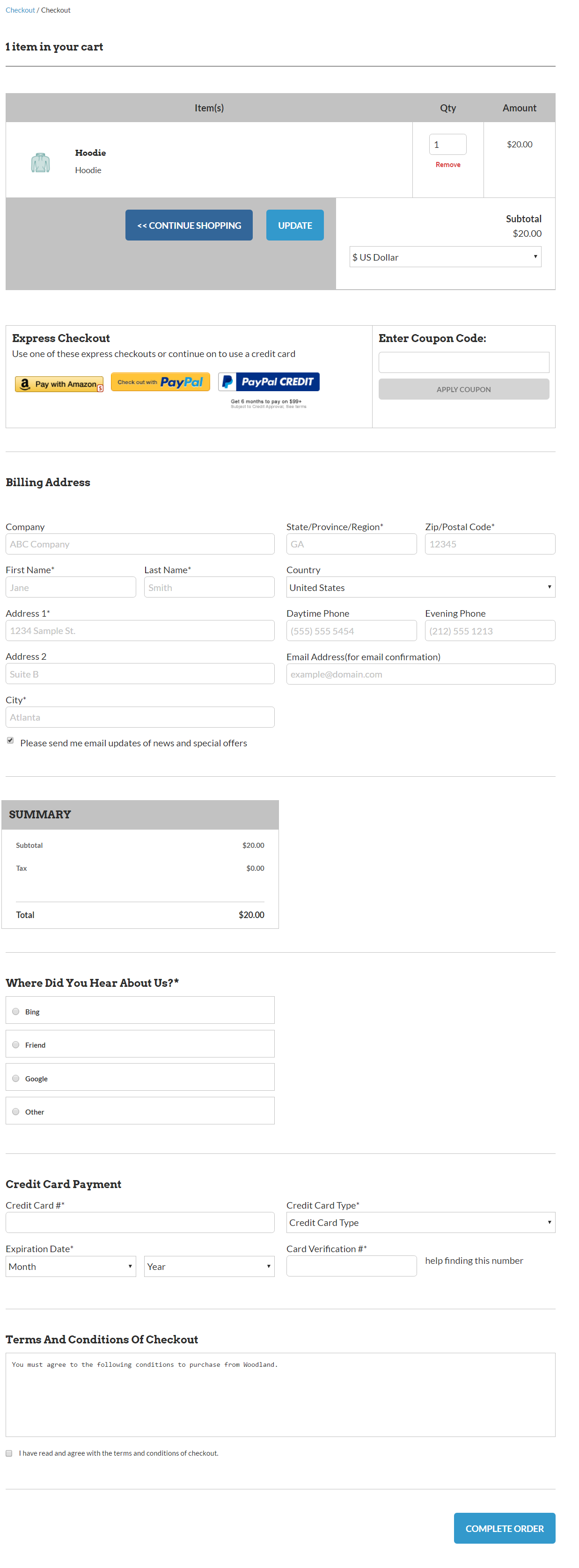
The single page checkout places most of the checkout information on a single, scrolling page (screen). This eliminates customers having to click on a next or continue button to navigate through the checkout process, page-by-page. Again, this condensed checkout process may or may not be suitable for some merchants.The following is a sample Checkout screen utilizing the Single Page Checkout. You can ignore the AVKits logo and graphic as you are able to completely brand out the area around the checkout screen with your background image, header, and footer.
Apply to individual buy link only
In some instances you may only want the single page on specific items.
To force the checkout to go from the default multi-page checkout to the single page checkout via an item buy link, you can use the following parameter:
**SinglePageCheckout=true - ** The presence of SinglePageCheckout=true will force the cart from multi-page checkout to single page.
Example:
http://secure.ultracart.com/cgi-bin/UCEditor?MerchantID=DEMO&ADD=bone&SinglePageCheckout=true
NOTE: Once the customers' shopping session is forced to the single page checkout it will not revert to the multi-page checkout (SinglePageCheckout=false is NOT valid)
Update
| Date | Title | Discussion |
|---|---|---|
| October 2011 | "This address is a business" field | A new field that was added October 2011 to allow the Single Page Checkout to allow FedEx to properly choose between FedEx Ground (business) and FedEx Residential. This field also helps if you're using FreightQuote.com. If you wish to turn this off, navigate: :::note Home → Configuration (Checkout) → Shipping → Checkout Options (tab) ::: |