Chargebacks 911
Introduction
Chargebacks911 is a third party service that specializes in chargeback management and loss recovery. UltraCart integrates with Chargebacks911 by sending order and transaction data over to them as orders are paid or shipped, so the evidence Chargebacks911 needs is already on file if a dispute is filed later.
Two things about the integration shape everything below:
- It is a one way feed. UltraCart sends data out. It does not receive chargebacks, dispute outcomes, or any other data back from Chargebacks911.
- Only credit card orders are sent. Orders paid by any other method are never transmitted.
Due to an FTC ruling, Chargebacks911 is prohibited from providing chargeback mitigation services to high risk clients who use affiliate marketing and negative option plans to sell certain product types that are often fraudulently marketed. The settlement restricts its ability to work with certain high risk merchant segments.
Prerequisites
Before you start, you need:
- An active Chargebacks911 account with API credentials: username, password, and the environment those credentials belong to, either
sandboxorproduction. - A user account with the Edit Items permission, which is what gates the Chargeback Processing screen.
- At least one transaction gateway already configured and taking credit card payments.
How setup works
Setup runs across three screens, and the integration transmits nothing until all three are done:
- Save your Chargebacks911 API credentials on the Chargeback Processing page.
- Create a Merchant Account Profile that points at your Chargebacks911 account and merchant ID.
- Assign that profile to every card brand on every transaction gateway that processes your payments.
Do these steps in order. The Chargebacks 911 option does not appear in the Merchant Account Profile editor until an API Username has been saved in step 1. If you start at step 2, the option simply will not be there, and the screen gives no explanation why.
1. Save your Chargebacks911 API credentials
-
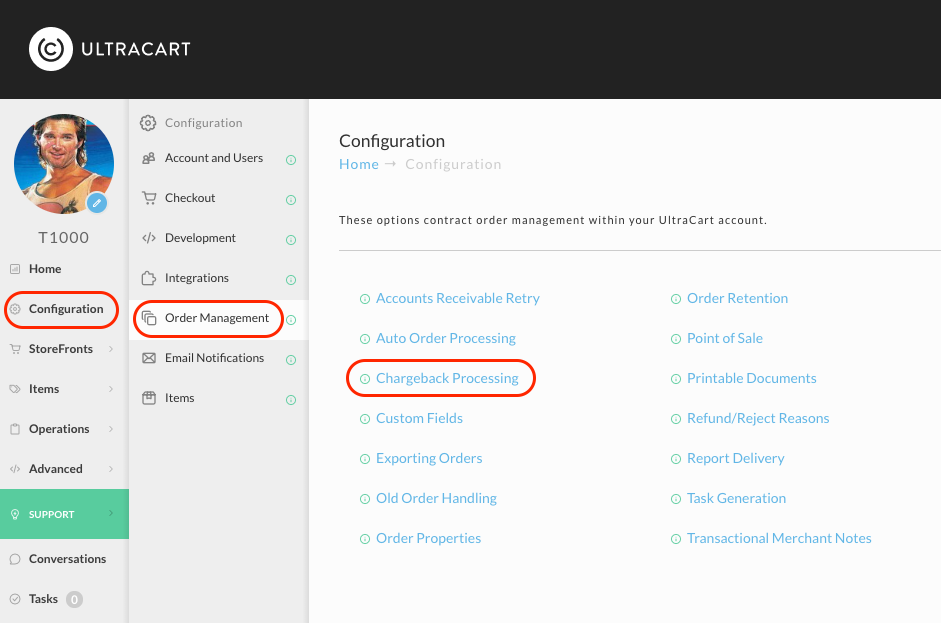
Go to Main Menu → Configuration → Order Management → Chargeback Processing.
-
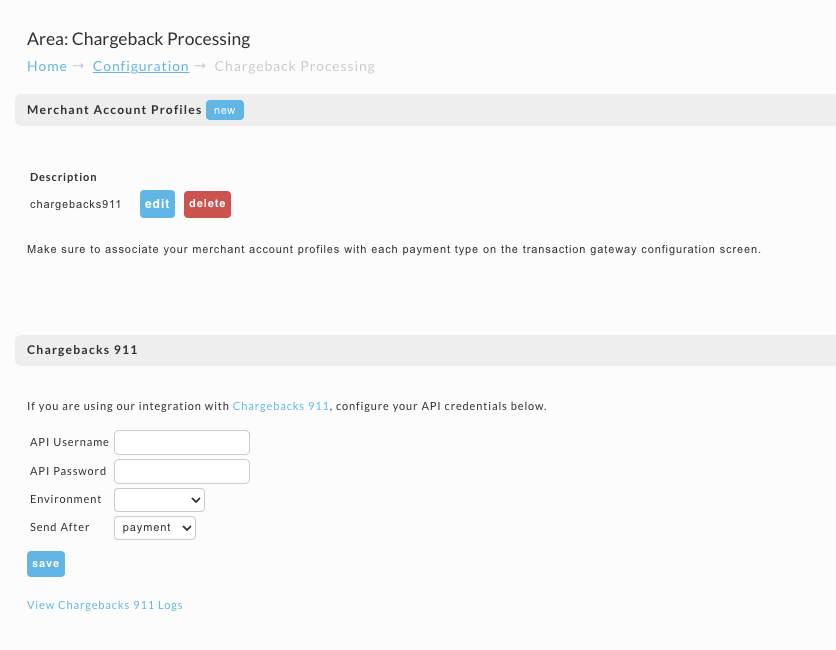
Scroll to the Chargebacks 911 section.
-
Enter your API Username and API Password.
-
Set Environment to match the credentials you entered, either
sandboxorproduction. Leaving Environment blank disables the integration. -
Set Send After to
paymentorshipment.paymentis the default, and it gets the order into Chargebacks911 as early as possible and then updates it with shipping details later. For what each value changes, see Send After. -
Click save.
Fill in all four fields before you move on. Saving a username alone is enough to make the Chargebacks 911 option appear in step 2, but the account and merchant ID dropdowns there will come up empty, because UltraCart cannot log in to Chargebacks911 to populate them.
2. Create a Merchant Account Profile
The merchant account profile carries your Chargebacks911 account and merchant ID. Gateways point at the profile, and the profile points at Chargebacks911.
-
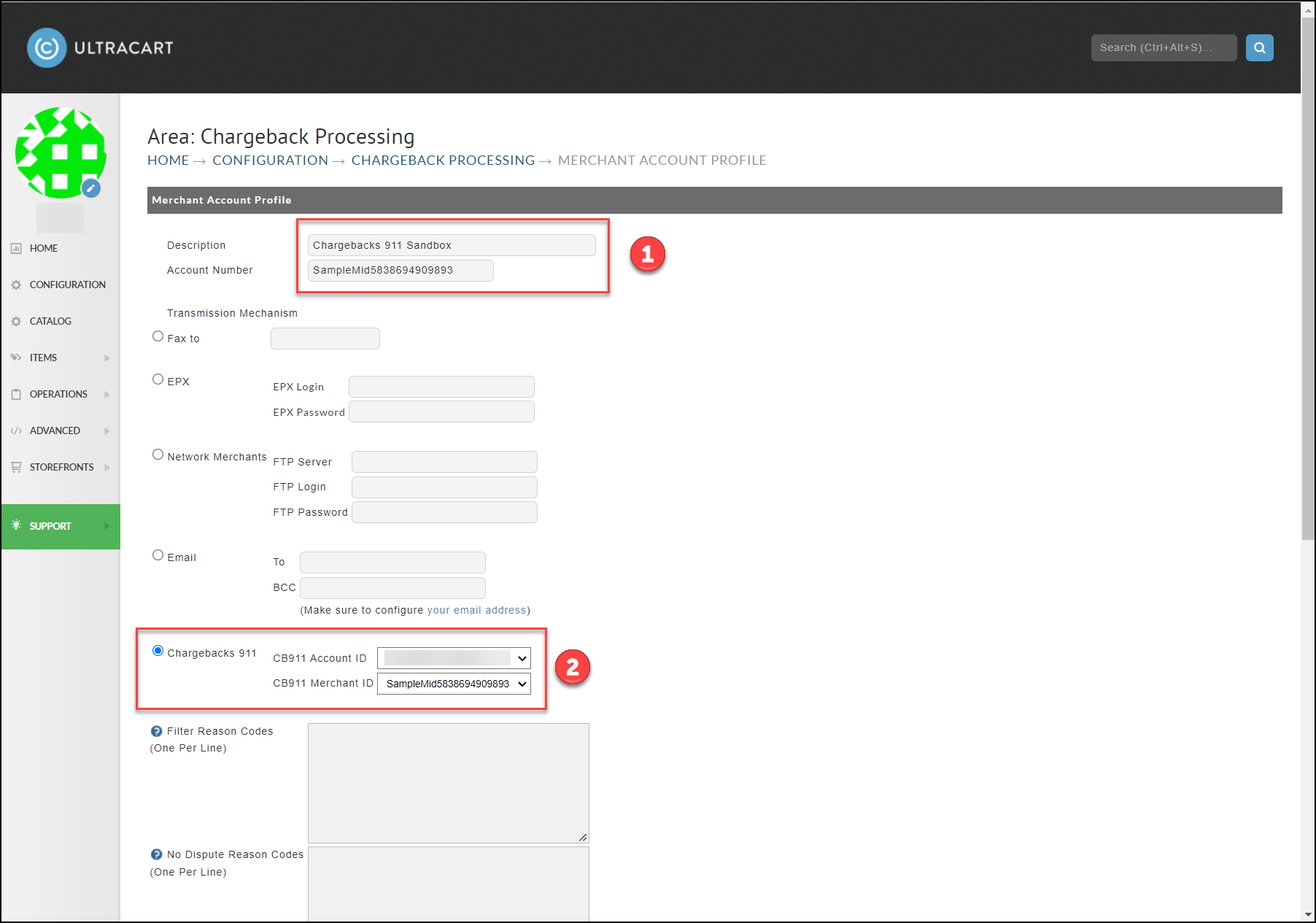
In the Merchant Account Profiles section of the same page, click new.
-
Enter a Description. You will pick this label from a dropdown later, so make it identify the processor or merchant account clearly.
-
Enter the Account Number if you track it. The Chargebacks911 transmission does not use this field, but analytics cost reporting does.
-
For Transmission Mechanism, select Chargebacks 911.
-
Select the CB911 Account ID and CB911 Merchant ID from the dropdowns. These determine which Chargebacks911 account and merchant ID the orders on this profile are filed under.
-
Click Save.
UltraCart fills those two dropdowns by logging in to Chargebacks911 each time the editor loads, so the page can take a moment to appear. If both dropdowns are empty, see Troubleshooting.
Leave the Filter Reason Codes and No Dispute Reason Codes boxes empty. Neither is used by the Chargebacks911 integration.
3. Assign the profile to your gateways
A profile does nothing until it is assigned on the gateway that actually processes the payment, and it is assigned per card brand.
-
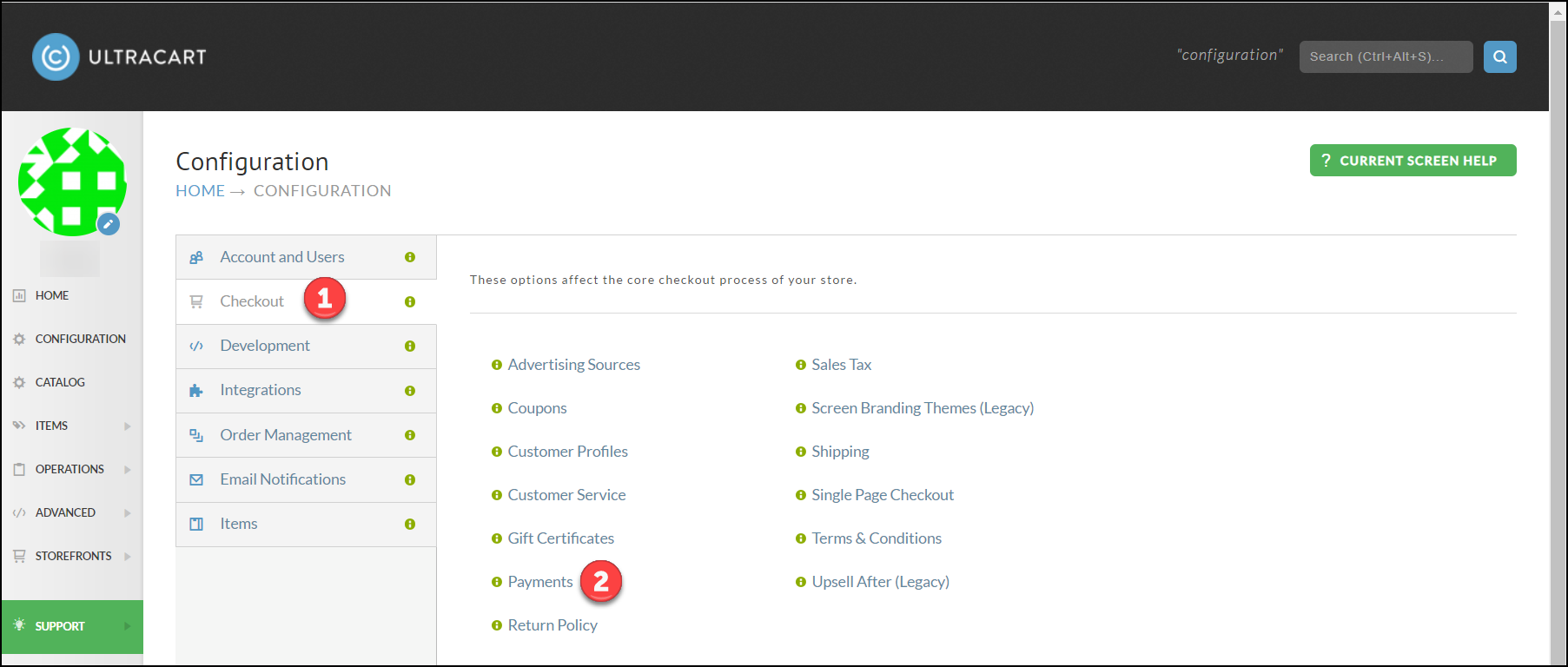
Go to Main Menu → Configuration → Checkout → Payments.
-
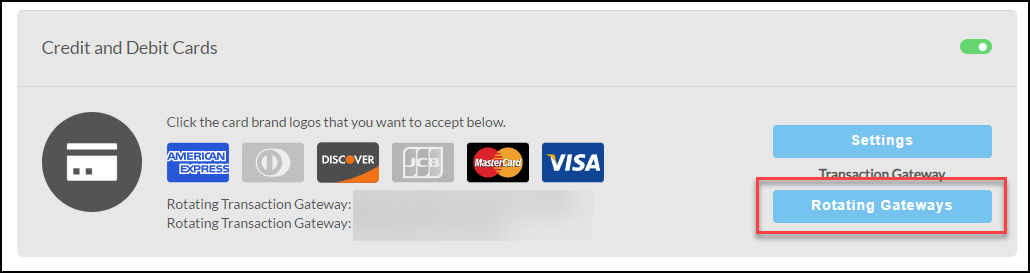
In the Credit and Debit Cards panel, open either Transaction Gateway or Rotating Gateways, depending on which your account uses. The per brand profile slots exist on both.
-
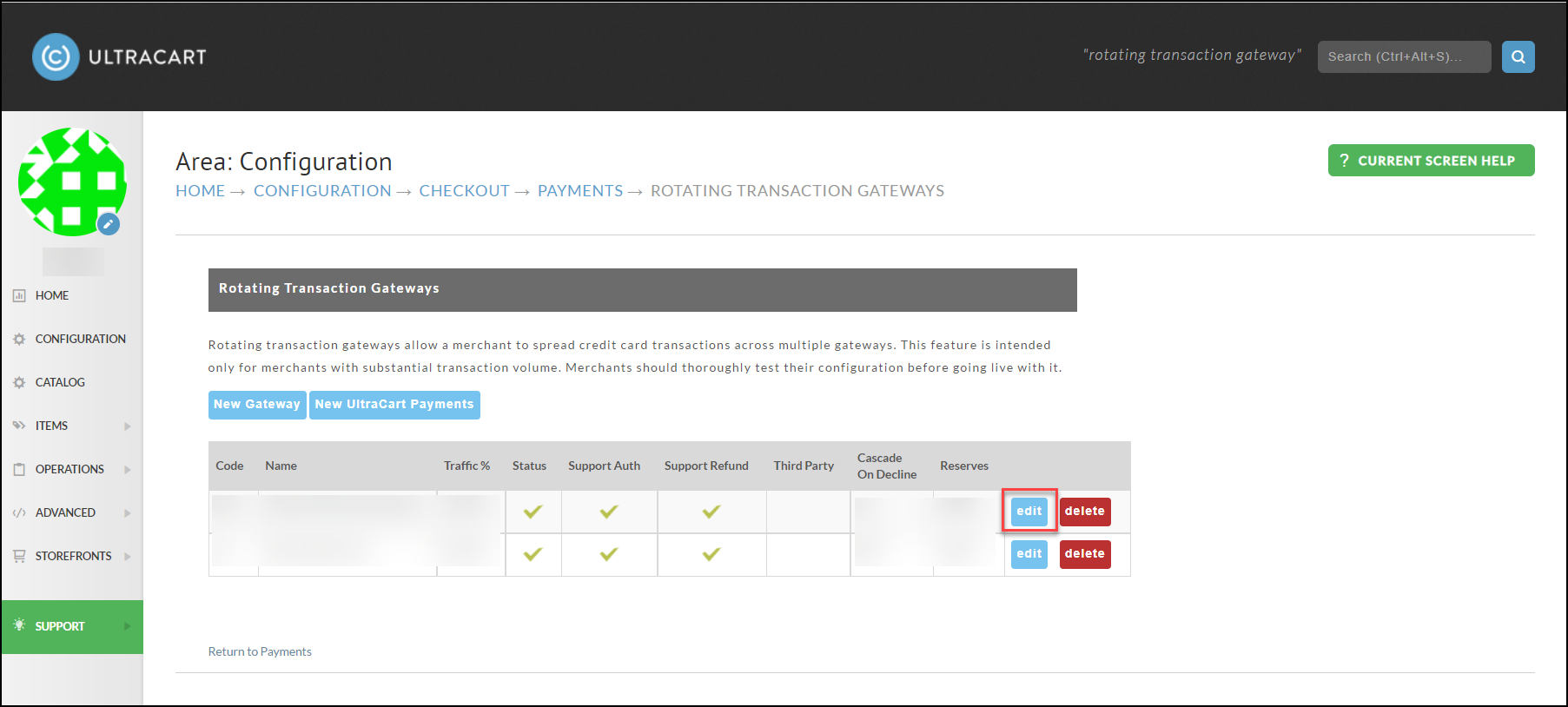
Click edit next to a gateway.
-
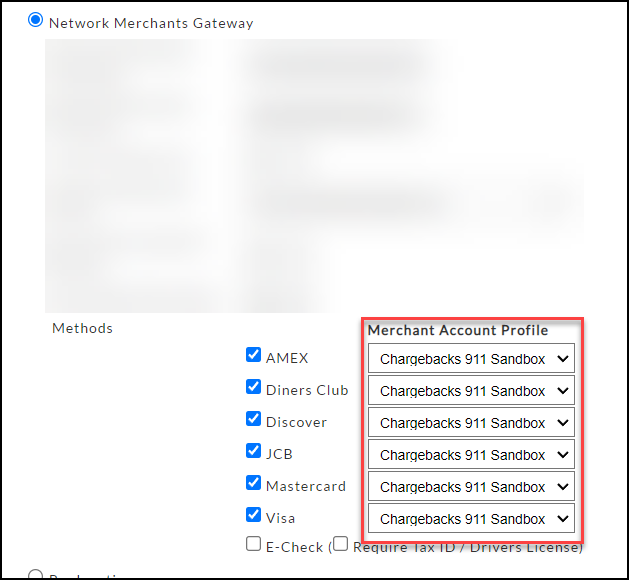
Scroll to the gateway's Methods section and set the Merchant Account Profile dropdown for each card brand you accept: AMEX, Diners Club, Discover, JCB, Mastercard, and Visa.
-
Save the gateway.
-
Repeat for every gateway that processes credit card payments.
Every brand, every gateway. A brand whose Merchant Account Profile dropdown is left empty is skipped silently, with no log entry and no error. Setting Visa and stopping there is the most common way to end up half configured.
Once a gateway is saved, UltraCart begins transmitting order and transaction data to Chargebacks911 for the orders it processes.
4. Confirm data is arriving
Transmission is queued and runs in the background, so it never happens during checkout and never delays an order. Expect an order to show up in Chargebacks911 within a few minutes of payment, or of shipment if Send After is set to shipment.
To check, place a test credit card order, then click View Chargebacks 911 Logs at the bottom of the Chargeback Processing page. That opens the Integration Log filtered to Chargebacks 911 entries, where each attempt records the order, the outcome, and the full request and response with the card number masked.
If Chargebacks911 is unreachable or returns an error, UltraCart retries roughly once an hour until it succeeds. A transient error that stops appearing in the log needs no action from you.
5. Move from sandbox to production
Your Chargebacks911 account and merchant IDs differ between the sandbox and production tenants, so changing the Environment dropdown on its own is not enough.
- Update the API Username, API Password, and Environment on the Chargeback Processing page, then click save.
- Open each Merchant Account Profile again.
- Reselect the CB911 Account ID and CB911 Merchant ID from the freshly loaded production values.
- Click Save on each profile.
Troubleshooting
The Chargebacks 911 option is missing from the Merchant Account Profile editor
No API Username has been saved yet. Go back to step 1, save your credentials, then reopen the profile.
The CB911 Account ID or Merchant ID dropdowns are empty
UltraCart could not authenticate to Chargebacks911 when the editor loaded, and no error is shown when that happens. Check the API Username and API Password, and confirm Environment matches those credentials. Sandbox credentials with Environment set to production, or the reverse, produces exactly this. If the credentials and environment are correct and the dropdowns are still empty, contact UltraCart support.
Nothing appears in the logs at all for an order
An order is skipped with no log entry in any of these cases, and from the outside they all look identical:
- The order was not paid by credit card.
- The order has no successful credit card transaction.
- The gateway that processed the payment has no Merchant Account Profile assigned for that order's card brand.
- The assigned profile's Transmission Mechanism is not set to Chargebacks 911.
- The order's card brand is not one of the six the integration supports.
- The gateway that processed the payment has since been deleted or renamed.
The log reports that an Account ID or Merchant ID is not configured
The profile has Chargebacks 911 selected, but one of the two dropdowns was left blank. Fix the profile and save it. Orders that failed this way are not retried, so anything placed during that window is not sent automatically.
Next Steps
- Review the field by field reference in Chargeback Processing (Configuration).
- Review the Integration Log Health Report to keep an eye on integration errors across your account.
- Visit Chargebacks911 for more information about their services.