BlueSnap Gateway Integration
The BlueSnap integration allows UltraCart merchants to securely process credit and debit card transactions through the BlueSnap payment gateway. BlueSnap provides a merchant account and payment gateway together, with global bank connections that let you accept payments in multiple currencies.
This guide walks you through:
- Creating BlueSnap API credentials
- Configuring the BlueSnap gateway in UltraCart
- Testing and validating your integration
Capabilities
The BlueSnap gateway supports the following functionality within UltraCart:
| Capability | Supported |
|---|---|
| E-Check / ACH | No |
| Multi-Currency | Yes |
| Refunds | Yes |
| Auth then Capture | No |
| Zero Dollar Authorization | No |
| 3rd Party Processor (hands off to processor website) | No |
Supported card types: Visa, Mastercard, American Express, Discover, Diners Club, and JCB.
Prerequisites
Before configuring BlueSnap in UltraCart, ensure you have the following:
- An active BlueSnap merchant account. If you do not have one yet, contact BlueSnap sales at go.bluesnap.com/talk-to-sales or call +1 (877) 592-7468.
- Permission to create API credentials within the BlueSnap Merchant Portal.
- UltraCart administrative access to the payment gateway configuration.
Do not use your primary BlueSnap Merchant Portal login for the integration. Always generate dedicated API credentials as described below.
Step 1: Create BlueSnap API Credentials
UltraCart authenticates with BlueSnap using an API username and API password that you generate in the BlueSnap Merchant Portal.
- Log in to your BlueSnap Merchant Portal.
- Navigate to Settings → API Settings.
- Create an API password. BlueSnap requires the password to:
- Be a minimum of 12 characters (maximum 128)
- Use ASCII characters only
- Include at least one uppercase letter, one lowercase letter, one digit, and one special character
- Not match your user key or resemble an email address
- Authorize IP addresses. Add the IP addresses or subnets that are permitted to use the credentials (up to 15). For a single address, enter it in the four boxes and select Add. For a range, enter the starting address and the last octet of the ending address.
- Select Request API credentials to generate the credential set.
Your API username and API password created here are the values you will enter into UltraCart.
The API password is separate from your BlueSnap account login password.
Step 2: Choose Your Environment
BlueSnap provides two environments, each with its own set of API credentials:
| Environment | Purpose |
|---|---|
| Sandbox | Testing and validation using test cards. No real funds move. |
| Production (Live) | Real transactions against live shopper cards. |
Credentials generated in the Sandbox environment do not work in Production and vice versa. Generate the credentials in the environment you intend to use, and select the matching environment in the UltraCart configuration (Step 3).
Validate the full checkout flow in Sandbox before switching to Production, then re-enter your Production credentials and select the Production environment.
Step 3: Configure BlueSnap in UltraCart
Navigate to the UltraCart payment gateway configuration:
Main Menu → Configuration → Checkout → Payments → Transaction Gateways
- Create or edit a Single Transaction Gateway.
- Select BlueSnap as the gateway type.
- Complete the configuration fields described below.
Configuration Fields
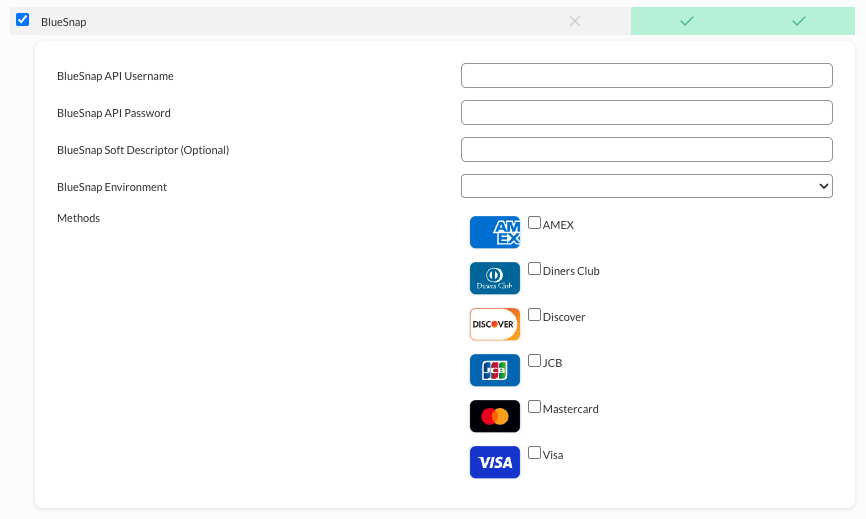
| Field | Description |
|---|---|
| BlueSnap API Username | The API username generated in the BlueSnap Merchant Portal (Step 1). |
| BlueSnap API Password | The API password generated for that API username. |
| BlueSnap Soft Descriptor (Optional) | The text that appears on the shopper's card statement for charges processed through this gateway. Leave blank to use your BlueSnap account default. |
| BlueSnap Environment | Select Sandbox for testing or Production for live transactions. This must match the environment in which your credentials were generated. |
| Methods | Check each card type you are approved to process through BlueSnap: AMEX, Diners Club, Discover, JCB, Mastercard, Visa. |
Step 4: Save and Test the Configuration
- Click Save.
- Place a test order in your storefront.
- Use BlueSnap test card numbers while the gateway is set to the Sandbox environment.
- Verify:
- The transaction completes successfully
- No gateway errors appear in the order logs
- The correct card types are accepted
Once testing passes, update the gateway to your Production credentials and set the environment to Production.
Security Best Practices
Follow these practices to protect your integration:
- Use dedicated API credentials for the UltraCart integration rather than sharing your portal login.
- Keep the IP allowlist enabled in the BlueSnap Merchant Portal when possible; disabling IP checking removes an important security layer.
- Rotate your API password periodically.
- Never expose credentials in JavaScript, public repositories, or client-side applications.
Never share your BlueSnap API password outside of the UltraCart gateway configuration screen.
Troubleshooting
Authentication / Invalid Credentials Error
Symptoms: Transactions fail immediately with an authentication or authorization error.
Solution:
- Verify the API username and password were copied exactly, with no leading or trailing spaces.
- Confirm the selected BlueSnap Environment matches the environment in which the credentials were generated (Sandbox credentials will not authenticate against Production).
- Confirm your API password has not expired or been rotated in the BlueSnap Merchant Portal.
Transactions Rejected by IP Check
Symptoms: Credentials are correct, but requests are refused.
Solution: Ensure the IP allowlist in Settings → API Settings includes the addresses used by UltraCart's processing servers, or work with BlueSnap support to confirm the correct allowlist configuration.
Card Type Declined
Symptoms: A specific card type (for example, JCB or Diners Club) is declined at checkout.
Solution:
- Confirm the card type is checked under Methods in the UltraCart gateway configuration.
- Confirm your BlueSnap merchant account is approved to process that card type.
Currency Mismatch
Symptoms: Multi-currency orders fail.
Solution: Confirm your BlueSnap account is enabled for the currencies you are attempting to charge, and review the UltraCart order logs for the gateway response.
FAQ
Q: Can I use my BlueSnap portal login for the integration?
No. Generate dedicated API credentials under Settings → API Settings in the BlueSnap Merchant Portal.
Q: Does BlueSnap support E-Check / ACH through UltraCart?
No. The BlueSnap gateway supports credit and debit card processing and multi-currency, but not E-Check within this integration.
Q: What is the Soft Descriptor field?
The soft descriptor is the text that appears on the shopper's credit card statement. It is optional; if left blank, BlueSnap uses your account default.
Q: Do I need separate credentials for testing and going live?
Yes. Sandbox and Production each have their own API credentials, and the selected BlueSnap Environment in UltraCart must match.