Braintree Credit Card Processing Gateway Integration
Braintree is available to US, European, Australian, and Canadian merchants. We help companies of all sizes grow into international markets and accept payments in over 130 currencies. We pay out fast - just 2 business days for most transactions. No matter your stage of growth, we can help you optimize your cash flow to grow your business.
Integrating Braintree with your UltraCart Account:
The first step will be creating your brain tree account and acquiring your Braintree API keys, which you will place into UltraCart.
You'll need 3 credentials to connect your Braintree account to UltraCart: the Merchant ID, Public Key and Private Key.
Sandbox API keys are different from those in the production environment, so they must be updated in your code by your developers when switching between environments. More information about switching environments is available in the Braintree go-live docs .
Obtaining your API Key credentials:
Next, you'll gather your credentials by logging into your Braintree account: https://www.braintreegateway.com/login
Braintree API Keys
The public and private keys together make up your user's API keys. Each user associated with your Braintree gateway will have their own set of API keys, which they can change or rotate at any time for added security.
Braintree Docs: API Keys
1. Braintree Merchant ID
Your merchant ID is the unique identifier for your entire gateway account, including the multiple merchant accounts that may be in your gateway.
Your merchant ID is not the same as your merchant account ID. More Info.
Braintree Docs: Merchant ID
-
Click on the gear icon in the top right corner
-
Click Business from the drop-down menu
-
Scroll to the Merchant Accounts section
2. Braintree Public Key
This is your user-specific public identifier. Each user associated with your Braintree gateway will have their own public key.
Braintree Docs: Public Key
-
Click on the gear icon in the top right corner
-
Click API from the drop-down menu
-
Scroll to the API Keys section
If no API keys appear, click the Generate New API Key button.
3. Braintree Private Key
This is your user-specific private identifier. Each user associated with your Braintree gateway will have their own private key. Your private key should not be shared outside the use of the UltraCart UI.
Braintree Docs: Private Key
-
Click on the gear icon in the top right corner
-
Click API from the drop-down menu
-
Scroll to the API Keys section
-
Click the View link located in the Private Key column
Your private key will be revealed in the Private Key column on the next page.
Placing the API credentials into UltraCart:
Login into your UltraCart account and navigate:
Configuration > Checkout > Payments

Select Braintree Payment Solutions (Blue)
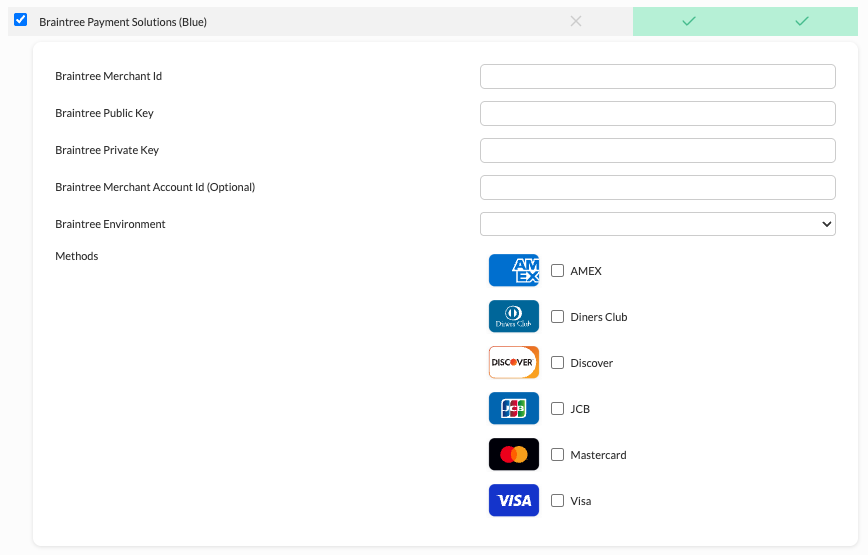
Enter:
-
Braintree MerchantID
-
Braintree Public Key
-
Braintree Private Key
-
Select the Credit Card types you are setup to process through Braintree (typically Visa, MasterCard, Discover, Amercian Express)
Then hit the save button at the bottom of the page to save the changes.
To keep auto order cards current automatically with Braintree's Account Updater, see Dual Vaulted Credit Card Processing.
Skipping Braintree advanced fraud checking
If your Braintree account is enrolled in Braintree's Premium Fraud Management Tools, Braintree screens, and charges for, every transaction on the account. When you run Braintree on a rotating transaction gateway, you can skip that screen separately for initial transactions and for auto order rebills on each gateway. See Braintree advanced fraud checking.
When the screen runs, UltraCart records its decision on the transaction. See Fraud risk data.
Preventing Duplicate Transactions
In Braintree you can turn on a setting to prevent duplicate charges:
NOTE: Duplicate transaction checking is enabled by default with a 30-second window. This setting can be updated or disabled by users with Account Admin privileges.
-
Log into the Braintree Control Panel
-
Navigate to Settings > Processing > Duplicate Transaction Checking
-
Click Edit to adjust the time window or Enable/Disable to turn the feature on/off
Transaction details UltraCart records
Every Braintree transaction UltraCart sends is saved on the order along with the fields Braintree returns. Use them to see why a card declined, check AVS and CVV results, review Braintree's fraud decision, or look the transaction up in the Braintree control panel.
Where to find them
Open the order. From the order's Actions menu, mouse over Payments, then select Transaction History. Each attempt is listed with its fields.
To find every order with a particular result, use the Detail Name and
Detail Value (contains) filters in
Accounts Receivable. For example,
filter on risk_data.decision containing Review to list orders Braintree's fraud screen flagged
for review.
Sales and authorizations
A sale or authorization records the fields below, whether it is approved or declined. A field is
left out when Braintree returns no value for it, so a decline has no processor_authorization_code
or settlement_batch_id, for example.
| Field | What it tells you |
|---|---|
transactionId | Braintree's transaction ID. Search for it in the Braintree control panel. |
ucTransactionType | Sale (charged and submitted for settlement) or Auth (authorization only, captured later). |
status | Braintree's transaction status, for example SUBMITTED_FOR_SETTLEMENT or AUTHORIZED. |
processor_authorization_code | The authorization code from the card issuer. |
processor_response_code | The processor's response code, for example 1000. |
processor_response_text | The processor's response text, for example Approved. |
processor_response_type | APPROVED, SOFT_DECLINED, or HARD_DECLINED. A soft decline may succeed if you retry later; a hard decline will not. |
additional_processor_response | Extra detail from the processor, when it sends any. Most useful on declines. |
avs_postal_code_response_code | The AVS result for the billing ZIP or postal code. |
avs_street_address_response_code | The AVS result for the billing street address. |
avs_error_response_code | Why AVS could not be checked, when it could not. |
cvv_response_code | The CVV result. |
network_response_code | The response code from the card network. |
network_response_text | The response text from the card network. |
network_transaction_id | The card network's ID for the transaction. |
processed_with_network_token | true when Braintree charged the card with a network token. Only recorded when true. |
settlement_batch_id | The Braintree settlement batch the transaction belongs to. |
descriptor_name | The name that appears on the customer's card statement. |
credit_card_country_of_issuance | The country that issued the card. |
credit_card_issuing_bank | The bank that issued the card. |
credit_card_customer_location | US or International, based on where the card was issued. |
used_vaulted_card | true when the charge used a card stored in Braintree's vault instead of the card number. See Dual Vaulted Credit Card Processing. |
Sales and authorizations also record Braintree's fraud risk data, described next.
Fraud risk data
If your Braintree account uses Braintree's fraud tools (Fraud Protection, Fraud Protection
Advanced, or the older Premium Fraud Management Tools), Braintree screens each sale and
authorization and returns its risk assessment. UltraCart records it in fields that start with
risk_data..
| Field | What it tells you |
|---|---|
risk_data.decision | Braintree's fraud decision: Approve, Review, Decline, or Not Evaluated. |
risk_data.decision_reasons[0], risk_data.decision_reasons[1], … | The fraud rules that produced the decision, one field per rule, numbered from 0. |
risk_data.transaction_risk_score | The fraud provider's score for how likely the transaction is to be fraudulent. Only returned with Fraud Protection Advanced. |
risk_data.id | Braintree's ID for the risk assessment. Use it to find the assessment in the Braintree control panel. |
risk_data.fraud_service_provider | The Braintree fraud service that screened the transaction. |
risk_data.liability_shift.responsible_party | Who is responsible for a chargeback on this transaction when liability has shifted away from you. |
risk_data.liability_shift.conditions[0], risk_data.liability_shift.conditions[1], … | The kinds of chargeback the liability shift covers, one field per condition, numbered from 0. |
A few things to know:
- Review before you ship. A
Reviewdecision means the transaction was approved but Braintree thinks it deserves a closer look. Check these orders before you ship them. - Fraud declines. When Braintree's fraud screen declines a transaction, Braintree rejects it
before it reaches the card issuer. The transaction shows a
risk_data.decisionofDecline, astatusofGATEWAY_REJECTED, and usually agateway_rejection_reasonoffraud. Therisk_data.decision_reasonsfields tell you which rules fired. See Declines and errors. - Skipped screens. If you skip advanced fraud checking on a rotating gateway, Braintree does not
screen the transaction. You will see
Not Evaluatedor norisk_data.fields at all. See Braintree advanced fraud checking. - Liability shift. The
risk_data.liability_shift.fields only appear when a Braintree chargeback protection service has taken on the chargeback risk for the transaction.
For the full definition of each value, see the riskData section of Braintree's
transaction response reference.
Declines and errors
A declined sale or authorization records the same fields as an approval, including the AVS, CVV,
network, card, and risk_data. fields, whenever Braintree returns them. It also records:
| Field | What it tells you |
|---|---|
error | Error processing transaction. |
message | Braintree's description of the failure. |
gateway_rejection_reason | Why Braintree itself rejected the transaction. Only recorded when status is GATEWAY_REJECTED. Values include fraud, risk_threshold, avs, cvv, avs_and_cvv, duplicate, three_d_secure, application_incomplete, and token_issuance. |
The status field tells you which kind of decline you are looking at:
PROCESSOR_DECLINED: the card issuer declined the charge. Start withprocessor_response_codeandprocessor_response_text, for example2001andInsufficient Funds.network_response_codeandadditional_processor_responseoften give a more specific reason, andprocessor_response_typetells you whether a retry could succeed.GATEWAY_REJECTED: Braintree rejected the charge before it reached the issuer, so there is usually no processor response code.gateway_rejection_reasonsays why. Foravs,cvv, oravs_and_cvv, the AVS and CVV fields show which check failed. Forfraud, therisk_data.fields show Braintree's decision and the rules behind it.
When Braintree rejects the request before creating a transaction, for example because a field is
invalid, the transaction records error (Other error.), message, and an attribute and code
for each validation error.
Declines recorded before UltraCart started capturing these fields show only error, message,
status, processor_response_code, processor_response_text, and transactionId.
Prevent Cascade and Auto Order Cancel
Prevent Cascade and Auto Order Cancel each match one Response Field Name against the values you list. Useful Braintree fields:
| Response Field Name | Example values |
|---|---|
processor_response_type | HARD_DECLINED, to stop cascading declines that no gateway will approve. |
gateway_rejection_reason | fraud or duplicate, to stop cascading charges Braintree rejected outright. |
processor_response_code | Specific decline codes, for example 2001 (Insufficient Funds). |
A transaction that does not include the field never matches. With Prevent Cascade, that means it cascades as usual. With Auto Order Cancel, it means the auto order is canceled, so check past declines before you rely on a field that is not always present.
Captures, voids, and refunds
Captures, voids, and refunds record a smaller set of fields:
ucTransactionType:Capture,Void, orRefund.transactionId: Braintree's transaction ID, when the request succeeds.success:trueorfalse. Refunds only.
When one of these fails, the transaction records error, message, and status, with the
processor's response in code and text instead of processor_response_code and
processor_response_text.
Troubleshooting & Support
Online Braintree support is available at https://support.braintreepayments.com/
You can learn more about customizing the AVS and CVV rejection rules here: https://support.braintreepayments.com/customer/portal/articles/1080668
About decline responses: https://support.braintreepayments.com/reference/general/processor-responses/authorization-responses#declines
https://articles.braintreepayments.com/control-panel/transactions/declines