Overview
This tutorial will provide instructions for configuring the BluePay gateway with your UltraCart account.
Steps
Configuring BluePay in the transaction gateways list in the payments configuration page
- Log into your UltraCart account then Navigate:
Main Menu → Configuration → (middle menu) Checkout → Payments → Scroll down to "Credit and Debit Cards" section → Click "Connect Single" button. - Scroll down and select the radio button for BluePay 2.0.
- Complete the BluePay fields that appeared (see field definitions below).
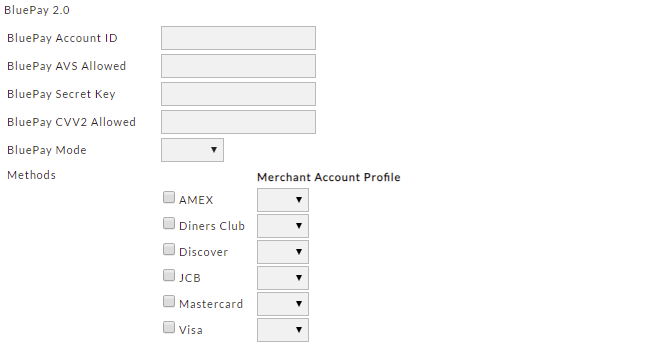
| Field | Description | Required |
|---|---|---|
| BluePay Account ID | This is your account ID provided to you by BluePay | Yes |
| BluePay AVS Allowed | AVS_ALLOWED -- Optional for AUTH & SALE -- Overrides legacy AVS filter. -- Does not override Fraud Management settings. Allows a string of allowed Address Verification System (AVS) response codes to be set on a per transaction basis. If the resulting AVS response is not in this list, the transaction will be voided and a decline response returned. If set to '#', all AVS responses are considered valid. For example, if the merchant wishes to allow AVS responses 'X', 'Y', and 'Z', he sets this to 'XYZ'. Note: The Fraud Management system or the legacy AVS filter should be used to set AVS filters if possible. https://www.bluepay.com/sites/default/files/documentation/BluePay_bp10emu/BluePay%201-0%20Emulator.txt | |
| BluePay Secret Key | This is the equivalent to a password, provided to you by BluePay. | Yes |
| BluePay CVV2 Allowed | CVV2_ALLOWED -- Optional for AUTH & SALE -- Overrides legacy CVV filter. -- Does not override Fraud Management settings. Allows a string of allowed Card Verification Value (CVV) response codes to be set on a per transaction basis. If the resulting CVV response is not in this list, the transaction will be voided and a decline response returned. If set to '#', all CVV responses are considered valid. For example, if the merchant wishes to allow CVV responses 'X', 'Y', and 'Z', he sets this to 'XYZ'. Note: The Fraud Management system or the legacy CVV filter should be used to set CVV filters if possible. https://www.bluepay.com/sites/default/files/documentation/BluePay_bp10emu/BluePay%201-0%20Emulator.txt | |
| BluePay Mode | Select the appropriate option: (TEST / LIVE) | Yes |
| Methods | The available credit card types: - AMEX - Diners Club - Discover - JCB - MasterCard - Visa | Yes - for all payment types that you have established with BluePay. |
Was this page helpful?