eWay Gateway Integration
The eWay integration allows UltraCart merchants to securely process credit and debit card transactions through the eWAY payment gateway. eWAY is an established gateway founded to enable Australian businesses to accept credit card payments online, and it serves merchants in Australia, New Zealand, and the UK.
This guide walks you through:
- Locating your eWAY Customer ID
- Configuring the eWay gateway in UltraCart
- Testing and validating your integration
Capabilities
The eWay gateway supports the following functionality within UltraCart:
| Capability | Supported |
|---|---|
| E-Check / ACH | No |
| Multi-Currency | Yes |
| Refunds | No |
| Auth then Capture | No |
| Zero Dollar Authorization | No |
| 3rd Party Processor (hands off to processor website) | No |
Supported card types: Visa, Mastercard, American Express, Discover, Diners Club, and JCB.
Prerequisites
Before configuring eWay in UltraCart, ensure you have the following:
- An active eWAY merchant account with access to the MYeWAY management console.
- Your eWAY Customer ID (an 8-digit number).
- UltraCart administrative access to the payment gateway configuration.
Step 1: Locate Your eWAY Customer ID
UltraCart authenticates to eWAY using your eWAY Customer ID, an 8-digit number assigned to your account.
- Log in to your MYeWAY console.
- Open My Account.
- Note your eWAY Customer ID (the 8-digit number associated with your account).
For testing, eWAY provides a standard sandbox Customer ID of 87654321. This test ID does not communicate with the bank and is for demonstration only. Use it with Test mode (Step 2) before going live with your real Customer ID.
Step 2: Configure eWay in UltraCart
Navigate to the UltraCart payment gateway configuration:
Main Menu → Configuration → Checkout → Payments → Transaction Gateways
- Create or edit a Single Transaction Gateway.
- Select eWay as the gateway type.
- Complete the configuration fields described below.
Configuration Fields
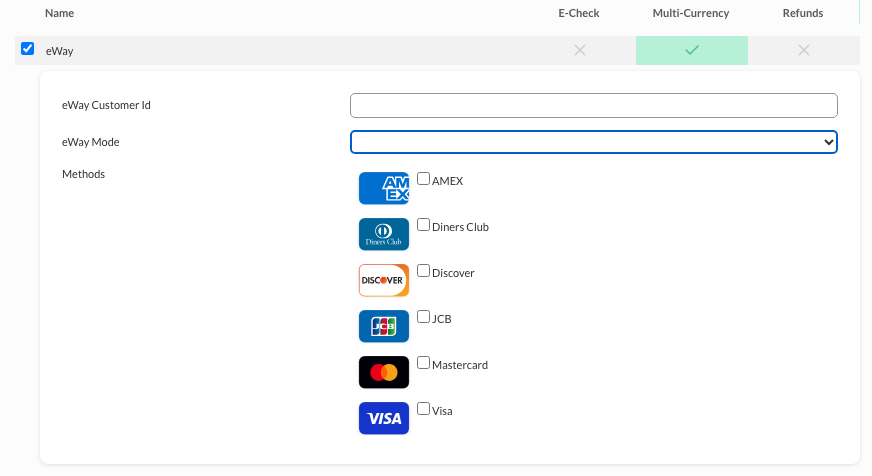
| Field | Description |
|---|---|
| eWay Customer Id | Your 8-digit eWAY Customer ID. For testing, use eWAY's sandbox test ID 87654321. |
| eWay Mode | Select Test for sandbox testing or Live for production. This must match the Customer ID you entered (the test ID 87654321 works only in Test mode). |
| Methods | Check each card type you are approved to process through eWAY: AMEX, Diners Club, Discover, JCB, Mastercard, Visa. |
After entering your Customer ID, selecting the mode, and choosing your card types, click Save at the bottom of the page.
Step 3: Save and Test the Configuration
- Click Save.
- Set eWay Mode to Test and enter Customer ID 87654321.
- Place a test order in your storefront using eWAY's test values:
- Card number:
4444333322221111 - A round dollar amount (for example, $10.00 or $20.00)
- Any name and CVN, with a future expiration date
- Card number:
- Verify:
- The transaction completes successfully
- No gateway errors appear in the order logs
- The correct card types are accepted
Once testing passes, set eWay Mode to Live and enter your real eWAY Customer ID.
Do not run test transactions with your live Customer ID. eWAY may block the originating IP address for test activity submitted against a live account. Always use the test Customer ID 87654321 in Test mode.
Security Best Practices
- Keep your eWAY Customer ID and MYeWAY login credentials secure.
- Restrict access to your MYeWAY console to trusted staff.
- Confirm the correct mode (Test vs Live) before opening your store to real customers.
Troubleshooting
Transactions Fail in Live Mode
Symptoms: Orders are declined or error out after switching to Live.
Solution:
- Confirm eWay Mode is set to Live and the eWay Customer Id is your real 8-digit ID (not the test ID 87654321).
- Confirm your eWAY account is active and approved to process live transactions.
Card Type Declined
Symptoms: A specific card type (for example, JCB or Diners Club) is declined at checkout.
Solution:
- Confirm the card type is checked under Methods in the UltraCart gateway configuration.
- Confirm your eWAY merchant account is approved to process that card type.
IP Blocked by eWAY
Symptoms: Requests suddenly stop being accepted after test activity.
Solution: Test transactions run against a live Customer ID can cause eWAY to block your IP. Always test with Customer ID 87654321 in Test mode, and contact eWAY support if your IP needs to be unblocked.
FAQ
Q: Where do I find my eWAY Customer ID?
Log in to the MYeWAY console and open My Account. Your Customer ID is the 8-digit number associated with your account.
Q: How do I test before going live?
Set eWay Mode to Test and use the sandbox Customer ID 87654321 with eWAY's published test card values. No funds move in Test mode.
Q: Does eWay support refunds through UltraCart?
No. The eWay gateway supports card processing and multi-currency within UltraCart, but refunds are not supported through this integration.
Q: Which currencies can I process?
eWay supports multi-currency. Confirm the specific currencies enabled on your eWAY merchant account.