GoEmerchant Gateway Integration
The GoEmerchant integration allows UltraCart merchants to securely process credit and debit card transactions through the goEmerchant payment gateway. goEmerchant is a US-based provider of all-in-one e-commerce and payment processing solutions.
This guide walks you through:
- Locating your goEmerchant gateway credentials
- Configuring the GoEmerchant gateway in UltraCart
- Testing and validating your integration
Capabilities
The GoEmerchant gateway supports the following functionality within UltraCart:
| Capability | Supported |
|---|---|
| E-Check / ACH | No |
| Multi-Currency | No |
| Refunds | No |
| Auth then Capture | No |
| Zero Dollar Authorization | No |
| 3rd Party Processor (hands off to processor website) | No |
Supported card types: Visa, Mastercard, American Express, Discover, Diners Club, and JCB.
Refunds are not supported through this integration. Process any refunds directly in your goEmerchant Transaction Center.
Prerequisites
Before configuring GoEmerchant in UltraCart, ensure you have the following:
- An active goEmerchant merchant account with access to the Transaction Center at secure.goemerchant.com.
- Your goEmerchant Merchant ID, Gateway ID, and gateway API password.
- UltraCart administrative access to the payment gateway configuration.
Step 1: Locate Your goEmerchant Credentials
UltraCart authenticates to goEmerchant using three values from your Transaction Center:
- Merchant ID — your goEmerchant transaction center identifier
- Gateway ID — the gateway identifier for your account
- API Password — the gateway/API password
To retrieve them:
- Log in to your goEmerchant Transaction Center at secure.goemerchant.com.
- Open your gateway / API settings (under Settings → Security Settings → Gateway Options in most accounts).
- Note your Merchant ID, Gateway ID, and API password.
If you cannot locate any of these values, contact goEmerchant support. They can also confirm any IP allowlisting your account requires.
Step 2: Configure GoEmerchant in UltraCart
Navigate to the UltraCart payment gateway configuration:
Main Menu → Configuration → Checkout → Payments → Transaction Gateways
- Create or edit a Single Transaction Gateway.
- Select GoEmerchant as the gateway type.
- Complete the configuration fields described below.
Configuration Fields
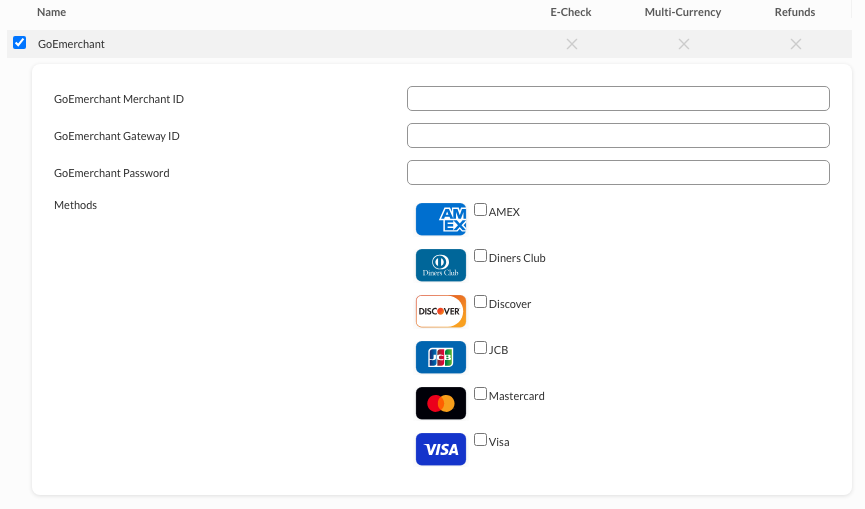
| Field | Description |
|---|---|
| GoEmerchant Merchant ID | Your goEmerchant Merchant ID (transaction center identifier). |
| GoEmerchant Gateway ID | The Gateway ID from your goEmerchant Transaction Center. |
| GoEmerchant Password | Your goEmerchant gateway/API password. |
| Methods | Check each card type you are approved to process through goEmerchant: AMEX, Diners Club, Discover, JCB, Mastercard, Visa. |
After entering your Merchant ID, Gateway ID, and password, and selecting your card types, click Save at the bottom of the page.
Step 3: Save and Test the Configuration
- Click Save.
- Place a test order in your storefront.
- Verify:
- The transaction completes successfully
- No gateway errors appear in the order logs
- The correct card types are accepted
goEmerchant provides a sandbox/demo environment. If you want to validate the integration without processing live cards, ask goEmerchant support for demo gateway credentials.
Security Best Practices
- Keep your goEmerchant Merchant ID, Gateway ID, and API password secure.
- Restrict access to your goEmerchant Transaction Center to trusted staff.
- Rotate your gateway API password periodically, and immediately if you suspect it has been exposed.
Troubleshooting
Authentication / Invalid Credentials Error
Symptoms: Transactions fail immediately with an authentication error.
Solution:
- Verify the Merchant ID, Gateway ID, and Password were copied exactly, with no leading or trailing spaces.
- Confirm the credentials belong to the correct goEmerchant account and gateway.
- Confirm any IP allowlisting required by goEmerchant includes UltraCart's processing servers (contact goEmerchant support to verify).
Card Type Declined
Symptoms: A specific card type (for example, JCB or Diners Club) is declined at checkout.
Solution:
- Confirm the card type is checked under Methods in the UltraCart gateway configuration.
- Confirm your goEmerchant account is approved to process that card type.
Transactions Failing
Symptoms: Orders error out at payment.
Solution:
- Confirm the gateway is active in UltraCart.
- Review the UltraCart order logs for the specific gateway response.
- Confirm your goEmerchant account is active and approved for live processing.
FAQ
Q: Where do I find my Gateway ID and API password?
Log in to your goEmerchant Transaction Center at secure.goemerchant.com and open your gateway/API settings. Contact goEmerchant support if you cannot locate them.
Q: Can I issue refunds from UltraCart?
No. Refunds are not supported through this integration. Process refunds directly in your goEmerchant Transaction Center.
Q: Does GoEmerchant support multi-currency in UltraCart?
No. This integration processes in your account's base currency.
Q: Does goEmerchant require IP allowlisting?
Some accounts do. If transactions are refused despite correct credentials, contact goEmerchant support to confirm whether UltraCart's processing IPs need to be allowlisted.