PayJunction REST Gateway Integration
The PayJunction REST Gateway integration allows UltraCart merchants to securely process credit card and e-check (ACH) transactions through PayJunction's modern REST API. PayJunction provides both a payment gateway and merchant accounts, with month-to-month contracts and no PCI compliance fees.
UltraCart offers three PayJunction gateways: PayJunction REST Gateway (recommended), and the older PayJunction and PayJunction 1.2 QuickLink gateways. New merchants should use the REST Gateway — it is the current integration and the only one that supports e-check and refunds. See Legacy PayJunction Gateways below.
This guide walks you through:
- Creating PayJunction API credentials
- Configuring the PayJunction REST Gateway in UltraCart
- Testing and validating your integration
Capabilities
The PayJunction REST Gateway supports the following functionality within UltraCart:
| Capability | Supported |
|---|---|
| E-Check / ACH | Yes |
| Multi-Currency | No |
| Refunds | Yes |
Supported card types: Visa, Mastercard, American Express, Discover, Diners Club, and JCB.
Prerequisites
Before configuring PayJunction in UltraCart, ensure you have the following:
- An active PayJunction merchant account with administrator access.
- The ability to create API credentials in your PayJunction account.
- UltraCart administrative access to the payment gateway configuration.
Do not use your personal PayJunction login for the integration. Create a dedicated API credential as described below.
Step 1: Create PayJunction API Credentials
UltraCart authenticates to PayJunction using an API Login and API Password (HTTP Basic authentication).
- Log in to your PayJunction account as an administrator.
- Go to More → API Credentials.
- Click Create New API Credential.
- Enter your software/business name in the First Name and Last Name fields (for example, "UltraCart Integration").
- Create a unique Username and Password.
The Username and Password you create here are the values you will enter into UltraCart as the API Login and API Password.
PayJunction's API also uses an Application Key to identify the integrating application. UltraCart is a registered PayJunction application and supplies its own Application Key, so you only need to provide the API Login, API Password, and environment — there is no Application Key field to complete.
Step 2: Configure the PayJunction REST Gateway in UltraCart
Navigate to the UltraCart payment gateway configuration:
Main Menu → Configuration → Checkout → Payments → Transaction Gateways
- Create or edit a Single Transaction Gateway.
- Select PayJunction REST Gateway as the gateway type.
- Complete the configuration fields described below.
Configuration Fields
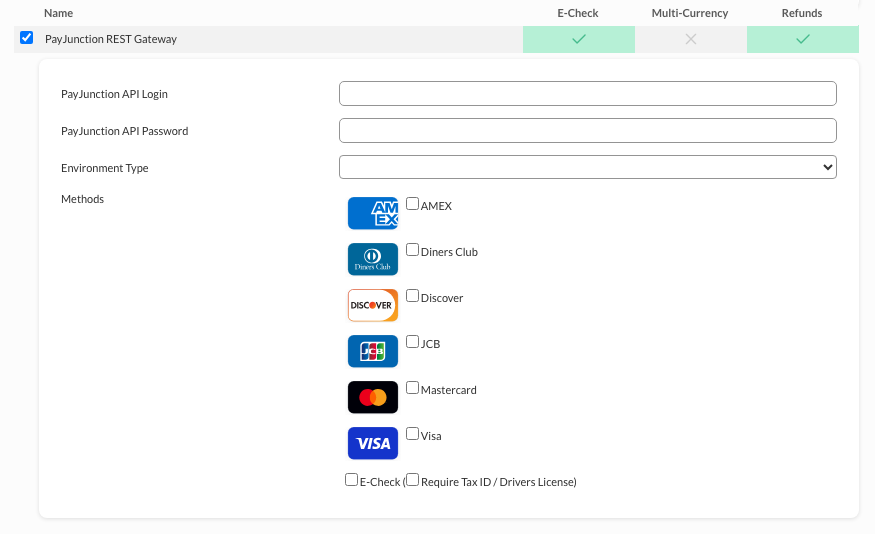
| Field | Description |
|---|---|
| PayJunction API Login | The API credential Username you created in PayJunction (Step 1). |
| PayJunction API Password | The API credential Password for that username. |
| Environment Type | Select Live for production (payjunction.com) or Sandbox for testing against PayJunction's test environment (payjunctionlabs.com). |
| Methods | Check each card type you are approved to process: AMEX, Diners Club, Discover, JCB, Mastercard, Visa. |
| E-Check | Enable to accept e-check (ACH) payments through PayJunction. |
| Require Tax ID / Drivers License | When E-Check is enabled, require the customer's tax ID or driver's license during checkout. |
After entering your API Login and Password, selecting the environment, and choosing your card types (and E-Check options if applicable), click Save at the bottom of the page.
Step 3: Save and Test the Configuration
- Click Save.
- Set Environment Type to Sandbox and enter API credentials for the PayJunction Labs sandbox.
- Place a test order in your storefront.
- Sandbox transactions process against PayJunction's test account only — no funds are collected.
- Verify:
- The transaction completes successfully
- No gateway errors appear in the order logs
- The correct card types (and e-check, if enabled) are accepted
Once testing passes, set Environment Type to Live and enter your production API credentials.
Legacy PayJunction Gateways
UltraCart also lists two older PayJunction gateways that use the legacy QuickLink API:
| Gateway | Credentials | Status |
|---|---|---|
| PayJunction REST Gateway | API Login + API Password | Recommended — current integration, supports e-check and refunds |
| PayJunction 1.2 | QuickLink Login + Password | Legacy — supports refunds only |
| PayJunction | QuickLink Login + Password | Legacy — oldest integration |
If you are setting up PayJunction for the first time, use the PayJunction REST Gateway. If you are currently on a QuickLink gateway, contact PayJunction and UltraCart support to migrate to the REST Gateway for e-check support and improved reliability.
Security Best Practices
- Use a dedicated API credential for the UltraCart integration rather than an administrator login.
- Store the API Login and Password securely; never expose them in client-side code or public repositories.
- Rotate the API credential periodically, and immediately if you suspect it has been exposed.
- Use separate credentials for the Sandbox and Live environments.
Troubleshooting
Authentication / Invalid Credentials Error
Symptoms: Transactions fail immediately with an authentication error.
Solution:
- Verify the API Login and API Password were copied exactly, with no leading or trailing spaces.
- Confirm the Environment Type matches your credentials — a Sandbox credential will not authenticate against Live, and vice versa.
- Confirm the API credential is active in your PayJunction account.
E-Check Payments Rejected
Symptoms: Card payments work but e-check/ACH payments fail.
Solution:
- Confirm the E-Check option is enabled in the UltraCart gateway configuration.
- Confirm your PayJunction account is approved for ACH/e-check processing.
- If Require Tax ID / Drivers License is enabled, confirm that information is being collected at checkout.
Card Type Declined
Symptoms: A specific card type is declined at checkout.
Solution:
- Confirm the card type is checked under Methods in the UltraCart gateway configuration.
- Confirm your PayJunction account is approved to process that card type.
FAQ
Q: Which PayJunction gateway should I use?
Use the PayJunction REST Gateway. It is the current integration and the only PayJunction gateway in UltraCart that supports both e-check and refunds.
Q: Do I need an Application Key?
No. UltraCart is a registered PayJunction application and provides its own Application Key. You only supply the API Login, API Password, and environment.
Q: How do I test before going live?
Set Environment Type to Sandbox and use PayJunction Labs sandbox credentials. Sandbox transactions are for testing only and collect no money.
Q: Does PayJunction support refunds through UltraCart?
Yes, the REST Gateway supports refunds. The legacy PayJunction (original) gateway does not.