Sales Tax Management in UltraCart
UltraCart provides flexible options for managing sales tax, catering to various business needs and geographical requirements. This guide outlines the available methods, their advantages, and how to configure them within your UltraCart account.
Introduction
Managing sales tax accurately is crucial for any e-commerce business. UltraCart offers several approaches to help you comply with tax regulations, ranging from automated solutions to granular manual control. Choosing the right method depends on your business's complexity, sales volume, and geographical reach.
Ways to Manage Sales Tax
Sales Tax Management Methods
UltraCart supports the following primary sales tax methods:
-
UltraCart Managed
-
Self Managed
-
Avalara Integration
-
TaxJar Integration
-
Sovos Integration
-
Anrok Integration
-
TaxCloud Integration
Tip: Merchants seeking the most precise and compliant tax calculations, especially when dealing with complex product classifications or street-level accuracy, should consider Avalara, TaxJar, Sovos, Anrok, or TaxCloud.
| Method | Pros | Cons |
|---|---|---|
| UltraCart Managed | - Default Method - Easy to Setup - No Additional Fees | - United States only - Basic sales tax collection based upon zip code not street address. :::note Warning: UltraCart Managed Rates are ZIP-code-level only and do not support: - Street-level tax jurisdiction calculations - Distinctions between item/service tax classes For businesses needing more precise tax handling or support for multiple tax classifications, we recommend using Avalara, TaxJar, or Sovos. ::: note In summary, since the csv file provided by Avalara can't handle the 1-to-many nature of multiple tax counties in a zip, whenever the checkout encounters that situation, the highest tax rate is chosen to ensure the minimum tax is collected. Therefore, each merchant must decide if this is sufficient for their situation. If this is not desired, the alternative is to use Avalara, TaxJar, or Sovos for the most accurate sales tax services. In summary, since the csv file provided by Avalara can't handle the 1-to-many nature of multiple tax counties in a zip, whenever the checkout encounters that situation, the highest tax rate is chosen to ensure the minimum tax is collected. Therefore, each merchant must decide if this is sufficient for their situation. If this is not desired, the alternative is to use Avalara, TaxJar, or Sovos for the most accurate sales tax services. |
| Self Managed | - All Countries - Fine Grained Control Of Minute Details | - Manual setup of everything - Time intensive setup - Manual updates - Requires external tax tables |
| Avalara | - Easy To Setup - Complete Tax Solution - Automatically Identify New Nexus Points. - Can File Taxes For You (Additional fee) | - Requires Avalara plan - See Avalara for additional restrictions |
| TaxJar | - Easy To Setup - Complete Tax Solution - Automatically Identify New Nexus Points. - Can File Taxes For You (Additional fee) | - Requires TaxJar plan - See TaxJar for additional restrictions |
| Sovos | - Easy To Setup - Complete Tax Solution - Automatically Identify New Nexus Points. - Can File Taxes For You (Additional fee) | - Requires Sovos plan |
| Anrok | - Easy To Setup - Complete Tax Solution (calculation, filing, remittance, reconciliation) - Nexus Monitoring Across 100+ Countries | - Requires Anrok plan - Requires products to be tagged with Anrok tax categories |
| TaxCloud | - Easy To Setup - Calculates tax and reports orders for filing - Search for item TICs from the Item Editor | - United States only - Requires TaxCloud account - Refunds are sent by item quantity only |
Special Fees
Effective July 1, 2022, Colorado imposes a retail delivery fee on all deliveries by motor vehicle to a location in Colorado with at least one item of tangible personal property subject to state sales or use tax.
Please see their full announcement here: https://tax.colorado.gov/retail-delivery-fee
For more information please see the following documentation Colorado Retail Delivery Fee
UltraCart Managed
UltraCart Managed is a simple, no-cost solution suitable for basic U.S. sales tax collection.
Important Notice regarding Sales Tax Calculation
UltraCart Managed Rates: The rates are provided by Avalara and are only accurate to the zip code level.
There can be addresses within those zip codes that may have a higher rate, but to get that higher rate you will have to use an API style integration like Avalara or TaxJar service which can calculate that.
The free UltraCart Managed rates are simply the import of the free tax tables from Avalara. We can't modify those rates or guarantee perfect accuracy.
United States Only
The "UltraCart" managed sales tax configuration pertains to the United States only.
For international support please contact one of the integrated Sales Tax processing services:
-
TaxJar (United States & Canada)
-
Avalera (Worldwide - Please contact Avalera directly for specific details)
As of 06/19/2019, the UC managed tax provider will populate the tax county automatically. This information can be backfilled upon request.
Required Steps
To use UltraCart Managed sales tax:
-
Activate UltraCart Managed as your tax provider.
-
Select all states where you wish to collect sales tax.
Activating UltraCart Managed
-
Navigate to Home → Configuration (Checkout) → Sales Tax.
-
Ensure that "UltraCart Managed" is selected as your tax provider.
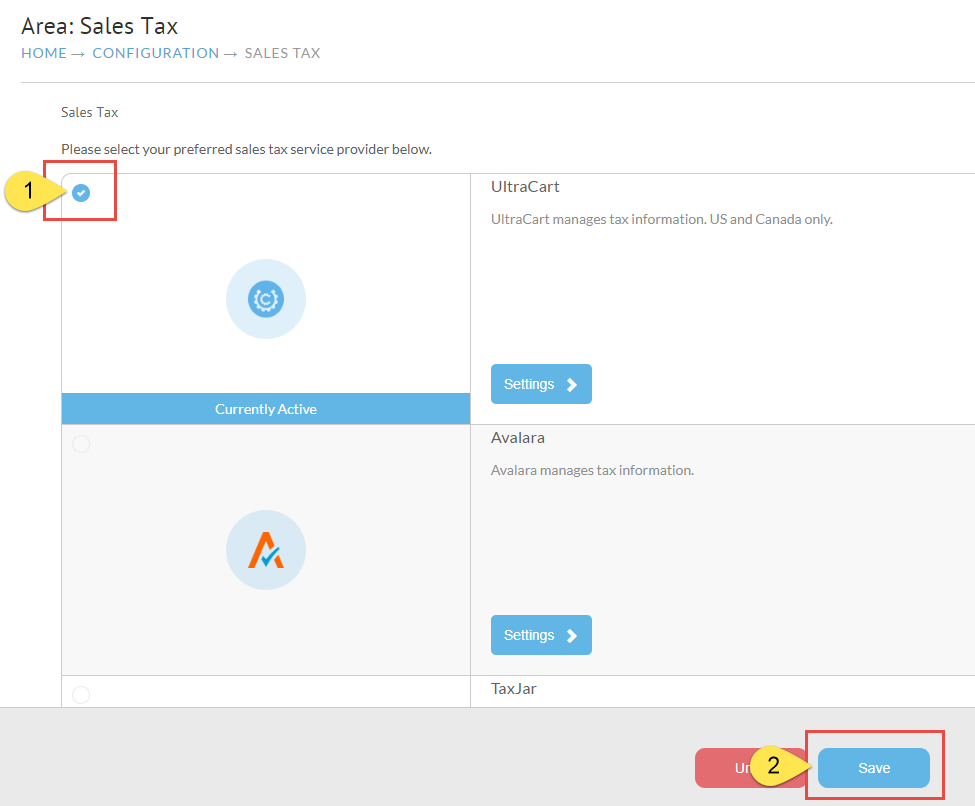
Selecting States to Collect Tax
-
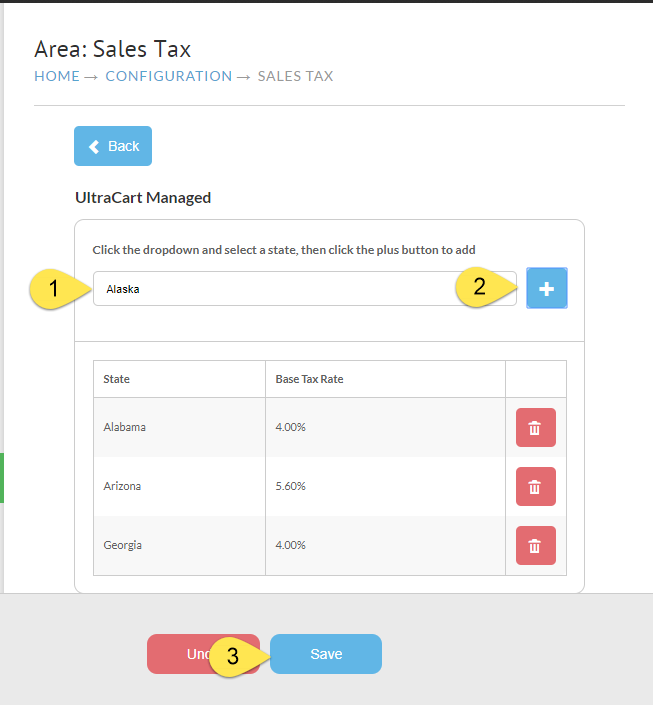
Click the Settings button for "UltraCart Managed."
-
On the settings screen, select a state from the dropdown menu.
-
Click the plus button to add it to the list of states where tax is collected.
-
Repeat for all desired states.
-
When finished, click the Save button.
Editing State Level Options
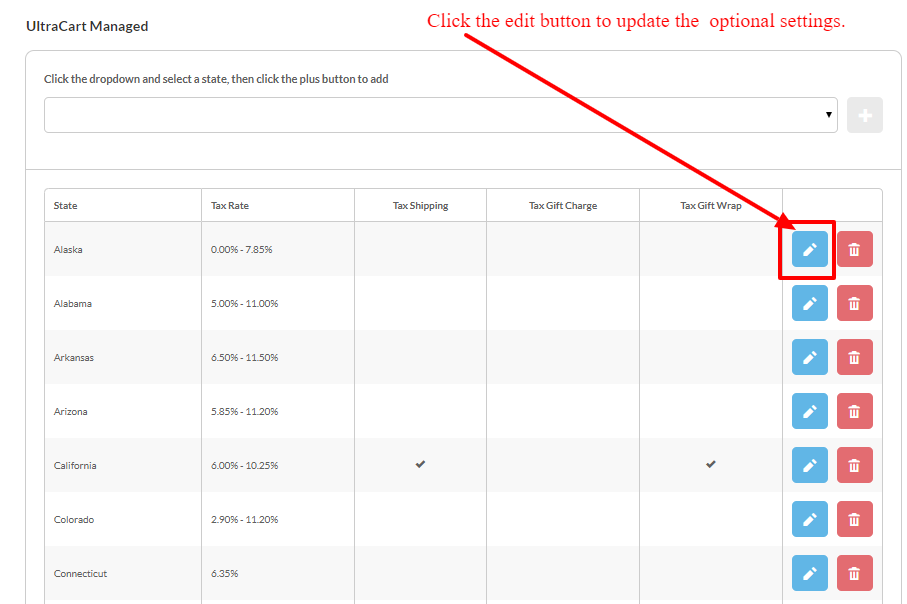
You can modify state-specific sales tax options by clicking the pencil icon next to a configured state:
-
Click the pencil icon next to the state you wish to edit.
-
Select the desired options from the "State Level Options" dialog.
-
Click the OK button to save your changes.
State Level Options
| Field | Description |
|---|
| Field | Description |
|---|---|
| Quickbooks Code | Self-managed tax states can have a custom QuickBooks Code for assigning a tax rate within QuickBooks. Other tax providers automatically send the state, county, and city names to QuickBooks, where tax jurisdictions are created automatically. |
| Use UltraCart Managed Rates | If enabled, UltraCart manages the tax rates, eliminating the need to manually configure rates for the State, County, City, and Postal Code levels. This option leverages the automated rate updates provided by UltraCart's managed service while allowing manual control over taxability options. |
| Tax Shipping | If active, shipping costs are added to the taxable subtotal. |
| Tax Gift Wrap | If active, any gift wrap fees are added to the taxable subtotal. |
| Don't collect state tax | If active, state tax is not collected, even if other jurisdictions (county, city, postal code) within that state might still collect tax. |
| Don't collect county tax | If active, county tax is not collected, even if other jurisdictions (state, city, postal code) within that county might still collect tax. |
| Don't collect city tax | If active, city tax is not collected, even if other jurisdictions (state, county, postal code) within that city might still collect tax. |
| Don't collect postal code tax | If active, postal code tax is not collected, even if other jurisdictions (state, county, city) within that postal code might still collect tax. |
After saving, the state will appear in the list of states configured for taxation.
Adding County Tax Rates
-
Click the plus button to the right of the state to add county tax rates.
-
The process is the same as configuring state tax rates.
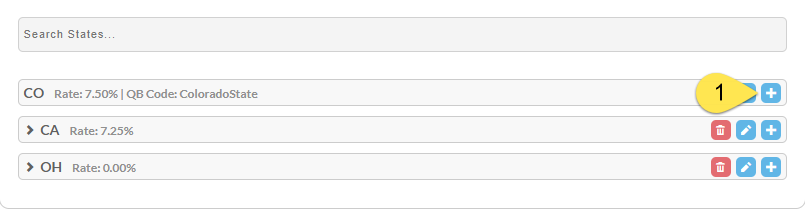
Click the plus button at the right of the state to add county tax rates. The process is the same as the state tax rates.
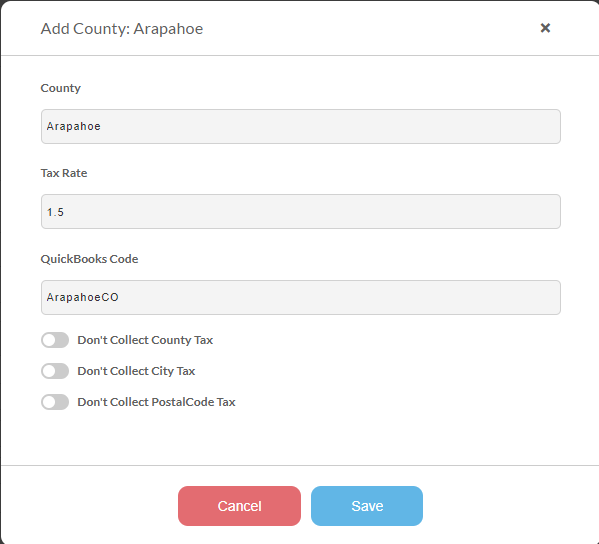
Once the county is saved, click the plus sign next to the county to add city rates.
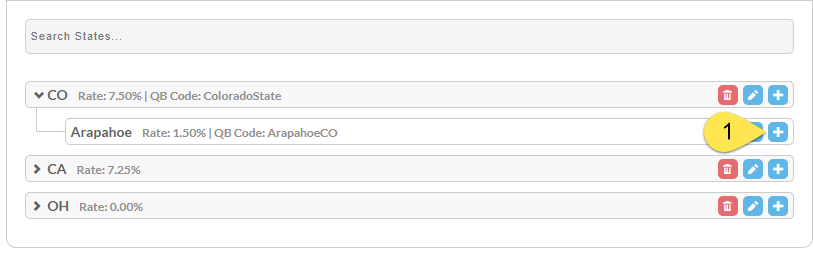
Adding City Tax Rates
-
Once the county is saved, click the plus button next to the county to add city rates.
-
The "Add City" dialog contains the same fields as the state and county configuration.
-
Repeat this process for as many states, counties, and cities as needed.
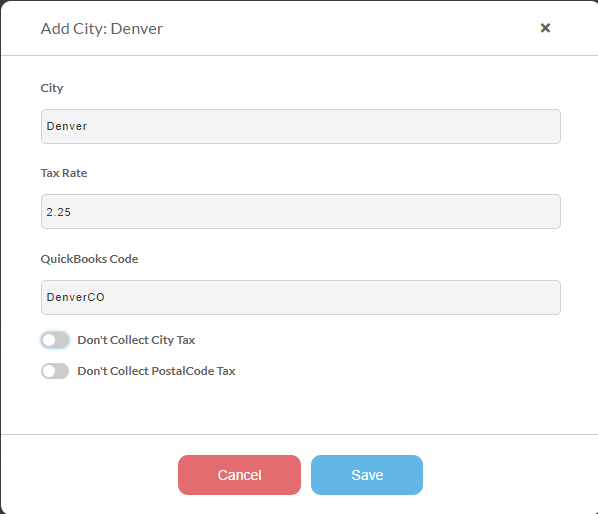
Adding Postal Code Tax Rates
If you need to add postal code tax rates to a city, click the plus button to the right of the city and follow the same process as the other jurisdictions.

Configure Other Countries for Tax Collection
Other countries are configured on the right side of the Self Managed settings screen. The process for configuring tax rates for other countries is similar to configuring U.S. states, but it begins at the country level. You will add the country first, then any sub-jurisdictions as needed.
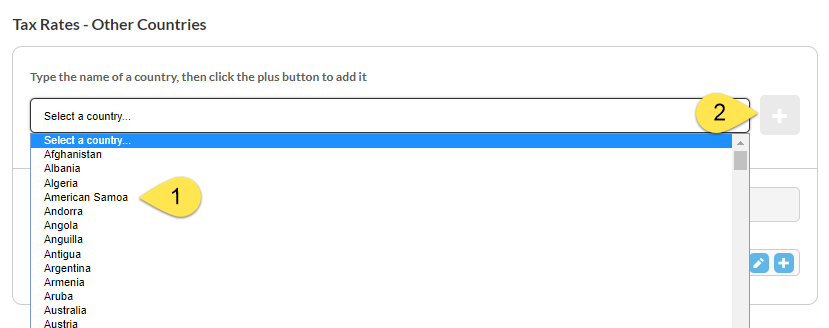
Third-Party Sales Tax Provider Configuration
Each third-party tax provider has its own dedicated setup guide, linked below, so this page stays focused on the overall Sales Tax options rather than duplicating each provider's instructions:
-
Configuring Avalara — Account ID/License Key setup, item and shipping tax codes, and connection testing.
-
Configuring TaxJar — API token setup, tax codes, connection testing, and exporting historical orders.
-
Configuring Sovos — Credential setup, test mode, and going live.
-
Configuring Anrok — API key, Default/Shipping Product ID mapping, and testing.
-
Configuring TaxCloud: API Key and Connection ID, item and shipping TICs, testing, and how refunds are sent.
Tax Exempt Customers
Tax exemption in UltraCart rides on a customer profile. Three things have to be true before that customer checks out tax free. Miss any one of them and the checkout collects tax as normal, with no error and no warning on screen.
- The customer profile is marked tax exempt in UltraCart.
- If you calculate tax through an API based provider, the provider specific fields are filled in and a matching customer record exists inside that provider's system.
- The customer logs in to their customer profile during checkout.
Catch this before the order processes. Once an order reaches Processed status, UltraCart locks its tax amount and you cannot edit it back down to zero. Correcting it then means refunding and recreating the order. See Correcting Tax on a Processed Order.
Step 1: Mark the profile tax exempt in UltraCart
Navigate to Main Menu → Operations → Customer Profiles → Manage, edit the customer's profile, and open the Taxes tab. Enable Tax Exempt and enter the customer's Tax ID Number.
Most merchants let tax exempt customers sign up as wholesale customers and upload their own exemption certificate. The upload link sits under Operations → Customer Profiles → Settings.
For the full field list on that tab, see Tax configuration and exemptions.
Step 2: Configure the provider specific fields
With UltraCart Managed or Self Managed tax, the Tax Exempt toggle is the whole story. With Avalara, TaxJar, Sovos, or Anrok it is not. UltraCart sends a customer identifier along with the tax request, and the provider decides the exemption from the record it holds under that identifier. If the identifier is missing on either side, the provider prices the order as taxable and UltraCart collects tax.
| Provider | Fill in on the profile Taxes tab | Must already exist in the provider's system |
|---|---|---|
| Avalara | Avalara Customer Code, Avalara Entity Use Code | A customer record under the matching customer code, with the exemption certificate or entity use code on file. See Configure Avalara Entity Use Code. |
| TaxJar | TaxJar Customer Code, TaxJar Exemption Type | A customer created in TaxJar first, whose code you then copy back into UltraCart. See Configuring TaxJar. |
| Sovos | Sovos Customer Code | A customer record under the matching customer code, with the exemption on file. |
Anrok is not in the table above. Confirm any customer level exemption setup with Anrok directly before you rely on it at checkout.
TaxCloud is not in the table either. The profile Taxes tab has no TaxCloud fields, and UltraCart does not send exemption certificates to TaxCloud. See Configuring TaxCloud.
Step 3: The customer logs in at checkout
The exemption belongs to the customer profile, so the shopper has to log in to that profile during checkout to receive it. An order placed as a guest is taxed normally, even when the email address on it matches an exempt profile exactly.
Auto Link Orders to Customer Profile does not change this. That setting attaches a guest order to the matching profile for historical purposes, but the order does not receive the profile's benefits. See Customer Profile Configuration.
If your customers are not logging in, check that profile login is available on your storefront. If you use Single Page Checkout on a Visual Builder theme, you can add customer profile login to it in Visual Builder.
An exempt customer was charged tax
Work the three requirements in order. The first one is by far the most common cause.
- Open the order and check whether it is linked to a customer profile and whether the customer logged in. A guest checkout explains most of these.
- Open that profile's Taxes tab and confirm Tax Exempt is on and the provider specific fields are populated.
- Open your provider's dashboard and confirm a customer record exists under that same code with the exemption on file.
- Review the tax provider log for the order, described in the Logs section below. The request UltraCart sent shows which customer code went to the provider, and the response shows the exempt amount the provider returned.
If the order has already processed, its tax is locked. Fix the setup so it does not recur, then see Correcting Tax on a Processed Order for the correction path on the order itself.
Troubleshooting
Troubleshooting Tool
If you need to verify or troubleshoot a tax calculation for an order, please first compare the rate using this simple sales tax look up tool:
https://www.taxjar.com/sales-tax-calculator/
If you see a discrepancy between the recorded sales tax in an order compared to the tax displayed in the look up tool, then you can further troubleshoot the issue by reviewing the logs for either Avalara or TaxJar.
Logs
Avalara and TaxJar record important communications for review. Shopping cart tax calculations are not stored to logs, but any operation against an order is logged. This means the final tax calculation is stored, as well as any transaction notifications (order placed and order refunded).
Within the Avalara and TaxJar settings screens are log buttons. Clicking either button will display a log history.
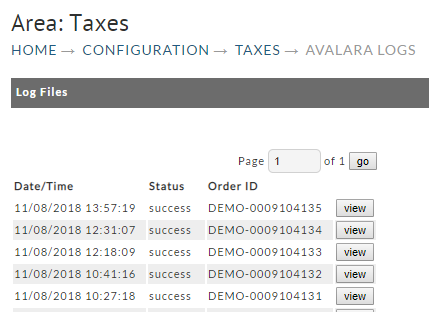
The log files will contain the request and response make to the tax service.
Here is an example. If the logs fail to assist you in solving any problems, notify UltraCart support and involve them.
estimateTax for order [START]
===== estimate tax request start =====
{
  "lines": [
    {
      "number": "1",
      "quantity": 3,
      "amount": 58.5,
      "itemCode": "Bone",
      "description": "TJ's DOGGIE BONES (6 lbs.)\nCode: 4W5S41JXG4\nCode: B2BJZVM1PF\nCode: JMK9XQRRRZ"
    }
  ],
  "type": "SalesOrder",
  "companyCode": "",
  "date": "Nov 8, 2018 1:57:19 PM",
  "customerCode": "GuestCustomer",
  "purchaseOrderNo": "",
  "addresses": {
    "singleLocation": {
      "line1": "30 Pryor Street",
      "line2": "",
      "city": "Atlanta",
      "region": "GA",
      "country": "US",
      "postalCode": "30303"
    }
  },
  "description": "DEMO-0009104135",
  "email": "joe@somewhere.com"
}
===== estimate tax request end =====
===== estimate tax response start =====
{
  "id": 0,
  "code": "dfaf643b-d866-407b-a1a4-3f3499e7fd1d",
  "companyId": 0,
  "date": "Nov 8, 2018 12:00:00 AM",
  "paymentDate": "Nov 8, 2018 12:00:00 AM",
  "status": "Temporary",
  "type": "SalesOrder",
  "customerVendorCode": "GuestCustomer",
  "reconciled": false,
  "purchaseOrderNo": "",
  "totalAmount": 58.5,
  "totalExempt": 0.0,
  "totalDiscount": 0.0,
  "totalTax": 5.21,
  "totalTaxable": 58.5,
  "totalTaxCalculated": 5.21,
  "adjustmentReason": "NotAdjusted",
  "locked": false,
  "version": 1,
  "exchangeRateEffectiveDate": "Nov 8, 2018 12:00:00 AM",
  "exchangeRate": 1.0,
  "description": "DEMO-0009104135",
  "email": "joe@somewhere.com",
  "modifiedDate": "Nov 8, 2018 6:57:17 PM",
  "modifiedUserId": 1152574,
  "taxDate": "Nov 8, 2018 12:00:00 AM",
  "lines": [
    {
      "id": 0,
      "transactionId": 0,
      "lineNumber": "1",
      "description": "TJ's DOGGIE BONES (6 lbs.)\nCode: 4W5S41JXG4\nCode: B2BJZVM1PF\nCode: JMK9XQRRRZ",
      "discountAmount": 0.0,
      "exemptAmount": 0.0,
      "exemptCertId": 0,
      "isItemTaxable": true,
      "itemCode": "Bone",
      "lineAmount": 58.5,
      "quantity": 3.0,
      "reportingDate": "Nov 8, 2018 12:00:00 AM",
      "tax": 5.21,
      "taxableAmount": 58.5,
      "taxCalculated": 5.21,
      "taxCode": "PP051195",
      "taxCodeId": 38011,
      "taxDate": "Nov 8, 2018 12:00:00 AM",
      "taxIncluded": false,
      "details": [
        {
          "id": 0,
          "transactionLineId": 0,
          "transactionId": 0,
          "country": "US",
          "region": "GA",
          "exemptAmount": 0.0,
          "jurisCode": "13",
          "jurisName": "GEORGIA",
          "stateAssignedNo": "",
          "jurisType": "STA",
          "nonTaxableAmount": 0.0,
          "rate": 0.040000,
          "tax": 2.34,
          "taxableAmount": 58.5,
          "taxType": "Sales",
          "taxName": "GA STATE TAX",
          "taxAuthorityTypeId": 45,
          "taxCalculated": 2.34,
          "rateType": "General",
          "rateTypeCode": "G"
        },
        {
          "id": 0,
          "transactionLineId": 0,
          "transactionId": 0,
          "country": "US",
          "region": "GA",
          "exemptAmount": 0.0,
          "jurisCode": "121",
          "jurisName": "FULTON",
          "stateAssignedNo": "060A",
          "jurisType": "CTY",
          "nonTaxableAmount": 0.0,
          "rate": 0.030000,
          "tax": 1.76,
          "taxableAmount": 58.5,
          "taxType": "Sales",
          "taxName": "GA COUNTY TAX",
          "taxAuthorityTypeId": 45,
          "taxCalculated": 1.76,
          "rateType": "General",
          "rateTypeCode": "G"
        },
        {
          "id": 0,
          "transactionLineId": 0,
          "transactionId": 0,
          "country": "US",
          "region": "GA",
          "exemptAmount": 0.0,
          "jurisCode": "04000",
          "jurisName": "ATLANTA",
          "stateAssignedNo": "060A",
          "jurisType": "CIT",
          "nonTaxableAmount": 0.0,
          "rate": 0.015000,
          "tax": 0.88,
          "taxableAmount": 58.5,
          "taxType": "Sales",
          "taxName": "GA CITY TAX",
          "taxAuthorityTypeId": 45,
          "taxCalculated": 0.88,
          "rateType": "General",
          "rateTypeCode": "G"
        },
        {
          "id": 0,
          "transactionLineId": 0,
          "transactionId": 0,
          "country": "US",
          "region": "GA",
          "exemptAmount": 0.0,
          "jurisCode": "ENVK0",
          "jurisName": "ATLANTA TSPLOST TL",
          "stateAssignedNo": "060A",
          "jurisType": "STJ",
          "nonTaxableAmount": 0.0,
          "rate": 0.004000,
          "tax": 0.23,
          "taxableAmount": 58.5,
          "taxType": "Sales",
          "taxName": "GA SPECIAL TAX",
          "taxAuthorityTypeId": 45,
          "taxCalculated": 0.23,
          "rateType": "General",
          "rateTypeCode": "G"
        }
      ]
    }
  ],
  "addresses": [
    {
      "id": 0,
      "transactionId": 0,
      "boundaryLevel": "Address",
      "line1": "30 Pryor Street",
      "line2": "",
      "line3": "",
      "city": "Atlanta",
      "region": "GA",
      "postalCode": "30303",
      "country": "US",
      "taxRegionId": 2131921,
      "latitude": "33.753427",
      "longitude": "-84.389125"
    }
  ],
  "summary": [
    {
      "country": "US",
      "region": "GA",
      "jurisType": "State",
      "jurisCode": "13",
      "jurisName": "GEORGIA",
      "taxAuthorityType": 45,
      "stateAssignedNo": "",
      "taxType": "Sales",
      "taxName": "GA STATE TAX",
      "rateType": "General",
      "taxable": 58.5,
      "rate": 0.040000,
      "tax": 2.34,
      "taxCalculated": 2.34,
      "nonTaxable": 0.0,
      "exemption": 0.0
    },
    {
      "country": "US",
      "region": "GA",
      "jurisType": "County",
      "jurisCode": "121",
      "jurisName": "FULTON",
      "taxAuthorityType": 45,
      "stateAssignedNo": "060A",
      "taxType": "Sales",
      "taxName": "GA COUNTY TAX",
      "rateType": "General",
      "taxable": 58.5,
      "rate": 0.030000,
      "tax": 1.76,
      "taxCalculated": 1.76,
      "nonTaxable": 0.0,
      "exemption": 0.0
    },
    {
      "country": "US",
      "region": "GA",
      "jurisType": "City",
      "jurisCode": "04000",
      "jurisName": "ATLANTA",
      "taxAuthorityType": 45,
      "stateAssignedNo": "060A",
      "taxType": "Sales",
      "taxName": "GA CITY TAX",
      "rateType": "General",
      "taxable": 58.5,
      "rate": 0.015000,
      "tax": 0.88,
      "taxCalculated": 0.88,
      "nonTaxable": 0.0,
      "exemption": 0.0
    },
    {
      "country": "US",
      "region": "GA",
      "jurisType": "Special",
      "jurisCode": "ENVK0",
      "jurisName": "ATLANTA TSPLOST TL",
      "taxAuthorityType": 45,
      "stateAssignedNo": "060A",
      "taxType": "Sales",
      "taxName": "GA SPECIAL TAX",
      "rateType": "General",
      "taxable": 58.5,
      "rate": 0.004000,
      "tax": 0.23,
      "taxCalculated": 0.23,
      "nonTaxable": 0.0,
      "exemption": 0.0
    }
  ]
}
===== estimate tax response end =====
estimateTax for order [END]
Reporting
The "Custom Period Sales" report contains sections pertaining to the Sales Tax collected for the orders during the reporting period.
To run the Custom Period Sales Report, navigate:
MAIN MENU → OPERATIONS → REPORTING → (REPORTS SECTION) CUSTOM PERIOD SALES
-
Sales Tax by State - (This section shows the sales taxes collected for the state level sales tax jurisdictions.)
-
Sales Tax by State / County - (This section shows the sales taxes collected for the State & County level jurisdictions.)
-
Sales Tax by State / County / City - (This section shows the sales taxes collected for the State ,County & City level jurisdictions.)
Frequently Asked Questions
Q: What is the best option for collecting V.A.T. for orders shipped to the E.U.?
The best Sales tax integration option for merchants that will be processing orders where V.A.T. (Value Added Tax) are collected, is the TaxJar integration.
Q: What is a sales tax nexus and how do I identify new ones?
A sales tax nexus is a connection or presence that a business has in a state or jurisdiction that obligates it to collect and remit sales tax there. Nexus can be created by factors such as physical location, employees, inventory storage, or reaching a sales revenue threshold within the state. Identifying new nexus obligations can be complex as your business grows and operates across multiple jurisdictions. Solutions like Avalara, TaxJar, Sovos, and Anrok provide automated nexus monitoring and can alert you when new nexus thresholds are reached, helping ensure you remain compliant as your sales footprint expands.
Q: Where can I review a summary regarding the recent changes to the laws and regulations pertaining to Sales Tax collection for online merchants?
A great place to start is here: https://www.avalara.com/us/en/learn/sales-tax/south-dakota-wayfair.html
Please make sure to consult your CPA/Tax Professional to ensure that your business is in compliance with all tax jurisdictions, as this is outside the scope of the UltraCart service.
Q: How can I determine the number of sales and revenue per state for a particular time period?
The custom period sales report (located under Operations > Reporting) has a section for Sales by US State which will provide those details.
Q: How is sales tax calculated if the item being sold is not shippable?
The sales tax calculation will use the customer billing address to calculate sales tax, if tax is being collected.
Q: How can I investigate the sales tax calculation in an order?
Please review the troubleshooting section earlier in this document. You can use the tax rate calculation tool to compare the recorded sales tax in an order. If a discrepancy is observed, then you can further troubleshoot the calculation by viewing the logs to see the underlying calculation details.