Navigate: Main Menu → Configuration → Checkout → Sales Tax
Introduction
https://www.anrok.com Anrok is a global sales tax compliance platform built for modern commerce. It handles nexus monitoring, registration, calculation, filing, remittance, and reconciliation in one connected system across the U.S. and 100+ countries.
UltraCart's Anrok integration sends order data to Anrok in real time so Anrok can calculate tax at checkout based on your product tax categories.
Prerequisites
Before configuring Anrok:
-
An Anrok account (or willingness to sign up during setup)
-
An Anrok API Key
-
Administrator access to your UltraCart account
-
Products created in Anrok with the appropriate tax categories assigned, so they can be mapped to UltraCart's Default Product ID and Shipping Product ID fields
Configuring Anrok in UltraCart
1. Open the Anrok Settings
-
Navigate to:
Main Menu → Configuration → Checkout → Sales Tax -
Locate Anrok in the list of available providers and open its settings.
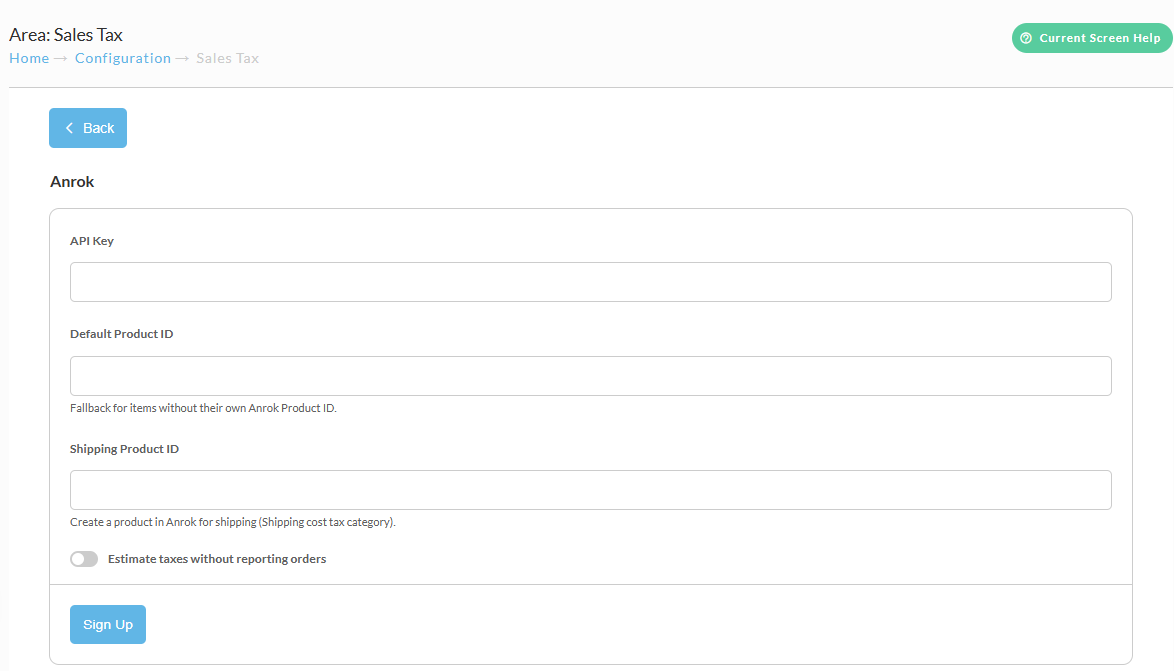
2. Complete the Configuration Fields
The Anrok settings screen includes the following fields:
| Field | Description |
|---|---|
| API Key | Your Anrok API key, used to authenticate requests between UltraCart and Anrok. |
| Default Product ID | Fallback Anrok Product ID used for items that don't have their own Anrok Product ID assigned. |
| Shipping Product ID | The Anrok Product ID for shipping charges. Create a product in Anrok with the "Shipping cost" tax category and enter its ID here. |
| Estimate taxes without reporting orders | When enabled, UltraCart requests tax estimates from Anrok but does not report finalized orders back to Anrok. Useful for testing before going live. |
3. Sign Up (if needed)
If you don't already have an Anrok account, click Sign Up on the settings screen to create one before completing configuration.
Mapping Products to Anrok
-
In Anrok, create products and assign each a Product type and Tax category.
-
Assign the corresponding Anrok Product ID to each item in UltraCart, or rely on the Default Product ID as a fallback.
-
Create a dedicated Anrok product for shipping using the Shipping cost tax category and enter its ID as the Shipping Product ID.
Tax Exempt Customers
Marking a customer profile Tax Exempt in UltraCart handles the UltraCart side of an exemption, and the customer still has to log in to that profile during checkout to receive it. A guest order is taxed normally, even when the email address matches an exempt profile.
Confirm any customer level exemption setup with Anrok directly before you rely on it at checkout. See Tax Exempt Customers for the requirements that apply across every provider.
FAQ
What happens if an item doesn't have an Anrok Product ID?
UltraCart falls back to the Default Product ID configured in the Anrok settings.
Can I test Anrok before going live?
Yes. Enable Estimate taxes without reporting orders to calculate tax without sending finalized order data to Anrok.
Next Steps
-
Create and tag products in Anrok with the correct tax categories.
-
Assign Anrok Product IDs to items in UltraCart, and set a Default Product ID and Shipping Product ID.
-
Consider enabling Estimate taxes without reporting orders while validating your setup.
-
Review related documentation: