Avalara Sales Tax Integration
This guide provides instructions on how to integrate Avalara AvaTax with your UltraCart store for comprehensive sales tax compliance. Avalara is a leading tax compliance platform that offers accurate, real-time sales tax calculations.
NAVIGATE: Main Menu → Configuration → Checkout → Sales Tax
Overview
Integrating Avalara with UltraCart enables automated sales tax calculation based on precise, address-level data, reducing the complexity and risk associated with sales tax compliance. This integration ensures that your store collects the correct sales tax for every transaction, accounting for various tax jurisdictions, product taxability rules, and exemption certificates.
About Avalara: Avalara's tax compliance platform, Avalara Compliance Cloud, provides a robust, end-to-end solution for managing sales tax. You can learn more at http://avalara.com .
Prerequisites
Before you begin, ensure you have:
-
An active Avalara AvaTax account.
-
Your Avalara Account ID and License Key. If you do not have your license key, refer to Avalara's documentation: https://help.avalara.com/Avalara_AvaTax_Update/Get_your_license_key .
Steps
This integration involves two main parts: configuring Avalara settings within UltraCart and then assigning appropriate Avalara Tax Codes to your items and shipping methods.
1. Configure Avalara Settings in UltraCart
-
Navigate to Sales Tax Settings: From your UltraCart main menu, go to Main Menu → Configuration → Checkout → Sales Tax.
-
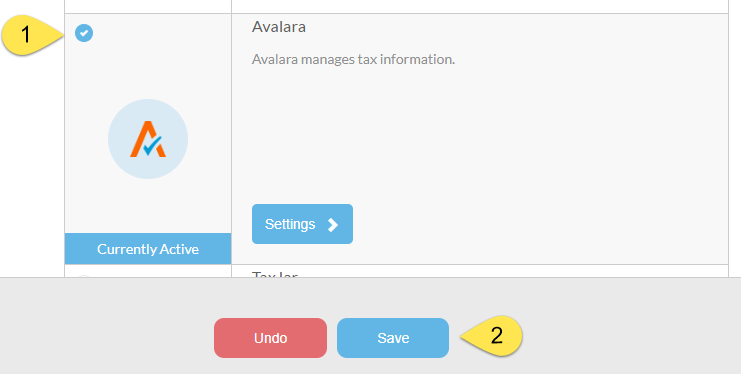
Activate Avalara Provider:
-
Locate the "Avalara" option in the list of sales tax providers.
-
Click the radio button next to "Avalara" at the top left of its section.
-
Click the Save button.
-
-
Access Avalara Settings: Once Avalara is activated, click the Settings button for Avalara.
-
Enter Avalara Credentials: On the settings screen, you must provide the following minimum values:
-
Account ID: Enter your Avalara Account ID.
-
License Key: Enter your Avalara License Key.
-
Active: Slide this button to
ONto enable the integration for live transactions. -
Sandbox: Slide this button to
ONif you wish to test the integration in Avalara's sandbox environment without affecting live transactions.
-
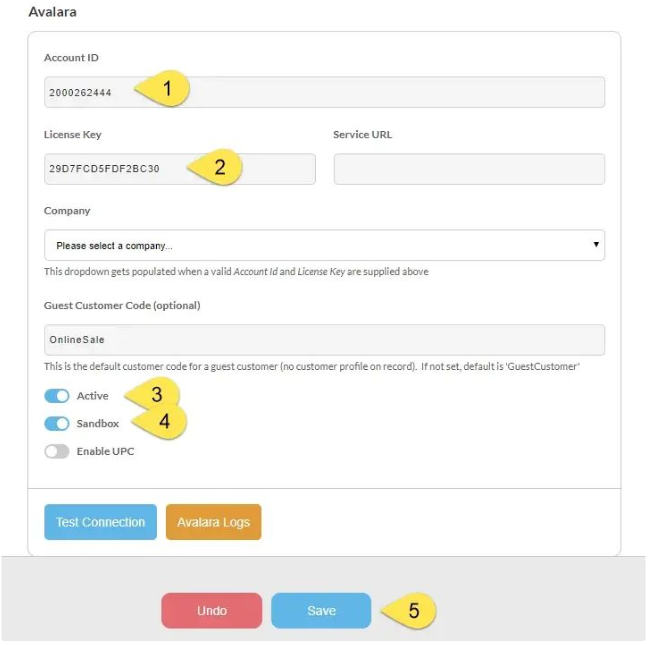
Warning: Be sure to Save your changes before attempting to test the connection.
-
Test the Connection:
-
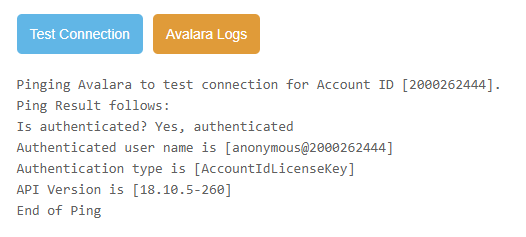
After entering your credentials and saving the settings, click the Test Connection button.
-
A successful connection will display output similar to the following:
-
2. Configuring Items with Proper Avalara Tax Codes
For Avalara to accurately calculate sales tax for your products, each item in your UltraCart catalog must be configured with the appropriate Avalara Tax Code.
-
Edit an Item:
-
Navigate to your item editor (e.g., Items → Manage Items, then select an item).
-
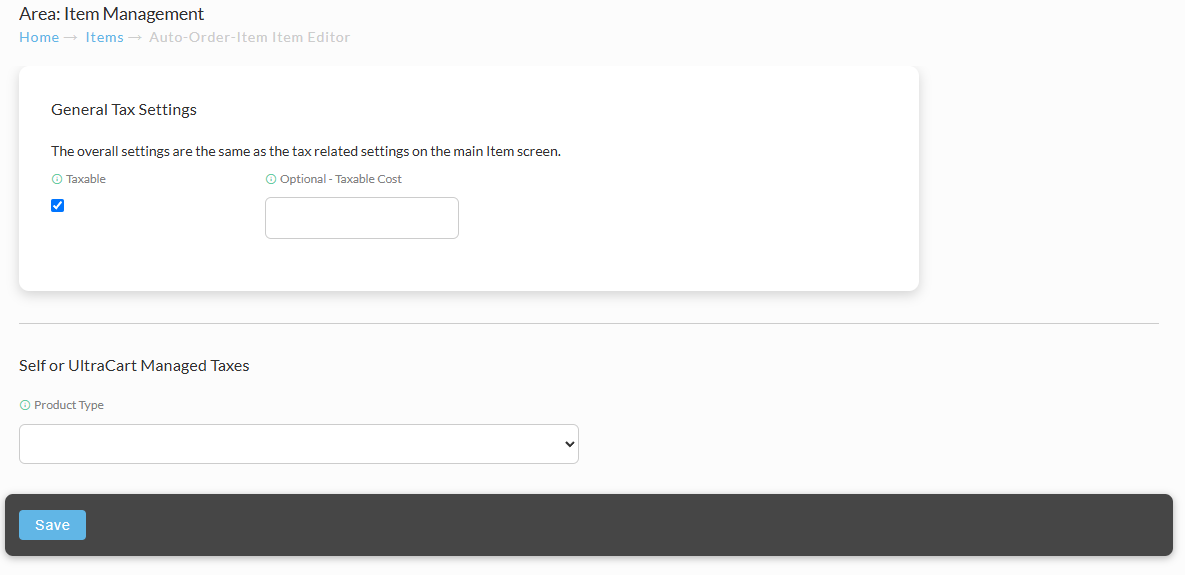
Click the Tax tab within the item editor.
-
-
Assign Avalara Tax Code: In the "Tax" tab, locate the Avalara Tax Code section:
-
Tax Code: Enter the relevant Avalara Tax Code for the item.
-
Description (optional): Provide an optional description for the tax code.
-
Search Avalara Tax Codes: Use this tool to search for available Avalara Tax Codes.
-
-
References for Avalara Tax Codes:
-
Avalara Tax Code Finder: https://taxcode.avatax.avalara.com/
-
Guidelines for mapping items to tax codes: https://help.avalara.com/Avalara_AvaTax_Update/Guidelines_for_mapping_items_to_tax_codes
-
3. Configuring Shipping Methods with Avalara Tax Codes
Similarly, your shipping methods need to be configured with the appropriate Avalara Tax Codes for proper sales tax calculation on shipping charges.
-
Edit a Shipping Method:
-
Navigate to your shipping method editor (e.g., Shipping → Shipping Methods, then select a method).
-
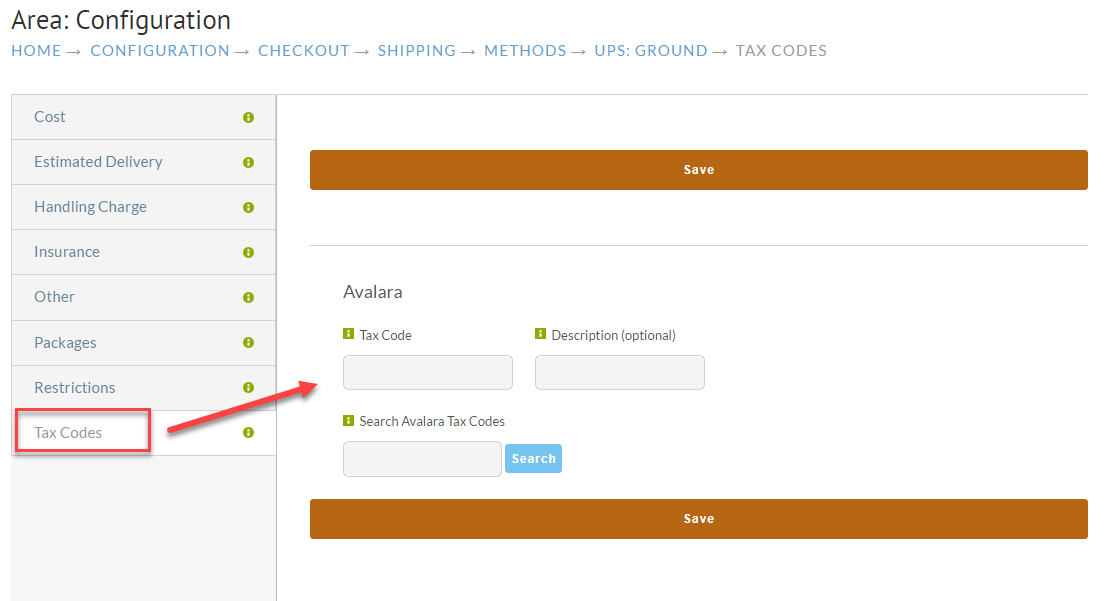
Click the Tax Codes tab within the shipping method editor.
-
-
Assign Avalara Tax Code for Shipping: In the "Tax Codes" tab:
-
Tax Code: Enter the required Avalara Tax Code for proper sales tax calculation for shipping.
-
Description (optional): Provide an optional description for the tax code.
-
Search Avalara Tax Codes: Use this tool to search for available Avalara Tax Codes.
References for Avalara Tax Codes:
-
Avalara Tax Code Finder: https://taxcode.avatax.avalara.com/
-
Guidelines for mapping items to tax codes: https://help.avalara.com/Avalara_AvaTax_Update/Guidelines_for_mapping_items_to_tax_codes
-
Tax Exempt Configuration
Marking a customer profile Tax Exempt in UltraCart is not enough on its own once Avalara is calculating your tax. Avalara decides the exemption from its own customer record, so you also need to:
- Enter the customer's Avalara Customer Code and Avalara Entity Use Code on the Taxes tab of their UltraCart customer profile. See Configure Avalara Entity Use Code.
- Confirm a customer record exists in Avalara under that same code, with the exemption certificate or entity use code on file.
- Have the customer log in to their customer profile during checkout. A guest order is taxed normally, even when the email address matches an exempt profile.
See Tax Exempt Customers for the full walkthrough and for what to check when an exempt customer is charged tax anyway.
For Avalara's own guidance on exemption reasons and entity use codes, see https://knowledge.avalara.com/bundle/dqa1657870670369_dqa1657870670369/page/Exempt_reason_matrix_for_the_U.S._and_Canada_entity_use_code_list.html#pus1650667484575