How to setup and use canned responses
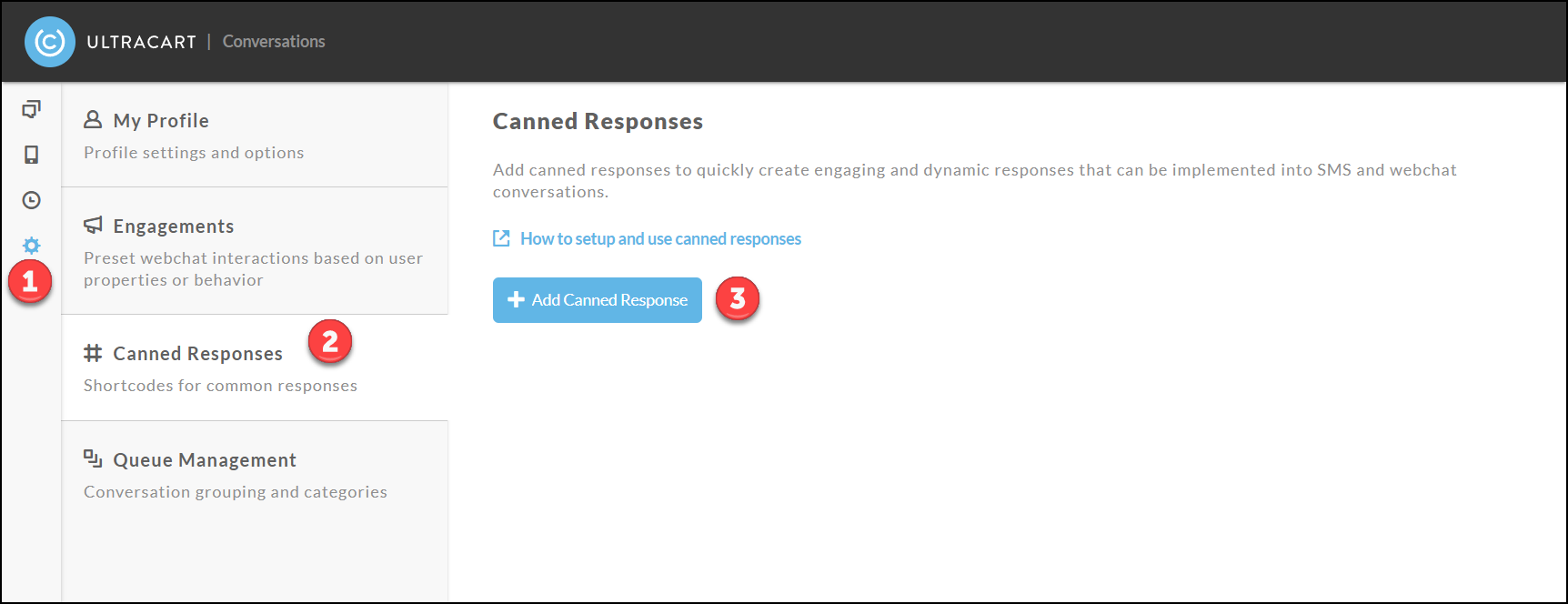
To setup a canned response click on Settings → Canned Responses → Add Canned Response as shown below.
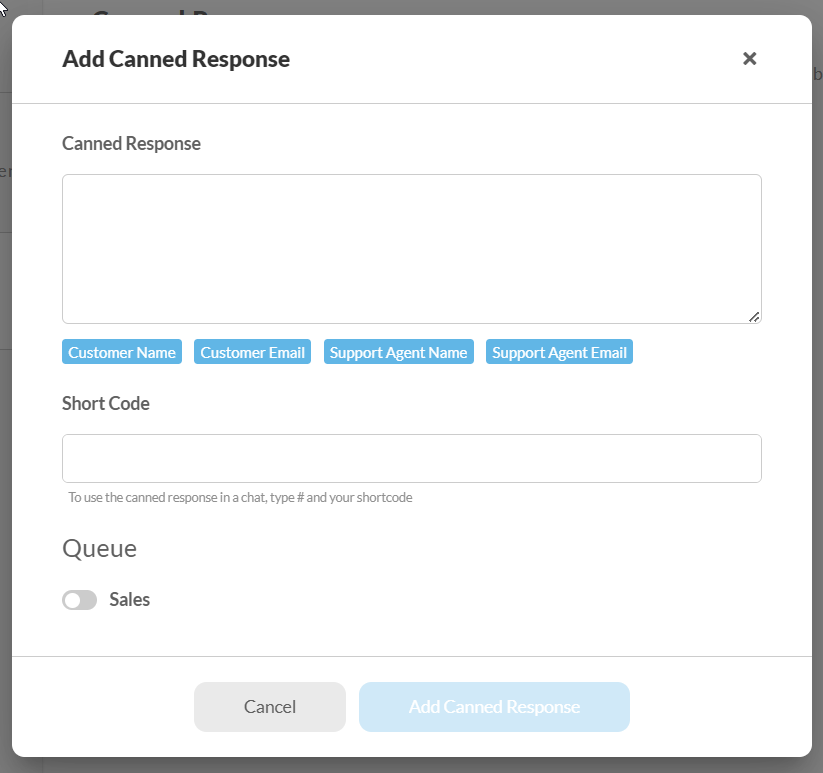
Type out the canned response in the dialog. You can click on the blue short code buttons to inject the tokens. In the short code field type something unique such as “#greeting”. The short code always needs to start with a # character. Finally click which queues should use this canned mssage.
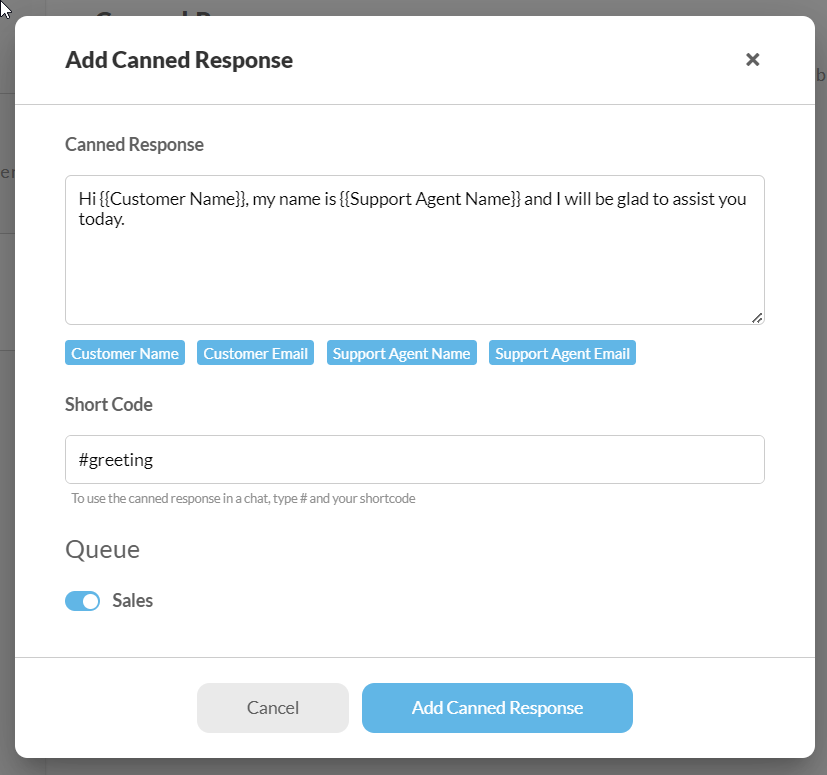
Here is an example of a configured canned message.
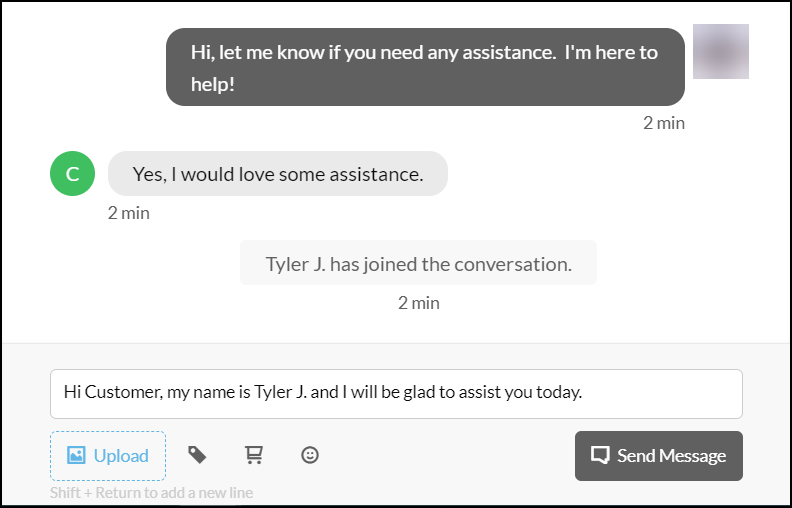
To use the canned message while chatting, hit the # key followed by the start of the short code. The available matching canned messages will appear above. Click on the canned message to use it or hit ENTER to select the highlighted canned message.
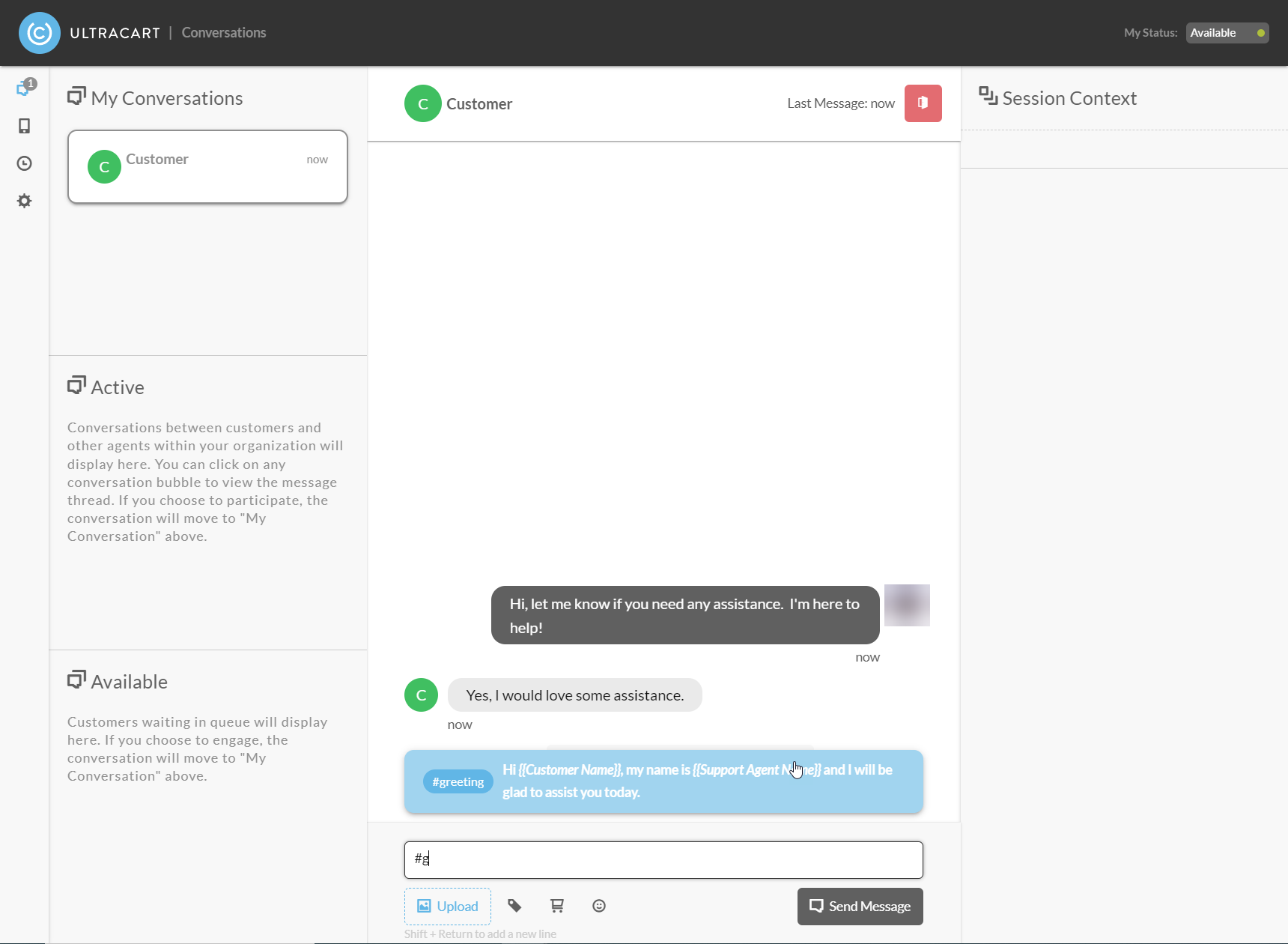
After selecting the canned message it will replace the short code with the message. This gives you the ability to edit the canned message before sending it.