Orders Tab
Main Menu → Operations → Customer Profiles → Manage
Introduction / Overview
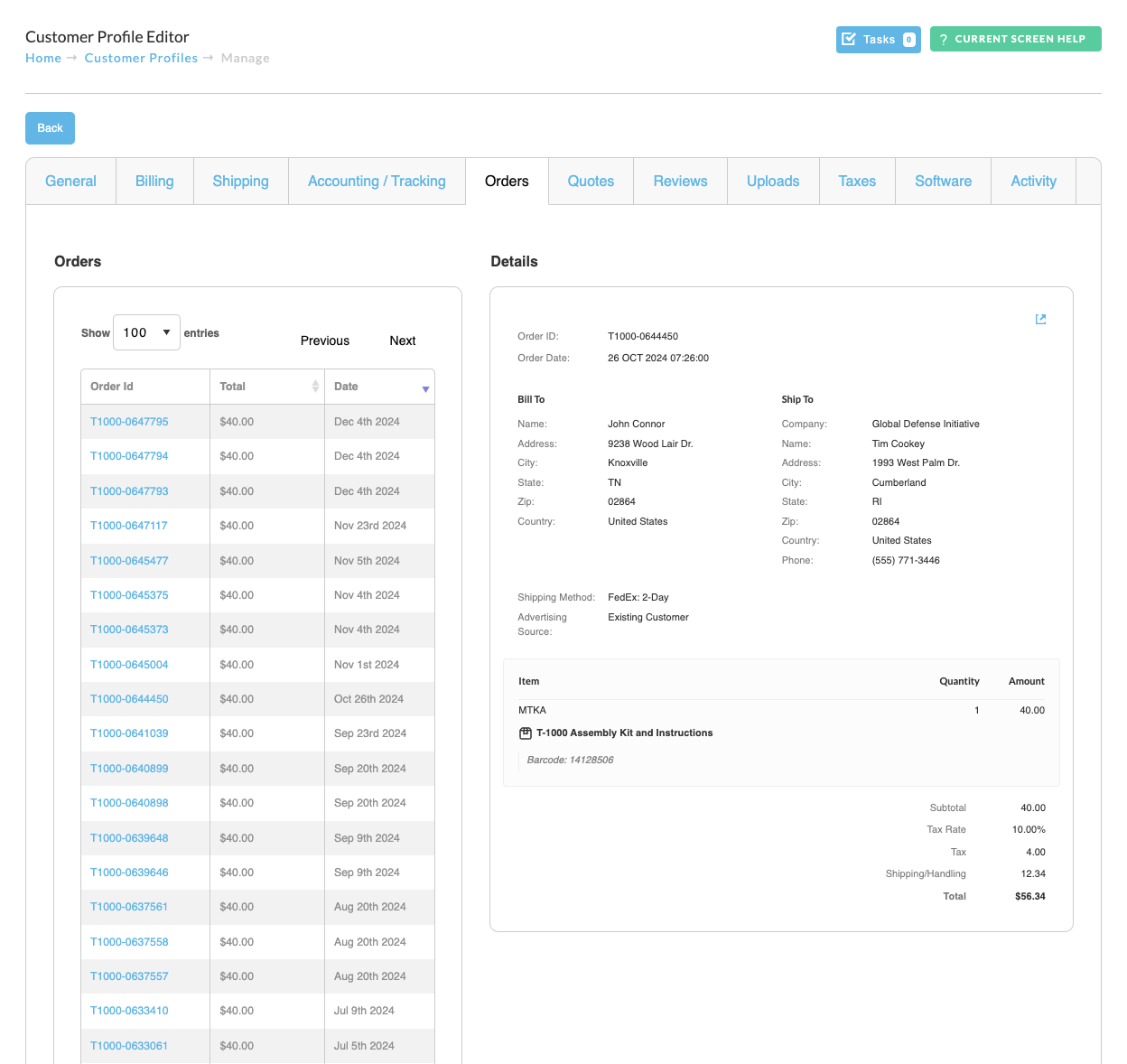
The Orders tab in a customer’s profile provides a full list of all orders placed by that customer, along with detailed billing, shipping, and line-item information for each order. This view is helpful for customer service, support inquiries, and reviewing purchasing behavior.
Store owners and staff can use this tab to:
-
View and verify previous transactions.
-
Re-send order confirmations or look up tracking.
-
Cross-reference billing and shipping details.
note
Prerequisites: You must have access to the UltraCart admin interface and be viewing a specific customer profile.
Prerequisites: You must have access to the UltraCart admin interface and be viewing a specific customer profile.
Quickstart / TL;DR
-
Navigate to Customer Profiles > [Select Customer] > Orders tab.
-
Click any Order ID in the list to view full details.
-
Review billing, shipping, item details, and totals in the right-hand panel.
Step-by-Step Instructions
1. View Order History
The left panel displays a searchable, paginated list of the customer’s past orders.
-
Order ID: Click to open full order details.
-
Total: Displays the order subtotal (before shipping/tax).
-
Date: Shows the date the order was placed.
Tip: You can adjust how many orders are shown per page using the dropdown at the top of the list.
2. View Detailed Order Information
When an order is selected, the right panel shows all related details, including:
Order Summary
-
Order ID and Order Date
-
Quick link icon to open the order in a new window
Bill To / Ship To
-
Full name, address, and contact details for billing and shipping
-
Useful for verifying information or resolving delivery issues
Shipping Method & Source
-
Shipping Method: Carrier and speed selected (e.g., FedEx 2-Day)
-
Advertising Source: Indicates where the customer came from (e.g., campaign, affiliate)
Line Items
-
Each item purchased, including:
-
SKU or Code
-
Product name
-
Quantity
-
Amount charged
-
Barcode, if applicable
-
Financial Breakdown
-
Subtotal
-
Tax Rate and calculated Tax
-
Shipping/Handling
-
Total
Best Practices & Tips
-
Use this tab to quickly answer customer service inquiries about orders.
-
Verify shipping address or order contents before issuing a return or replacement.
-
Combine this with the Activity tab to see what led to the purchase (e.g., browsing behavior, email click).
-
Useful for identifying repeat buyers or VIPs based on order volume or value.
Troubleshooting / FAQ
Q: Why don’t I see any orders listed?
A: The customer may not have completed any purchases under the selected profile, or orders may be under a different email address/account.
Q: Can I re-send an invoice or receipt?
A: Yes. Use the full order view (click the Order ID) to access print/email options.
Conclusion & Next Steps
The Orders tab is your go-to tool for managing and reviewing individual customer purchases. With quick access to billing, shipping, and item-level details, you’ll be equipped to handle support requests, verify transactions, and understand your customers better.
See also: