Quick picks
Quick picks are frequently-used items that you preconfigure for one-click addition during order entry. Instead of searching for the same products every time, you set them up once with a default quantity and optional custom price, then add them to any order with a single click.
Overview
Quick picks are managed from Order Entry > Quick Picks in the left navigation menu. During order entry, you access them from the Quick Picks button in the items section header on the create order screen.
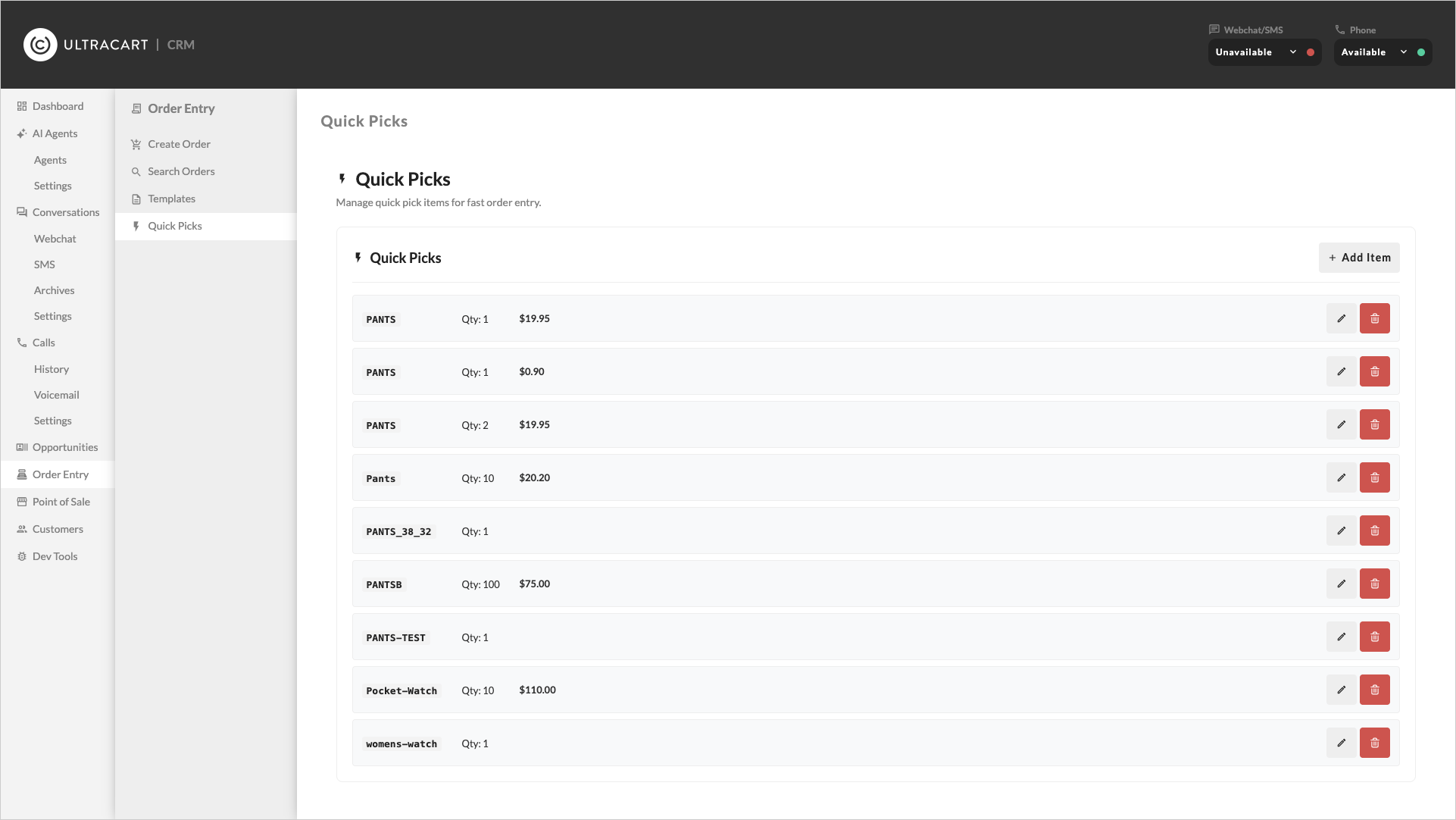
Adding a quick pick
- Navigate to Order Entry > Quick Picks.
- Select Add Item.
- Search for the item by item ID or description in the search modal.
- Set the quantity for this quick pick.
- Optionally set a custom price to override the standard item price.
- Select Add.
The quick pick appears in the list with its item ID, quantity, and price. UltraCart prevents duplicate entries — if an item with the same ID, quantity, and price already exists, it won't be added again.
Using quick picks during order entry
- On the create order screen, select Quick Picks in the items section header.
- A modal displays your configured quick-pick items.
- Select an item to add it to the current order with the preconfigured quantity and price.
This is especially useful for agents who regularly create orders with a common set of products, such as starter kits, sample packs, or standard reorders.
Editing a quick pick
- Navigate to Order Entry > Quick Picks.
- Select the edit icon (pencil) on the quick pick you want to change.
- Update the quantity and/or custom price.
- Save your changes.
Removing a quick pick
Select the delete icon (trash) on any quick pick to remove it. The item is removed from the quick picks list immediately.