Channel Partner API - Spreadsheet Import
The spreadsheet import interface for the generic channel partner is intended to allow importing of complete orders from a spreadsheet. There are two methods of processing the spreadsheet:
- Uploading it through the web interface, or
- FTPing the file to UltraCart's Virtual FTP server
Irregardless of which way you send the file to UltraCart, the format of the file is the same. In this tutorial we will cover building the file first and then uploading it.
Configuring the Custom Channel Partner
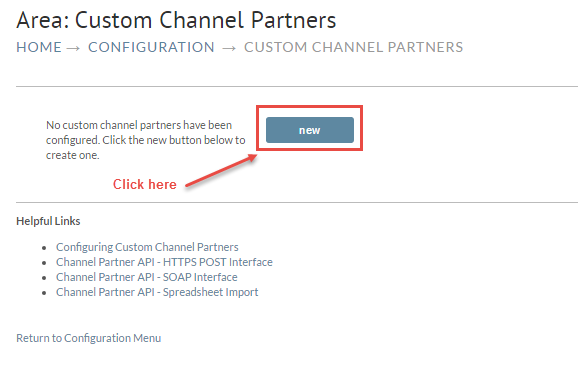
The first thing that needs to happen before you can import orders is to configure the custom channel partner. Channel partners are how UltraCart keeps track of orders that originate from a source other than the UltraCart checkout process. To configure your channel partner go to:
At the 1st screen click the new button.
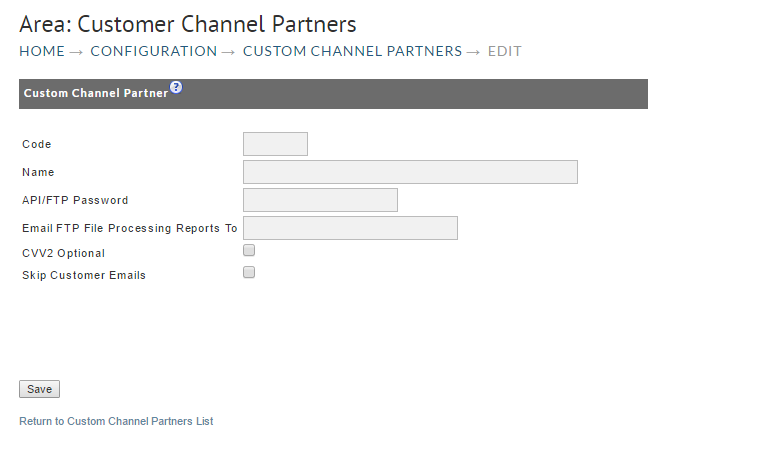
There are four text fields and two check boxes to be completed. Also, two check boxes are to be considerd.
API Credentials
The following are brief descriptions of the fields.
| Field | Description | Required |
|---|---|---|
| Code | A 1-10 character code identifying the channel partner. We recommend using the initials of the partner as this will be visible when viewing orders within UltraCart | Y |
| Name | The descriptive name of the channel partner. | Y |
| API/FTP Password | Create a strong password. This will be the same password used for the API (SOAP or HTTP) as well as the FTP interface. | Y |
| Email FTP File Processing Reports To | The email address to send processing reports. You can specify multiple emails separated by a comma. | Y |
Building the Spreadsheet
UltraCart will support three different formats for the spreadsheet:
- .csv (comma separated values) - Download Channel Partner Template CSV
- .xls (Microsoft Excel 1997-2002 format)
- .xlsx (Microsoft Excel 2007+ format) Download Channel Partner Template (xlsx)
The first row of the spreadsheet must contain headers. The headers need to come from the table below.
Acceptable values for boolean parameters:
true: true, TRUE, yes, YES, on, ON, y, Y, 1
false false, FALSE, no, NO, off, OFF, n, N, 0
| Header Name | Alternate Header Name | Format | Description | Required |
|---|---|---|---|---|
| order.channelPartnerOrderId | String | A unique order ID from the external system. | Y | |
| order.paymentMethod | String | The method of payment. Credit Card or Purchase Order | Y | |
| order.noRealtimePaymentProcessing | Boolean | Leaves the order in Accounts Receivable instead of processing the card in real-time. | ||
| order.skipPaymentProcessing | Boolean | Skip over the payment processing and move the order on to shipping. | ||
| order.considerRecurring | Boolean | If set to true, then we will pass the recurring flag to the gateways that support it (Authorize.Net and PayPal Web Payments Pro) | ||
| order.autoApprovePurchaseOrder | Boolean | Automatically approve the purchase order. | ||
| order.storeIfPaymentDeclines | Boolean | Store the order in Accounts Receivable if the credit card declines | Recommend - Y | |
| order.treatWarningsAsErrors | Boolean | Treat warnings (like the pre-oder warning) as errors that prevent the order from importing | Defaults to Y | |
| order.storeCompleted | Boolean | Store the order in the completed orders stage of the system. This is used for importing historical orders from other carts. | ||
| order.creditCardAuthorizationReferenceNumber | String | If you authorized the order outside of UltraCart, this is the transaction identifier that UltraCart will use to capture the order. | ||
| order.creditCardAuthorizationAmount | Number | If you authorized the order outside of UltraCart, this is the amount of the authorization. | ||
| order.creditCardAuthorizationDts | Timestamp | If you authorized the order outside of UltraCart, this is the timestamp of the authorization.** Required format: MM/DD/YYYY HH:MM:SS Example ** 07/01/2014 14:23:32 Required format: MM/DD/YYYY HH:MM:SSExample: ** 07/01/2014 14:23:32** | ||
| order.creditCardType | String | Visa, MasterCard, AMEX, or Discover | Y - CC Orders | |
| order.creditCardNumber | String | 15 or 16 digit credit card number (spaces or dashes OK) | Y - CC Orders | |
| order.creditCardToken | String | Token of the credit card (Stripe.com or other tokenizing gateway supported by UltraCart). | ||
| order.creditCardExpirationMonth | Number | Month 1 through 12 (January = 1, December = 12) | Y - CC Orders | |
| order.creditCardExpirationYear | Number | Four Digit Year | Y - CC Orders | |
| order.creditCardExpirationMonthYear | String | The format MM/YY or MM/YYYY | ||
| order.creditCardVerificationNumber | Number | |||
| order.rotatingTransactionGatewayCode | String | The rotating transaction gateway code to use for this order. | ||
| order.purchaseOrderNumber | String | The purchase order number. | Y- Purchase Order | |
| order.billToFirstName | String | Y | ||
| order.billToLastName | String | Y | ||
| order.billToTitle | String | |||
| order.billToCompany | String | |||
| order.billToAddress1 | String | Y | ||
| order.billToAddress2 | String | |||
| order.billToCity | String | Y | ||
| order.billToState | String | Y | ||
| order.billToPostalCode | String | Y | ||
| order.billToCountry | String | Use the full spelling that UltraCart uses or provide the ISO-3166 two letter country code. | Y | |
| order.billToDayPhone | String | |||
| order.billToEveningPhone | String | |||
| order.email | String | |||
| order.ccEmail | String | |||
| order.associatedWithCustomerProfileIfPresent | String | If this is yes, the order will be associated with the customer profile that has the same email (if it exists) and they will receive their discounted pricing. | ||
| order.shipToFirstName | String | Y - physical goods | ||
| order.shipToLastName | String | Y - physical goods | ||
| order.shipToTitle | String | |||
| order.shipToCompany | String | |||
| order.shipToAddress1 | String | Y - physical goods | ||
| order.shipToAddress2 | String | |||
| order.shipToCity | String | Y - physical goods | ||
| order.shipToState | String | Y - physical goods | ||
| order.shipToPostalCode | String | Y - physical goods | ||
| order.shipToCountry | String | Use the full spelling that UltraCart uses or provide the ISO-3166 two letter country code. | Y - physical goods | |
| order.shipToPhone | String | Y - physical goods | ||
| order.shipToEveningPhone | String | |||
| order.shippingMethod | String | If the order requires shipping then you either need to specify the name of the method in this field, or pass order.leastCostRoute = true and let UltraCart pick the method of shipment | Maybe | |
| order.arbitraryTax | Number | The tax charged by the external system | ||
| order.arbitraryTaxableSubtotal | Number | The taxable subtotal the tax was based upon by the external system | ||
| order.arbitraryTaxRate | Number | The tax rate used by the external system | ||
| order.arbitraryShippingHandlingTotal | Number | The shipping/handling cost charged by the external system | ||
| order.taxExempt | Boolean | |||
| order.giftMessage | String | |||
| order.deliveryDate | Date | If specified, use the format MM/DD/YYYY | ||
| order.shipOnDate | Date | |||
| order.ipAddress | String | The IP address of the remote customer (pass 127.0.0.1) if not available | Y | |
| order.shipToResidential | Boolean | Will default to a business if not specified | Recommended | |
| order.mailingListOptIn | Boolean | Will default to opted out if not specified | Recommended | |
| order.specialInstructions | String | Special instructions from the customer about shipment | ||
| order.screenBrandingThemeCode | String | The screen branding theme code to associate the order with. | Y | |
| order.advertisingSource | String | |||
| order.customField1 | String | Custom value such as the DNIS of the caller up to 50 characters. | ||
| order.customField2 | String | Custom value up to 50 characters. | ||
| order.customField3 | String | Custom value up to 50 characters. | ||
| order.customField4 | String | Custom value up to 50 characters. | ||
| order.customField5 | String | Custom value up to 50 characters. | ||
| order.customField6 | String | Custom value up to 50 characters. | ||
| order.customField7 | String | Custom value up to 50 characters. | ||
| order.taxCounty | String | Tax county name if the state the order is going to charges tax at the county level. | ||
| order.affiliateId | String | The affiliate ID to associate the order with. | ||
| order.gift | Boolean | True/False if the order is a gift (defaults to false) | ||
| order.giftEmail | String | Email to send the gift receipt to. | ||
| order.leastCostRoute | Boolean | Either this needs to be True or the name of a shipping method must be specified in *order.shippingMethod* | Maybe | |
| order.leastCostRouteShippingMethods[#] | String | Restrict the least cost routing to these shipping methods. | ||
| order.coupons[#] | String | Coupons to apply to the order. | ||
| order.items[#].itemId | order.items.itemId | String | Item ID of the item | Y |
| order.items[#].quantity | order.items.quantity | Integer | Quantity to purchase | Y |
| order.items[#].arbitraryUnitCost | order.items.arbitraryUnitCost | Number | Specific price for the item. | |
| order.items[#].autoOrderSchedule | order.items.autoOrderSchedule | String | Auto order schedule if the item is a customer selectable auto order. Should be one of the following values: - Weekly - Every 10 Days - Biweekly - Every 24 Days - Every 28 Days - Monthly - Every 45 Days - Every 2 Months - Every 3 Months - Every 4 Months - Every 6 Months - Yearly | |
| order.items[#].upsell | order.items.upsell | Boolean | Flag indicating the item was an upsell (default to false) | |
| order.items[#].autoOrderLastRebillDate | order.items.autoOrderLastRebillDate | Date | The last time the order was rebilled. This will determine when the next shipment occurs. This is used for importing historical auto orders from another system. The format for the date is MM/DD/YYYY. | Y - if importing historical orders for items that have auto order schedules. |
| order.items[#].options[#].name | order.items.options[#].name | String | Name of the option | Y - if the item has options |
| order.items[#].options[#].value | order.items.options[#].value | String | Value of the option | Y - if the item has options |
Multiple Rows Per Order or Multiple Columns for Items
Order data by it's very nature is multi-dimensional which can be difficult to represent in a spreadsheet. If you are using multiple columns in your spreadsheet to represent the item data you would construct the headers like this:
| order.items[0].itemId | order.items[0].quantity | order.items[1].itemId | order.items[1].quantity |
|---|---|---|---|
| SHIRT | 1 | PANTS | 1 |
An optional method is to use multiple rows to represent the items. In this scenario the other non-item data is repeated on all the rows and the item data varies by row. UltraCart will roll up the rows based upon the order.channelPartnerOrderId value.
| order.items.itemId | order.items.quantity |
|---|---|
| SHIRT | 1 |
| PANTS | 1 |
Channel Partner Uses Different Item SKU?
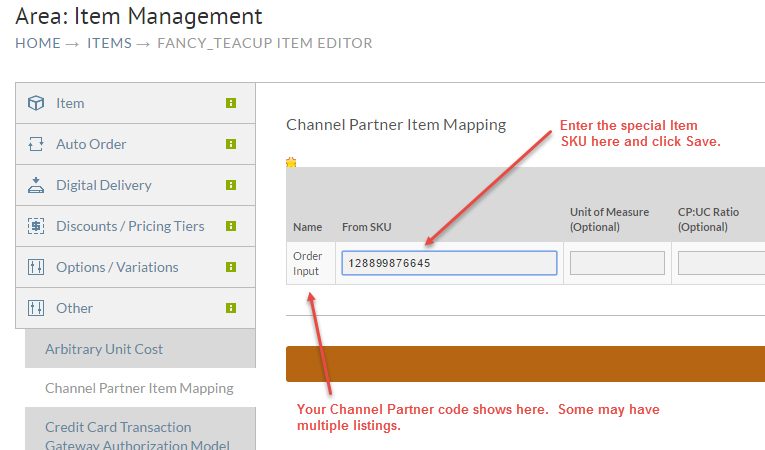
Not a problem. At the UltraCart Item Management screen, click on the appropriate Item Id. Inside the Item editor click on the Other tab.
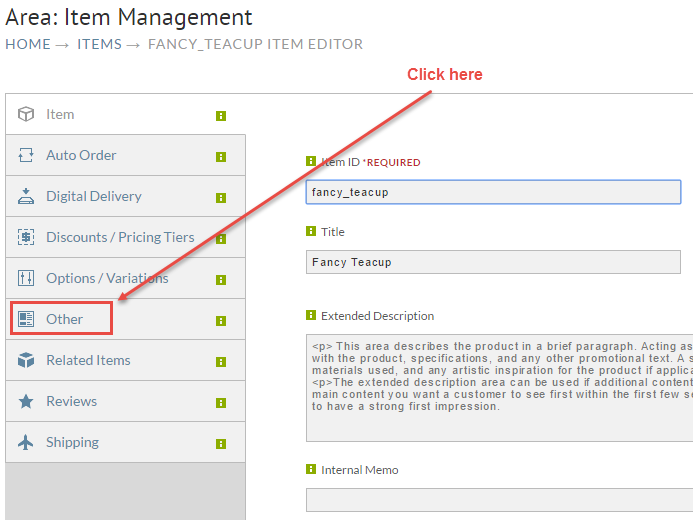
Another set of dark grey Tabs will appear below the Other Tab. Click Channel Partner Item Mapping.
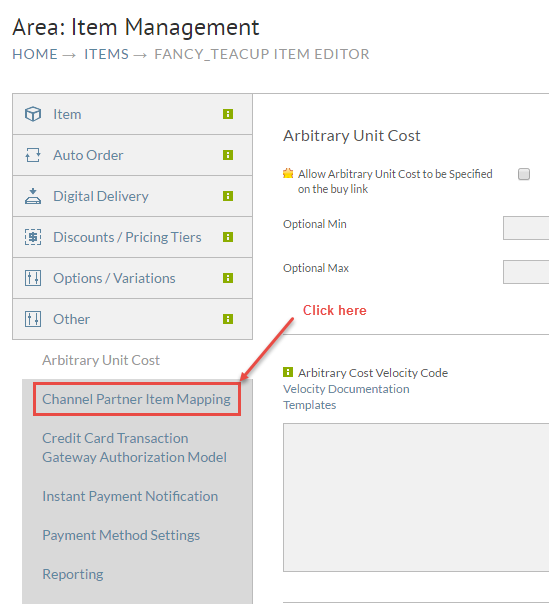
Enter your custom SKU as shown below. UltraCart will transmit the SKU to the UltraCart item ID during the import process.
Uploading via the Web Interface.
First navigate to:
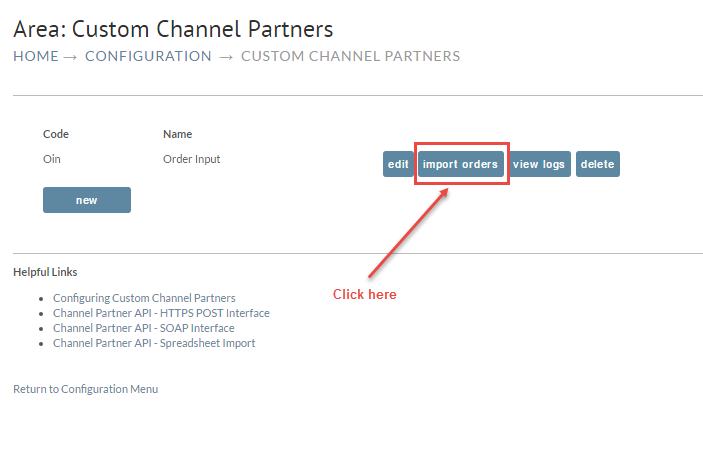
Main Menu → Configuration → Checkout → Custom Channel Partners
Click on the "import orders" button as shown below.
On the next screen click the Browse button, navigate within your system and locate the file to be imported. Want all the imported orders marked as "completed"? Click the check box as shown below. Lastly, click the Submit Job button at the bottom.
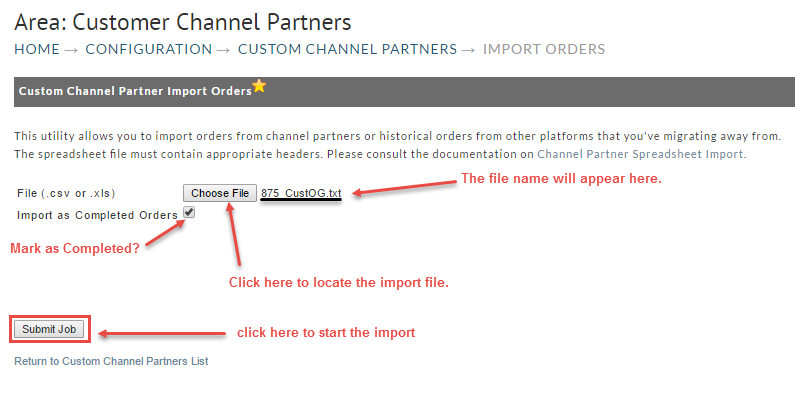
Use this flag if your are importing historical orders. This will keep them from processing payments on those orders.
If you import orders associated with items that have an auto order schedule configured, they WILL setup an auto order schedule. This even applies to historical orders if the "Import as completed orders" check box is selected.
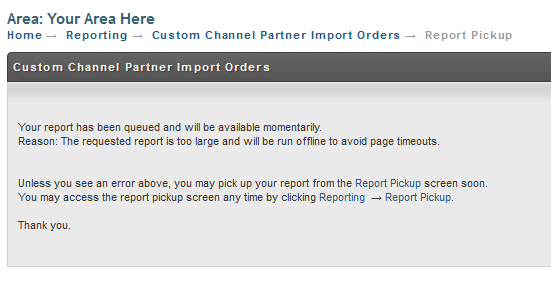
Once you submit the job you will be shown a screen informing you that the results will be available soon under the report pickup.
Spreadsheet Processing Errors:
| Error | Remediation steps |
|---|---|
| Invalid column name [order.items[#].itemId]. See the column-naming rules above. | Edit the column header text and replace the # with a number, starting with 0 and adding additional columns for additional items in a single order as described in the section above -> [order.items[0].itemId] (See previous section of this document "Multiple Rows Per Order or Multiple Columns for Items" for more details.) |
| Invalid column name [order.items[#].quantity]. See the column-naming rules above. | Edit the column header text and replace the # with a number, starting with a 0 and adding in in additional columns for additional items in a single order -> [order.items[0].quantity (See previous section of this document "Multiple Rows Per Order or Multiple Columns for Items" for more details.) |
FTPing the File to UltraCart's Virtual FTP Server
You can also FTP the file to the FTP server. To do this connect to:
| Setting | Value |
|---|---|
| Server | merchantftp.ultracart.com |
| Username | |
| Password | The FTP/API password configured for this channel partner. |
Once you connect to the server you will see the following folders:
| Directory | Meaning |
|---|---|
| /import/in/ | Deposit the spreadsheets into this folder. Once a file is stored it can not be read again, but can be deleted if it was placed there erroneously |
| /import/out/ | The processing reports will appear in this folder. |
Processing of files occurs once per hour. If you configured the "Email FTP File Processing Reports To" field on the custom channel partner then an email with the processing report will be sent immediately after the processing is complete. This is a good way to keep tabs on the processing from a user perspective.
UltraCart will delete any processing reports in the /import/out/ folder older than sixty days.
You must transfer the order data over FTP SSL or PGP encrypt the file if you are using FTP. To use PGP encryption make sure you use the UltraCart public PGP key uc-file-transfer-pgp-public-2015.pgp
Processing Reports
The reports produced after processing contain three columns represented in a CSV format. The table below shows an example.
| channelPartnerOrderId | ultraCartOrderId | error |
|---|---|---|
| 1000 | Invalid credit card number. | |
| 1000 | Billing first name not specified. | |
| 1001 | DEMO-00123456 | |
| In the example above the channel partner order 1000 produced two errors. The channel partner order 1001 imported successfully as UltraCart order ID DEMO-00123456. If you upload the spreadsheet via the web interface then you will retrieve the processing report from the report pickup section. If you upload it to the FTP interface then you can retrieve the processing report from /import/out/ on the FTP server. ## Shipment Confirmation When orders that are imported via the Channel Partner API are shipped, UltraCart automatically produces a shipment confirmation CSV file and places it on the FTP server under /export/shipment/. The format of the CSV file looks like this: | channelPartnerOrderId | ultraCartOrderId |
| channelPartnerOrderId | ultraCartOrderId | shippingMethod | trackingNumber |
|---|---|---|---|
| 1001 | DEMO-00123456 | USPS: Priority Mail | 1234567890 |
| 1002 | DEMO-00123457 | USPS: First Class Mail | 1234567891 |
| 1003 | DEMO-00123458 | UPS: Ground | 1Z1234567890 |
| 1003 | DEMO-00123458 | UPS: Ground | 1Z1234567891 |
If an order contains multiple tracking numbers then it will appear as multiple rows in the spreadsheet with the same channelPartnerOrderId and ultraCartOrderId.
UltraCart will automatically remove shipment confirmations older than 60 days old.