Introduction
Breadcrumb trails are a navigational aid that helps shoppers understand their current location within your storefront hierarchy. They provide a clear, clickable path back to higher-level pages, improving usability and overall shopping experience.
In UltraCart StoreFronts, you can add a Breadcrumb element within the Visual Builder. Once placed, it automatically generates breadcrumb trails for your storefront pages.
Example:

Tip: Breadcrumbs are especially useful for complex category hierarchies or deep navigation structures.
Prerequisites
-
An active UltraCart StoreFront.
-
Access to the Storefront Visual Builder.
-
Familiarity with adding and managing elements in the builder.
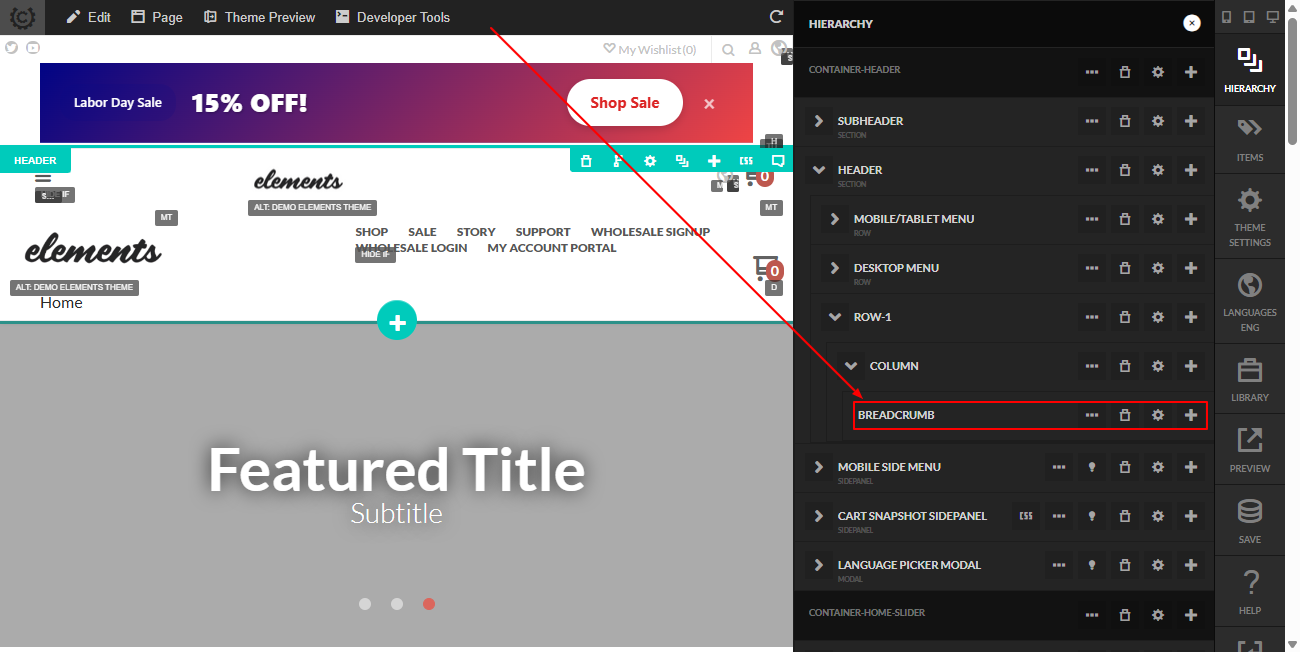
The Storefront Visual Builder contains an element titled ‘Breadcrumb'. The breadcrumb element should be nested within a Container, and within a Row and Column. The breadcrumb element will auto generate the breadcrumb trail within the storefront pages.
Step-by-Step Instructions
-
Open the Visual Builder
- Navigate to StoreFronts → [Your Storefront] → Visual Builder.
-
Locate the Container
- Ensure you have a Container element available where you want the breadcrumb to appear.
-
Add a Row and Column
-
Within the container, add a Row and then a Column.
-
Breadcrumbs should be placed inside a column for proper alignment.
Insert the Breadcrumb Element
-
From the Hierarchy panel, Click the '+' button for the Column element, then choose add as child
-
The system will automatically generate breadcrumb trails based on the storefront page structure.
-
-
Review and Save
-
Preview the storefront to confirm the breadcrumb trail displays correctly.
-
Save your changes.
-
Conclusion
Breadcrumbs improve navigation and user experience by providing a clear path back through your storefront hierarchy. Using the Visual Builder makes adding them straightforward and ensures they dynamically update as your storefront structure changes.
FAQ
Q: Can I customize the breadcrumb design?
Yes. You can apply custom CSS to style the breadcrumb element to match your storefront’s branding, including font size, colors, and spacing.
Q: Will breadcrumbs update automatically if I change my storefront structure?
Yes. The breadcrumb element dynamically generates its trail based on the storefront hierarchy, so updates to menus or page structures are automatically reflected.
Q: Where should I place breadcrumbs for best usability?
We recommend placing breadcrumbs near the top of the content area, just below the header or navigation menu, so shoppers can easily see their location.
Q: Do breadcrumbs affect SEO?
Yes. Breadcrumbs improve internal linking and help search engines better understand your storefront’s hierarchy. They can positively impact SEO when implemented correctly.
Next Steps
-
Learn more about Storefront Visual Builder Elements.
-
Explore Organizing Menus in Your Storefront.
View of the Breadcrumb element in the Storefront Hierarchy