Overview
This tutorial will document the steps using the Visual Builder tool to create an additional tab onto the Items page for displaying PDF documents about the item.
The storefront element to create the PDF list is "Item PDF List".
Initiate Visual Web Builder
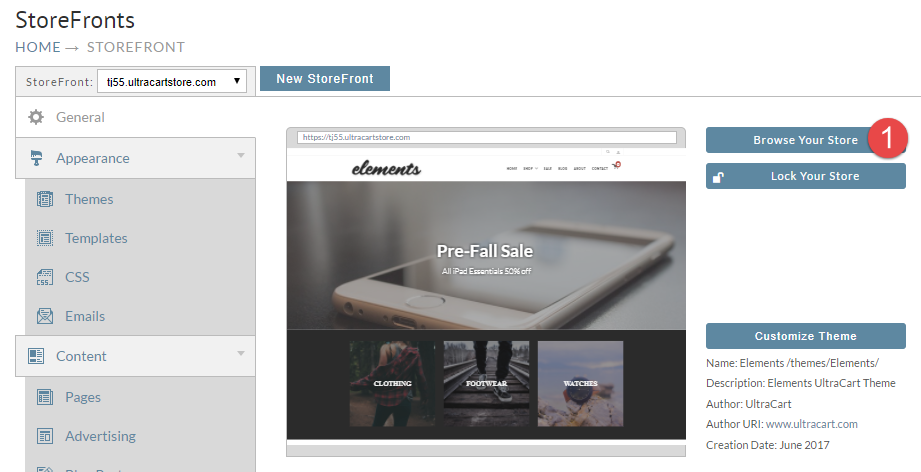
Log into your UltraCart account and from the main menu click on your StoreFront. Then click on the "Browse Your Store" button.
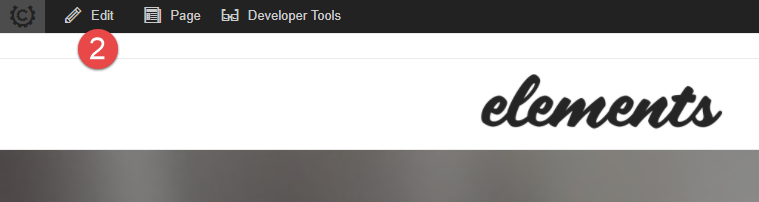
Initiate the Visual Web Builder by clicking the "edit" button that appears at the top Left portion of the page.
Choose the location to add the "Item PDF List" element.
In this example the merchant chooses to create an additional tab to the Item template. So they navigated to one of their items and then clicked the "add Tab" button that appears after the existing tabs in the page:

Then choose the tab and click the a"Add Element" button then when the Visual Builder Panel opens along the right side of the page, Click into the Search field and "Type Item PDF List" and select it. You'll see a panel view like this:
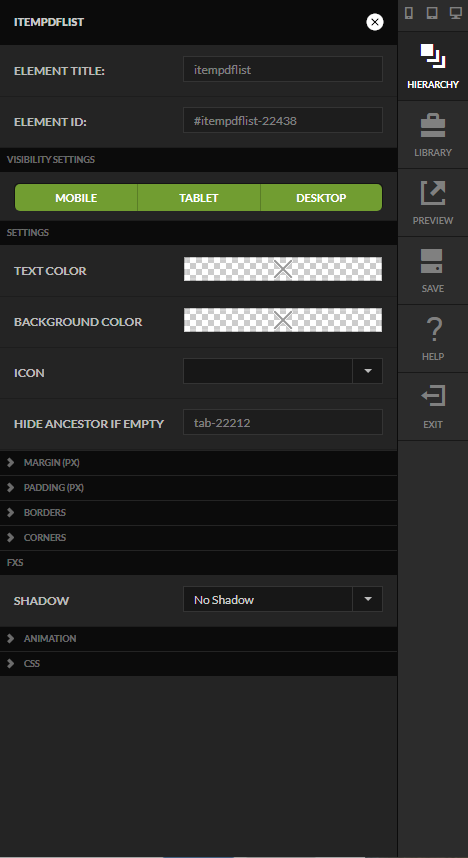
In this case, we only want the PDF tab to appear on the item page when the item has one or PDF's to view. So, the "Hide Ancestor If Empty" has been assigned to the PDF tab (reference here as tab-22212")
Assign PDF to an item in the Item Editor
Navigate to an item that you will configure with one or more PDF files. Edit the item and then scroll down the first tab of the item editor to the "Additional Product Images" section then click the "upload image" button to upload the PDF file:
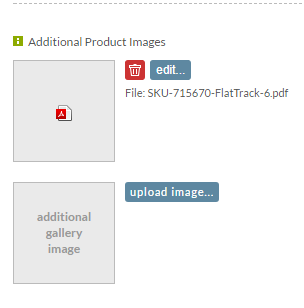
Save the changes after uploading your PDF(s) and your done!
Final View
Here's how the tabs appear for an item with an PDF:

Versus how the tabs appear when no PDF is configured for the item:
