Natural - Hide Continue Shopping and Update Buttons
This tutorial will cover how to edit the template associated with the checkout and hide the continue shopping and update buttons.
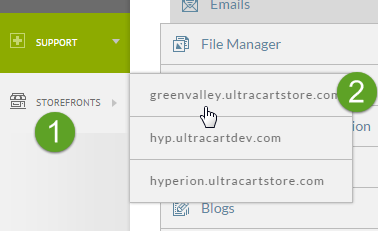
First hover over the StoreFronts menu on the left navigation and select the StoreFront that you would like to work on.
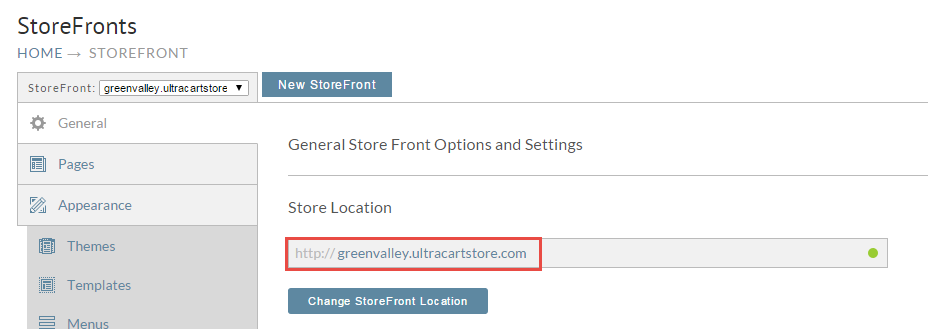
Click on the Store Location URL. This will open up your StoreFront in a new window.
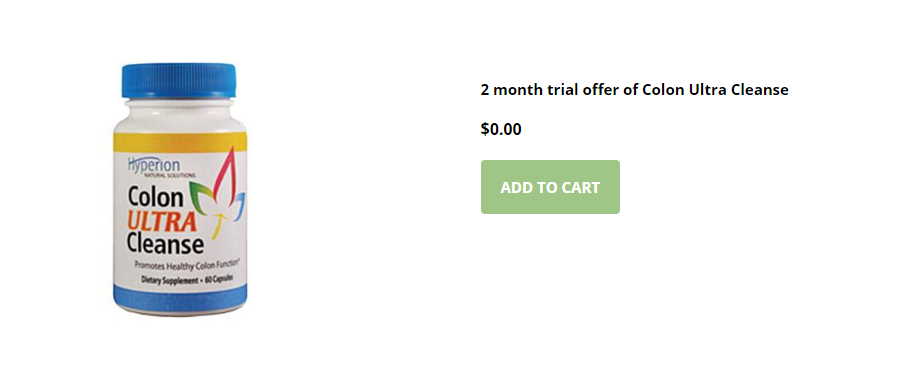
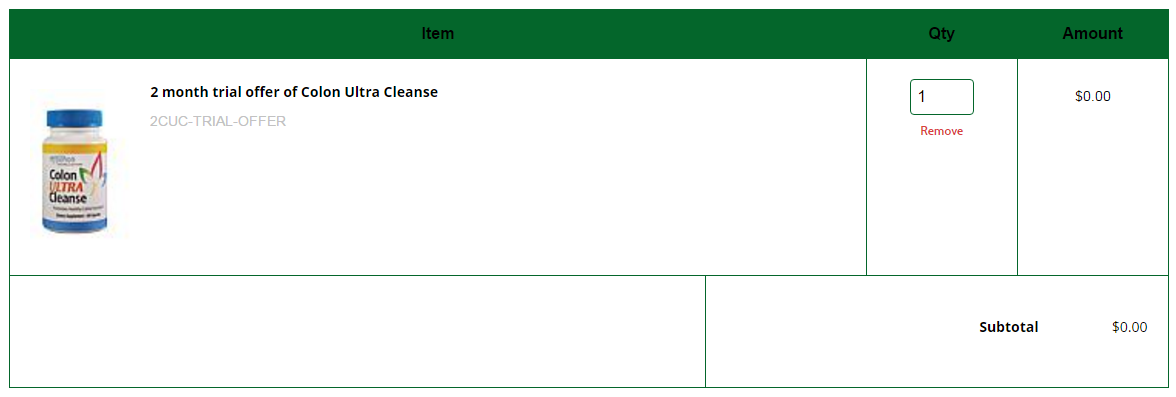
Click Add to Cart on any of the items within your StoreFront to add it to the basket.
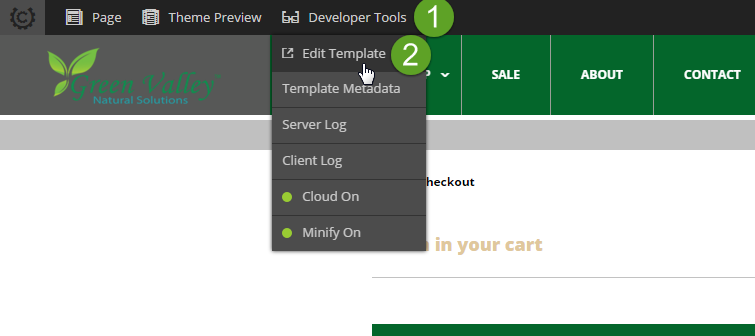
Hover over the Developer Tools menu and then select Edit Template as shown below.
This will open up the template tab automatically to the template associated with this screen.
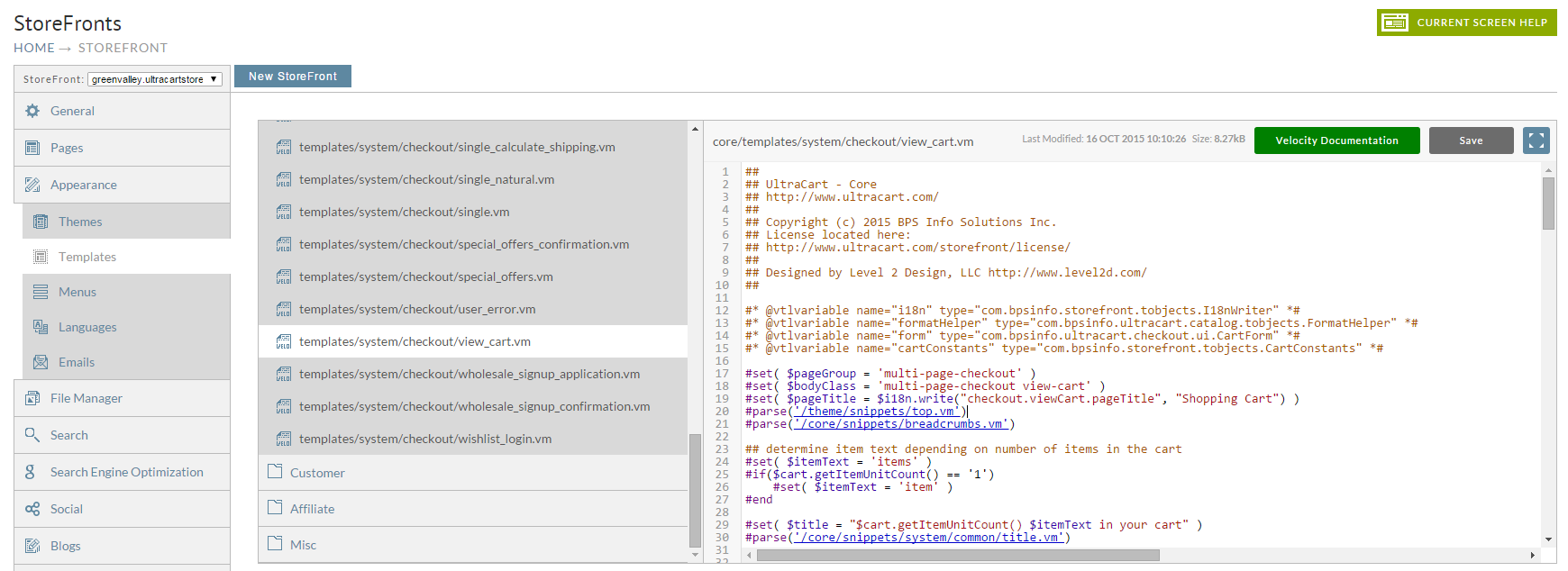
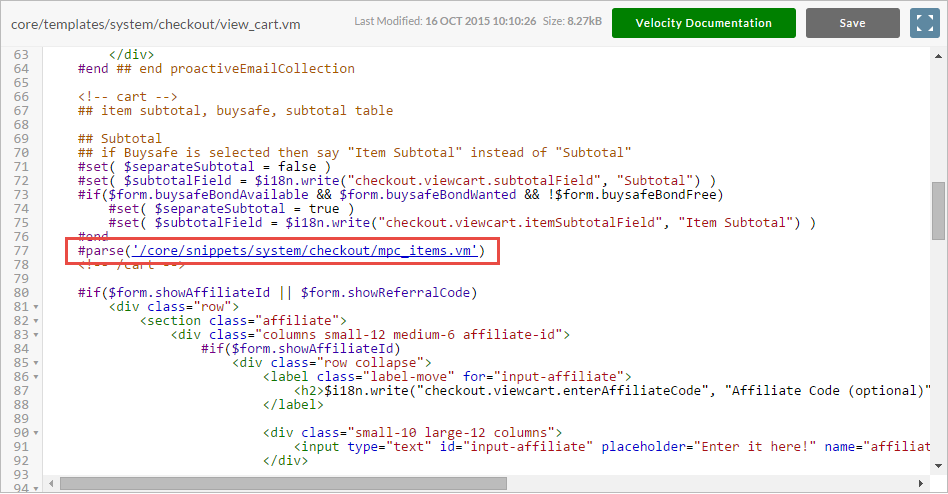
As you read through the source of the template you will often notice that snippets are pulled into the page. This is a good example of that. Click on the #parse statement located around line 77 of the template for mpc_items.vm.
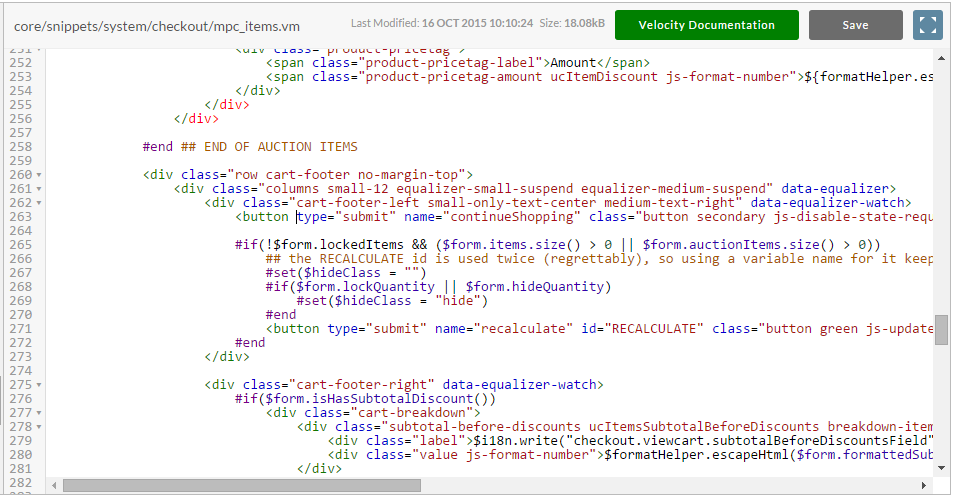
If you scroll down through the source you will see the two buttons located on lines 263 or 271 (at the time this tutorial was written).
All we need to do is add a div tag with the style of display:none before the buttons and then close it after. Below is a picture of this code. We've added some Velocity ## comments before and after the source so that it stands out.
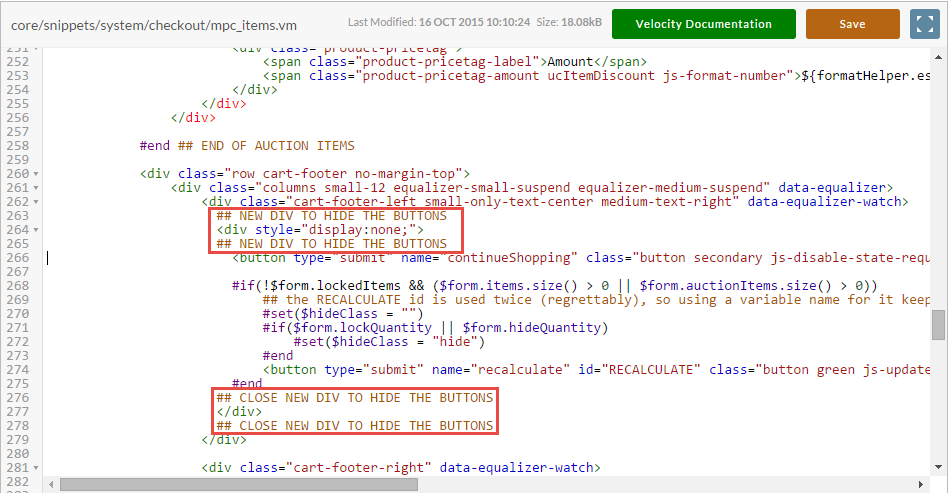
Save out the template and then click the refresh button on your checkout. The buttons are gone!
You can use this technique to edit any content within the checkout that you would like to change. If you have questions on editing additional content, please contact UltraCart Support.