Folders
Folders group the items in your catalog. They are for your own organization inside the merchant console, and they do not create pages on your StoreFront. Adding an item to a folder does not publish it anywhere.
If your catalog is small you may never need more than the default root folder. If you carry a lot of items, create folders to group them by product category or by manufacturer.
Where to manage folders
Folders live in their own panel on the Item Management screen:
Main Navigation → Items → Item Management
The Folders panel sits on the left, with Items / Kits on the right. Selecting a folder filters the item list to that folder's contents. The root folder at the top of the panel holds everything that has not been filed elsewhere.
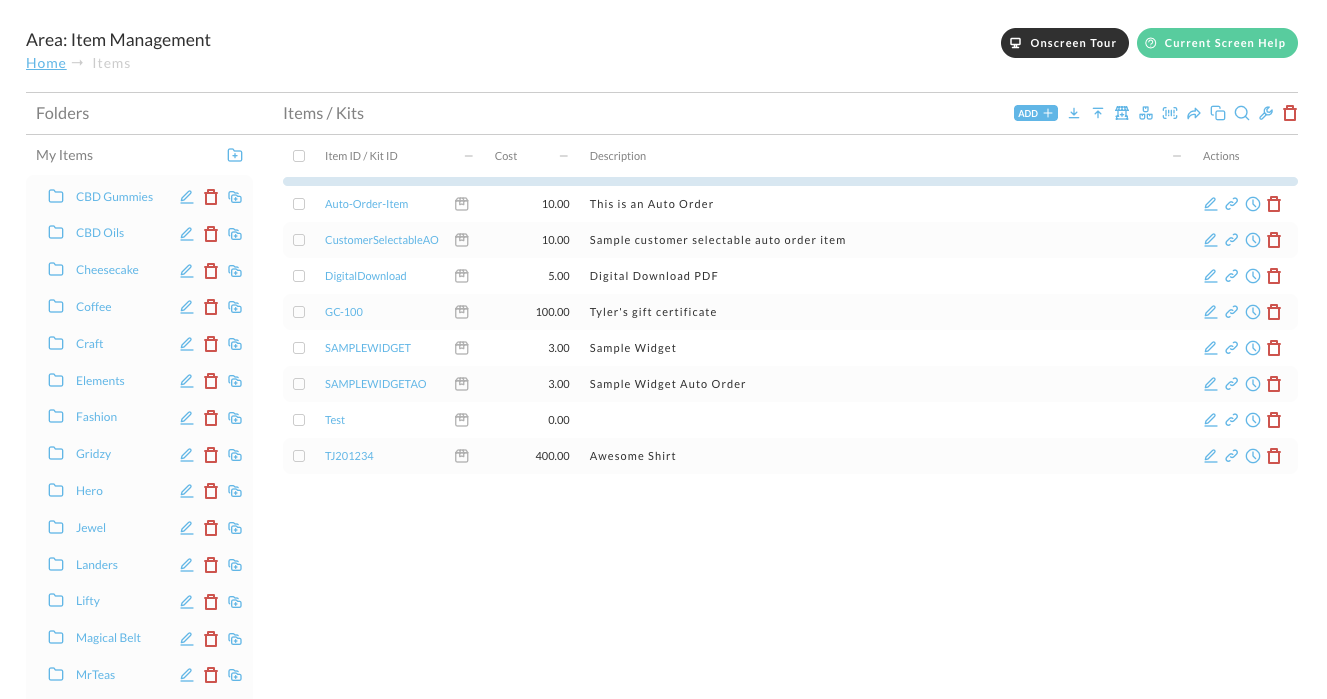
The root folder is named My Items. Older documentation referred to it as the "Filing Cabinet"; that name is no longer shown.
Creating a folder
- In the Folders panel, click the add-folder icon to the right of the folder you want the new folder to sit under.
- Enter a Folder Name. This is the only required field.
- Click Save Folder.
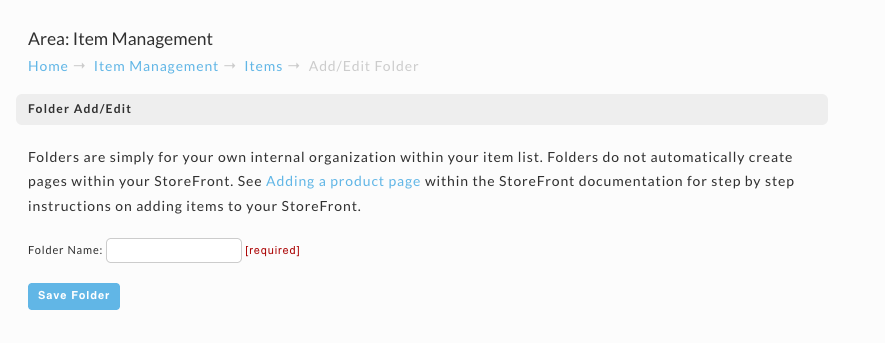
The Add/Edit Folder screen asks for a name and nothing else. There is no description field and no parent-folder selector, so where a folder ends up in the hierarchy is decided by where you start from rather than by a field on the form.
Nesting folders
Folders can contain other folders. Sub-folders appear indented beneath their parent in the Folders panel.
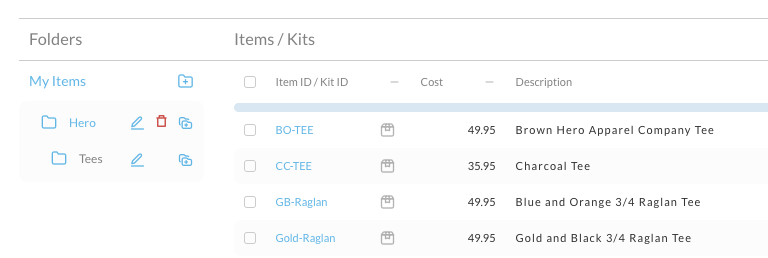
Going more than two or three levels deep makes items harder to find, because each level adds a click to drill down.
Group folders by product category or by manufacturer, whichever matches how your team thinks about the catalog. Shallow, consistent hierarchies are easier to maintain than deep, one-off ones.
Editing a folder
Click the pencil icon on the folder's row in the Folders panel. This opens the same Folder Add/Edit screen used when creating one, where you can change the name and click Save Folder.
Deleting a folder
Click the trash icon on the folder's row in the Folders panel.
Deleting a folder deletes every item inside it. There is no way to recover the contents afterward, so move or reassign any items you want to keep before you delete the folder.
Related Documentation
- Item Management - the main catalog screen where folders, items, and kits are managed together
- Add Folder, Kit, Item - full steps for adding folders, kits, and items from the Add icon