Introduction
The Item Editor is where you create and manage the products sold through your UltraCart storefront. Use it to configure core item details such as the item ID, title, pricing, shipping attributes, storefront assignment, inventory behavior, tags, and advanced options.
Navigate to the Item Editor
Navigate to:
Home → Items → Item Management
From the Item Management screen, you can:
-
Open the Actions menu and select Add Item to create a new item

-
Click an existing Item ID or Kit ID hyperlink to edit that item:
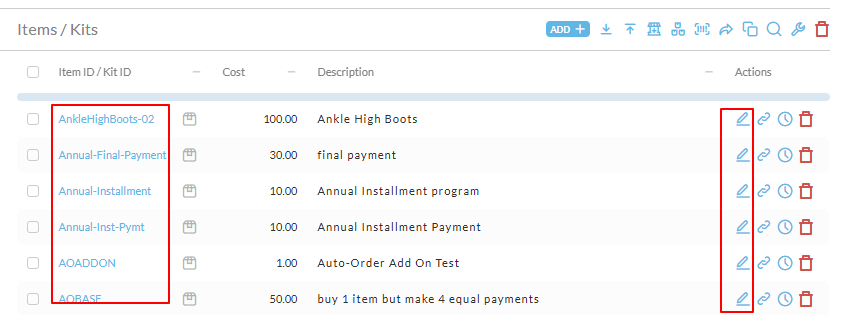
Adding & Editing items
If you want to add or change an Item you can:
-
click on

then select Add Item
-
click on the hyperlinked Item ID/KitID to edit the existing Item or Kit
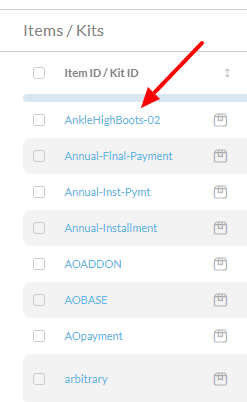
This will open the Item Editor which is where you configure or make changes to your Item.
View of the First Tab of the Item Editor
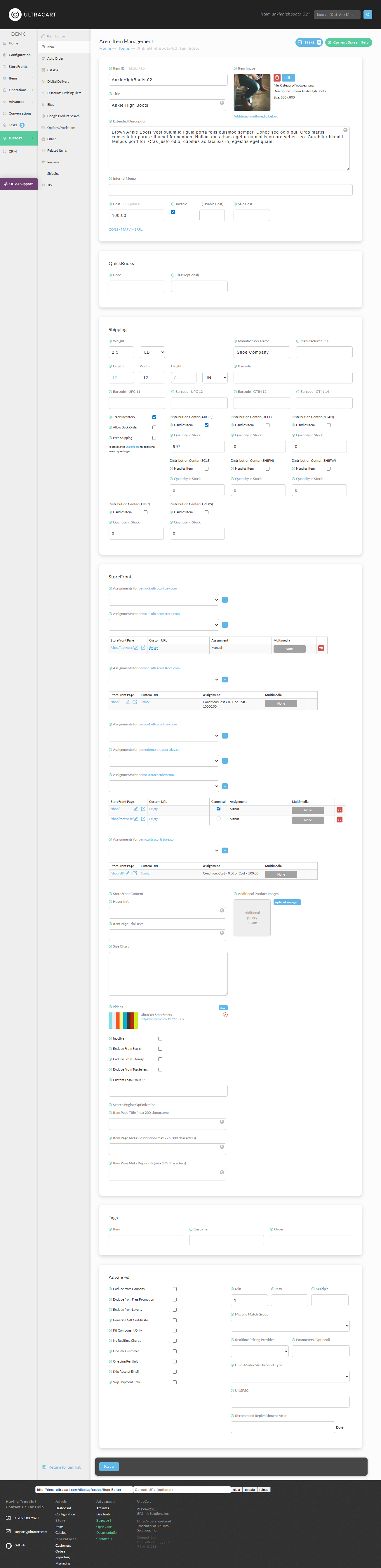
The first tab of the Item Editor contains the majority of the core configuration fields for an item, including:
-
Item ID
-
Item image
-
Title
-
Description
-
Cost
-
Weight
-
Shipping details
-
Storefront assignment
Tip: Click the information icon next to a field name in UltraCart to view inline help for that field.
Required Fields
Only two fields are marked as required on the main item tab:
-
Item ID
-
Cost
However, in practice, you will usually want to configure at least the following:
-
Item ID
-
Title
-
Cost
-
Weight
Note: A weight of
0causes the item to be treated as a non-shipping item, such as a service or digital item. A positive weight triggers shipping-related checkout behavior.
So let's take a look at each section of this tab of the item editor in more detail:
Top Section
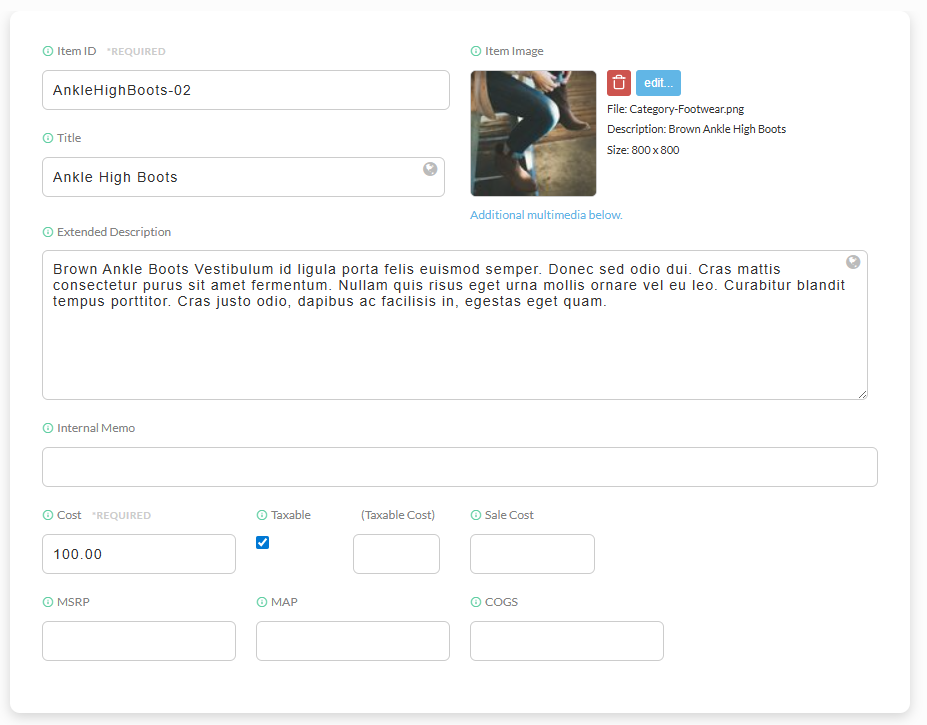
Item Editor Field Descriptions
Top section of Item tab
| Field Name | Description |
|---|---|
| Item ID | The unique identifier for the item. This is a required field and is typically used internally as the product SKU or item code. :::info Please be aware of the following when configuring itemId's: - May be between 2 - 20 characters - No spaces (instead use hyphens or underscores) - Valid characters are: Numbers, Lettters, Hyphens and Underscores - Do Not Use "special characters" such as: !@#$%^&*()+/=\ as these are converted to escape characters when used in a URL. ::: |
| Title | The customer-facing name of the item as it appears in the storefront and throughout the system. |
| Item Image | The primary image associated with the item. This section displays the current image file, description, dimensions, and provides an option to edit or replace the image. |
| Extended Description | A longer product description used to provide detailed information about the item, such as features, benefits, materials, or usage details. |
| Internal Memo | An internal-use-only note field for staff reference. Content entered here is not intended for customer display. |
| Cost | The base cost of the item. This is a required field and is generally used for margin, profitability, and internal accounting purposes. |
| Taxable | Indicates whether the item is subject to tax. Enable this checkbox if the item should have tax applied during checkout. |
| Taxable Cost | The portion of the item cost that should be considered taxable for cost-related tax calculations, when applicable. |
| Sale Cost | An alternate cost value that can be used when the item is on sale or offered at a reduced internal cost. |
| MSRP | The Manufacturer’s Suggested Retail Price for the item. This can be used for reference or display purposes. |
| MAP | The Minimum Advertised Price for the item. This is typically used when a brand restricts the lowest publicly advertised price. |
| COGS | Cost of Goods Sold for the item. This value is used for financial reporting and profitability analysis. |
Quickbooks Section
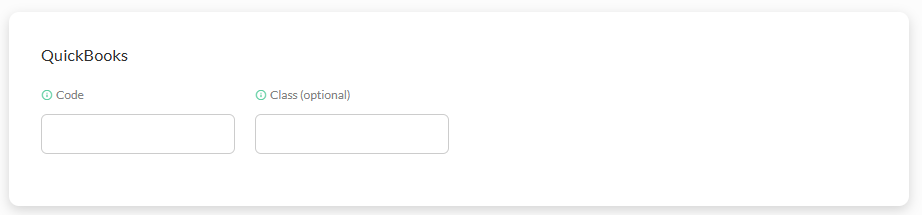
QuickBooks Section in Item Editor
The QB section only appears in the item editor when you have turned on the UltraBooks feature in order to automate downloading of orders into Quickbooks.
*These configuration fields do not apply to the QuickBooks Online integration.
| Field | Description |
|---|---|
| Code | Enter the QuickBooks code associated with the UltraCart Item. |
| Class | Enter the QuickBooks Class for the Ultracart item. |
Shipping section
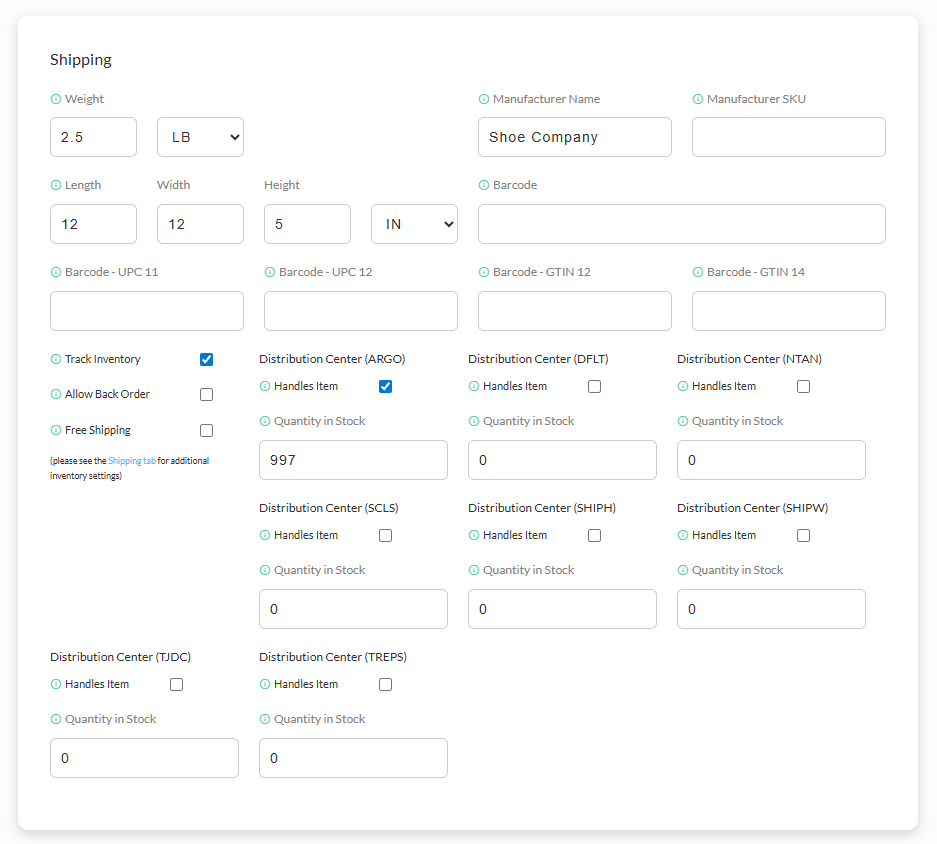
Shipping / Inventory
| Field Name | Description |
|---|---|
| Weight | The shipping weight assigned to the item. This value is used in shipping calculations and carrier rate requests. |
| Weight Unit | The unit of measure for the item weight, such as pounds (LB). |
| Manufacturer Name | The name of the item manufacturer or brand. |
| Manufacturer SKU | The manufacturer’s own SKU or part number for the item. |
| Length | The item package length used for dimensional shipping calculations. |
| Width | The item package width used for dimensional shipping calculations. |
| Height | The item package height used for dimensional shipping calculations. |
| Dimension Unit | The unit of measure for the item dimensions, such as inches (IN). |
| Barcode | A general barcode value for the item. |
| Barcode - UPC 11 | The 11-digit UPC barcode value, if applicable. |
| Barcode - UPC 12 | The 12-digit UPC barcode value, if applicable. |
| Barcode - GTIN 12 | The 12-digit GTIN barcode value, if applicable. |
| Barcode - GTIN 14 | The 14-digit GTIN barcode value, if applicable. |
| Track Inventory | Enables inventory tracking for the item. When enabled, UltraCart tracks available stock quantities for the item. |
| Allow Back Order | Allows the item to be purchased when available inventory is insufficient, placing the item on backorder. |
StoreFront section
| Field Name | Description |
|---|---|
Assignments for [storefront host] | Selects the StoreFront page or assignment rule for the item on the specified storefront host. Each storefront can have its own page assignment. :::info A separate drop-down list will appear for each of your configured storefront hosts. ::: :::info ### Canonical Assignment When an item has been assigned to more than on page within storefront, you will have an optional to choose which one is Canonical by selecting the appropriate checkbox. *For more details regarding canonical links, see: Canonical links ::: :::info Assignments for storefront: Use the ‘Custom URL’ to create ‘URL slugs' to improve SEO with easily readable URI’s. ::: |
Add Assignment (+) | Adds a new StoreFront assignment for the selected storefront host. |
| StoreFront Page | Displays the assigned StoreFront page path for the item, such as a category page or item listing page. |
| Edit StoreFront Page | Opens the assigned StoreFront page for editing. |
| Open StoreFront Page | Opens the assigned StoreFront page in a new window or tab for review. |
| Custom URL | Defines a custom URL slug or path for the item on the assigned StoreFront page. |
| Canonical | Marks the assignment as the canonical page for the item when the item appears on multiple pages. |
| Assignment | Displays how the item is assigned to the page, such as a manual assignment or a rule-based condition. |
| Multimedia | Associates page-specific multimedia with the assignment. This can be used to attach storefront-specific media assets. |
| Delete Assignment | Removes the page assignment row from the storefront assignment table. |
| StoreFront Content | Section heading for storefront-specific content and metadata fields for the item. |
| storefrontSEODescription | A storefront-specific SEO description field for the item. |
| storefrontSEOKeywords | A storefront-specific SEO keywords field for the item. |
| storefrontSEOTitle | A storefront-specific SEO title field for the item. |
| Additional Product Images | Lets you upload and manage additional gallery images for the item beyond the primary image. |
| Upload Image | Uploads an additional product image to the item gallery. |
| Videos | Associates video content with the item for storefront display. |
| Add Video | Adds a video entry to the item. |
| Remove Video | Removes an attached video from the item. |
| Inactive | Makes the item inactive for storefront use. |
| Exclude From Search | Prevents the item from appearing in storefront search results. |
| Exclude From Sitemap | Prevents the item from being included in the storefront sitemap. |
| Exclude From Top Sellers | Prevents the item from being included in top seller displays or calculations. |
| Custom Thank-You URL | Specifies a custom destination URL to send customers to after purchase of the item, when applicable. |
| Search Engine Optimization | Section heading for item page SEO settings. |
Tags section
| Field Name | Description |
|---|---|
| Item | Enter in tags to associate with the item. |
| Customer | Enter tags to associate with customers that purchase the item |
| Order | Enter tags to associate with orders that contain the item. |
Advanced section
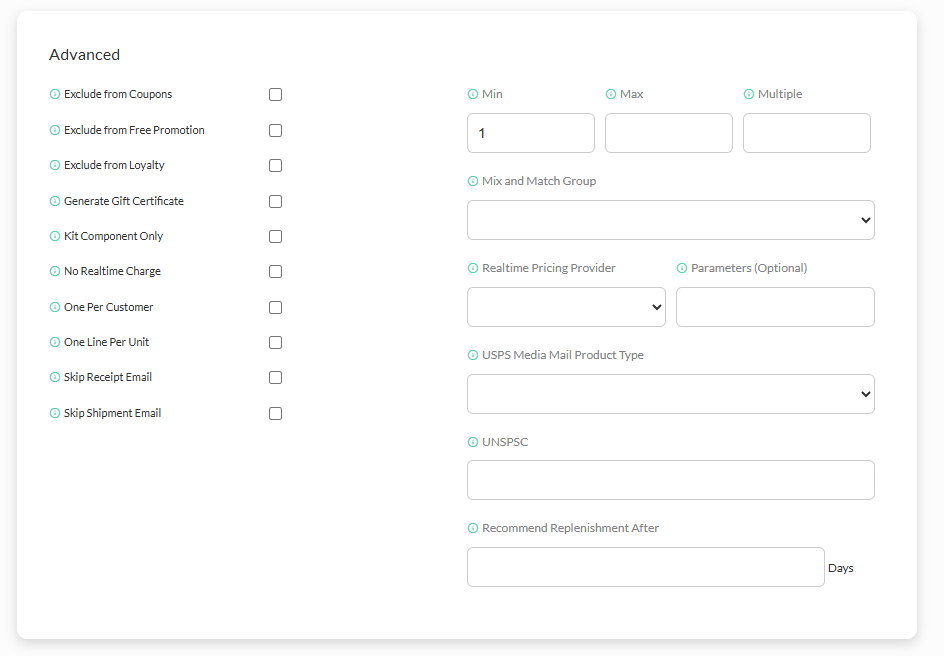
| Field Name | Description |
|---|---|
| Exclude from Coupons | Check this box to exclude this item from coupon calculation. For example if a coupon requires a subtotal of $100 to count, this item would not count toward that total. |
| Exclude from Free Promotion | This item will not apply to a Free Item coupon. Note: If no free promotional items are configured, this field will not appear in the item editor. |
| Exclude from Loyalty | If checked, this item will not apply to loyalty program. |
| Generate Gift Certificate | If checked, and when purchased, UltraCart generates a gift certificate code for the amount of the item. See the Gift Certificates documentation for more details regarding gift certificates. The gift certificate code is included in the order invoice. Once there is one or more gift certificate codes generated for your UltraCart account, a new checkout field will appear on the options page of the checkout process titled "HAVE A GIFT CERTIFICATE?", with a subtext stating: "If your gift certificate does not cover the cost of your order, we will prompt you for additional information about the payment preference that you selected below." NOTE: When selecting an item as a gift certificate item, you can optionally enter an expiration date in the field that appears titled "Gift Certificate Expiration (Days)"to the below the Gift Certificate checkbox. |
| Kit Component Only | When checked, the item can only be added as part of a kit. The item can not be directly purchased. |
| No Realtime Charge | Checking this box will tell UltraCart that when this item is in a cart, to NOT charge the credit card. It will move the order, when completed, to your Accounts Receivable for handling. Keep in mind that this action will occur even if there are other items in the cart that don't have this option checked. |
| One Per Customer | If the ‘one per customer’ box is checked, UltraCart prevents the same customer from purchasing the product again by filtering on the email address and numeric parts of the street address and postal code. If a previous order contains the email or numeric parts of the street address and postal code, the item is restricted from purchase in later orders. :::info ### Note regarding One per Customer when using Test Credit cards The setting for "One per Customer" does not apply to test orders. So if you are using a test credit card on an order this setting is bypassed. This is intended so that testing can take place without any roadblocks that would prevent the test order from being placed. ::: |
| One Line Per Unit | If checked, the item will appear as separate line items in the checkout/placed order record, once there are more than one unit in the cart/order. |
| Skip Receipt Email | No receipt email will be sent to the customer when this item is purchased if this box is checked. |
| Skip Shipment Email | No shipment notification will be sent to the customer if this item is purchased and this box is checked. |
| Min | The setting sets the minimum qty of the item that can be purchased. The default is 1. |
| Max | If configured, sets the max qty of the item that can be placed into the cart for purchase. If a quantity higher than the configured MAX is placed into the cart, a message will be displayed and the qty will automatically be adjusted to the configured max. |
| Multiple | If configured, the item will only be able to be added to the cart in multiples of the amount entered. |
| Mix and Match Group | |
| Realtime Pricing Provider | |
| Parameters (Optional) | |
| USPS Media Mail Product Type | Certain product types effect the calculation of the USPS (United States Postal Service) shipping costs. USPS offers special discounts to these special products. In the menu provided, select one of three (3) special product types: - Book/Software - Music - Editorial. :::info NOTE: The USPS "Media Mail" shipping method will not display at checkout if this option is not selected. ::: |
| UNSPSC | What is the UNSPSC code? The United Nations Standard Products and Services Code [UNSPSC] is a coding system for goods and services. It enables buyers and sellers to describe goods and services in a common way without referring to any suppliers' in-house catalogue codes and descriptions. For more information, see: https://en.wikipedia.org/wiki/UNSPSC https://www.unspsc.org/faqs |
| Recommend Replenishment After | The number of days it takes the consumer to use up the product. After this amount of time, UltraCart will trigger an event to StoreFront Communications. You can setup a flow in StoreFront Communications to make it easy for the customer to re-order. NOTE: This is a required setting for the "Recommend Replenishment" flow in the Public Library. |
Proceed to Items List for more details about the the use of folders for item organization, as well as the differences between Items and Kit Items.
Frequently Asked Questions
**Question: **
I was updating COGS on our items and realized I might be doing it wrong. Few questions:
-
Should I only have COGS on my SKUs that are the actual items shipped?
-
Should I also be adding COGS to kits?
-
Or are COGS calculated in the reporting based on individual items?
-
If I have COGS on kits (and on the component items ), am I getting COGS double counted?
Answer:
We recommend that you do the COGS on the physical item. Kits are just meta items that reference X units of some physical product. So if the kit, for example, is 3 bottles of Vitamin C and the physical product has a COGS of $6 then the total COGS of the order would be $18. You could potentially do COGS at the kit level if you want, but should not configure it on both kits and components, which likely makes the component level the best option. You'll need to pick one way and stay consistent.
**Question: **
When creating an item and choosing 'one per costumer': does it mean that if an item is a free gift it will not ship the item more then once?
Answer:
When the ‘one per customer’ setting is enabled in the item editor's advanced section, the checkout will check the customer's email and the numeric part of their street address. If there is a previous order with the same email or address containing the configured item, a ‘one per customer’ validation error will occur, removing the item from checkout. This validation applies to both gift and non-gift items, preventing checkout completion if a previous order exists with the same criteria.