Auto Order / Payment Plan
Configuring recurring billing and/or an "autoship" schedule for an item in the item editor.
About Auto Orders
The Auto Order feature is typically used for consumables but not necessarily restricted to those (recurring subscriptions are also configured using auto order functionality). There are two different types of auto orders; Customer Selectable (schedule) and Automatic. The Customer Selectable auto order will re-order the same item purchased in the original order. The more popular Automatic auto order is much more flexible, giving you the ability to offer one or more different items for the recurring order. A good example of an Automatic Order would be where you offer a customer a "Free Trial" of a product which, when purchased, enrolls them into an automatic and periodic purchase of the full blown product at normal or discounted prices. The beauty of this feature is that you, the merchant, can configure the auto and recurring orders in various ways.
Auto Order Tab (Item Editor)
To configure an Auto Order, navigate to:
Main Menu → Item Management → Items → Click Item Id → Auto Order [tab]

The Auto Order [tab] is where you will configure the item to become an Auto Order, meaning, when this item is purchased, it will, based upon your settings, automatically create subsequent (auto) orders. As mentioned earlier, merchants can configure two different types of Auto Orders; Customer Selectable and Automatic. You can configure only ONE type per item.
Customer Selectable Auto Order
A Customer Selectable Auto Order is a fairly basic version that automatically re-orders the same item purchased during the original order. It will give the customer the opportunity to select the "schedule" (frequency) they want the order to re-occur. The choice is made during checkout but you (the merchant) will first indicate which recurring schedule options you want to make available for the customer.
The Customer Selectable Auto Orderable Type is compatible with the regular (multi-page) checkout only, so do not select this option if you wish to use the single page checkout.
Click on the radio button to the left of the Customer Selectable field.

Next, set the frequency (schedule) of Auto Order. Click in the check box to the left of the interval(s) that you want to appear in a drop-down menu. The options you select here will appear as a choice for the customer's selection during the checkout process. They will be shown on a special "Auto Order" screen late in the checkout process. The customer will only be able to select one of the options.
| Field Name | Description |
|---|---|
| Free Shipping | If you want to offer the customer free shipping for selecting to be on auto ship, check the Free Shipping box. |
| Cost | If you want to provide shipping at an alternate fixed cost, enter the cost into the cost field. |
| Future Item ID | Allows you to change the item for the recurring order moving forward. |
| Option Name | Description |
|---|---|
| Free Shipping | When checked, the first item that is purchased will qualify for free shipping as well as the rebilled items. Often this is used when offering the customer an optional auto order schedule, but can also be used for fixed schedule auto orders. This option requires that you first configured the qualifying free shipping methods by configuring the free shipping methods with the "Qualifies for Free Shipping" configuration in the shipping method editor. (see: Shipping Method Configuration#FreeShipping) |
| Pause Rebilling | When an auto order item is paused, all active auto orders for that item will push back the orders one day at a time until the auto order item is unpaused. Once the item is unpaused all active auto orders will being rebilling the next midnight. |
| Cancel Other Auto Orders | Checking this box will cancel any other auto order that this customer has when the order is placed. |
| One Per Customer | Check this box to keep a customer from purchasing more than one. This, in theory, is to help prevent abuse. This calculation looks at email and address information on previous orders. Note: Test orders do NOT get checked for one per customer violations. This allows you to repeatedly test your items without being blocked. |
| No Easy Cancel | An Auto Order notification (see below) is normally sent to the customer upon successful ordering. If this box is checked, the order notification will not be sent. The customer will have to contact you by other means to cancel their auto order. |
| Cancel Item ID | If you enter an item ID here, when the customer cancels the auto order will automatically change to charge the customer one more time for the cancel item ID, and then the auto order is cancelled. |
| Cancel Minimum Life Time Value | *This field only appears after the Cancel Item ID is configured. |
| Cancel Minimum Rebill Value | *This field only appears after the Cancel Item ID is configured. |
| Upgrade/Downgrade Item Ids | Enter the Item Id's that will be used to build a customer service friendly drop down list used in the auto order editor page. |
| Refund Other Auto Orders | If a refund is attempted on an order that contains this item, other orders that are part of the same auto order will display for refund as well. This feature is useful if you're doing a payment plan for example. |
| Prohibit Cards Expiring WIthin | The minimum number of months into the future that a card must be good for in order to purchase this auto order item. |
Automatic Auto Order
An Automatic auto order lets you build the recurring schedule yourself, with one or more items, pauses between charges, and repeating cycles. Select the Automatic radio button on the Auto Order tab, then build the schedule in the Steps section.
Steps
An Automatic auto order is a list of numbered steps. Each step has a Step Type, and the type decides which fields the step shows. Click Add Step to create a step. Each step also has add before, add after, and delete buttons, so you can insert a step above or below it or remove it. UltraCart asks you to confirm before it deletes a step.
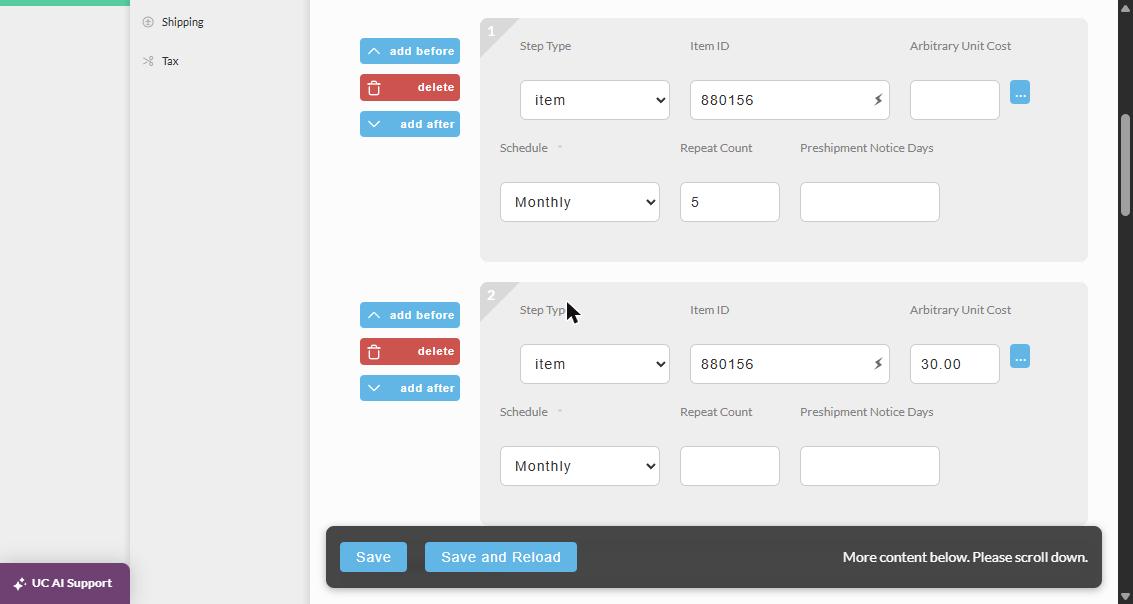
| Step Type | Fields shown | Use it to |
|---|---|---|
| item | Item ID, Arbitrary Unit Cost, Schedule, Repeat Count, Preshipment Notice Days | Charge for an item on a schedule. See Item Step. |
| pause | Delay Days | Wait a fixed number of days before the next step. See Pause Step. |
| pause until | Delay Until Day of Month, Minimum Delay Days | See Pause Until Step. |
| loop | None | Return to step 1 and run the steps again. See Loop Step. |
| kit only | Same fields as an item step | See Kit Only Step. |
Without a loop step, the steps run once, in order. If the last step is an item step and you leave its Repeat Count blank, it recurs indefinitely at its own schedule.
When the last item step has a Repeat Count, the item stops rebilling once those repeats are used. The Repeat Count counts rebills, not the original order. After the final rebill, the item's next shipment date shows 1/1/2030 and the auto order stays enabled. To contact customers at that point, for example to ask them to renew, see Flow - Renewal when an auto order item's schedule ends.
Item Step
Here you will tell UltraCart which Store Item will be involved in the recurring order process. This may be the same or a different item. You must configure at least one Item Step. Some merchants will configure more than one item in their auto order program and will therefore create additional Item Steps.
To create your first Item Step, click Add Step and leave the Step Type set to item. A new set of fields will appear that require completion. You will see the statistics of the first (original) order listed under the Sample Order Schedule.

| Item Step fields | Description |
|---|---|
| Step Item ID | Enter the ID of the store item that you want to be ordered automatically. This can be the original item or it can be a different item. |
| Arbitrary Unit Cost | If applicable, you can enter a cost that is different the the cost defined for the item in the Cost field on the Item tab of the item editor, otherwise leave this field blank. :::info ### Arbitrary Unit Cost vs. Override Unit Cost Please note that the Arbitrary Unit Cost will apply an Override Unit Cost in each auto order customers' auto order record. So, if for example you are providing discounts to certain customers by editing their auto order and using the Override Unit Cost, but the auto order item is configured with an arbitrary cost, then each time a new order is processed, the arbitrary unit cost applied at the auto order item will override the cost you manually set at the customers auto order record. ::: |
| Schedule | Select, via the drop-down list, how often the order will reoccur. The customer will not be offered a choice on the recurrence frequency like they are in the customer selectable auto order. See Schedule options for the full list. |
| Repeat Count | This feature allows the merchant to indicate how long you want the recurring order to occur. For example, if the merchant advertises a "free trial" (the first order) along with a 6 month enrollment, you would enter a 6 in the box. Leave this field blank for indefinite reorder schedule. |
| Pre-shipment Notice Days | The number of days before the next shipment that the customer should be notified. The customer will receive an email letting them know the next product that will be shipped to them, the date, and provide them a link they can click to cancel the shipment. The email that is sent to the customer is configured under the Email Templates section of the Configuration Menu. |
Schedule options
The Schedule drop-down on an item step offers 17 options, in this order. The drop-down also opens on a blank entry at the top, which is not one of the 17.
- Weekly
- Every...
- Every 10 Days
- Biweekly
- Every 4 Weeks
- Every 6 Weeks
- Every 8 Weeks
- Every 24 Days
- Every 28 Days
- Monthly
- Every 45 Days
- Every 2 Months
- Every 3 Months
- Every 4 Months
- Every 5 Months
- Every 6 Months
- Yearly
Choose Every... for an interval that is not in the list. A Days box appears next to the drop-down. Enter a number, and the step recurs every that many days.
Click Save when you finish, or add pause, loop, and more item steps to build a more elaborate schedule.
Clicking the auto order tab will cause any changes made to be saved while leaving you in the auto order tab to immediately review the Sample Order Schedule.
After you configure the details of your Item Step, it will list all of the repeat counts providing an excellent preview of how the Auto (recurring) Order will work. In the following example we have configured a single Item Step for the Kit Item ID "Earth_Tone_Teapot" to auto ship Item "Earth_Tone_Teapot" on a Monthly schedule to indefinitely. If your auto order deals with only one item and you have no need for any delays on the recurring order(s), then this example will probably be all you need.

To add another item to the schedule, click add before or add after on an existing step and leave the new step's Step Type set to item. Fill in the same fields as the first item step. The steps renumber automatically.
Pause Step
A pause step waits a fixed number of days before the next step runs. For example, you might send a one-week trial of a supplement with the original order, then start a recurring order a week later.
- On the item step, click add before. A new step appears above it, and the steps renumber to 1 and 2.
- Set the new step's Step Type to pause.
- In Delay Days, enter how many days to wait. For a one-week trial, enter 7.
- Click Save.
In the following screenshot, step 1 is a 7-day pause and step 2 is an item step on Every 28 Days. The Sample Order Schedule shows the first recurring order (in the red box) 7 days after the original order, and each later order 28 days after the one before.

Pause Until Step
A pause until step shows two fields:
| Field | Description |
|---|---|
| Delay Until Day of Month | Required. The day of the month the pause runs until. |
| Minimum Delay Days | Optional. At most 31. |
Loop Step
A loop step has no fields. It returns the schedule to step 1 and runs the steps again, indefinitely. Use it when you want a pattern of charges to repeat.
For example, to charge twice a year, two months apart, repeating every year:
- Step 1: item, Schedule Every 2 Months, Repeat Count 1.
- Step 2: item, Schedule Every... with 304 Days, Repeat Count 1.
- Step 3: loop.
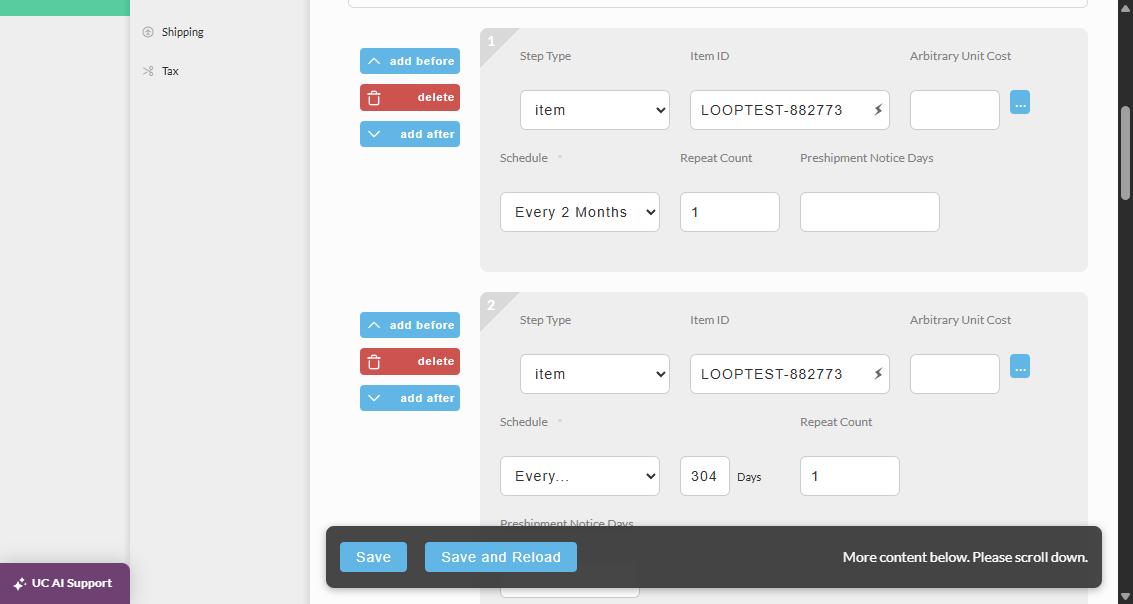
For an original order on 10/22/2026, the Sample Order Schedule shows 12/22/2026, 10/22/2027, 12/22/2027, and so on: two charges a year, repeating.
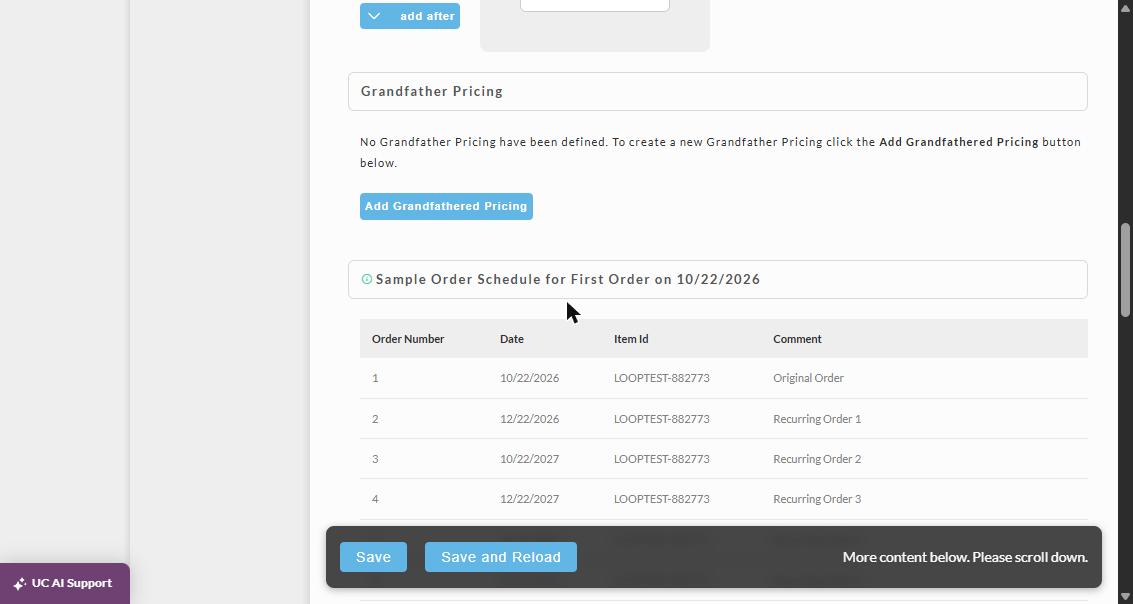
Every... counts days, not calendar months, so the dates shift one day earlier after each leap day. In this example the 2028 orders fall on 10/21/2028 and 12/21/2028. The shift adds up: every later leap day moves the dates one more day earlier, so over many years the charges drift away from the original calendar dates. Check the Sample Order Schedule if the exact day of the month matters to you.
Kit Only Step
A kit only step shows the same fields as an item step.
Grandfathered Pricing
Everyone can remember their grandparents telling us things like "I remember when a gallon of milk cost 45 cents a gallon in 1930" and other phrases like that. Inflation is a reality in our world and often businesses have to raise their prices to keep up with it. So what happens if you have several thousand customers on recurring auto orders and want to raise the price on new customers going forward? Previously you had to configure a separate set of items within your UltraCart account, but now you can utilize the grandfathered pricing feature to establish a different price schedule.
Given a standard auto order schedule as shown below, click the +grandfathered pricing button as shown below. (accessible from the Advanced View)

Now let's say that anyone who ordered before the end of 2015 will continue to receive the product at $18.95, but all new orders will be the regular price of $20.00. Notice that we enter the last date to receive the pricing "12/31/2015" into the date field, set the price to 18.95, and then click Save and Reload.
Notice that a second sample schedule will appear show the prices that the customer will receive if they placed their order on or before the grandfathered date.

Updated Rules Regarding Subscriptions from Visa
Updated rules regarding Subscriptions purchases
**Update Merchant Obligations **
From 18 April 2020, globally, merchants selling both
physical and digital goods and services who offer free trials
or discounted introductory offers as part of a subscription
(“recurring”) service, must comply with the updated
requirements1
. Following is a Quick Reference card with a
summary of the requirements:
-
Express Consent At the time of enrollment, merchants must require the cardholder to expressly consent to entering an ongoing subscription service for recurring payments.
-
At the time of enrollment, merchants must provide a copy
(i.e., email or SMS/text, or other delivery method, if agreed
with the cardholder) of the terms and conditions of the
subscription service to the cardholder, even if no amount
was due at the time. This must include:
• Confirmation that the cardholder has agreed to a
subscription, unless the cardholder cancels.
• The start date of the subscription.
• Details of the goods/services.
• Ongoing transaction amount and billing frequency/date.
• Link or other simple mechanism to enable the cardholder
to easily cancel any subsequent transactions online.
Merchants must also send a reminder notification (i.e., email
or SMS/text) including a link to online cancellation policy at
least seven (7) days before initiating a recurring transaction if:
• A trial period, introductory offer, or promotional period is
about to expire.
• The nature of the recurring agreement has changed
(for example, the price or billing period). -
Explicit Transaction Receipts
Merchants must disclose the following on
transaction receipts:
• Length of any trial period, introductory offer, or
promotional period, including clear disclosure
that the cardholder will be charged unless the
cardholder takes steps to cancel any subsequent
transactions.
• Transaction amount and date for the initial
transaction (even if no amount is due) and for
subsequent recurring transactions.
• A link or other simple mechanism to enable
the cardholder to easily cancel any subsequent
transactions online -
Statement Descriptor
An additional descriptor indicating a trial
period-related transaction will be required in the
Merchant Name field of the Clearing Record for the
first transaction at the end of a trial period.
This descriptor (for example, “trial,” “trial period,”
“free trial”) will then appear on cardholder
statements, online banking, mobile apps, and
SMS/text alerts, in the same way discretionary,
additional invoice/order numbers appear for
electronic commerce transactions. -
Easier Cancellation
Merchants must provide an easy way to cancel the
subscription or payment method online, regardless of
how the cardholder initially interacted with the merchant
(for example, a pop-up store in a shopping mall,
door-to-door sales, or a TV/Radio ad). -
Expanded Dispute Rights
The existing dispute condition of “Misrepresentation”
will be expanded, specifically for transactions where
merchandise or digital goods have been purchased
(i) through a trial period or (ii) as a one-off purchase, and
the cardholder was not clearly advised of further billing
after the purchase date.
Merchants can remedy the dispute by proving that they
have acted appropriately, provided they can show:
• The cardholder expressly agreed to future transactions
at the time of the initial interaction; and
• The merchant electronically notified the cardholder
(based on the details the cardholder provided) before
processing new transactions following the trial/
promotional period. -
To ensure the new requirements are being met,
Visa will undertake proactive monitoring.
Link to notice:
Related Documentation
Auto Order Processing Configuration screen (must be logged n to access)
Converting a Regular Order to Auto Order
Allowing the Customer to Cancel an Auto Order
Giving an Auto Order Customer One Free Item