Discounts & Pricing Tiers Tab
UltraCart offers two distinct methods for creating custom pricing: Discounts and Pricing Tiers. While both allow you to offer reduced prices, they serve different purposes and are configured differently.
This guide clarifies the differences and provides instructions for setting up each.
Volume Discounts
Volume discounts are automatic, public-facing price reductions based on the quantity of a specific item purchased. They are available to all customers and are ideal for encouraging larger purchases of a single product.
How It Works
You define a set of quantity ranges and a corresponding price per unit for each range. When a customer adds an item to their cart, UltraCart automatically calculates the best price for them based on the quantity.
If a customer is also part of a pricing tier, UltraCart will compare the volume discount price to the pricing tier's price and apply the lowest possible price to the item.
The storefront's volume discount table does not always show every tier you configure. In one verified case, an item with two tiers, 3 for $44.00 and 6 for $39.00, and a $39.00 sale price, displayed only the 6 for $39.00 row. If you enter multiple tiers and see fewer on the storefront, your save did not fail.
Setting up Volume Discounts
-
Log in to your UltraCart dashboard and navigate to the item you want to edit.
-
Select the Discounts/Pricing Tier tab for the item.
-
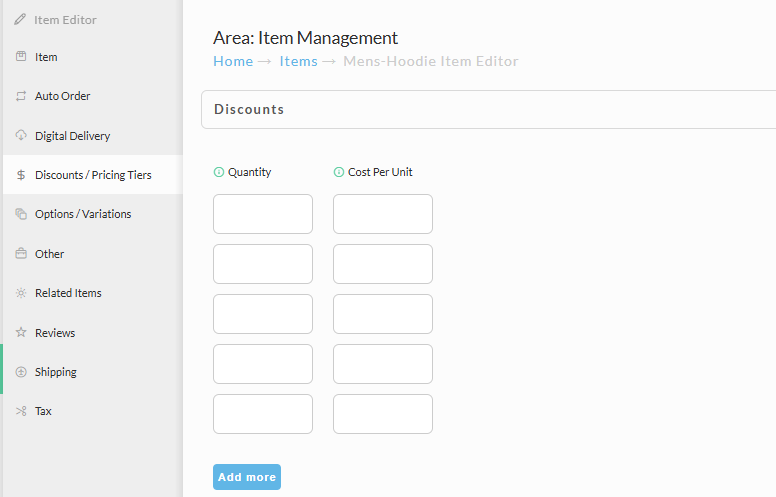
In the Discounts section, enter the quantity ranges and the unit price for each range.
-
Use the Add More button if you need more than five rows.
-
Click Save to apply your changes.
Pricing Tiers
Pricing Tiers allow you to offer custom pricing and special settings to specific, authorized groups of customers (e.g., wholesalers, distributors, VIPs). Unlike volume discounts, these tiers are not available to everyone.
How It Works
Pricing tiers are created and managed separately from item pricing. You can assign a customer to one or more pricing tiers within their customer profile. Once a customer with an assigned tier logs in, they will automatically see the custom pricing you've configured for them.
Pricing Tiers can also include special settings that apply to an entire customer group, such as:
-
Tax Exempt: Automatically makes a customer's order tax-exempt.
-
Allow Purchase Order: Allows the use of purchase orders.
-
Allow COD: Enables Cash on Delivery as a payment option.
-
Free Shipping: Waives shipping fees for the customer.
Prerequisite: To use Pricing Tiers, you must have Customer Profiles enabled in your store.
Setting up a Pricing Tier
-
Navigate to Main Menu > Operations > Customer Profiles > Pricing Tiers in your UltraCart dashboard to create a new tier (e.g., "Wholesale" or "Distributor").
-
After you've created your pricing tiers, go to the item you wish to configure.
-
Select the Discounts/Pricing Tier tab for the item.
-
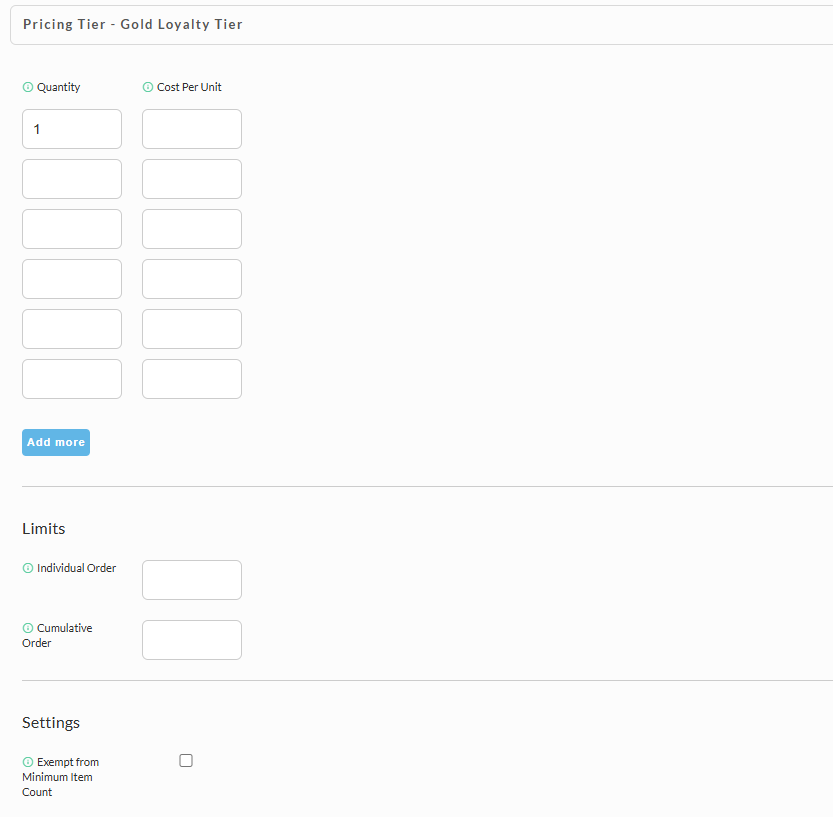
In the Pricing Tiers section, you will find a configuration area for each tier you've created.
-
For each pricing tier, you can set a specific unit price and tiered volume discounts, just as you would for a public discount.
-
Click Save to apply your changes.
Volume Limits
Within Pricing Tiers, you can set maximum quantity limits for specific customer groups. This is useful for controlling how much a wholesale or distributor can order.
You can specify:
-
A maximum quantity for a single order.
-
An overall maximum quantity across all orders.
Automatic Pricing Tiers
The Automatic Pricing Tier setting grants a pricing tier to the shopping cart when this item is added to it. Use it when buying the item should give member pricing on the rest of the same order, for example a club membership sold alongside other products.
To set it up:
- Create the pricing tier under Configuration → Items → Pricing Tiers.
- Open the item and select the Discounts/Pricing Tier tab.
- In the Automatic Pricing Tier section, choose the tier from the dropdown.
- Click Save.
How it behaves:
- The tier applies as soon as the item is in the cart, whether or not the customer is logged in. Other items in the cart price at the tier right away.
- If the item is removed from the cart, the tier is removed and prices return to retail.
- The tier is not saved to the customer profile when the order is placed. After checkout the customer does not keep the tier on later orders, including when a profile is created automatically or the customer was logged in.
Confirmed in a demo account with a $0.00 item on the legacy checkout and an Elements StoreFront multi-page checkout. Behavior on a paid order or on SinglePage Checkout has not been verified.
Giving customers lasting access to a tier
To keep a customer in a tier after purchase, for example for a members-only area or ongoing member pricing, assign the tier to the customer profile instead of relying on the Automatic Pricing Tier setting. You can do this two ways:
- Manually, on the customer's Billing tab.
- Automatically, with the Customer REST API, setting the customer object's
pricing_tiersfield. This is typically triggered from an order webhook once the order completes.
UltraCart does not remove a tier from a profile when the order is refunded or cancelled, so build that removal into the same logic.
Related pages
- Pricing Tiers -- create and configure the tiers themselves
- Configuration - Customer Profiles -- enable customer profiles on your store
- Billing addresses and payment settings -- assign a tier to a customer profile manually
- StoreFront Pages -- restrict a StoreFront page to a pricing tier