Item Management: Kit Items
A kit sells a group of items together as one product. Shoppers see one item with one price. Behind it, you list the regular items that make it up, and UltraCart tracks each of them.
Use a kit for a gift set, a starter pack, a "buy the set" price, or any group you want to sell under one Item ID.
Navigate: Main Menu → Items → Item Management, then Add → Add Kit
How a kit works
- The kit has its own Item ID, title, and price. That is what the shopper adds to the cart, and the cart shows the kit as a single line at the kit's price.
- The components are regular items. You create them first, then point the kit at them.
- Inventory comes from the components. When a kit sells, UltraCart takes the configured quantity of each component out of stock. The kit holds no inventory of its own.
- Fulfillment sees the components. A warehouse or fulfillment partner picks the component items, not the kit. On an order, the component rows carry the weight and dimensions used for shipping. See Editing items in a placed order.
- Kits do not support item options. See Item Options.
Create a kit
Create the regular component items first, with Item IDs you will not change.
-
Go to Main Menu → Items → Item Management.
-
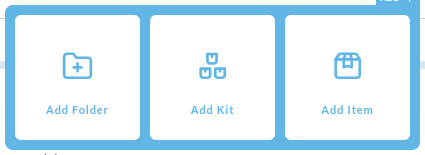
Open the folder you want the kit to live in, then click Add and choose Add Kit. The choices are Add Folder, Add Kit, and Add Item.
-
In the kit editor, fill in the Item ID, Title, and Cost, the same as for any item. Item ID and Cost are required.
-
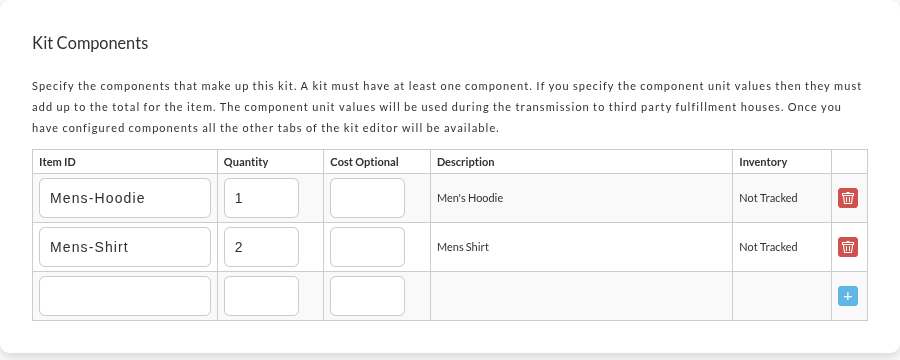
In Kit Components, add each component:
- Type the component's Item ID. Matching items appear as you type, and the Description fills in when you pick one.
- Enter the Quantity of that component in one kit.
- Optionally enter a Cost for the component. See Component cost.
- Click the blue + button at the end of the row. A new empty row appears.
-
Click Save and Reload.
To edit a kit later, click its Item ID in the item list.
A kit must have at least one component. Until you add one, the other tabs of the kit editor are not available. To remove a component, click the red trash button at the end of its row.
A kit shows only in the folder where you created it. If you manage many kits, keep them together in one dedicated folder.
The kit appears in your item list with its own icon, so you can tell it from a regular item.

You can also make a kit from existing items: select them in the item list and click the Convert to Kit icon. See Item Management.
Component columns
| Column | What it holds |
|---|---|
| Item ID | The Item ID of the component. |
| Quantity | How many of this component go into one kit. |
| Cost (optional) | The component's value, sent to a third-party fulfillment house. See Component cost. |
| Description | The component's title, filled in for you. |
| Inventory | The component's stock status, such as Not Tracked. |
Component cost
The editor says that if you enter component values, they must add up to the kit's total, and that UltraCart uses them when it sends the kit to a third-party fulfillment house. Fill them in if you bill through a fulfillment center, because without them UltraCart estimates a cost for each component from the kit's value.
Free shipping for a kit
The kit editor has its own Free Shipping checkbox. Check it and save.
Free shipping always depends on the shipping method too: an item is only free on methods set to qualify. See Free Shipping.
Digital items
You can add a digital delivery item as a kit component, or set it up on the Digital Delivery tab of the kit itself. That supports mixed physical and digital bundles under one Item ID.
Frequently asked questions
How does a kit item transmit to fulfillment companies or ShipStation?
UltraCart sends the individual component items and their quantities. The kit's own Item ID is not sent as a line item.
- A kit
heartwith oneBFOand oneCOsends two lines:BFO(quantity 1) andCO(quantity 1). The fulfillment system never receives a line calledheart. - A kit
CO3with three units ofCOsends three units ofCO, not one line calledCO3.
This way pickers pull the right physical products and quantities. Most integrations, including ShipStation, expand kits to their components on export. Test with a sample order to confirm the format your fulfillment provider expects.
What happens to inventory when a kit sells?
UltraCart takes the configured quantity of each component out of that component's inventory. The kit item has no separate inventory. It is a selling and pricing convenience that drives component-level stock changes.
Should the component items exist before the kit?
Yes. Create the regular items and give them stable Item IDs first, then build the kit and enter those IDs as components. That keeps inventory, fulfillment exports, and reporting linked correctly.
Next steps
- Item Management for the item list, folders, and Convert to Kit.
- Free Shipping for how items and shipping methods work together.