Item Variations
Variations let one product page sell several real items. A shopper picks a size, a color, or any other choice, and the item that matches that combination goes into the cart. Because each combination is its own item, each one has its own SKU, its own inventory, and its own price.
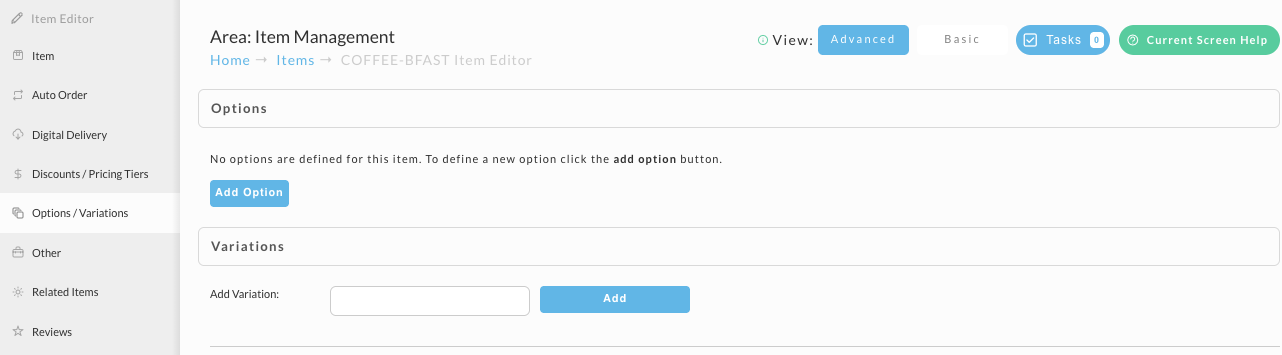
Navigate: Main Menu → Items → Item Management → [open the item] → Options / Variations
How variations work
Variations use two kinds of item:
- The parent item is the product shoppers see. It holds the variations, such as Size and Color, and their values, such as Small and Black. It is never added to the cart itself.
- Child items are the real items, one for each combination, such as
SHIRT_Small_Black. When a shopper picks Small and Black, that child item goes into the cart. Each child tracks its own inventory.
Variations or options?
Both let a shopper choose details about a product, and the Options / Variations tab offers both. The difference is what lands in the cart:
| Options | Variations | |
|---|---|---|
| What goes in the cart | The same item, with the choice attached | A different child item for each combination |
| Inventory | One count for the whole item | A count for each combination, so one size can sell out on its own |
| Price | Set on the one item | Each combination can have its own price |
| Setup | One item | A parent item plus a child item for each combination |
Use options for details that do not change what you ship, such as a gift message. Use variations when each combination is a different thing on your shelf.
Use only letters, numbers, hyphens, and underscores in the item IDs of parent and child items. A
space or a character such as +, <, >, &, ", or ' can break the script that powers the
variation selectors on your product page.
Create variations with the Variation Wizard
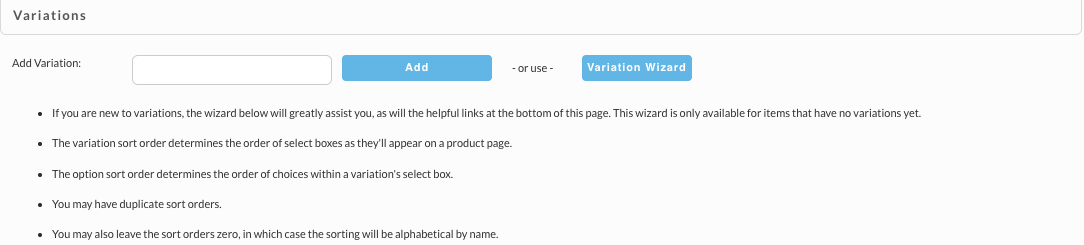
The wizard is the quickest way to start. It creates the variations, their values, and every child item in one pass. It is only offered on an item that has no variations yet.
-
Create the parent item, or open an existing item that has no variations, and go to its Options / Variations tab.
-
In Variations, click Variation Wizard.
-
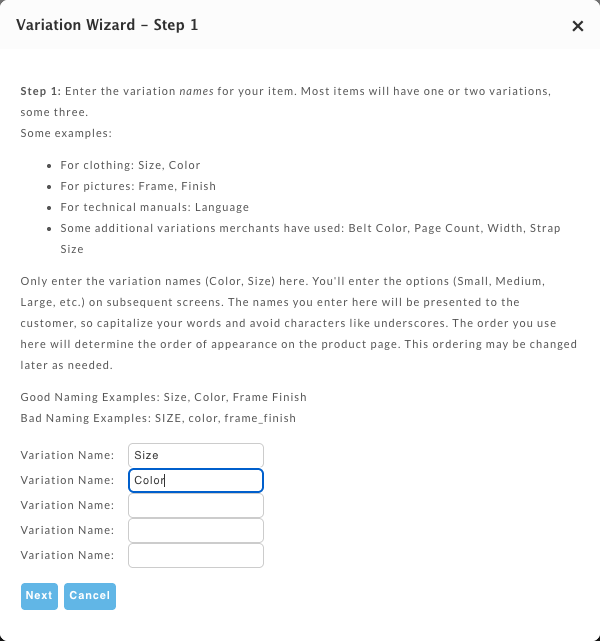
Step 1: enter the variation names, one per box, up to five. Most items have one or two, such as Size and Color. Shoppers see these names, so capitalize them and avoid underscores. The order you enter them is the order they appear on the product page. Click Next.
-
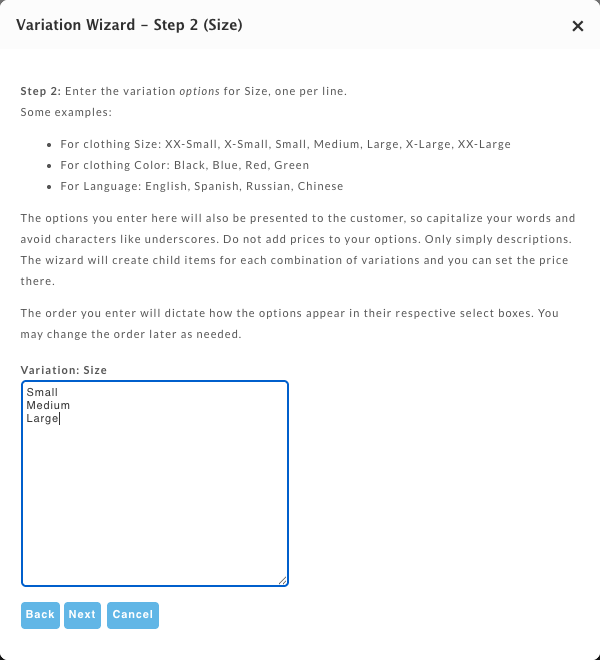
Step 2 and on: for each variation in turn, enter its values, one per line, such as Small, Medium, and Large. Shoppers see these too. Do not put prices in them: you set prices on the child items. Click Next after each.
-
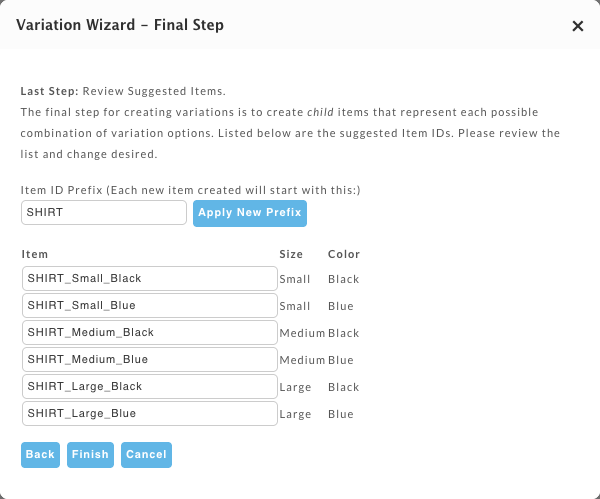
Final step: review the suggested child item IDs, one for every combination. They start with the Item ID Prefix. Change the prefix and click Apply New Prefix to regenerate them, or edit any ID by hand. Items that do not exist yet are created.
-
Click Finish. Cancel at any step closes the wizard without creating anything.
The tab now shows your variations and the Variation Item Assignments table. Open each new child item to set its price, inventory, weight, and anything else that differs between combinations.
Create variations by hand
Use this route when the child items already exist, or when you want full control over their IDs.
- Create the child items first, one for each combination. A shirt in three sizes and two colors needs six. The Copy tool in Item Management speeds this up.
- Create the parent item and open its Options / Variations tab.
- In Add Variation, type a variation name, such as Size, and click Add. Repeat for each variation.
- Under each variation, type a value in New Variation Value and click Add New. Repeat for each value.
- In Variation Item Assignments, assign each child item:
- Type the child's Item ID.
- Choose the value it represents for each variation.
- Leave Qty at 1, unless a choice should add several of the item. See Variation settings.
- Click Add.
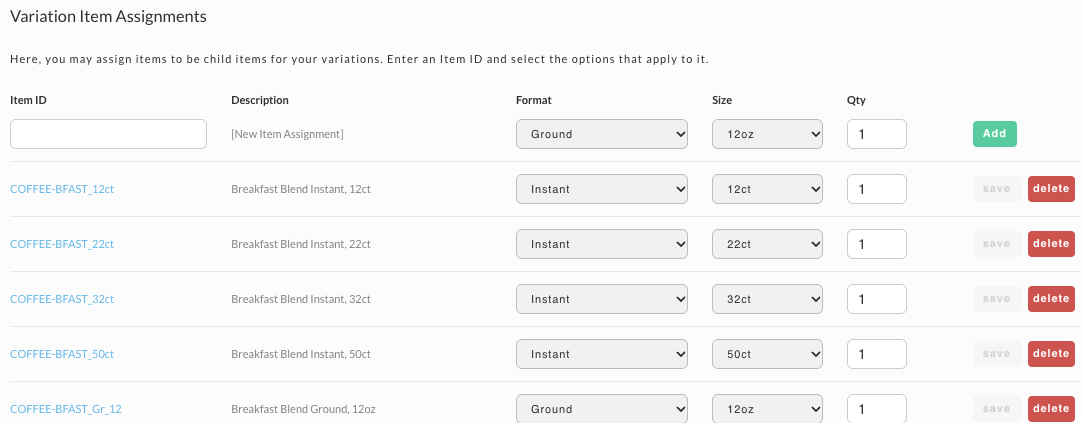
Most of this screen saves as you go. Each Add, Add New, Make Default, and delete takes effect as soon as you click it. Editing an existing assignment is different: change its values or Qty, then click save on its row to keep the change. The button is greyed out until you change something.
Create variations by batch import
For a large catalog, set variations up in a spreadsheet and upload it with the Batch Item Import tool.
- List the parent item first, then all of its child items.
- For each variation, add three columns, and map them in the import to the Variations fields Name, Parent Item ID, and Value. The import supports up to 10 variations.
- On each child item's row, fill in the variation name, the parent's item ID, and the child's value. Keep the name and parent identical on every row.
For a shirt in two sizes and two colors, the variation columns look like this:
| Item ID | Variation 1 Name | Variation 1 Parent Item ID | Variation 1 Value | Variation 2 Name | Variation 2 Parent Item ID | Variation 2 Value |
|---|---|---|---|---|---|---|
| SHIRT | ||||||
| SHIRT_Small_Black | Size | SHIRT | Small | Color | SHIRT | Black |
| SHIRT_Small_Blue | Size | SHIRT | Small | Color | SHIRT | Blue |
| SHIRT_Large_Black | Size | SHIRT | Large | Color | SHIRT | Black |
| SHIRT_Large_Blue | Size | SHIRT | Large | Color | SHIRT | Blue |
Your spreadsheet also carries the usual columns, such as description, cost, and weight.
Start every child item ID with the parent's ID, as in SHIRT_Small_Black. Sorting the spreadsheet
by item ID then always puts the parent first.
Variation settings
| Setting | What it does |
|---|---|
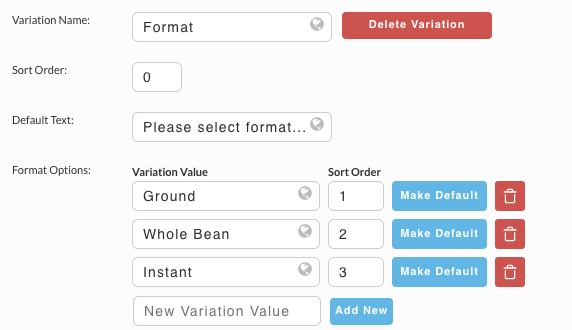
| Variation Name | The name shoppers see above the selector. Delete Variation removes it. |
| Sort Order (beside the name) | The order of the selectors on the product page. |
| Default Text | The prompt shown before a shopper picks, such as "Please select size...". |
| Sort Order (beside each value) | The order of the values within the selector. |
| Make Default | Pre-selects this value, so shoppers only change it if they want something else. |
| Qty (in Variation Item Assignments) | How many of the child item one selection adds to the cart. Set it to 2 and choosing that combination adds two. The product page price reflects it. |
Sort orders can repeat. If you leave them all at zero, values sort alphabetically by name. Value names are limited to 50 characters, and anything longer is cut off.
Troubleshooting and good practice
- A selector is empty, or a value is missing. A child item does not appear when it is out of stock or inactive. If the child tracks inventory, make sure it has stock available. Then check that it is active.
- Variations will not save on an item. You cannot configure variations on an item that is itself a child item. Use a separate parent item.
- Sale prices. Set the sale cost on the parent and on every child item. The child is what goes into the cart, so a sale price on the parent alone does not reach the shopper.
- Deleting. Deleting a variation, a value, or an assignment takes effect immediately, with no confirmation, so check before you click.
- jQuery. The variation selectors need jQuery 1.7.2. The buy form includes it automatically if your page does not already load it.
Frequently asked questions
My parent item has 3 color options and 2 size variations. Do I include the colors on the child items, or are the options passed through?
Neither. Variations map each combination a shopper can buy to a specific item, so if a shopper picks Large and Green, the cart gets the item that represents Large Green. Every purchasable combination needs its own child item. Remove the color option from the parent, add Color as a second variation, and assign a child item for each size and color combination.
Why does my checkout form say "Variation '[name]' not found on this item" after I renamed a variation?
Renaming a variation on the item does not update StoreFront Visual Builder elements that refer to the old name. Any element with a Variation Name setting breaks as soon as the names stop matching. Open the StoreFront editor, select the affected element (usually a Quantity or variation selector), and update Variation Name in its Settings panel to the new name. Save and reload the form to confirm the error is gone.
Do I set the sale price only on the parent item?
No. Child items are what go into the cart, so set the sale cost on the parent and on all child items.
Can I apply a sale cost with the Price Update tool?
No. The Price Update tool does not include sale cost. It updates the retail cost, any pricing tiers, and COGS. Unless you use the retail cost field to run a sale, set the sale cost in the item editor or with Batch Item Export and Import. See Updating sale pricing in bulk.
My child items do not appear in the selector. What should I check?
- That you have a separate parent item and child items. Variations cannot be configured on an item that is itself a child.
- That each child item with Track Inventory turned on has inventory available. An item that is out of stock does not appear.
- That the child items are not set to inactive.