Pricing Tiers
A pricing tier is a named group of pricing and checkout rules. When a tier applies to a customer, usually because it is assigned on their customer profile, they get the tier's discount off retail and follow its rules at checkout. Use tiers for wholesale and business buyers: for example, 20 percent off retail, tax exempt, and the option to pay by purchase order.
Navigate: Main Menu → Configuration → Items tab → Pricing Tiers
You can also reach it from the customer profile menu: Customers → Pricing Tiers.
Create a pricing tier
-
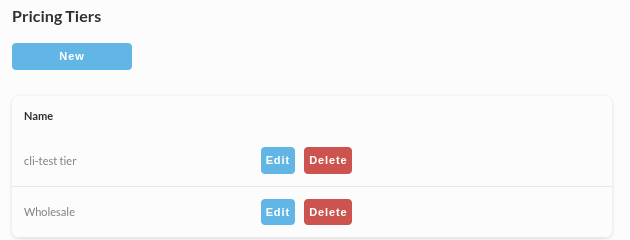
Open Pricing Tiers. The list shows each tier with Edit and Delete buttons.
-
Click New.
-
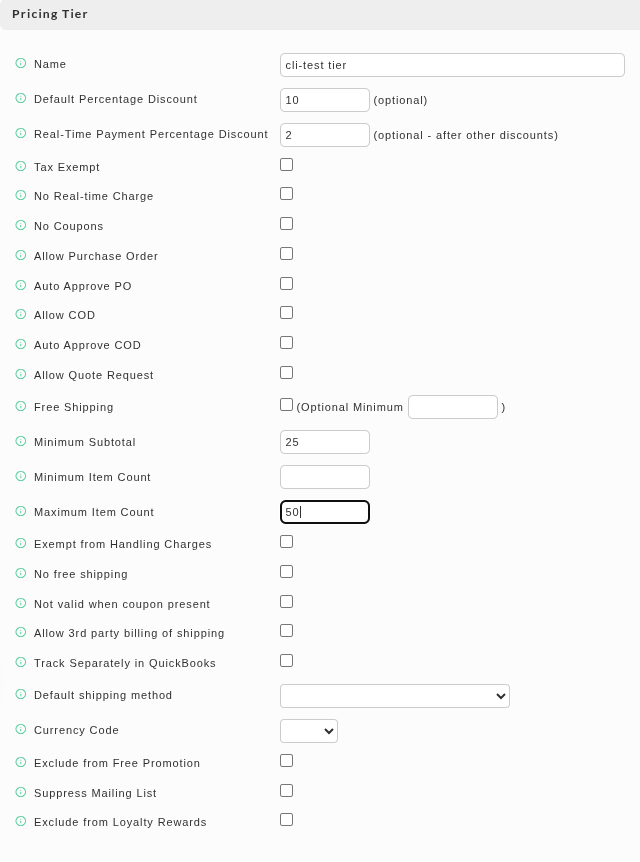
Fill in the Pricing Tier form. Hover over the information icon beside a field to read the same description in the admin.
-
Click Save. The screen returns to the list and the new tier appears.
To change a tier, click Edit, change it, and save. Click Delete to remove a tier. Deleting does not ask for confirmation.
Pricing tier fields
Pricing and payment
| Field | What it does |
|---|---|
| Name | Tells this tier apart from your others. |
| Default Percentage Discount (optional) | The percentage off retail a customer gets when this tier is on their customer profile. It does not apply to an item that has its own price for this tier. |
| Real-Time Payment Percentage Discount (optional, applied after other discounts) | A discount for a business customer who pays right away. Business terms such as "2/10 net 30" reward early payment, so a customer who pays immediately gets the discount, for example 2%. |
| Tax Exempt | Does not charge the tax you have configured. |
| No Real-time Charge | Puts the order in accounts receivable to wait for your approval before payment is processed. |
| Currency Code | The currency this tier uses at checkout. |
Purchase orders, COD, and quotes
| Field | What it does |
|---|---|
| Allow Purchase Order | Lets customers on this tier pay by purchase order. |
| Auto Approve PO | Accepts the purchase order without waiting for your approval in accounts receivable. |
| Allow COD | Lets customers pay cash on delivery. |
| Auto Approve COD | Accepts the COD order without waiting for your approval in accounts receivable. |
| Allow Quote Request | Lets customers on this tier ask for a quote. See Quote Request. |
Order limits and coupons
| Field | What it does |
|---|---|
| Minimum Subtotal | The least a customer on this tier must spend to check out. |
| Minimum Item Count | The fewest items a customer on this tier must buy to check out. |
| Maximum Item Count | The most items a customer on this tier can buy in one order. |
| No Coupons | Stops customers on this tier from using coupons. |
| Not valid when coupon present | If the customer uses a coupon, this tier no longer applies to the order. |
Shipping and handling
| Field | What it does |
|---|---|
| Free Shipping | Does not charge shipping. You can set an optional minimum order size to qualify. |
| No free shipping | Overrides your free shipping settings so this tier always pays shipping. |
| Exempt from Handling Charges | Does not add your predefined handling charges. |
| Default shipping method | The shipping method pre-selected for this tier. Your shipping methods appear in the list. |
| Allow 3rd party billing of shipping | Only for merchants that use Interact Fulfillment. |
Marketing and reporting
| Field | What it does |
|---|---|
| Track Separately in QuickBooks | Always tracks orders on this tier separately in QuickBooks. |
| Exclude from Free Promotion | Customers on this tier do not get a free promotional item. |
| Suppress Mailing List | Does not subscribe customers on this tier to third-party marketing services. |
| Exclude from Loyalty Rewards | Customers on this tier are not eligible for loyalty rewards. |
Give an item its own price for a tier
The default percentage discount is a blanket rule. To price one item differently for a tier, open the item in Item Management and go to its Discounts / Pricing Tiers tab. Each tier has its own section there, with Quantity and Cost Per Unit columns, so you can set a unit price, or a quantity-break price, for that tier. See Discounts / Pricing Tiers tab.
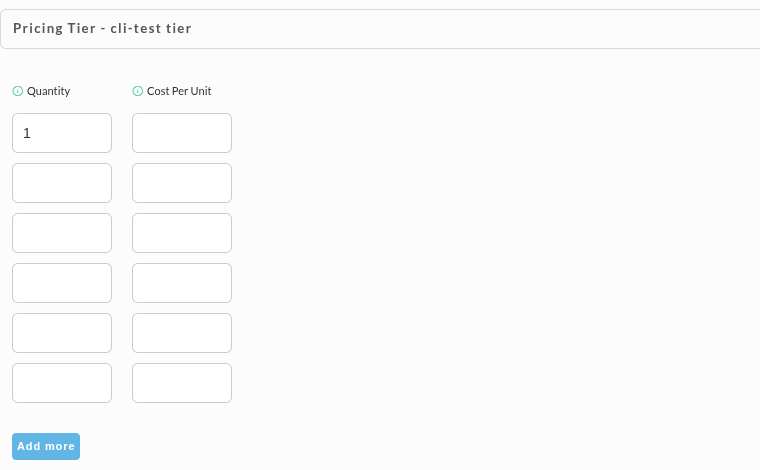
When an item has its own price for a tier, that price is used instead of the tier's default percentage discount. If a volume discount on the item also applies, the customer gets the lower of the two prices.
Assign a tier to customers
To give a customer a tier on every order, assign it on their customer profile. Open the profile from Main Menu → Customers → Manage, go to the Billing tab, and look for the Qualifies for [tier name] Pricing Tier checkboxes, one for each tier you have created. Check the tier, then click Save Changes. The same area has Min Subtotal, Min Item Count, and Max Item Count for that one customer. See Billing addresses and payment settings.
An item can also grant a tier to the cart with no profile involved: set Automatic Pricing Tier on the item's Discounts / Pricing Tiers tab, and the tier applies to the whole order while that item is in the cart. See Automatic Pricing Tiers.
Test the prices as that customer before you rely on the tier.
Next steps
- Billing addresses and payment settings to assign a tier to a customer.
- Discounts / Pricing Tiers tab to price an item for a tier.
- Quote Request for how a tier can allow quotes.