Batch Item Export
Batch Item Export generates an Excel or CSV file of your item data, one row per item. It is the first half of the usual way to change a lot of items at once: export the file, edit it in a spreadsheet, then bring it back with Batch Item Import.
Opening the tool
Main Menu → Items → Tools → Batch Item Export
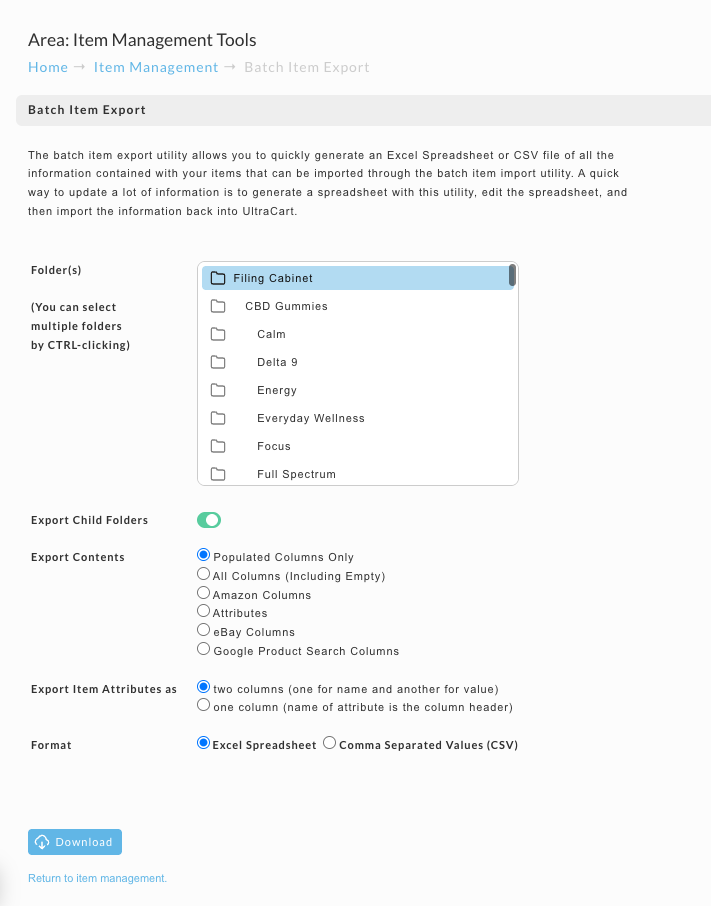
Choosing what to export
Folders
The folder list shows every folder in your catalog. Select the ones holding the items you want. To select more than one, hold Ctrl while clicking.
Turn on Export Child Folders to include everything nested beneath the folders you picked. With it off, only items filed directly in those folders are exported.
Export Contents
This decides which columns appear in the file, and it is worth choosing deliberately, because the widest option produces a spreadsheet that is awkward to work in.
| Option | What you get |
|---|---|
| Populated Columns Only | Only columns where at least one item has a value. The usual choice, and the easiest to read |
| All Columns (Including Empty) | Every available column, including ones nothing uses. Pick this when you need to fill in a field no item currently has |
| Amazon Columns | The fields used for Amazon listings |
| Attributes | Item attributes |
| eBay Columns | The fields used for eBay listings |
| Google Product Search | The fields used for Google product listings |
Export Item Attributes as
Controls the shape attributes take in the file:
- Two columns, one for the attribute name and one for its value. Better when items have differing attributes.
- One column, with the attribute name as the column header. Better when every item shares the same attributes, because each attribute gets its own tidy column.
Format
Choose Excel Spreadsheet or Comma Separated Values (CSV). If the Excel file will not open in your version of Excel, export CSV instead.
Downloading
Click Download. Your browser saves the file or asks where to put it, depending on its settings.
Open the file in a spreadsheet, make your changes, and save it. Keep the column headers exactly as exported, because Batch Item Import matches columns by header.
Related Documentation
- Batch Item Import - bring the edited file back in
- Item Tools - the full set of bulk tools
- Configuring TaxJar - bulk-set item tax codes with the
TaxJar CodeandTaxJar Descriptionfields