Batch Item Updates
Batch Item Updates changes a field across every item matching a search. Find all items priced at $20.00 and move them to $25.00, for example, without touching anything else.
Reach for it when the change is narrow and the selection is a rule. When you need to edit many fields at once, Batch Item Export and re-import is the better route.
Opening the tool
Main Menu → Items → Tools → Batch Item Updates
Step 1: Filter items for update
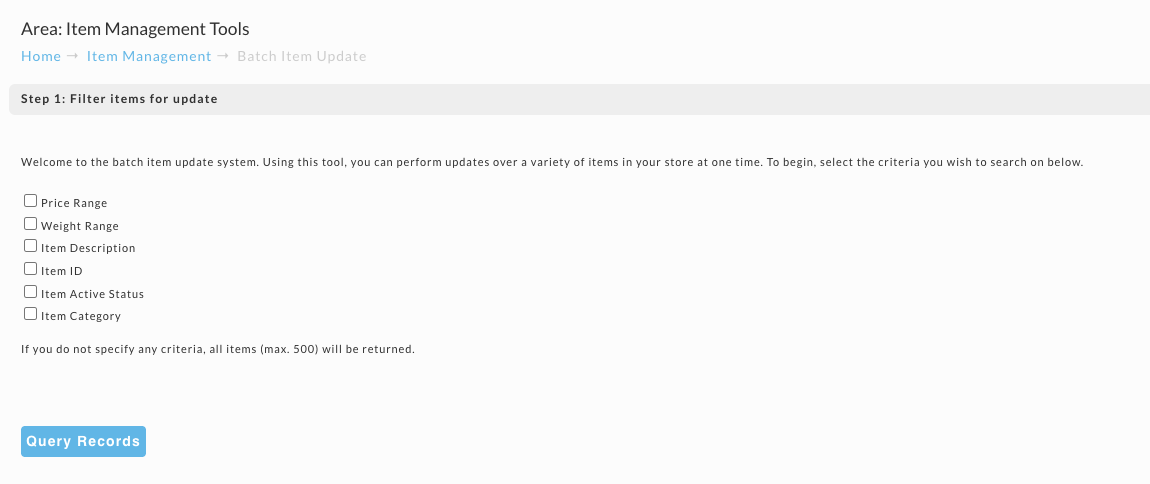
Tick the criteria you want to search on, then fill in the fields that appear:
- Price Range
- Weight Range
- Item Description
- Item ID
- Item Active Status
- Item Category
Click Query Records to see the matches.
Leaving every box unticked returns all items, capped at 500. If your catalog is larger than that, the results are truncated rather than complete, so narrow the search instead of relying on the cap.
Searching for items
The first screen that appears provides a method for you to search for your item(s). You can perform a search in the following fields: price range, weight range, item description, item ID, item active status and/or item category. You can search by a single field or several of the search fields.
Clicking in the box to the left of an item will expand that field to allow you to enter your search criteria. The following explains each search field.
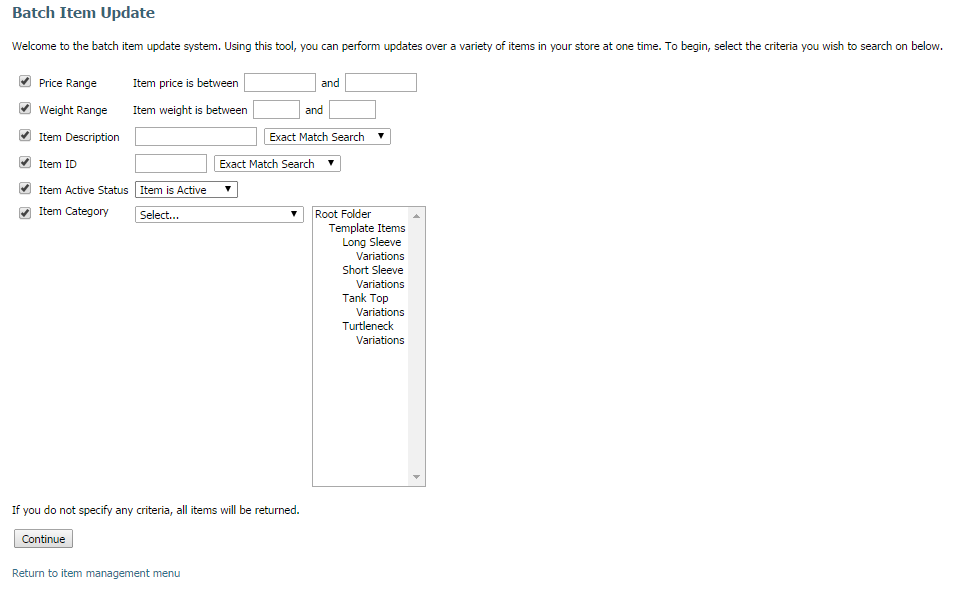
Once you have entered all your search criteria, click on the "Continue" button to perform the search.
If you do not enter any search criteria, all of your store items will appear in the results screen. This is probably not the results you desire so be certain to accurately enter your search criteria.
Search Results
Your search results will appear in the Batch Item Update screen. In the example below, we wanted to find our store items with a weight of 2.00 lbs. Our search criteria were entered in the "Weight Range" field as between "2 and 2".
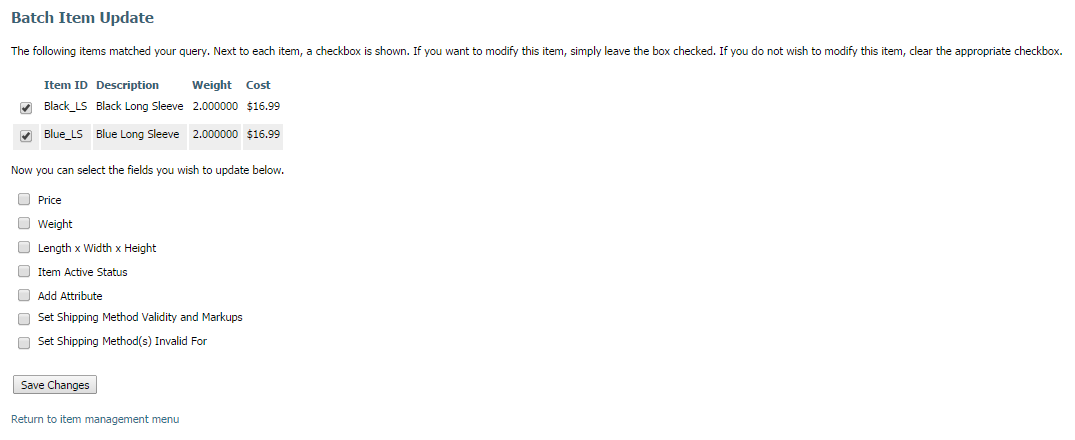
In our example only 2 items were found (as expected). Using the Batch Item Update process would typically be used for updating far more items.
At this point you need to click on the check box to the left of the items you want to update.
Selecting Update Fields
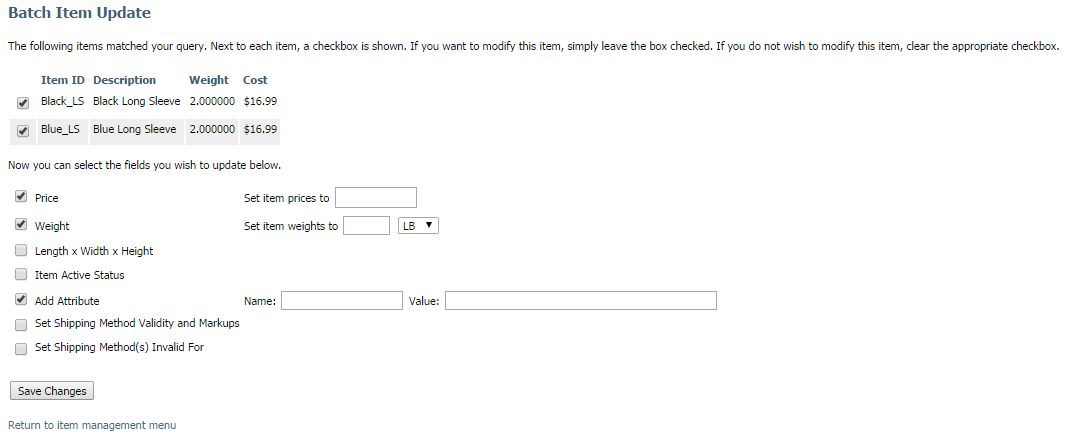
Once you have selected and entered your update information, click on the "Save Changes" button. You will be given a confirmation screen stating that "Your items have been updated."
Setting Destination Restrictions
You can apply shipping destination restrictions to every selected item at once. Check the "Set Destination Restrictions" box to reveal the restriction fields.
Complete the fields:
-
Restriction type: Choose how the restriction behaves.
- These items CAN NOT ship to the destinations below blocks the destinations you select.
- These items CAN ONLY ship to the destinations below limits the items to the destinations you select and blocks everywhere else.
-
Countries: Start typing a country name and select it from the list. You can add more than one country.
-
States / Provinces: This field activates when you have exactly one country selected and that country has known states or provinces (for example the United States, Canada, Australia, or the United Kingdom). Leave it blank to restrict the entire country.
Saving replaces all existing destination restrictions on every selected item with the restriction you configure here. Any restrictions those items already had are removed. This action cannot be undone.
Click the "Save Changes" button to apply the restriction to all selected items.