Batch Option Update
Batch Option Update changes an option value everywhere it appears, instead of item by item. Use it when a value needs adding to every product that carries an option, or when a value has been renamed or discontinued.
It updates both store-wide item options and item-level options in one pass.
Changes apply across the whole account and cannot be undone. There is no preview of what will be affected, so check the option name and value before you save.
Opening the tool
Main Menu → Items → Tools → Batch Option Update
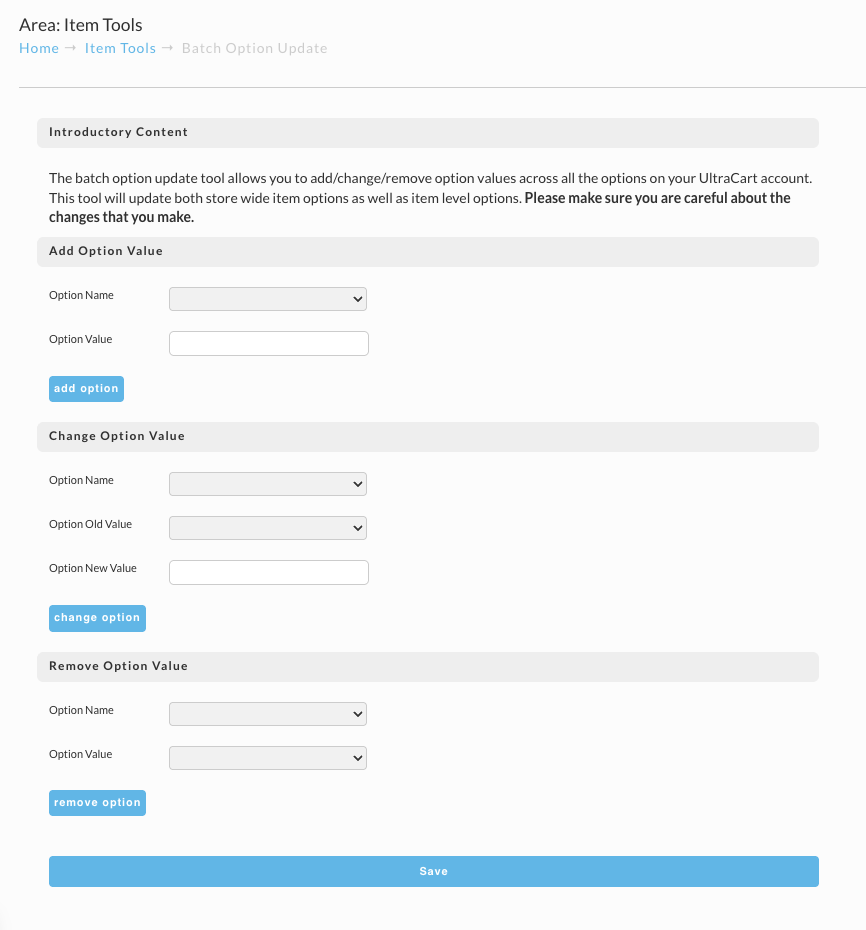
The screen has three independent sections. Fill in the one that matches what you need, then save.
Adding an option value
Adds a new value to an existing option. A new size on a garment option, for example.
- Under Add Option Value, pick the Option Name from the list.
- Type the new Option Value.
- Click add option.
Changing an option value
Renames an existing value in place, so items already using it follow the new name.
- Under Change Option Value, pick the Option Name.
- Pick the Option Old Value you want to replace.
- Type the Option New Value.
- Click change option.
Renaming is the right tool when a value is simply labelled wrong. Removing the old value and adding a new one instead would detach the items already using it.
Removing an option value
Takes a value out of an option entirely.
- Under Remove Option Value, pick the Option Name.
- Pick the Option Value to remove.
- Click remove option.
Saving
Each section's button stages its change. Click Save at the bottom to apply everything you have staged.
Related Documentation
- Batch Item Updates - change fields on a filtered set of items
- Item Tools - the full set of bulk tools